Provider Category
Cloud Accounts
Accounts
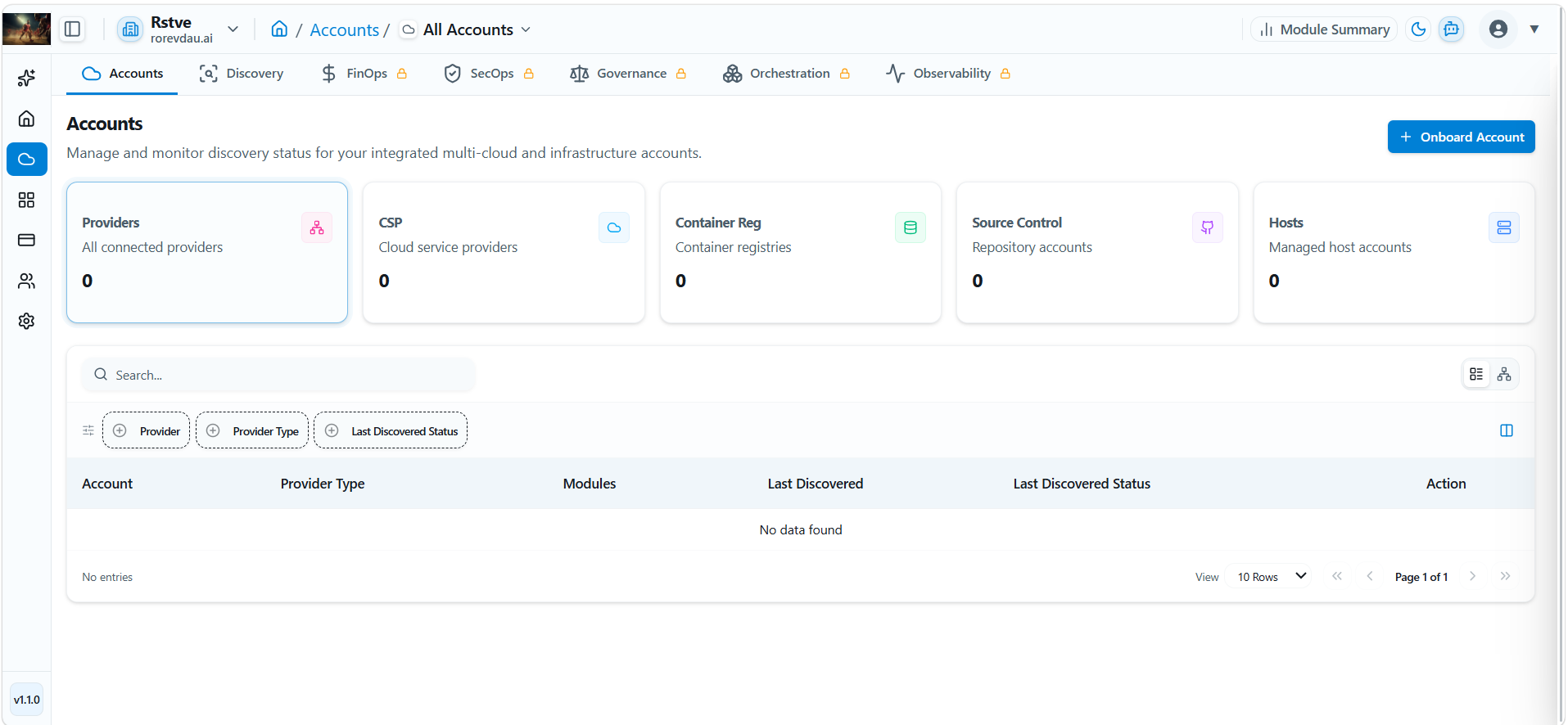
The Accounts page provides a centralized view of all integrated cloud, infrastructure, source control, and platform accounts connected to the enterprise. Administrators can use this page to onboard new accounts, monitor discovery status, track enabled modules, and manage multi-cloud environments from a single location.
Overview
The Accounts page helps organizations:
- Manage onboarded cloud accounts.
- Monitor account discovery status.
- View enabled modules for each account.
- Track cloud provider integrations.
- Initiate account discovery and synchronization.
- Maintain visibility across multi-cloud environments.
Summary Cards
At the top of the page, summary cards provide a quick overview of connected account types.
Accounts
Displays the total number of onboarded accounts connected to the enterprise.
- AWS Accounts
- Azure Subscriptions
- GitHub Organizations
- Other supported integrations
CSP
Displays the number of connected Cloud Service Providers (CSPs).
- Amazon Web Services (AWS)
- Microsoft Azure
Container Registry
Displays the number of integrated container registry accounts.
- Docker Hub
Source Control
Displays the number of connected source code repository providers.
- GitHub
Hosts
Displays the number of onboarded host systems managed by the platform.
- Ubuntu Servers
Onboard Account
The Onboard Account button allows administrators to connect new accounts to the platform.
To onboard an account:
- Click Onboard Account.
- Select the provider type.
- Enter the required connection details.
- Configure permissions and discovery settings.
- Complete the onboarding process.
After onboarding, the account becomes available for discovery and module analysis.
Account Inventory
The Accounts table displays all onboarded accounts and their current operational status.
Available Columns
| Column | Description |
|---|---|
| Account | Connected account name and identifier |
| Provider Type | Type of connected provider |
| Modules | Enabled modules for the account |
| Last Discovered | Date of the most recent discovery scan |
| Last Discovered Status | Discovery result status |
| Action | Available account actions |
Account Information
The Account column displays:
- Account Name
- Provider Account ID
- Subscription ID
- Repository Name
This allows administrators to quickly identify connected resources.
Provider Type
The Provider Type column identifies the account category.
Cloud Provider
Used for:
- AWS Accounts
- Azure Subscriptions
Source Control
Used for:
- GitHub Repositories
- GitHub Organizations
- GitLab Projects
Container Registry
Used for:
- Container Image Registries
- Artifact Repositories
Enabled Modules
The Modules column displays which platform modules are enabled for each account.
Supported modules may include:
| Module | Description |
|---|---|
| Discovery | Asset discovery and inventory collection |
| FinOps | Cost visibility and optimization |
| SecOps | Security and risk monitoring |
| Governance | Compliance and policy management |
| Orchestration | Infrastructure automation |
| Observability | Monitoring and operational insights |
Enabled modules appear as active indicators for the selected account.
Discovery Status
The platform continuously performs discovery scans to collect resource metadata and inventory information.
Last Discovered
The Last Discovered column displays the date of the most recent successful discovery operation.
This information helps administrators verify:
- Data freshness
- Synchronization status
- Resource inventory accuracy
Last Discovered Status
Displays the result of the most recent discovery execution.
Success
Indicates that resource discovery completed successfully.
Failed
Indicates that the discovery process encountered an error and requires investigation.
In Progress
Indicates that discovery is currently running.
Pending
Indicates that discovery has been scheduled but has not yet started.
Search Accounts
Use the Search field to find accounts quickly.
Search can be performed using:
- Account Name
- Account ID
- Subscription ID
- Repository Name
Filter Accounts
Administrators can narrow account results using available filters.
Provider
Filter accounts by provider.
- AWS
- Azure
- GitHub
Provider Type
Filter accounts by account category.
- Cloud Provider
- Source Control
- Container Registry
- Host
Last Discovered Status
Filter accounts using discovery status.
- Success
- Failed
- Pending
- In Progress
Account Actions
The Action column provides account-level operations.
Depending on permissions and configuration, administrators may:
- View account details.
- Trigger discovery scans.
- Review account configuration.
- Access module-specific information.
- Monitor synchronization activity.
Export Data
Administrators can export account inventory information for reporting and auditing purposes.
Supported export formats include:
- CSV
- Excel
Exports can be used for operational reviews, compliance audits, and asset management reporting.
Pagination
For environments containing multiple accounts, pagination controls are available.
Features include:
- Configurable rows per page.
- Page navigation controls.
- Record count display.
- First, Previous, Next, and Last page navigation.
The application currently supports the following cloud accounts:
| Supported Cloud Providers |
|---|
| AWS |
| Azure |
| Supported Integrations |
|---|
| GitHub |
| Docker Hub |
| Docker |
| Supported Hosts |
|---|
| Ubuntu |
For the resource types discovered for each provider, which MCM modules apply, and what is coming soon (for example GCP and on-premises platforms), see Supported Platforms.
6.1 Initial Setup — Onboard Cloud Account
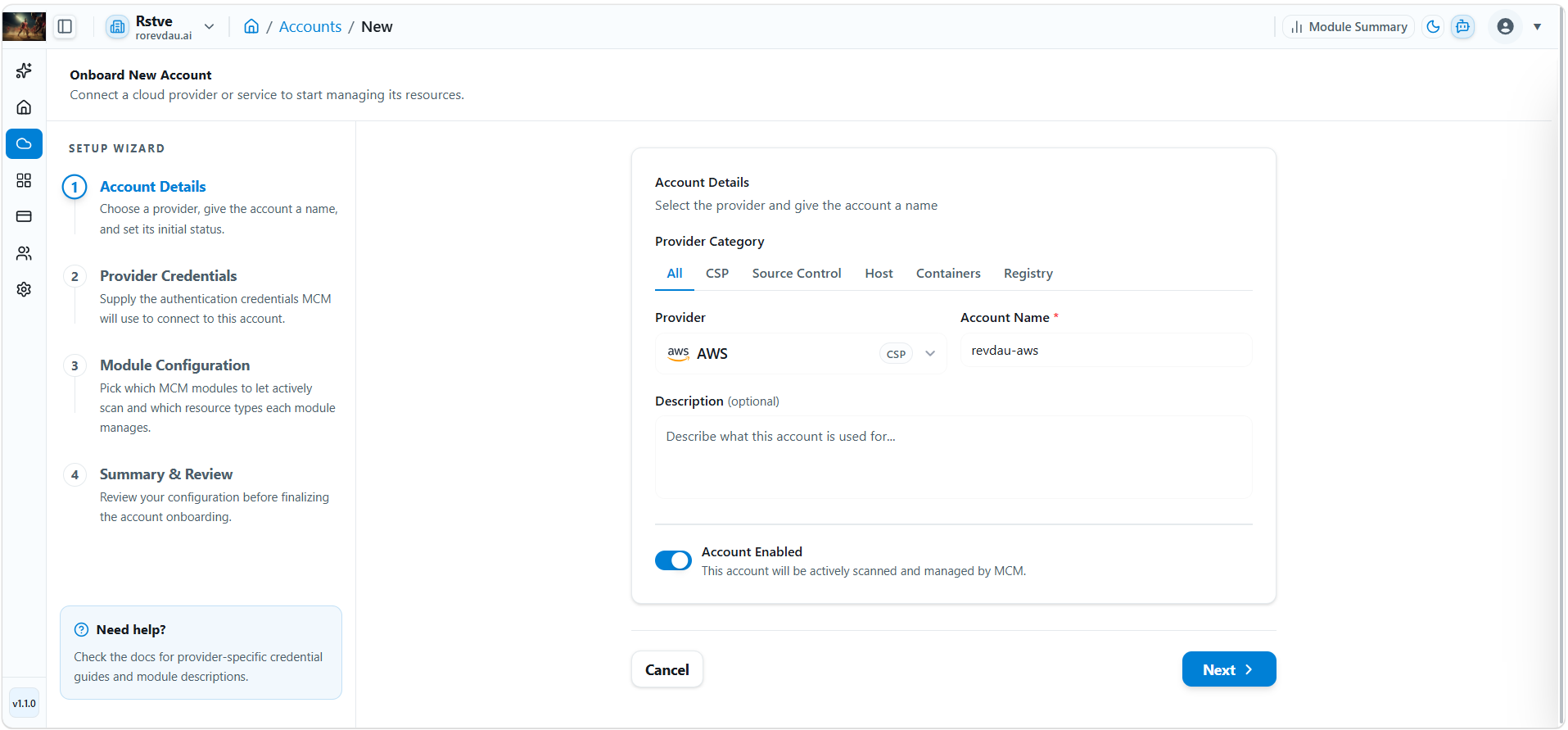
Step 1 — Account Details
Step 1 Click Onboard Account.
Step 2 Select Provider Category from the list.
Step 3 Enter Account Name.
Step 4 Write Description (Optional).
Step 5 Toggle Account status: Active or Inactive.
Step 6 Click Next.
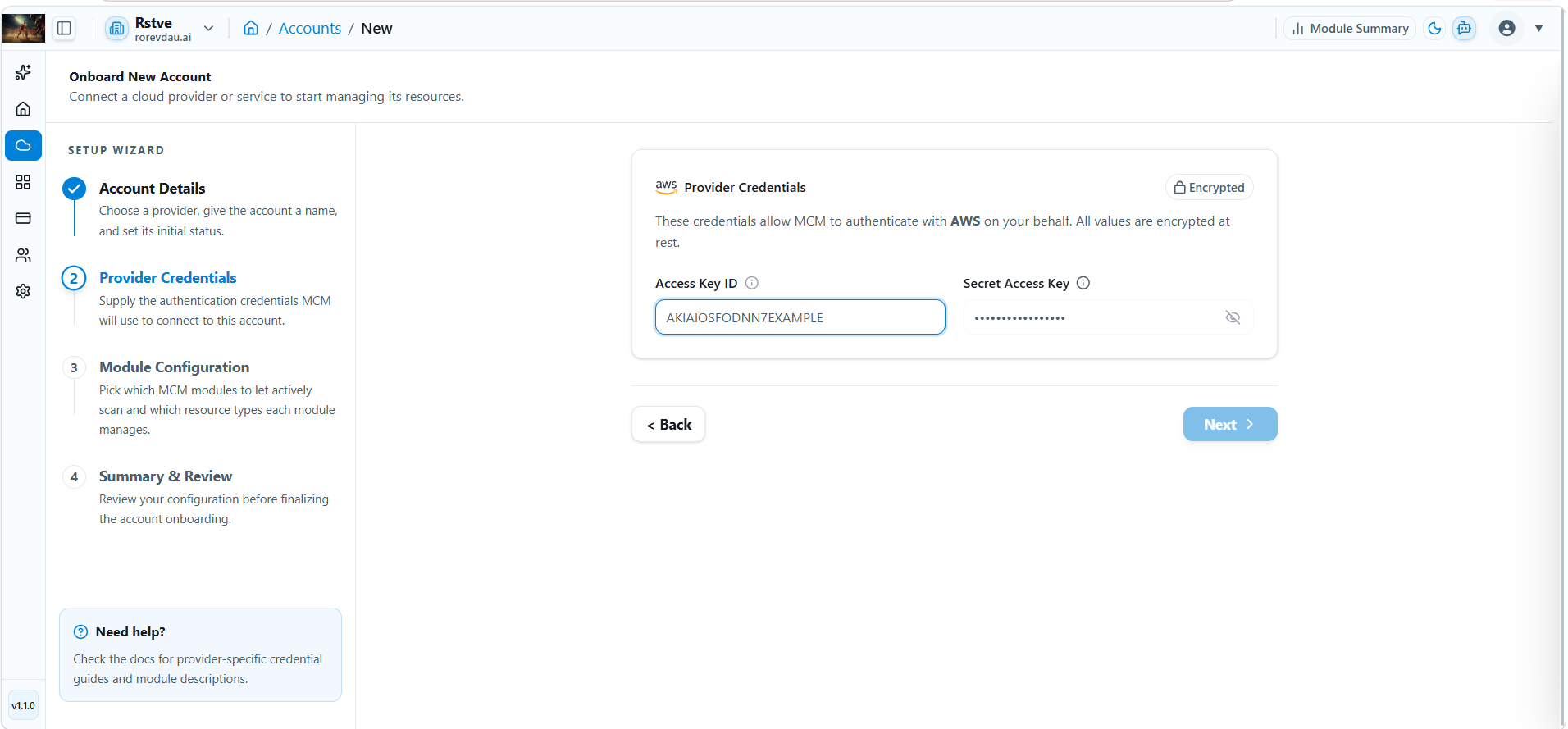
Step 2 — Provider Credentials (AWS Example)
Step 1 Enter Access Key ID.
Step 2 Enter Secret Access Key.
Step 3 Click Next.
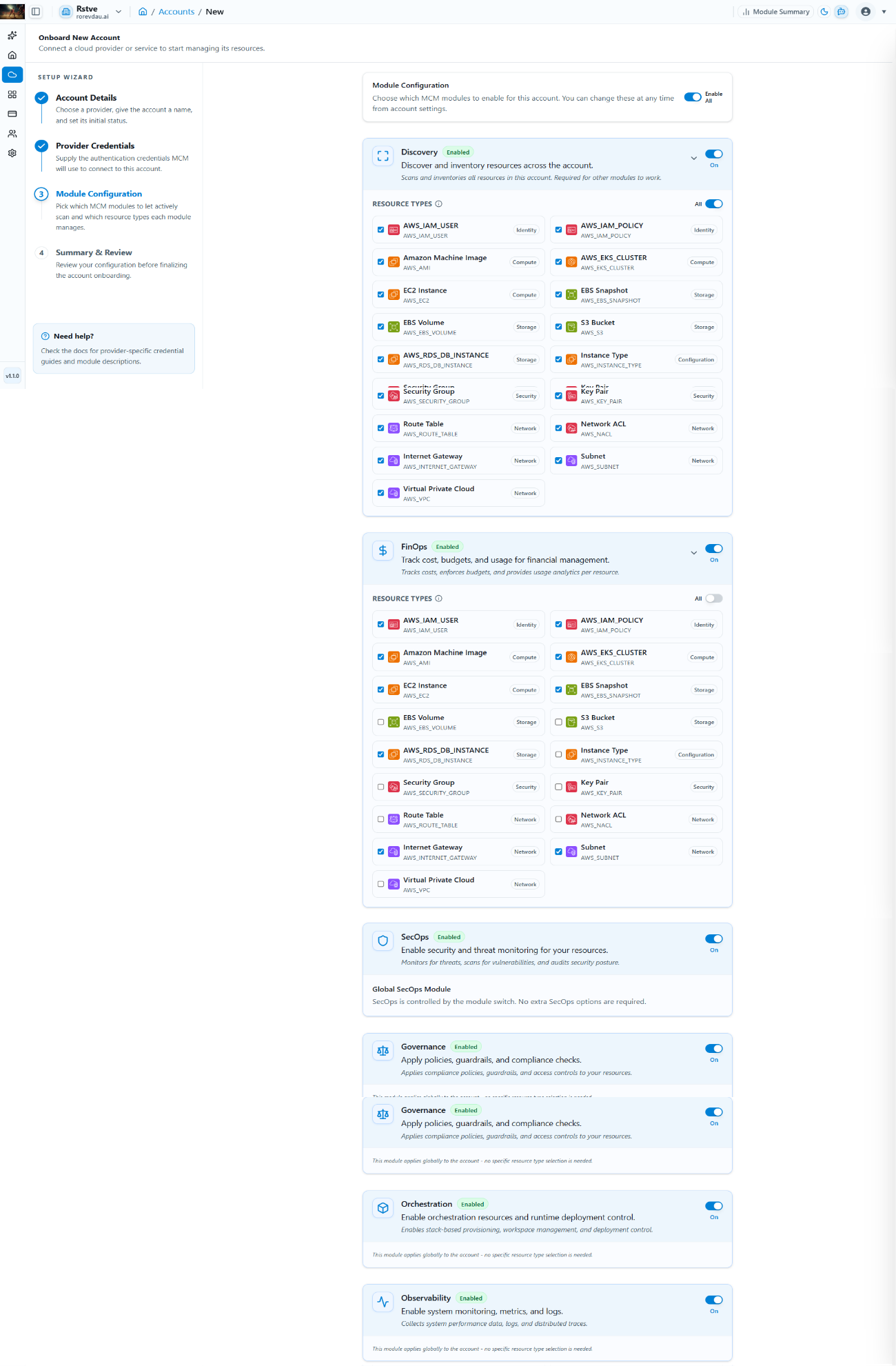
Step 3 — Module Configuration
Step 1 Select modules as per your requirements. Enable all once using the first toggle, or add them individually.
Step 2 Click Next.
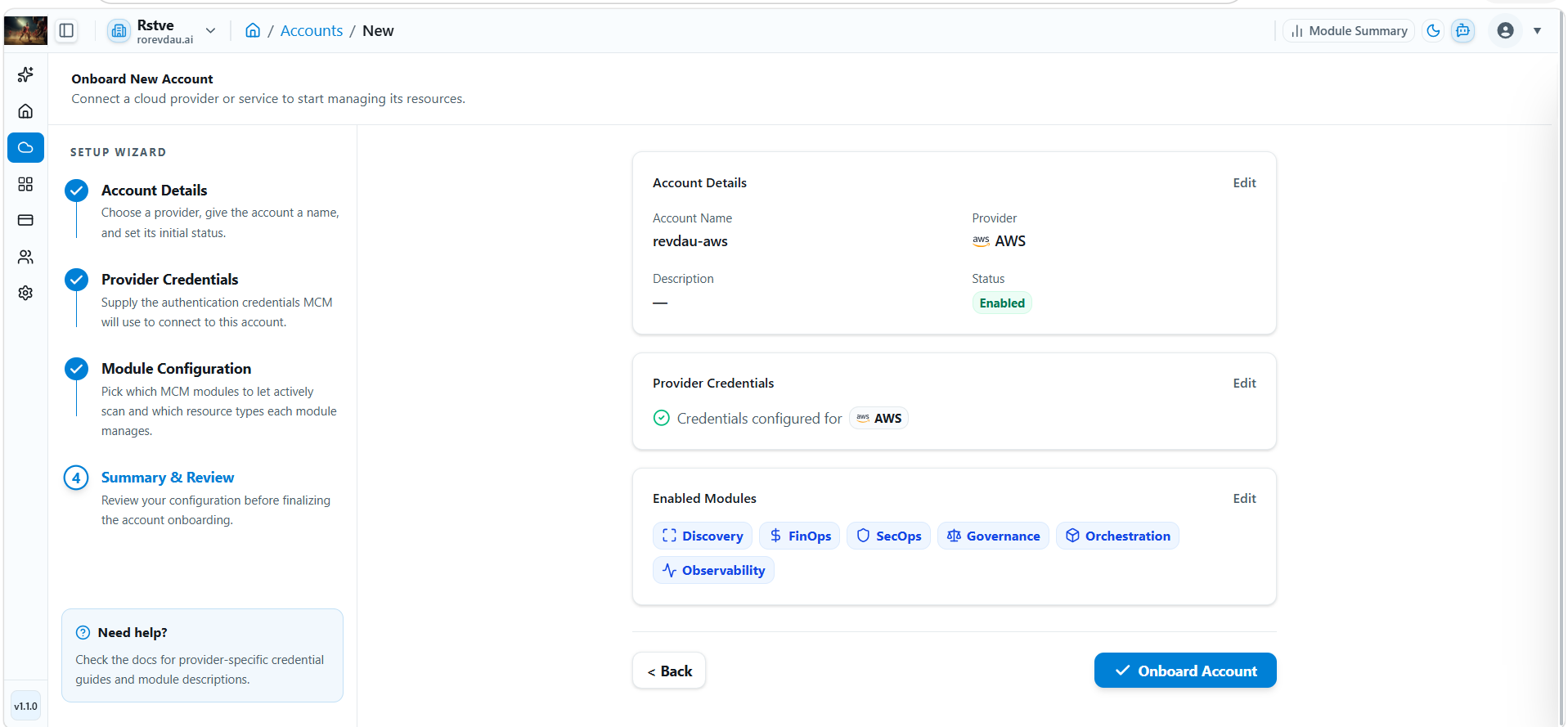
Step 4 — Summary & Review
Review all configuration details. Click Edit to make changes, or click Onboard to complete setup. The new cloud account will appear in the Accounts table.