
Domain and TLS Certificate Configuration
Configure custom domains and replace self-signed SSL/TLS certificates with CA-signed or Let's Encrypt certificates for the MCM Platform.
Domain & TLS Certificate Configuration
The MCM Platform supports configuring custom domain names (FQDN) and securing network ingress with valid SSL/TLS certificates. Administrators can manage Domain & TLS settings through the MSP Console UI or via CLI commands.
Method 1: UI-Based Domain & TLS Configuration (Recommended)
MSP Administrators can configure domain and TLS certificate settings directly from the Web Console:
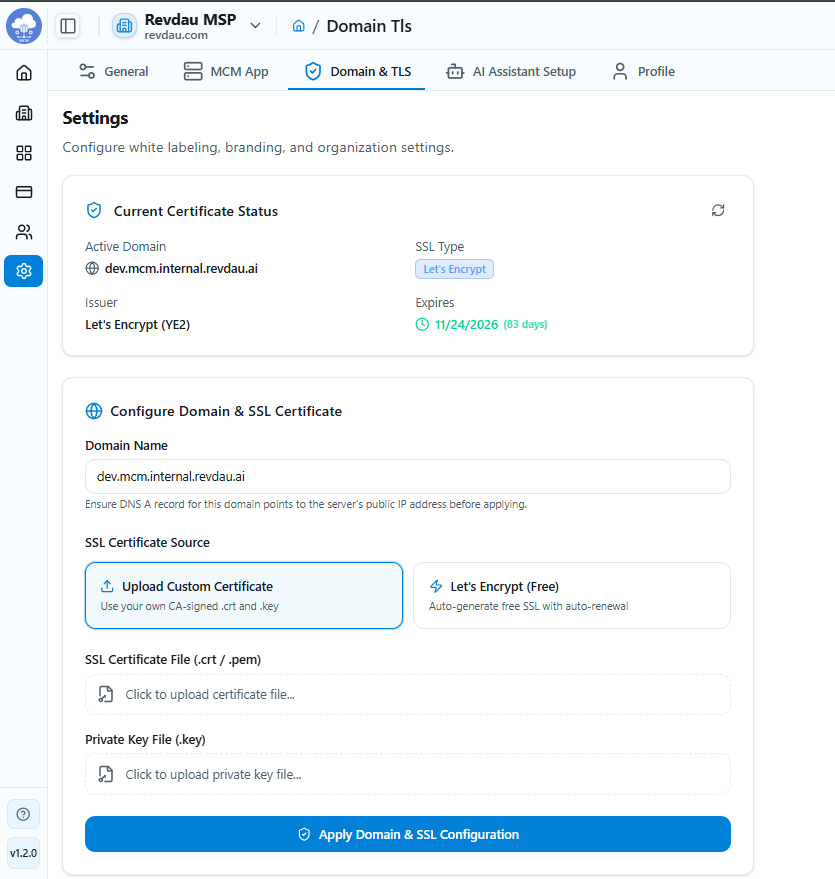
Steps to Update Domain & SSL Certificate:
- Navigate to Settings: Log in to the MCM Web Console as an MSP Administrator and go to Settings > Domain & TLS.
- Enter Domain Name: In the Domain Name field, enter your target FQDN (e.g.,
mcm.yourdomain.com).Note: Ensure a DNS A record for this domain points to the server's public IP address before applying.
- Select SSL Certificate Source:
- Upload Custom Certificate: Select this option and upload your SSL Certificate file (
.crt/.pem) and Private Key file (.key). - Let's Encrypt (Free): Select this option and enter your Notification Email Address for expiration alerts.
- Upload Custom Certificate: Select this option and upload your SSL Certificate file (
- Apply Configuration: Click Apply Domain & SSL Configuration.
- Confirm Update: In the confirmation modal, click Proceed with SSL Update.
Warning: Expect ~3 to 5 minutes of temporary maintenance downtime while network gateway services reload.
- Monitor Progress: Wait for the background process to complete (
VALIDATING->WRITING_CERTS/ISSUING_LETSENCRYPT->RELOADING_GATEWAY->COMPLETED).
Method 2: CLI-Based Configuration (Advanced / Automated Scripting)
For automated server provisioning or headless environments, system administrators can configure domain and TLS certificates via the host server command line.
1. Configure Custom Domain
- Open
/etc/mcm/user_config.envand update theDOMAINvariable:sudo sed -i 's/DOMAIN=/DOMAIN=mcm.example.com/' /etc/mcm/user_config.env - Restart platform services:
sudo bash /opt/mcm/scripts/restart.sh
2. Replace Self-Signed Certificates with Custom CA-Signed Certificates
- Copy your CA-signed certificate and private key to the system certificate directory:
sudo cp your_certificate.crt /etc/mcm/certs/server.crt sudo cp your_private_key.key /etc/mcm/certs/server.key - Disable automatic self-signed certificate generation in
/etc/mcm/user_config.env:sudo sed -i 's/GENERATE_SELF_SIGN_CERTS=true/GENERATE_SELF_SIGN_CERTS=false/' /etc/mcm/user_config.env - Restart the MCM platform to reload the gateway with the new certificate:
sudo bash /opt/mcm/scripts/restart.sh