
Domain and TLS Certificate Configuration
Configure custom domains and replace self-signed SSL/TLS certificates with CA-signed or Let's Encrypt certificates for the MCM Platform.
Domain & TLS Certificate Configuration
The MCM Platform supports configuring custom domain names (FQDN) and securing network ingress with valid SSL/TLS certificates. Administrators can manage Domain & TLS settings through the MCM Console or with the mcm command-line tool.
Method 1: UI-Based Domain & TLS Configuration (Recommended)
MSP administrators can configure domain and TLS certificate settings directly from the Web Console:
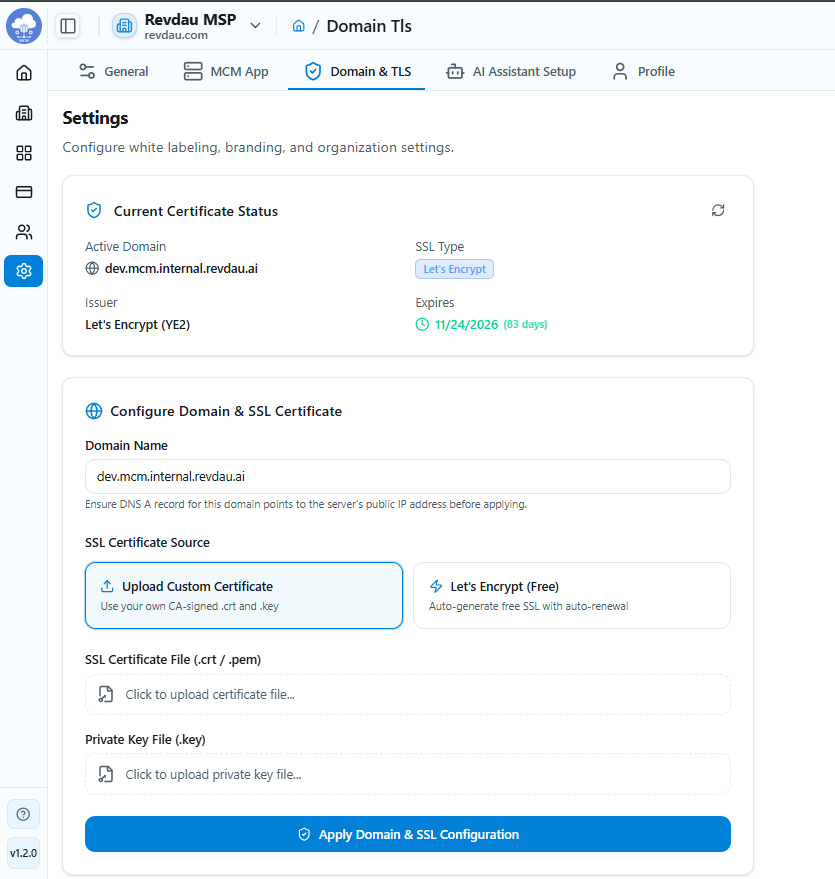
Steps to Update Domain & SSL Certificate:
- Navigate to Settings: Log in to the MCM Web Console as an MSP Owner or MSP Admin and go to Settings > Domain & TLS.
- Enter Domain Name: In the Domain Name field, enter your target FQDN (e.g.,
mcm.yourdomain.com).Note: Ensure a DNS A record for this domain points to the server's public IP address before applying.
- Select SSL Certificate Source:
- Upload Custom Certificate: Select this option and upload your SSL Certificate file (
.crt/.pem) and Private Key file (.key). - Let's Encrypt (Free): Select this option and enter your Notification Email Address for expiration alerts.
- Upload Custom Certificate: Select this option and upload your SSL Certificate file (
- Apply Configuration: Click Apply Domain & SSL Configuration.
- Confirm Update: In the confirmation modal, click Proceed with SSL Update.
Warning: Expect ~3 to 5 minutes of temporary maintenance downtime while network gateway services reload.
- Monitor Progress: Wait for the background process to complete (
VALIDATING->WRITING_CERTS/ISSUING_LETSENCRYPT->RELOADING_GATEWAY->COMPLETED).
Method 2: CLI-Based Configuration (Advanced / Automated Scripting)
For automated server provisioning or headless environments, system administrators can configure the domain and TLS certificate from the host server command line with the mcm tool. It performs the same steps as the UI — validation, certificate installation and a live gateway reload — and keeps your domain and certificates in place across upgrades.
Run these commands on the server (on VM1, the Access Node, for a 3-Tier deployment). Before you start, make sure a DNS A record for your domain points to the server's public IP address.
1. Configure a Domain with Your Own CA-Signed Certificate
sudo mcm tls configure \
  --domain=mcm.example.com \
  --cert-type=custom \
  --cert-file=/path/to/your_certificate.crt \
  --key-file=/path/to/your_private_key.key
The certificate must be a PEM file that is valid for the domain you enter; the command rejects a certificate issued for a different name.
2. Configure a Domain with Let's Encrypt
sudo mcm tls configure \
  --domain=mcm.example.com \
  --cert-type=letsencrypt \
  --email=admin@example.com
Port 80 must be reachable from the internet and the domain must resolve to this server, so that Let's Encrypt can validate it.
3. Check the Current Domain and Certificate
mcm tls statusThis shows the active domain, the certificate issuer and expiry date, and the progress of any TLS change that is currently running.
No manual file editing or restart needed
In v1.2 the CLI method meant editing user_config.env, copying certificate
files and running a restart script. In MCM 2.0 mcm tls configure does all of
this for you and reloads the gateway without a full platform restart, so the
GENERATE_SELF_SIGN_CERTS setting and restart.sh are no longer part of the
process.
Default Certificate
Until you configure a domain, MCM serves HTTPS with an automatically generated self-signed certificate for the server's IP address, so browsers show a certificate warning. Configure a domain and certificate using either method above to remove the warning.
Upgrading from v1.2
MCM 2.0 is a clean-start release, so domain and certificate settings from a v1.2 installation are not carried over. Re-apply your domain and certificate on the new installation using either method above. Once configured, they are preserved across later 2.0 upgrades.