
Single VM Deployment Guide
Deployment guide for the MCM Platform on a Single VM — commands, requirements, and configurations.
MCM Platform — Single VM Deployment Guide
Get MCM up and running in under 30 minutes. This guide provides the essential commands, network requirements, and validation steps for deploying the platform on a Single VM.
1. Prerequisites & VM Specifications
Ensure your target virtual machine meets the following minimum specifications:
| Requirement | Specification |
|---|---|
| OS | Ubuntu Server 24.04 LTS |
| CPU | 8 CPU |
| RAM | 32 GB |
| Disk | 150 GB |
| Network | 1 Gbps |
| Access | Root SSH |
| Inbound Ports | 22 (SSH), 443 (HTTPS) |
Scaling for Production
The above specifications are the minimum requirements to deploy and run the MCM Platform. For production environments with larger workloads, refer to the VM Sizing Guide for recommended specifications based on your managed resource count.
2. Network & Connectivity Requirements
Deploying the MCM platform on a Single VM requires provisioning the underlying hosting server. The instance should be configured with the operating system and resources specified in Prerequisites & VM Specifications (Ubuntu 24.04 LTS, 8 CPU, 32 GB RAM, 150 GB Disk).
Infrastructure Setup: On-Premises
Provision a single physical host or local virtual machine meeting the resource specifications:
- OS: Clean installation of Ubuntu Server 24.04 LTS.
- Networking: Assign a static internal LAN IP (and map a public IP or configure a reverse proxy/VPN gateway if external access is required).
Mandatory Outbound Internet Egress
Regardless of whether the VM is deployed on-premises, in a public subnet, or in a private subnet (behind VPN/Load Balancers), the server must have outbound internet access (directly or via NAT Gateway / Egress Firewall):
- Installation & Updates: Required during setup to download Docker containers, APT system packages, and software dependencies.
- Cloud API Synchronization: Required continuously at runtime for MCM backend services to communicate with public cloud provider APIs (AWS, Azure) to sync inventory, cost metrics, and security policies.
3. Firewall & Security Rules
To secure the single-node deployment, only administrative SSH and web traffic (HTTP/HTTPS) should be allowed inbound. Since the platform utilizes Docker Swarm internally, all cluster management ports (2377, 7946, 4789) must remain blocked from external inbound access to prevent unauthorized cluster probes.
Security Rule Rationale
- Port 22 (TCP): Used for administrative SSH access to the host.
- Port 80 (TCP): Used for standard HTTP traffic. Port 80 automatically redirects incoming requests to secure HTTPS (port 443) so users do not experience connection errors if they access the site via
http://. - Port 443 (TCP): Used for the primary secure application gateway access.
- Ports 1514 & 1515 (TCP): Used internally by the Wazuh Security Agent for security event monitoring, log collection (port 1514), and agent registration/enrollment (port 1515) with the Wazuh Manager container (Required when the SecOps module is enabled).
- Port 9098 (TCP): Used by the MCM Upgrade Agent service for automated platform upgrades and version management.
Procedure: On-Premises Host-Level Firewall (UFW)
Run the UFW configuration commands on your Single VM:
# 1. Set default policies
sudo ufw default deny incoming
sudo ufw default allow outgoing

# 2. Allow SSH, Web traffic, and Upgrade Agent
sudo ufw allow 22/tcp comment "SSH Administrative Access"
sudo ufw allow 80/tcp comment "HTTP Gateway Redirection"
sudo ufw allow 443/tcp comment "HTTPS Ingress Gateway"
sudo ufw allow 9098/tcp comment "MCM Upgrade Agent Service"

# 3. Allow SecOps Wazuh Agent ports (Optional - Required if SecOps module is enabled)
sudo ufw allow 1514/tcp comment "Wazuh Agent Log Collection (SecOps module)"
sudo ufw allow 1515/tcp comment "Wazuh Agent Enrollment (SecOps module)"

# 4. Enable the firewall
sudo ufw enable
Outbound Connection Requirements
The MCM platform requires outbound HTTPS (port 443) connectivity to the following main domains:
IMPORTANT: Mandatory Egress Whitelisting for Private Infrastructure
If your infrastructure is provisioned inside a private subnet, air-gapped network, or operates behind a corporate egress firewall / forward proxy (e.g. Palo Alto, Fortinet, AWS NAT Gateway, Azure Firewall, Squid), you MUST whitelist all 21 domains, ports, and protocols listed below.
- Installation Impact: Failure to whitelist will cause
apt-getdependency installations, Docker container image pulls, or installer package downloads to hang or fail. - Runtime Impact: The MCM platform persistently connects to AWS/Azure APIs, Microsoft Graph/Entra ID, NTP time servers, currency feeds (FinOps), and security threat intelligence feeds (SecOps Wazuh & Elastic).
- Wildcard Configuration: Where indicated, configure domain wildcard rules (e.g.,
*.amazonaws.com,*.azure.com,*.revdau.ai,*.ubuntu.com) in your egress firewall to avoid dropped connections to regional or dynamic endpoints.
| # | Domain / Destination | Ports | Protocol | Phase | Purpose |
|---|---|---|---|---|---|
| 1 | *.amazonaws.com | 443 | HTTPS | Runtime | AWS Cloud management, STS & cost telemetry APIs |
| 2 | *.api.aws | 443 | HTTPS | Runtime | Modern AWS service API endpoints |
| 3 | *.windows.net | 443 | HTTPS | Runtime | Azure Cloud management, blob storage & resource sync |
| 4 | *.azure.com | 443 | HTTPS | Runtime | Azure Resource Manager (ARM) APIs & cost reporting |
| 5 | login.microsoftonline.com | 443 | HTTPS | Runtime | Microsoft Entra ID (Azure AD) OAuth authentication |
| 6 | graph.microsoft.com | 443 | HTTPS | Runtime | Microsoft Graph API for tenant discovery & identity management |
| 7 | *.docker.io | 443 | HTTPS | Installation / Runtime | Docker Hub container registry & image layers |
| 8 | *.docker.com | 443 | HTTPS | Installation / Runtime | Docker Engine package repository & authentication |
| 9 | *.elastic.co | 443 | HTTPS | Installation / Runtime | Elastic packages, integration assets & telemetry |
| 10 | *.wazuh.com | 443 | HTTPS | Runtime | Wazuh SIEM rulesets, CVE threat intelligence & agent updates |
| 11 | *.ubuntu.com | 80, 443 | HTTP/HTTPS | Installation / Runtime | Ubuntu system package updates (apt-get) |
| 12 | *.canonical.com | 80, 443 | HTTP/HTTPS | Installation / Runtime | Canonical security updates & kernel patches |
| 13 | *.github.com | 443 | HTTPS | Installation / Runtime | GitHub API integration & CLI binary downloads |
| 14 | *.githubusercontent.com | 443 | HTTPS | Installation | Raw GitHub assets, scripts & binary downloads |
| 15 | ghcr.io | 443 | HTTPS | Installation / Runtime | GitHub Container Registry for service images |
| 16 | registry.opentofu.org | 443 | HTTPS | Runtime | OpenTofu provider registry for IaC Orchestration |
| 17 | *.cloudflarestorage.com | 443 | HTTPS | Runtime | Cloudflare R2 storage for OpenTofu & container asset downloads |
| 18 | hub.steampipe.io | 443 | HTTPS | Runtime | Steampipe cloud discovery plugins & registry |
| 19 | *.digicert.com | 80, 443 | HTTP/HTTPS | Installation / Runtime | TLS certificate chain validation & CRL revocation checks |
| 20 | api.frankfurter.app | 443 | HTTPS | Runtime | Live currency exchange rates for FinOps multi-currency conversion |
| 21 | *.revdau.ai | 443 | HTTPS | Installation / Runtime | MCM Nexus portal (nexus.mcm.revdau.ai), license verification & artifact downloads |
| 22 | *.ntp.ubuntu.com | 123, 4460 | UDP/TCP | Runtime | Network Time Protocol (NTP) for server clock synchronization |
Understanding Connection Phases: * Installation: Outbound access required during initial platform deployment to download system packages, container images, and binary dependencies. * Runtime: Outbound access required continuously while the platform is running for cloud API synchronization, inventory discovery, cost metrics, and security threat intelligence feeds.
4. Installation Procedure
Step 1: Account Registration & Portal Access
Follow these steps on the MCM Nexus Portal to set up your account:
-
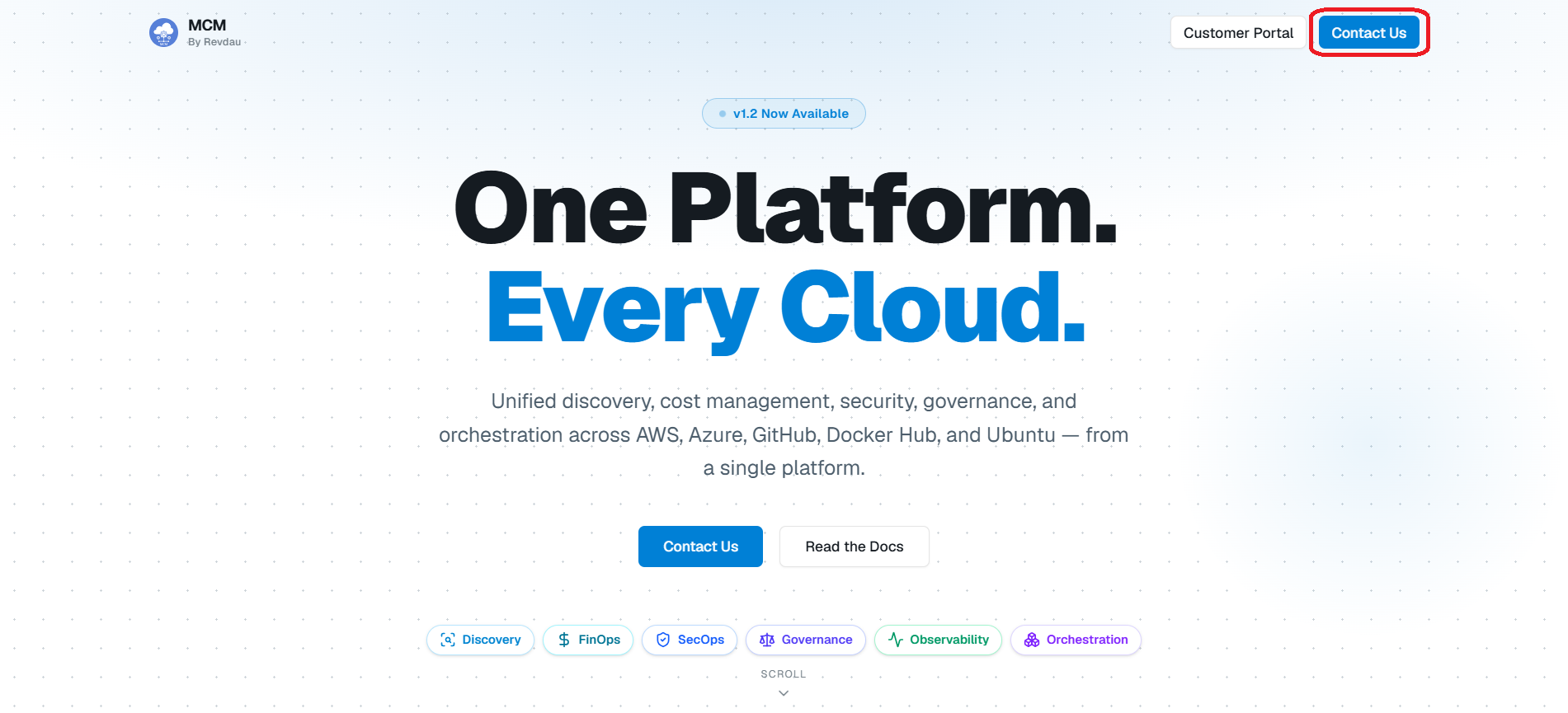
Visit MCM Portal Landing Page: Navigate to https://nexus.mcm.revdau.ai and click the Continue button.
-
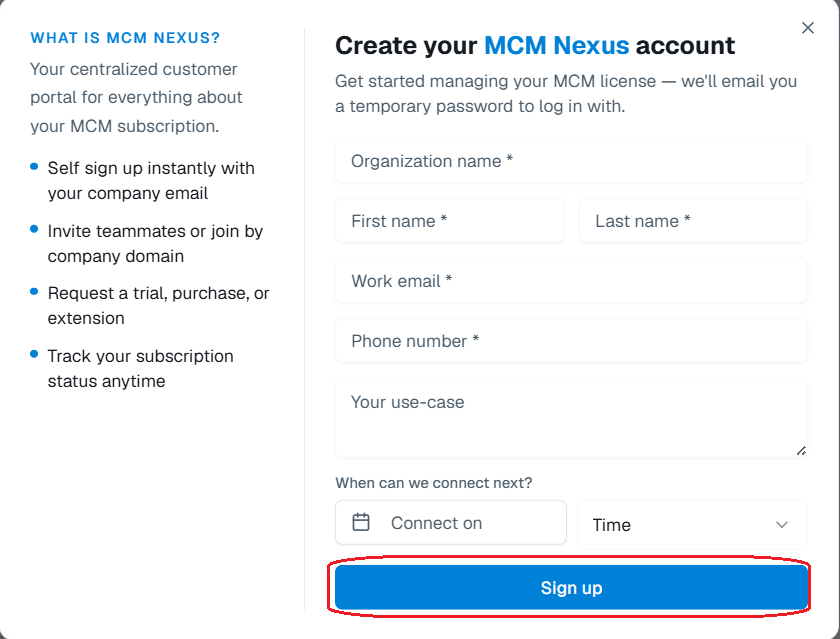
Complete the Sign-Up Form: Fill in your organizational and contact details in the registration form to create your account.
-
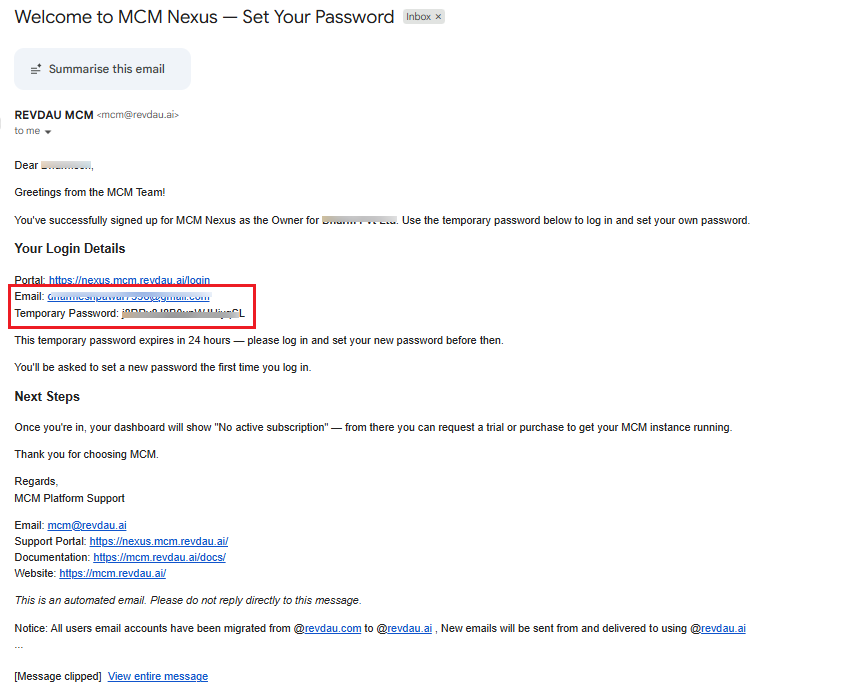
Receive Verification & Credentials Email: Check your inbox for the welcome email containing your initial credentials and verification details.
-
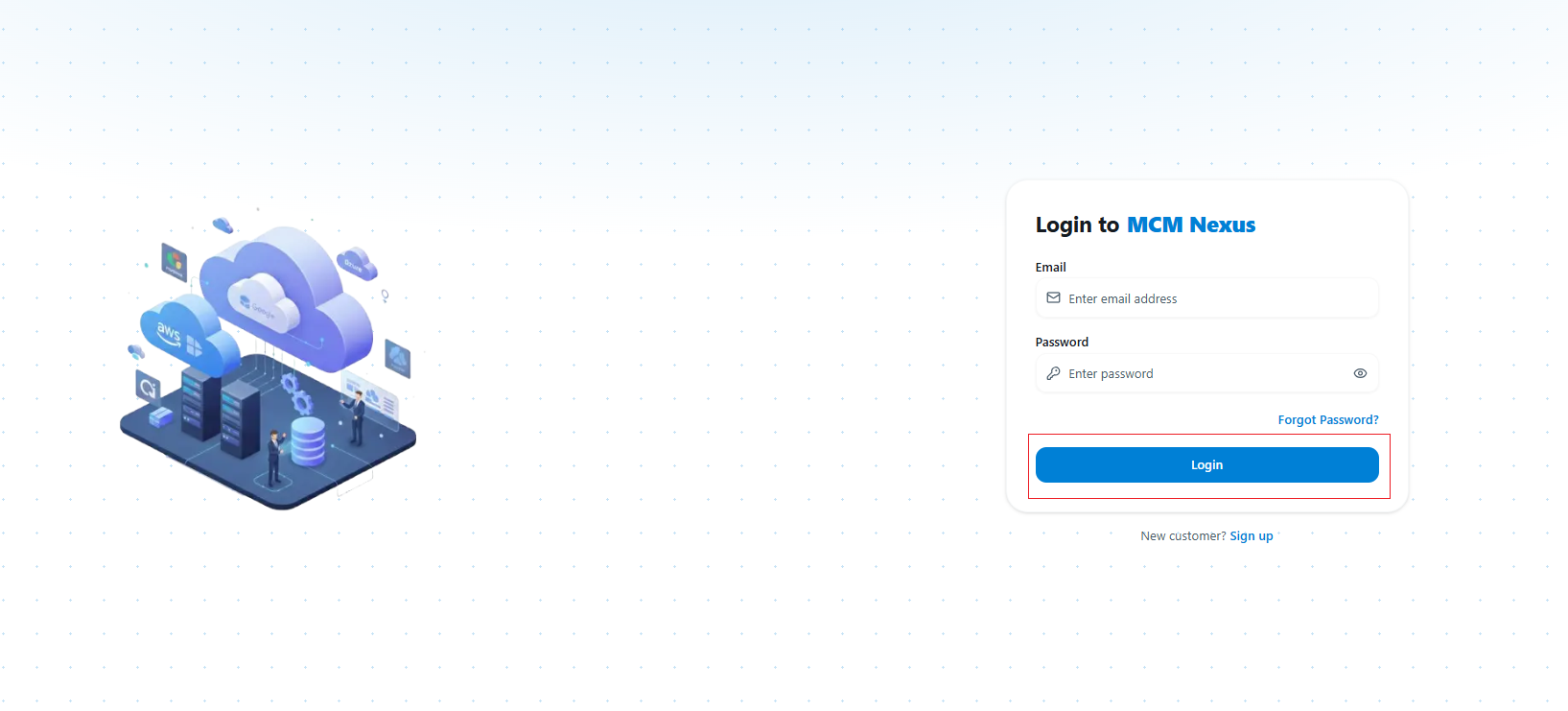
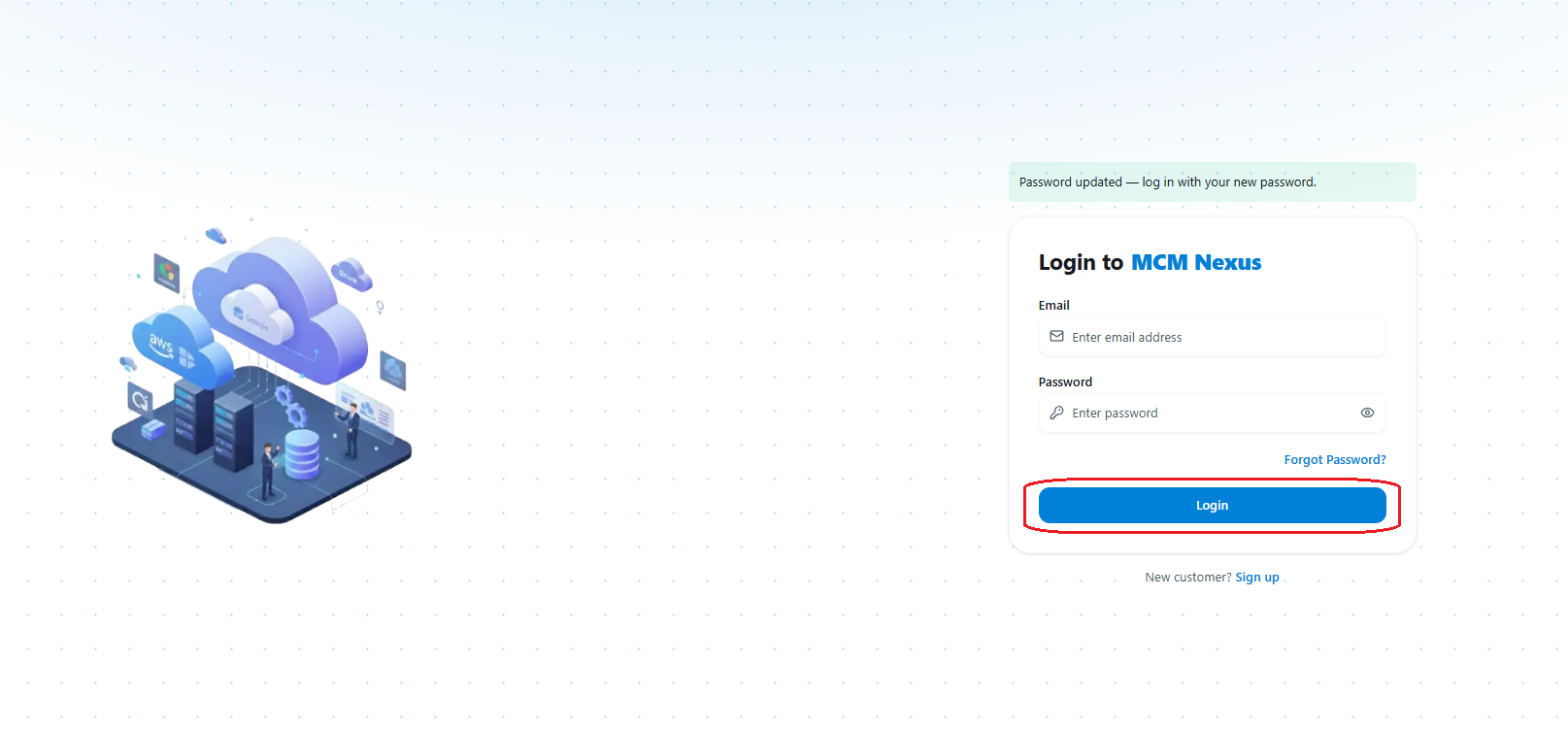
Sign In to MCM Portal: Go to the login screen and sign in using your registered email and temporary password.
-
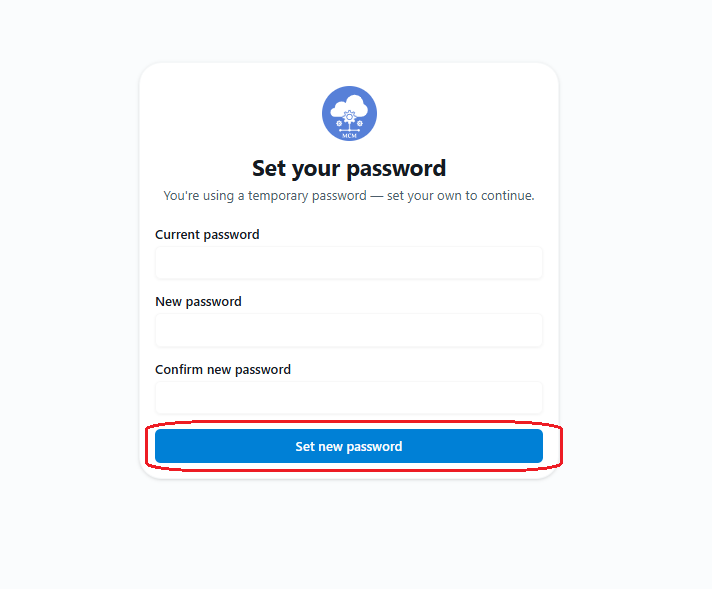
Set Your Account Password: On your first login, configure a secure password for your account.
Step 2: License Request & Approval Workflow
-
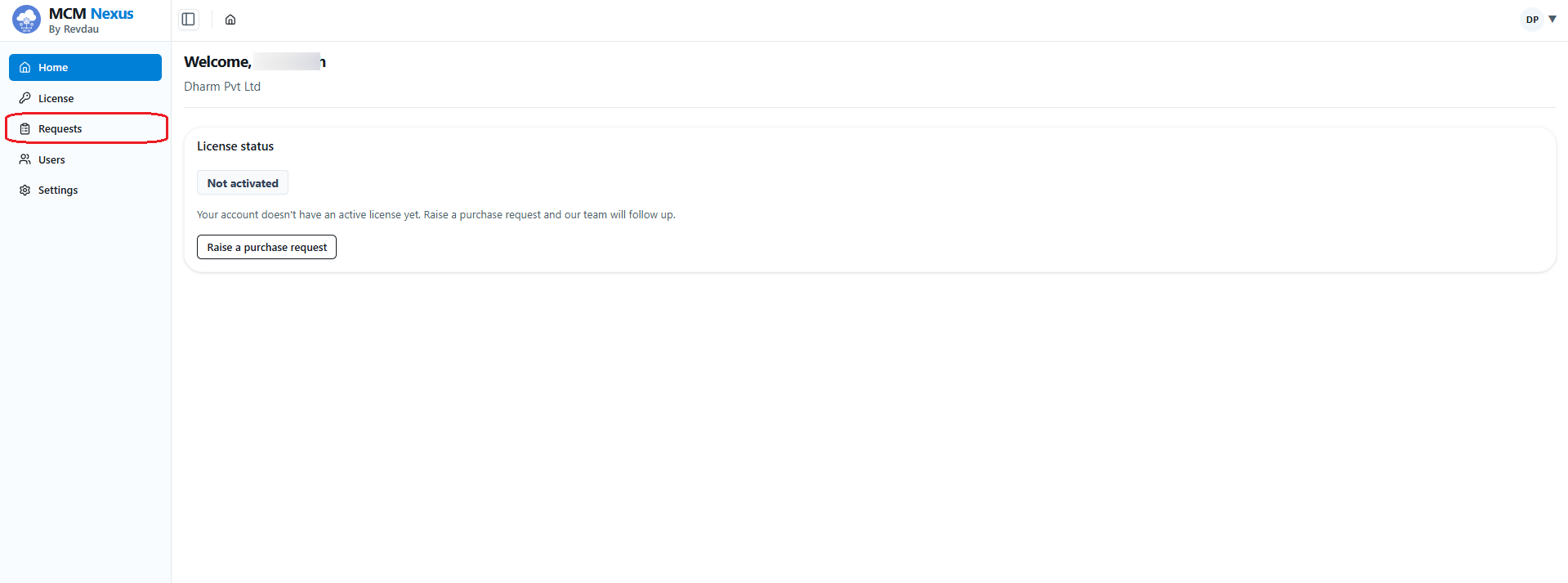
Access Portal Workspace Dashboard: After logging in, access your workspace dashboard.
-
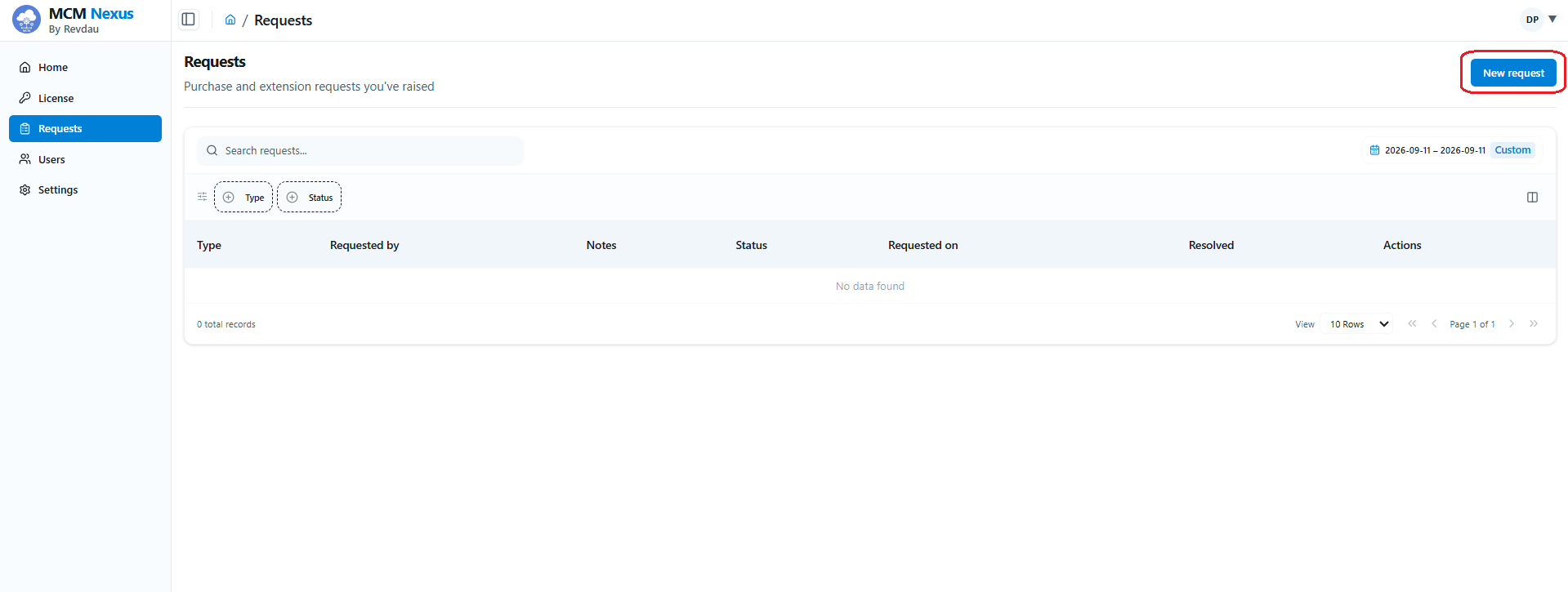
Navigate to the Request Tab: Click on the Request tab in the top navigation bar.
-
Submit License Request & Wait for Approval: Fill out and submit your license entitlement request.
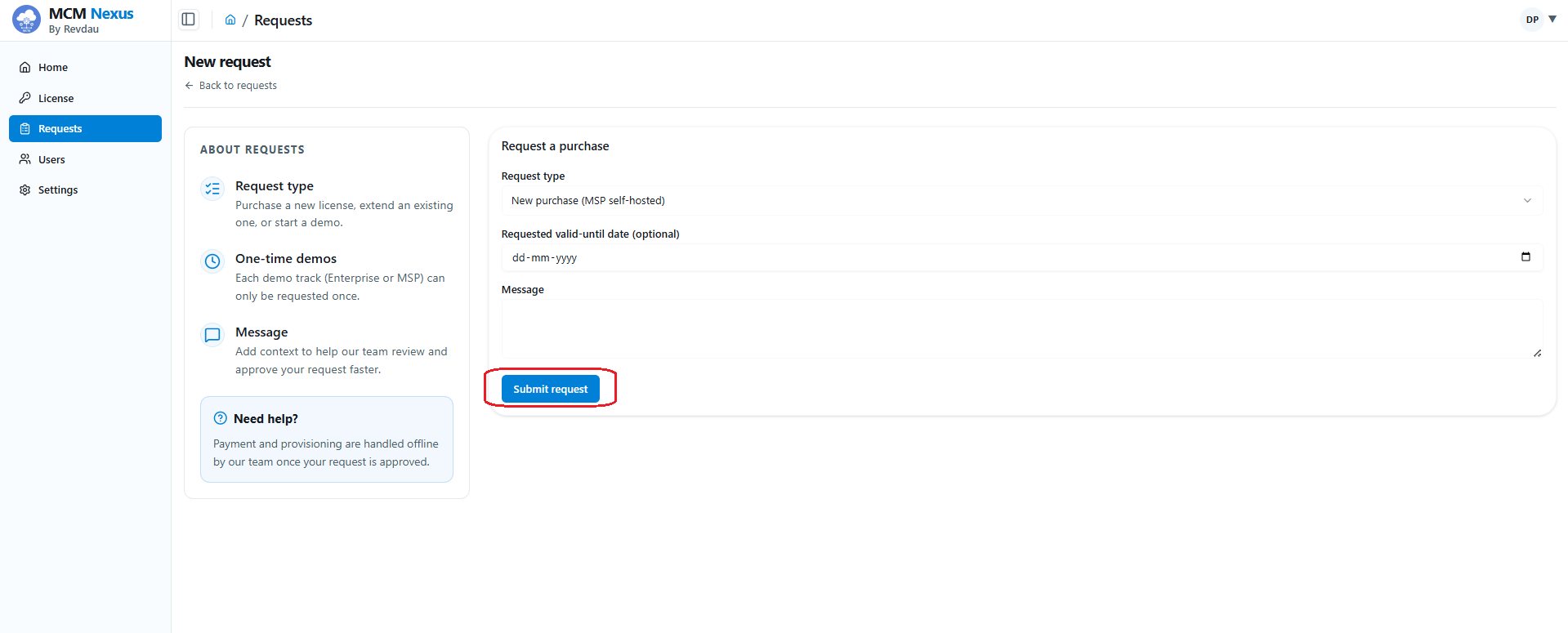
Administrator Approval
The MCM Administrator team reviews and approves submitted license requests. Once approved, the software package download and license entitlements become accessible under the License tab.
Step 3: Generate Download Command & Server Deployment
-
Open the License Tab: Navigate to the License tab (
/license) to view your MCM App Credentials (Username and Token).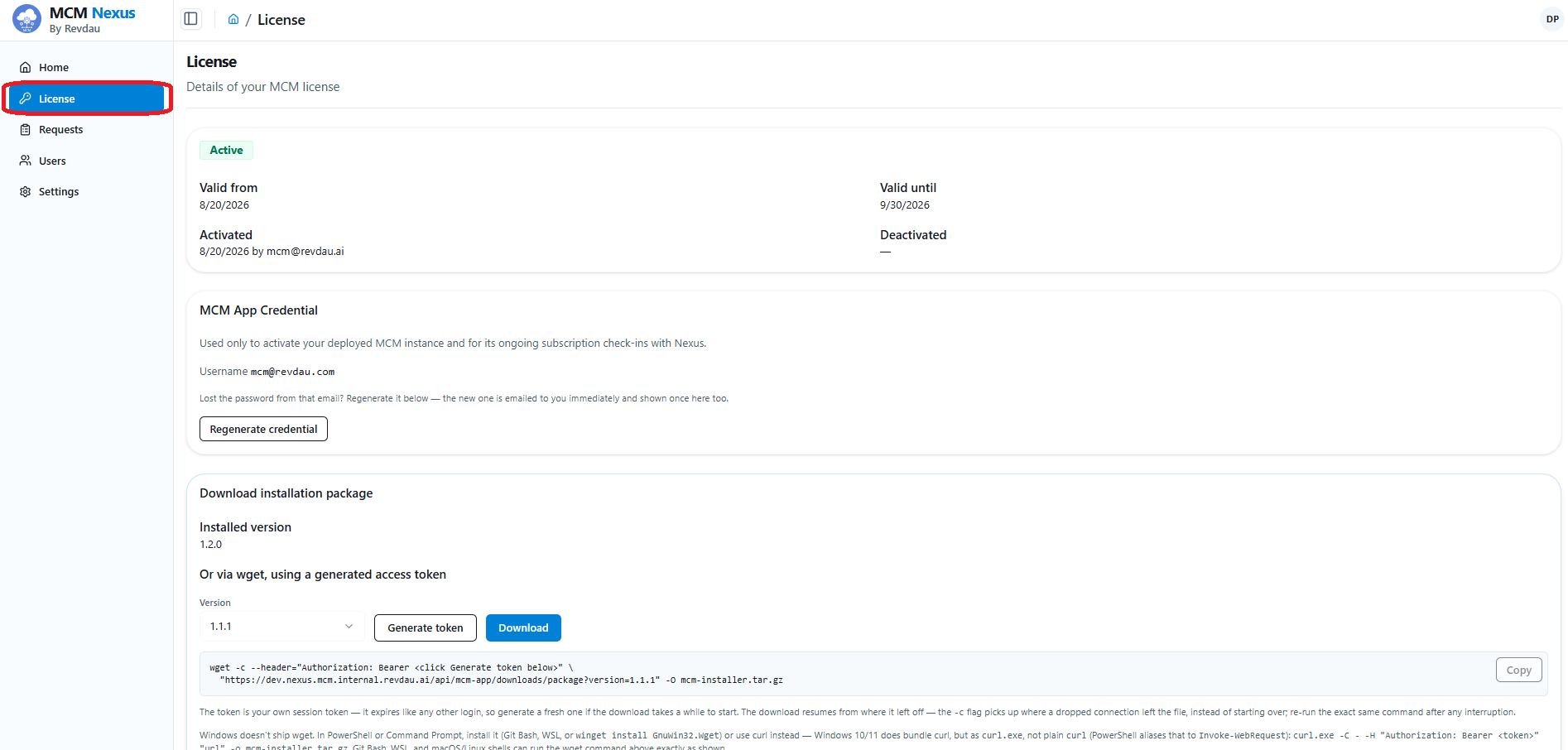
-
Select Release Version & Copy Download Command: Under Download installation package, select version
1.2.0from the dropdown and click Copy to copy the pre-authenticatedwgetcommand.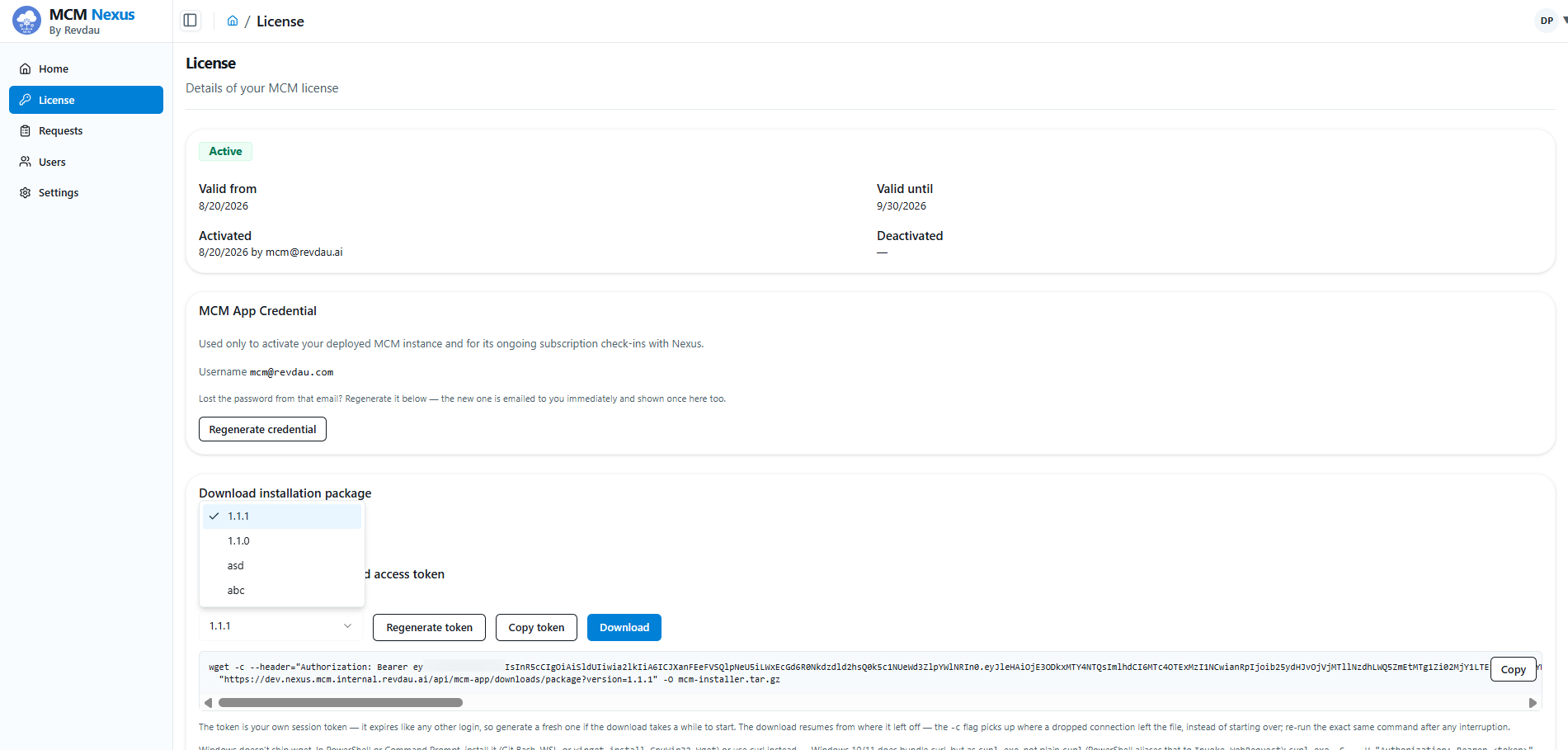
-
Connect to the server via SSH:
ssh [VM_SSH_USER]@<SERVER_IP> -
Execute the Copied Download Command:
wget --user="your_email@example.com" --password="your_mcm_app_password" \ "https://nexus.mcm.revdau.ai/api/mcm-app/downloads/package?version=1.2.0" -O mcm_artifacts_1.2.0.tar.gz -
Extract and Launch the Installer:
tar -xzf mcm_artifacts_1.2.0.tar.gz
cd mcm_artifacts
sudo chmod +x install.sh
sudo bash install.sh --single-vm
Installation Details:
- Installation Time: Installation takes 15–30 minutes. Outbound internet access is required on the server during installation to install dependencies.
- Docker Permissions: The installer configures a
dockeruser group and adds the current user to it. To execute Docker commands withoutsudopost-installation, runnewgrp dockerin your current terminal session, or log out and log back in.
Step 4: Platform Activation & Super Admin Setup
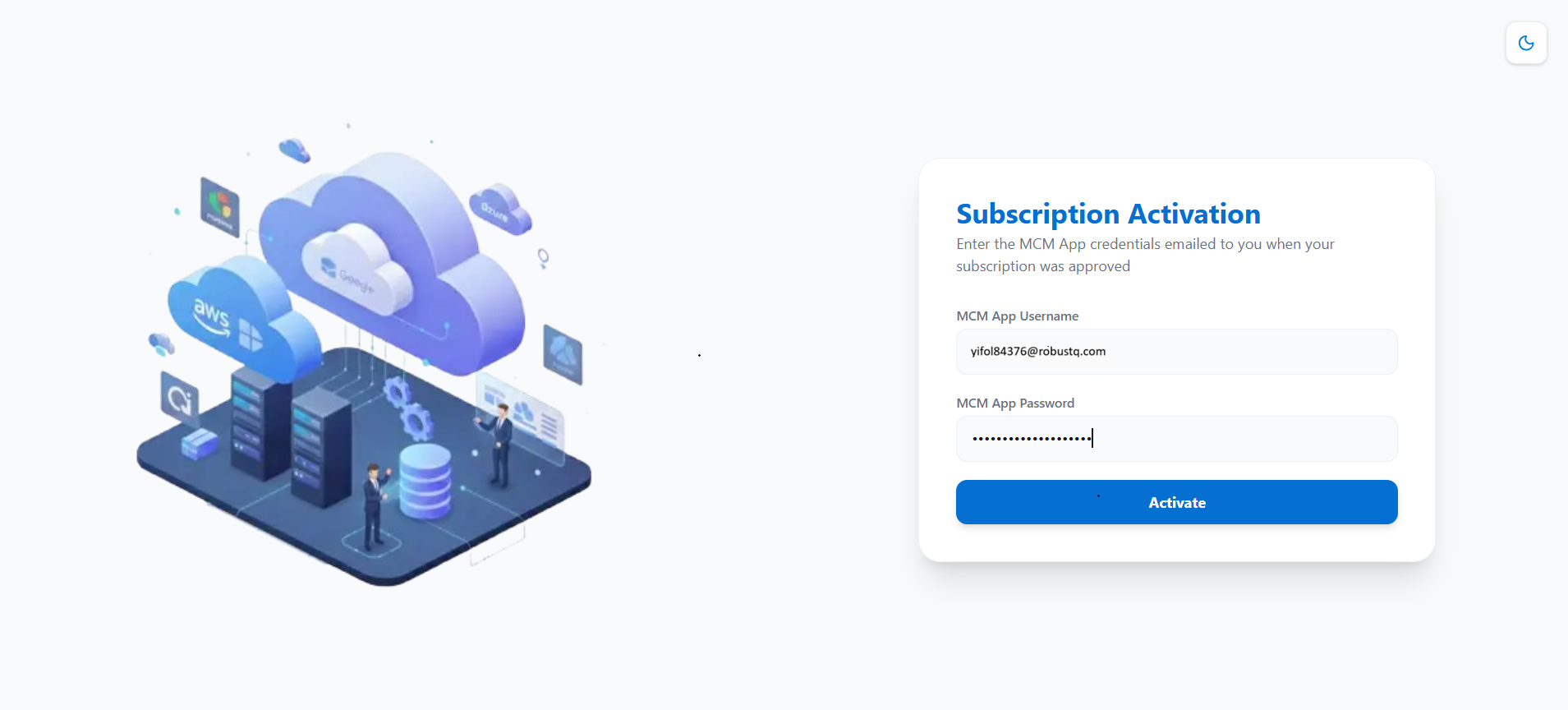
Once deployment completes, navigate to https://<DOMAIN_OR_IP>/subscription in your browser:
-
Activate Subscription: Enter your registered Username and Password/Token received via email, then click Activate.
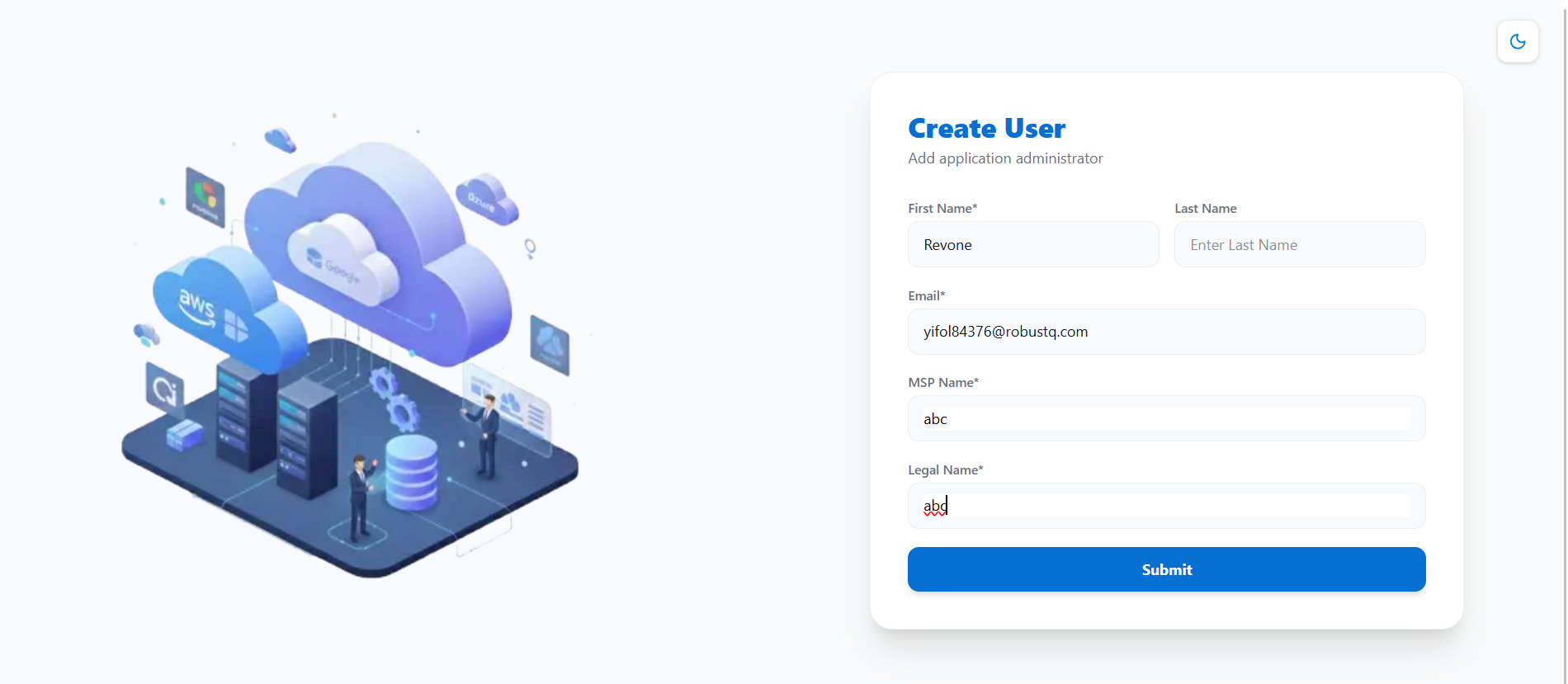
-
Create Organization Administrator: Enter the details for the primary platform super administrator and submit.
-
Log In to Platform: Log in with your administrator credentials and proceed to the Getting Started User Guide.
5. Operations & Health Verification
You can verify the status and health of all deployed services by executing the healthcheck script (Optional):
sudo bash /opt/mcm/scripts/healthcheck.shGeneral Verification and Control
For verification steps, stack teardown commands, and utility control scripts (starting, stopping, restarting, or upgrading the platform components), please refer to the Helper Scripts and Commands Guide.
For custom domain configuration and SSL/TLS certificate management, please refer to the Domain and TLS Certificate Configuration Guide.
For troubleshooting configuration, certificate, or service initialization errors, refer to the Troubleshooting Guide.