
3-Tier Deployment Guide
Production deployment instructions for the 3-Tier Multi-VM Orchestration Engine Cluster.
MCM Platform — 3-Tier Deployment Guide
About this architecture
The 3-tier orchestrated deployment is the recommended architecture for production environments. It separates services by role into three distinct tiers to strengthen security isolation and optimize system performance:
- Tier 1: Access Node (VM1): Hosts the API gateway (APISIX) and the
mcmmanagement service. This is the only node exposed to public traffic, and the node you run the installer from. - Tier 2: App Node (VM2): Hosts the core backend microservices, the User Interface (UI) and Kibana.
- Tier 3: DB Node (VM3): Hosts the storage and identity layers — PostgreSQL, Elasticsearch and Keycloak.
An Elastic Agent also runs on each of the three nodes for self-monitoring: it collects host metrics and container logs and sends them only to the platform's own Elasticsearch.
Upgrading from v1.2
MCM 2.0 is a clean-start release: it uses PostgreSQL and Elasticsearch only (MongoDB and the Wazuh SIEM components are gone), and data from a v1.2 installation is not migrated. Deploy 2.0 on new VMs (or after removing the old installation), then re-onboard your cloud accounts and re-run discovery. v1.2 users, policies, budgets, workspaces and AI conversation history are not carried over. Keep your v1.2 environment running until you have validated 2.0.
3-Tier Network Architecture
1. Prerequisites & VM Specifications
Ensure that your physical, virtual (on-premises), or cloud virtual machines meet the following minimum configuration requirements:
| Host / VM | Role / Tier | OS | CPU | RAM | Disk | Network | Cloud VM Examples (AWS / Azure) |
|---|---|---|---|---|---|---|---|
VM 1 (mcm-access) | Access Gateway / Manager | Ubuntu 24.04 LTS | 2 CPU | 4 GB | 50 GB SSD | 1 Gbps | t3.medium / Standard_D2als_v6 |
VM 2 (mcm-app) | Backend APIs & UI | Ubuntu 24.04 LTS | 4 CPU | 16 GB | 50 GB SSD | 1 Gbps | t3.xlarge / Standard_D4ads_v6 |
VM 3 (mcm-db) | Database | Ubuntu 24.04 LTS | 4 CPU | 16 GB | 105 GB SSD | 1 Gbps | t3.xlarge / Standard_D4ads_v6 |
Scaling for Production
The above specifications are the minimum requirements to deploy and run the MCM Platform. For production environments with larger workloads, refer to the VM Sizing Guide for recommended specifications based on your managed resource count.
Baseline Network Prerequisites
The 3-tier architecture requires the following network conditions:
- VM1 (Access Node): Must be reachable by end users — either via a public IP, VPN, or internal corporate network.
- VM2 (App Node) & VM3 (DB Node): Must have private IP connectivity to VM1 and to each other. These nodes do not need to be reachable from outside your network.
- Outbound Internet Access:
- All VMs: Require outbound internet access during installation to download system dependencies (Docker, packages, etc.).
- VM2 (Runtime): Requires persistent outbound internet access because the MCM microservices connect to cloud provider APIs (AWS, Azure) for resource orchestration, inventory sync, and cost metrics.
For detailed port mappings, security groups, and domain firewall rules, see Section 2: Network & Security Requirements.
2. Network & Security Requirements
All three VMs must be placed within a network where they can route traffic to each other using private IPs. A single subnet (or separate subnets for strict tiering) can be used depending on your network topology.
Example IP layout (using 10.0.0.0/16):
- Subnet 1 (
10.0.1.0/24) — Hosts VM1 (mcm-access). - Subnet 2 (
10.0.2.0/24) — Hosts VM2 (mcm-app). - Subnet 3 (
10.0.3.0/24) — Hosts VM3 (mcm-db).
If your deployment uses a different IP layout, ensure you adapt all subnet ranges, IP values, and source filters accordingly throughout this guide.
On-Premises & Private Cloud Setup
If you are deploying on physical servers or a private virtualized environment:
- VM Provisioning: Provision 3 virtual machines meeting the CPU, RAM, and Disk specifications listed in Section 1: Prerequisites & VM Specifications.
- Network Layout & IP Assignment:
- VM1 (
mcm-access): Assign an IP address accessible by your target users (can be a public IP or a private IP if accessed via an internal corporate network, VPN, or local load balancer). - VM2 (
mcm-app) & VM3 (mcm-db): Assign static private IP addresses. Ensure VM1, VM2, and VM3 have mutual private IP routing to communicate with each other.
- VM1 (
- Firewall & Egress Configuration: Configure your network firewall appliances or host-level firewalls (e.g. UFW) using the Port Requirements and Outbound Connection Requirements tables below.
Port Requirements
The following ports must be open between the VMs. Configure these in your firewall, security groups, or host-level rules (e.g., UFW) as needed:
| Port | Protocol | Source | Destination | Purpose |
|---|---|---|---|---|
| 22 | TCP | Admin workstation | VM1 | Administrative SSH access |
| 22 | TCP | VM1 | VM2, VM3 | Installer SSH tunnel for deployment |
| 80 | TCP | Users | VM1 | HTTP (auto-redirects to HTTPS) |
| 443 | TCP | Users | VM1 | Primary HTTPS gateway |
| 2377 | TCP | VM2, VM3 | VM1 | Cluster management |
| 7946 | TCP + UDP | All VMs | All VMs | Service discovery & gossip protocol |
| 4789 | UDP | All VMs | All VMs | VXLAN overlay network (container-to-container traffic) |
| 8642 | TCP | VM2 | VM1 | MCM management service (used by the platform for in-app upgrades and domain/TLS changes). Internal only — do not expose publicly |
Changed in 2.0: fewer ports
MCM 2.0 no longer uses the Wazuh agent ports (1514/1515) or the separate upgrade-agent port (9098, previously open to users/admins). Port 8642 replaces it and is needed only from VM2 to VM1.
CAUTION: The Port 4789 Trap
The VXLAN overlay network data plane traffic MUST run over UDP Port 4789.
If you mistakenly configure Port 4789 as TCP in your Cloud Security
Groups, the Container Orchestrator services will start, but they will be
completely isolated. You will experience 504 Gateway Timeouts because the
microservices on VM2 will not be able to talk to the databases on VM3.
Outbound Connection Requirements
The MCM platform requires outbound HTTPS (port 443) connectivity to the following main domains:
IMPORTANT: Mandatory Egress Whitelisting for Private Infrastructure
If your infrastructure is provisioned inside a private subnet, air-gapped network, or operates behind a corporate egress firewall / forward proxy (e.g. Palo Alto, Fortinet, AWS NAT Gateway, Azure Firewall, Squid), you MUST whitelist every domain, port, and protocol listed below.
- Installation Impact: Failure to whitelist will cause
apt-getdependency installations, Docker container image pulls, or installer package downloads to hang or fail. - Runtime Impact: The MCM platform persistently connects to AWS/Azure APIs, Microsoft Graph/Entra ID, NTP time servers, currency feeds (FinOps), Git providers (GitHub, GitLab, Bitbucket) and Elastic.
- Wildcard Configuration: Where indicated, configure domain wildcard rules (e.g.,
*.amazonaws.com,*.azure.com,*.revdau.ai,*.ubuntu.com) in your egress firewall to avoid dropped connections to regional or dynamic endpoints.
| # | Domain / Destination | Ports | Protocol | Required On | Phase | Purpose |
|---|---|---|---|---|---|---|
| 1 | *.amazonaws.com | 443 | HTTPS | VM2 | Runtime | AWS Cloud management, STS & cost telemetry APIs |
| 2 | *.api.aws | 443 | HTTPS | VM2 | Runtime | Modern AWS service API endpoints |
| 3 | *.windows.net | 443 | HTTPS | VM2 | Runtime | Azure Cloud management, blob storage & resource sync |
| 4 | *.azure.com | 443 | HTTPS | VM2 | Runtime | Azure Resource Manager (ARM) APIs & cost reporting |
| 5 | login.microsoftonline.com | 443 | HTTPS | VM2 | Runtime | Microsoft Entra ID (Azure AD) OAuth authentication |
| 6 | graph.microsoft.com | 443 | HTTPS | VM2 | Runtime | Microsoft Graph API for tenant discovery & identity management |
| 7 | *.docker.io | 443 | HTTPS | VM1, VM2, VM3 | Installation / Runtime | Docker Hub container registry & image layers |
| 8 | *.docker.com | 443 | HTTPS | VM1, VM2, VM3 | Installation / Runtime | Docker Engine package repository & authentication |
| 9 | *.elastic.co | 443 | HTTPS | VM2, VM3 | Installation / Runtime | Elastic packages, integration assets & telemetry |
| 10 | *.ubuntu.com | 80, 443 | HTTP/HTTPS | VM1, VM2, VM3 | Installation / Runtime | Ubuntu system package updates (apt-get) |
| 11 | *.canonical.com | 80, 443 | HTTP/HTTPS | VM1, VM2, VM3 | Installation / Runtime | Canonical security updates & kernel patches |
| 12 | *.github.com | 443 | HTTPS | VM1, VM2, VM3 | Installation / Runtime | GitHub API integration & CLI binary downloads |
| 13 | *.githubusercontent.com | 443 | HTTPS | VM1, VM2, VM3 | Installation | Raw GitHub assets, scripts & binary downloads |
| 14 | ghcr.io | 443 | HTTPS | VM1, VM2, VM3 | Installation / Runtime | GitHub Container Registry for service images |
| 15 | registry.opentofu.org | 443 | HTTPS | VM2 | Runtime | OpenTofu provider registry for IaC Orchestration |
| 16 | *.cloudflarestorage.com | 443 | HTTPS | VM2 | Runtime | Cloudflare R2 storage for OpenTofu & container asset downloads |
| 17 | hub.steampipe.io | 443 | HTTPS | VM2 | Runtime | Steampipe cloud discovery plugins & registry |
| 18 | *.digicert.com | 80, 443 | HTTP/HTTPS | VM1, VM2, VM3 | Installation / Runtime | TLS certificate chain validation & CRL revocation checks |
| 19 | api.frankfurter.app | 443 | HTTPS | VM2 | Runtime | Live currency exchange rates for FinOps multi-currency conversion |
| 20 | *.revdau.ai | 443 | HTTPS | VM1 | Installation / Runtime | MCM Nexus portal (nexus.mcm.revdau.ai), license verification & artifact downloads |
| 21 | *.ntp.ubuntu.com | 123, 4460 | UDP/TCP | VM1, VM2, VM3 | Runtime | Network Time Protocol (NTP) for cluster clock synchronization |
| 22 | gitlab.com | 443 | HTTPS | VM2 | Runtime | GitLab repository discovery & scanning (only if you onboard GitLab) |
| 23 | bitbucket.org, api.bitbucket.org | 443 | HTTPS | VM2 | Runtime | Bitbucket repository discovery & scanning (only if you onboard Bitbucket) |
Understanding Connection Phases: * Installation: Outbound access required during initial platform deployment to download system packages, container images, and binary dependencies. * Runtime: Outbound access required continuously while the platform is running for cloud API synchronization, inventory discovery, cost metrics, and security threat intelligence feeds.
AWS & Azure Infrastructure Setup
If you are provisioning resources on a public cloud, navigate to the dedicated guide for your provider to set up your network, security groups, and VM instances:
Once your cloud infrastructure and VMs are provisioned, return to Section 3: Installation Procedure of this guide to complete the platform setup.
3. Installation Procedure
Pre-Deployment Checklist
Before you begin:
-
Ensure that the SSH user on VM2 and VM3 belongs to the
sudogroup. -
Ensure SSH password authentication is enabled on VM2 and VM3 so the installer can distribute its SSH key (a one-time step; you can turn password authentication off again after installation).
Run the following commands on VM2 and VM3 to configure a password and temporarily enable authentication:
# Set a password for the SSH user (e.g. ubuntu)
sudo passwd [VM_SSH_USER]

# Enable password authentication drop-in config
echo "PasswordAuthentication yes" | sudo tee /etc/ssh/sshd_config.d/00-mcm-temp-auth.conf
sudo systemctl restart ssh
The installer automatically performs pre-checks: SSH and passwordless-sudo access to VM2 and VM3, CPU, memory and disk on each node, network connectivity between nodes, and outbound reachability of the required domains. If a required check fails, the installer reports the exact issue and exits. Fix the reported issue and re-run the installer.
Step 1: Account Registration & Portal Access
Follow these steps on the MCM Nexus Portal to set up your account:
-
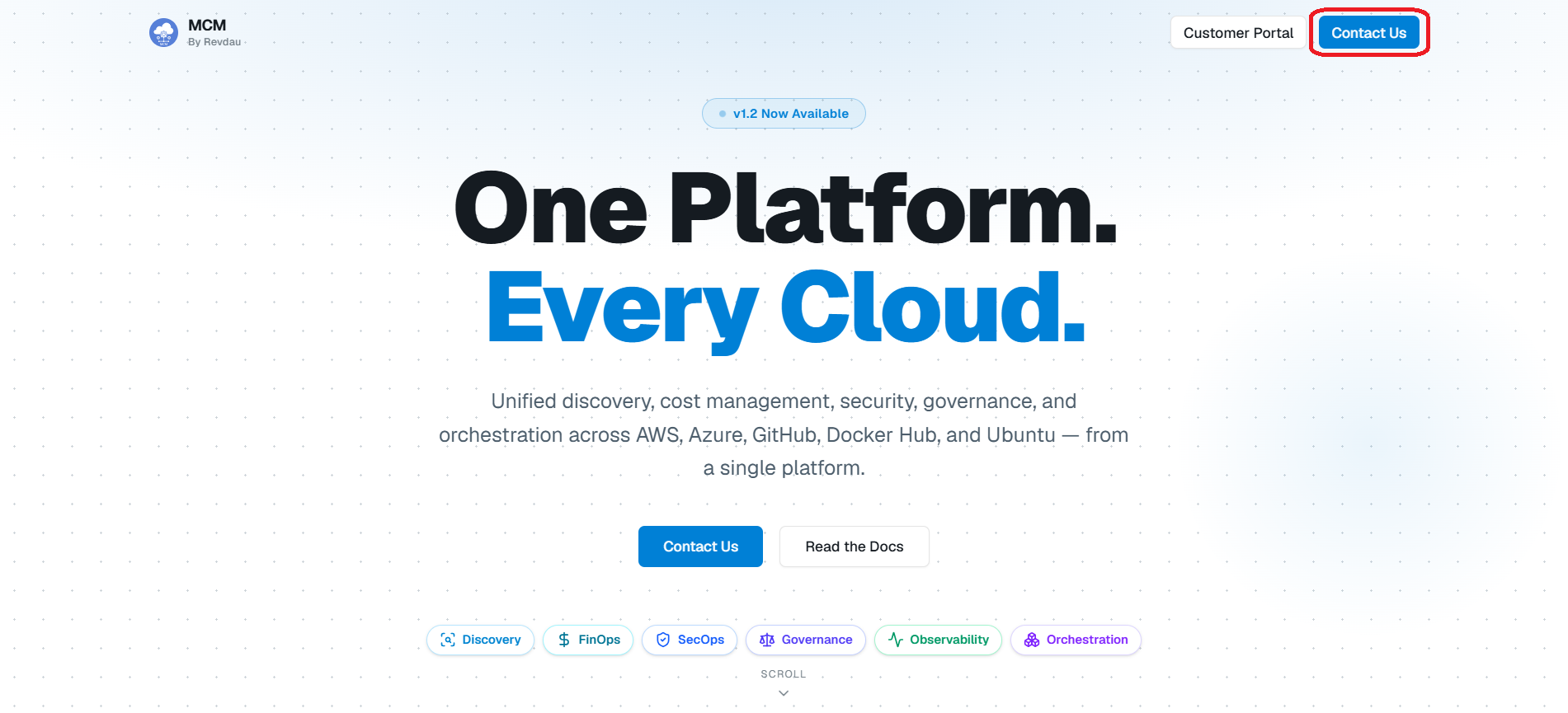
Visit MCM Portal Landing Page: Navigate to https://nexus.mcm.revdau.ai and click the Continue button.
-
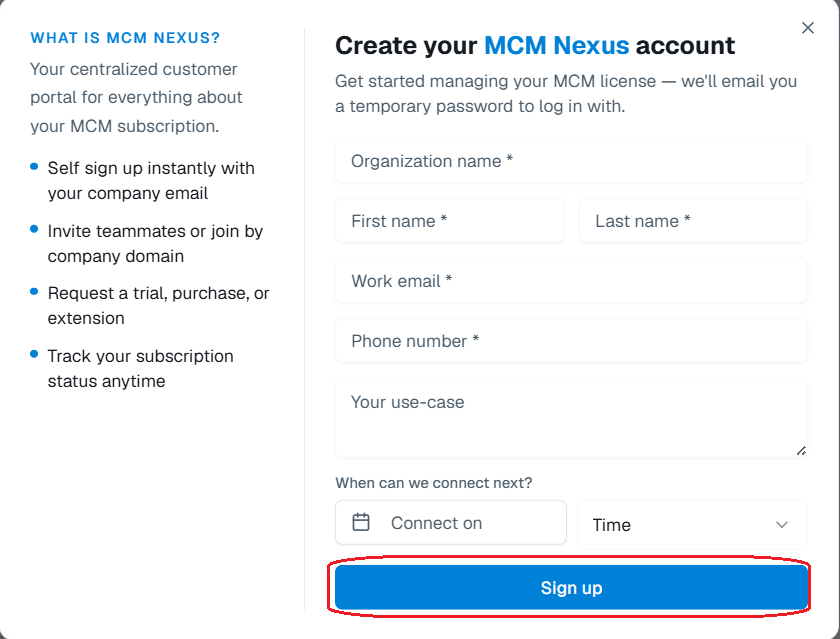
Complete the Sign-Up Form: Fill in your organizational and contact details in the registration form to create your account.
-
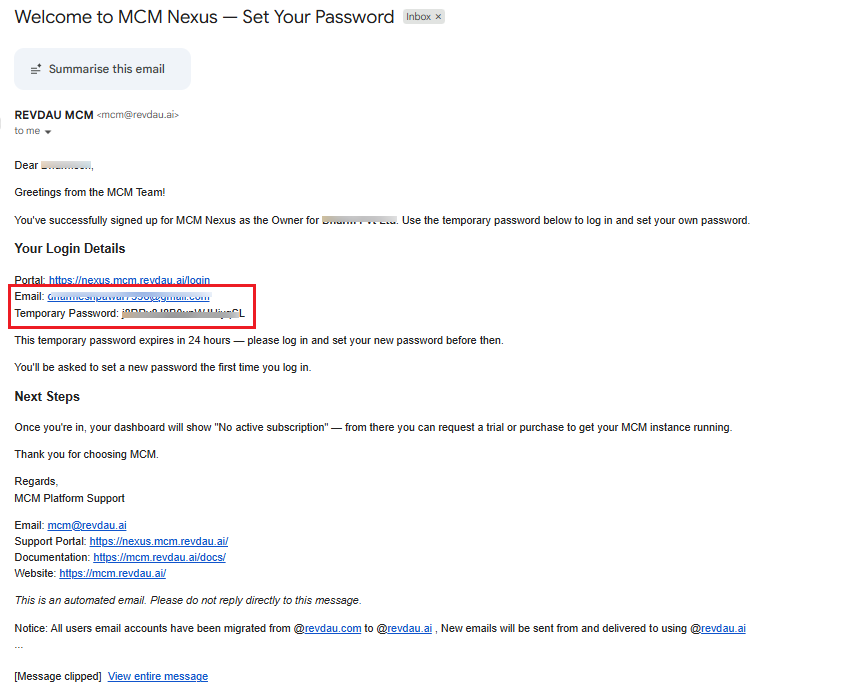
Receive Verification & Credentials Email: Check your inbox for the welcome email containing your initial credentials and verification details.
-
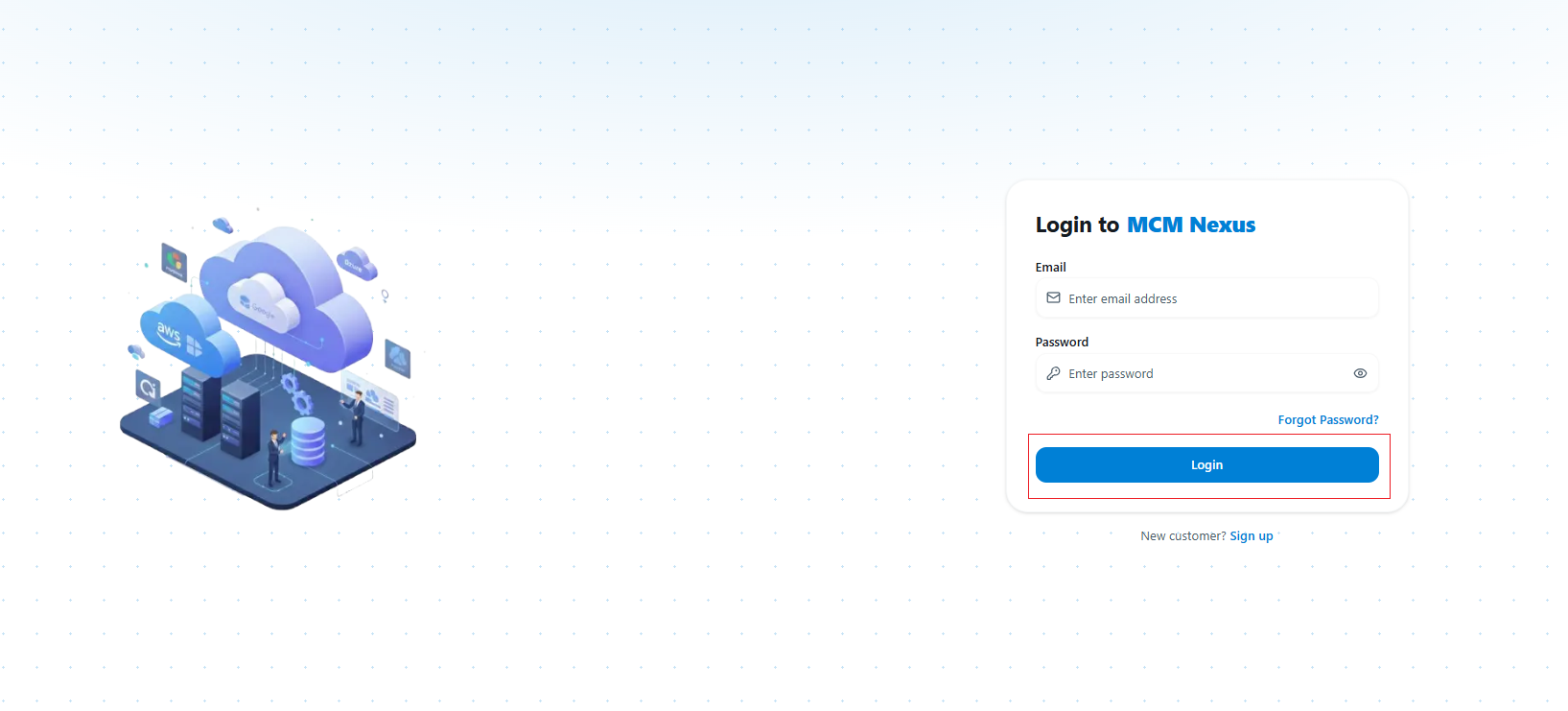
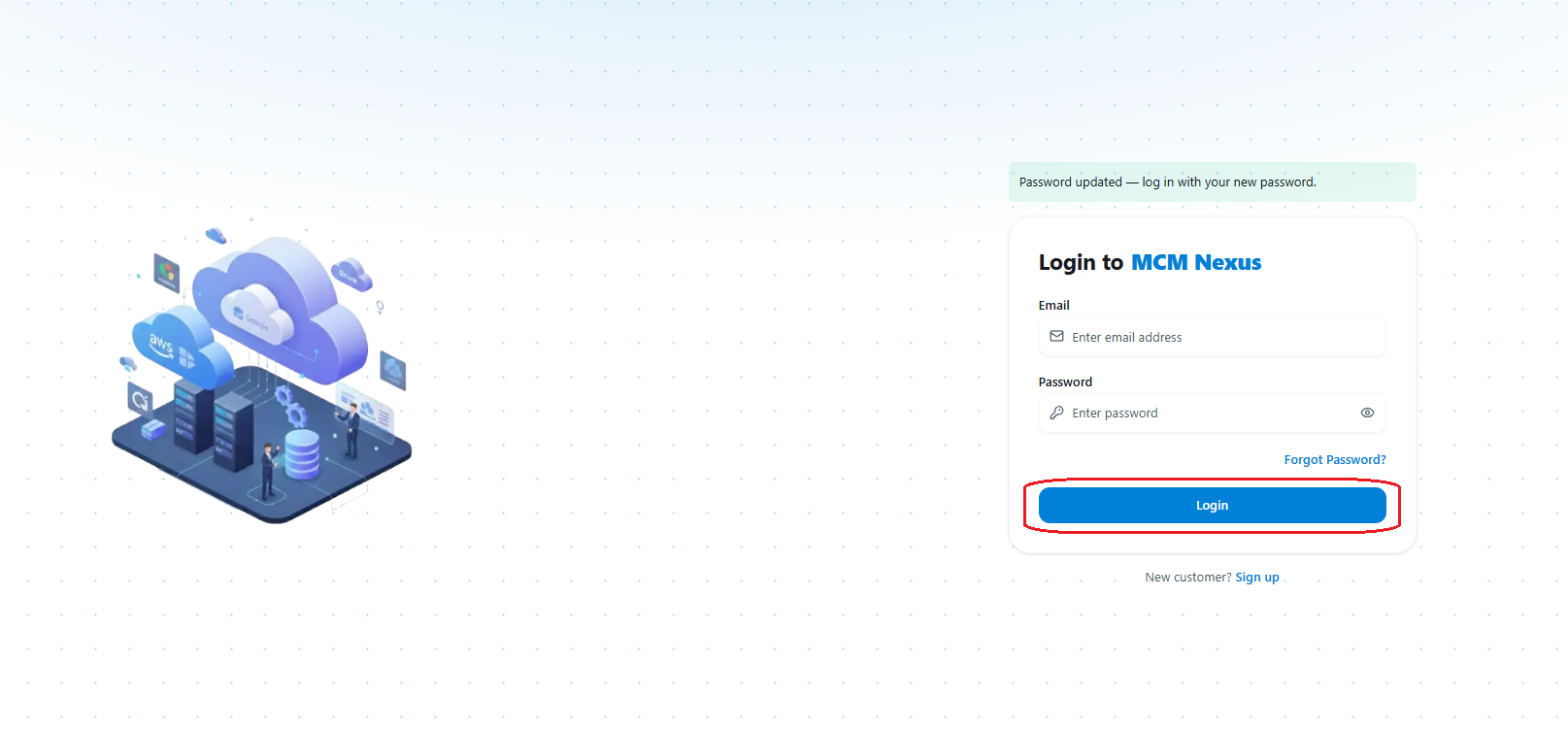
Sign In to MCM Portal: Go to the login screen and sign in using your registered email and temporary password.
-
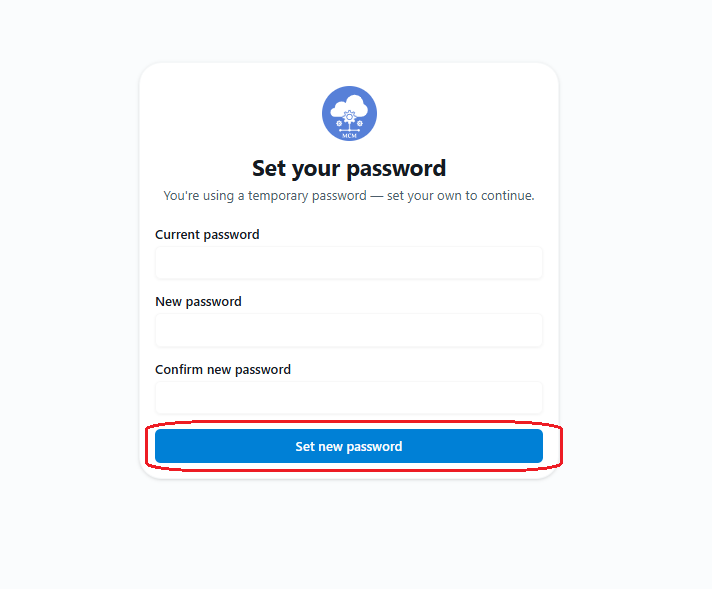
Set Your Account Password: On your first login, configure a secure password for your account.
Step 2: License Request & Approval Workflow
-
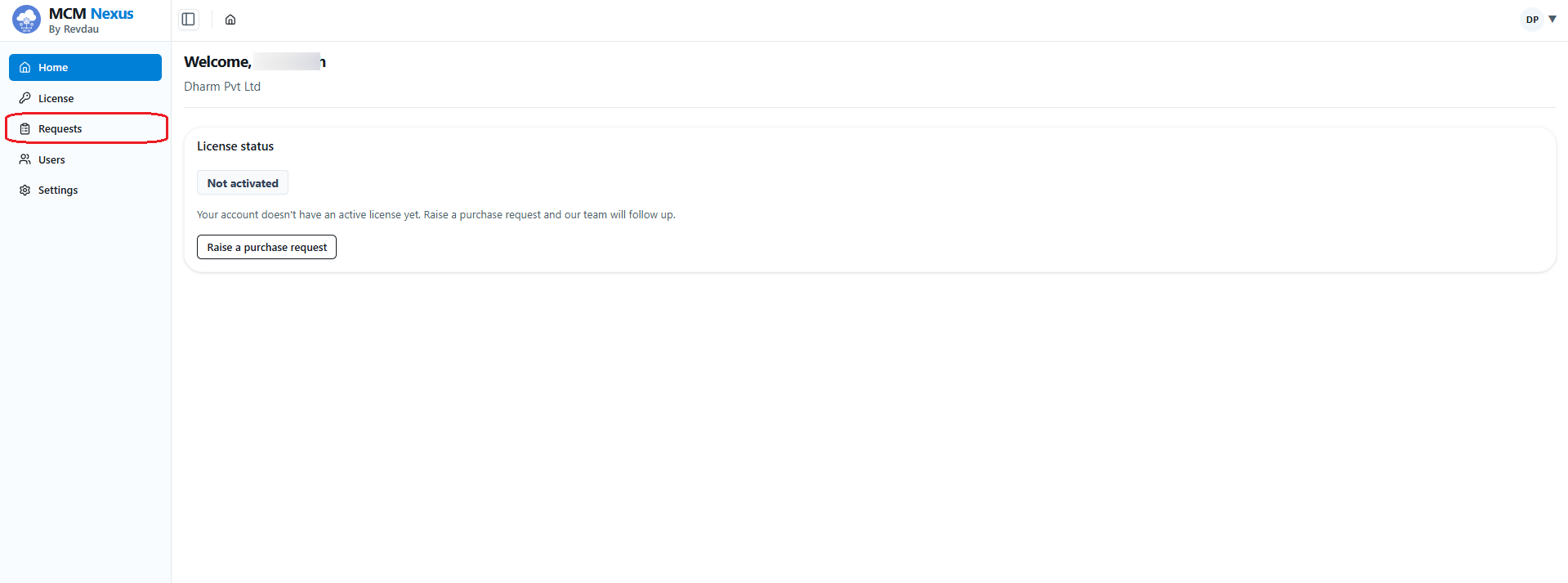
Access Portal Workspace Dashboard: After logging in, access your workspace dashboard.
-
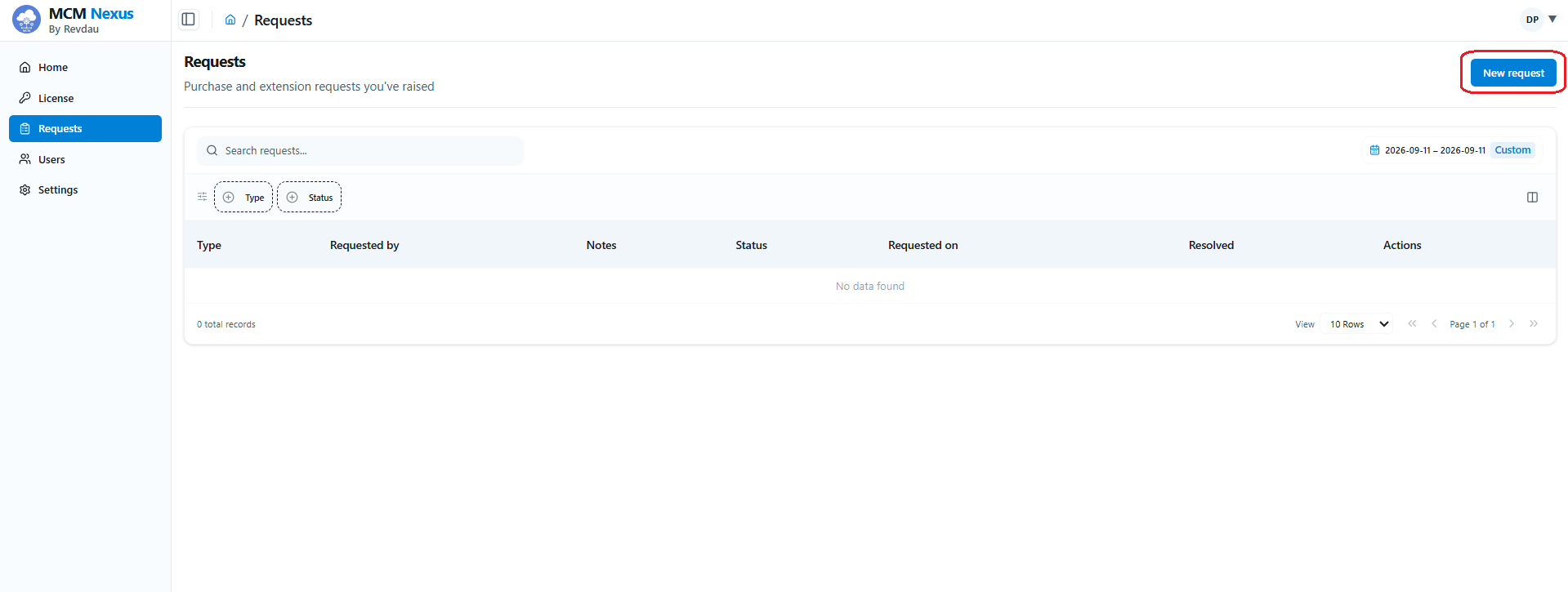
Navigate to the Request Tab: Click on the Request tab in the top navigation bar.
-
Submit License Request & Wait for Approval: Fill out and submit your license entitlement request.
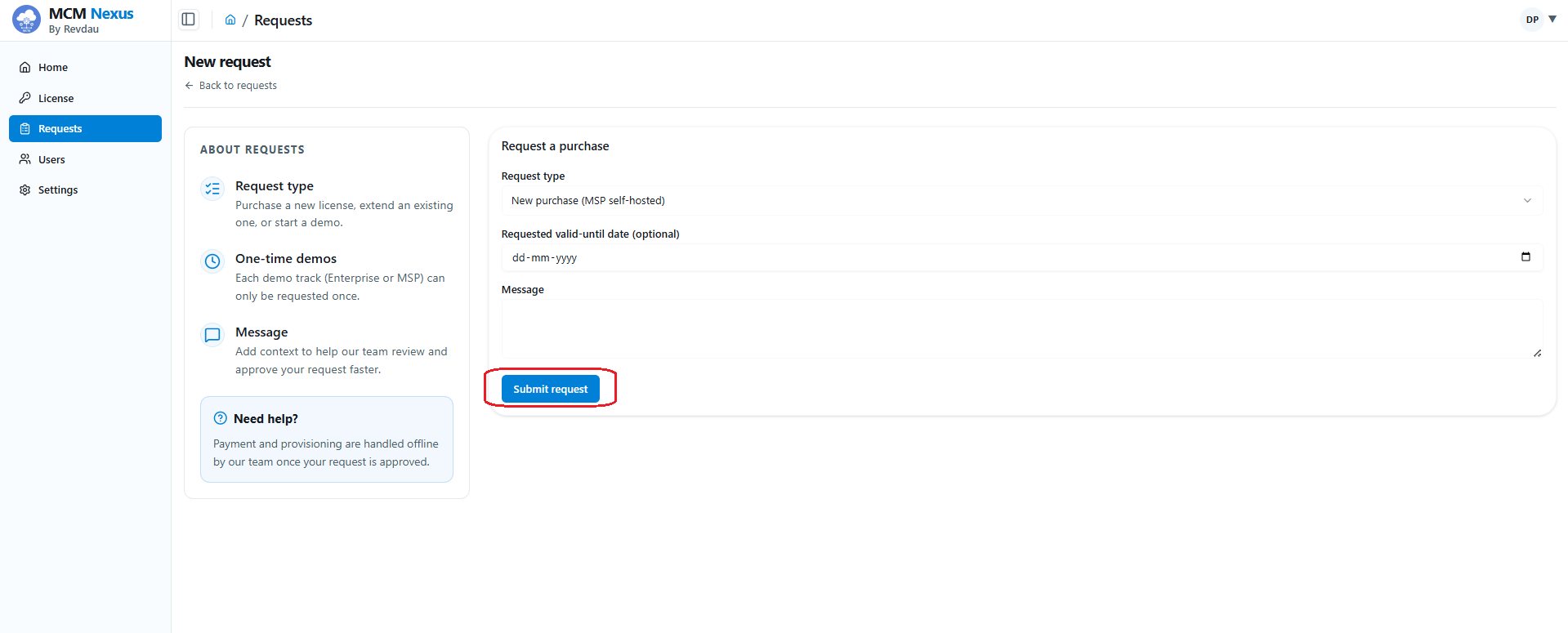
Administrator Approval
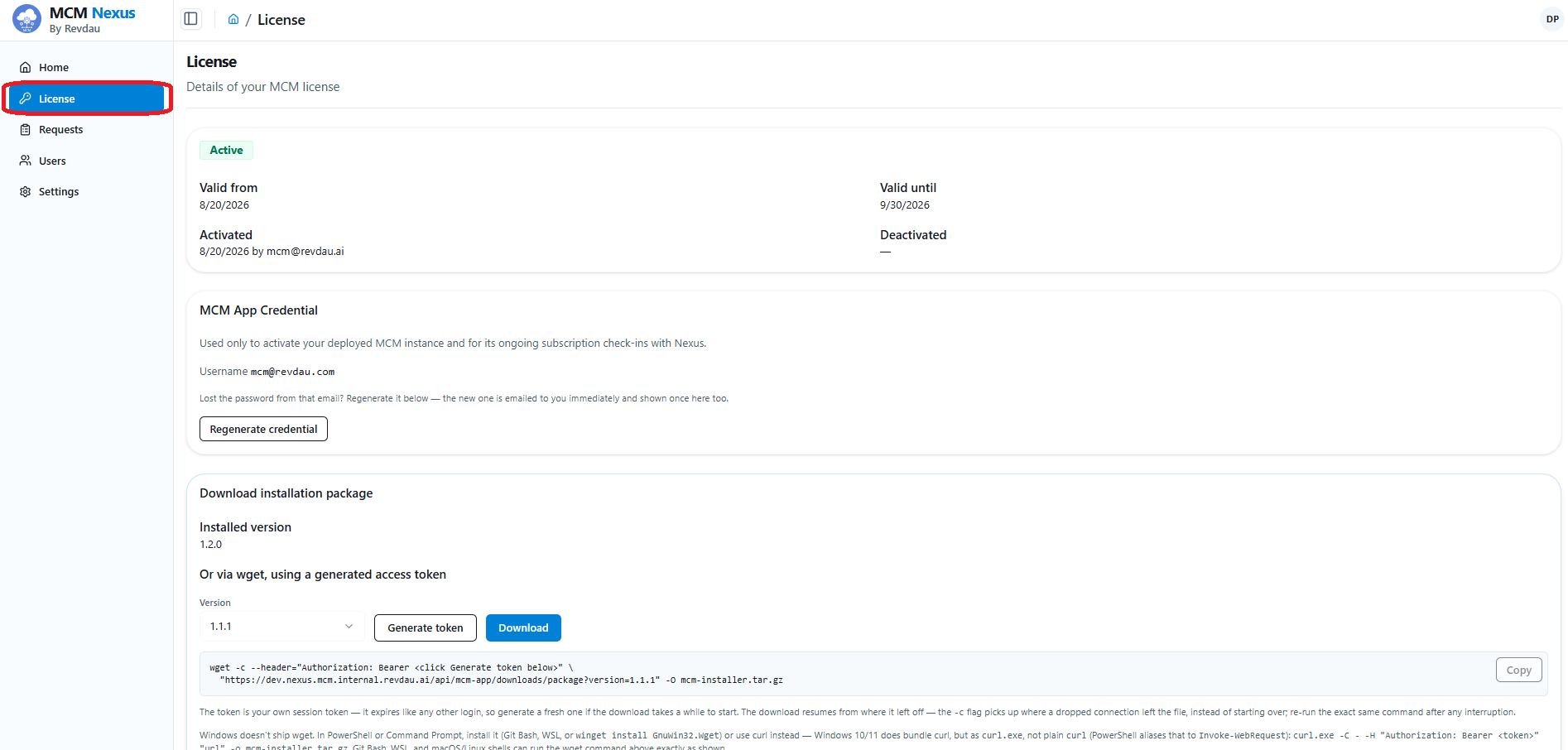
The MCM Administrator team reviews and approves submitted license requests. Once approved, the software package download and license entitlements become accessible under the License tab.
Step 3: Generate Download Command & Server Deployment
-
Open Your License: In the MCM Nexus portal, open Licenses and select your license. Under Subscription key, click Create key if you have not already. Copy the key when it is shown — it is displayed only once, and you can Rotate key at any time. You will use it both to download the installer and to activate the platform.
-
Select Release Version & Copy Download Command: Under Download installation package, select version
2.0.0from the Version dropdown and click Copy next to thewgetcommand. If your server reaches the internet through a proxy, enter it in Proxy URL (optional) first and the command is adjusted for you. You can also click Download to save the package through your browser.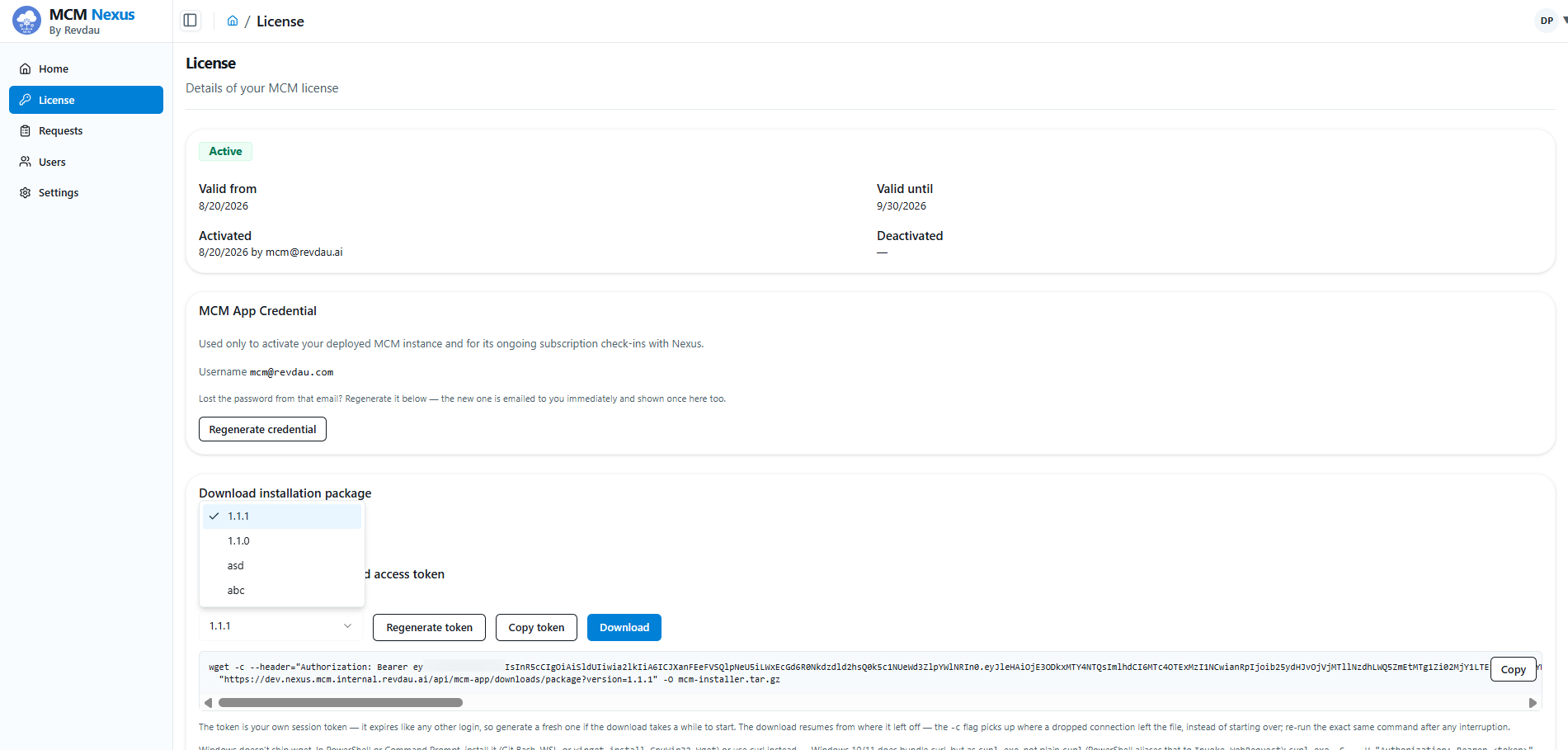
-
SSH into VM1 (Access Node):
ssh [VM1_USER]@<VM1_IP> # or using private key ssh -i /path/to/key.pem [VM1_USER]@<VM1_IP> -
Execute the Copied Download Command:
wget -c --header="Authorization: ApiKey <YOUR_SUBSCRIPTION_KEY>" \
  "https://nexus.mcm.revdau.ai/api/mcm-app/downloads/package?version=2.0.0" -O mcm-installer.tar.gz
Replace
<YOUR_SUBSCRIPTION_KEY>with your subscription key. The-cflag resumes an interrupted download — re-run the same command to continue. -
Extract and Launch the Installer:
tar -xzf mcm-installer.tar.gz
cd mcm_artifacts
sudo ./mcm install --env=main --mode=three-tier
MCM 2.0 is installed with a single
mcmcommand-line tool (it replaces theinstall.shandupgrade.shscripts used in v1.2). Run it from inside the extractedmcm_artifactsfolder on VM1. -
Provide Node Connection Details: When run in a terminal, the installer prompts for any connection detail you did not pass as a flag:
- VM1 IP (Access Node): the address this host advertises to the cluster.
- VM2 IP, SSH user and SSH port (App Node).
- VM3 IP, SSH user and SSH port (DB Node).
If VM2 and VM3 do not yet trust VM1's SSH key, the installer asks for each node's SSH password once, creates an SSH key, installs it on the node and configures passwordless sudo. You can also pass everything on the command line:
sudo ./mcm install --env=main --mode=three-tier \
  --vm1-ip=<VM1_IP> \
  --vm2-ip=<VM2_IP> --vm2-user=<VM_SSH_USER> --vm2-bootstrap \
  --vm3-ip=<VM3_IP> --vm3-user=<VM_SSH_USER> --vm3-bootstrap
Omit the
--vm2-bootstrap/--vm3-bootstrapflags on later runs, once the nodes already trust VM1's key. The installer then joins VM2 and VM3 to the cluster, labels the nodes by tier and deploys the platform.If the servers reach the internet through a corporate proxy, also add
--http-proxy=http://<PROXY_HOST>:<PORT>and--https-proxy=http://<PROXY_HOST>:<PORT>(and optionally--no-proxy=<COMMA_SEPARATED_DESTINATIONS>). You can change the proxy later under Settings > Proxy in the MCM console or withsudo mcm proxy configure. -
Wait for Post-Deployment Warm-up: After completion, wait approximately 5 minutes for all container services to initialize.
Step 4: Platform Activation & Super Admin Setup
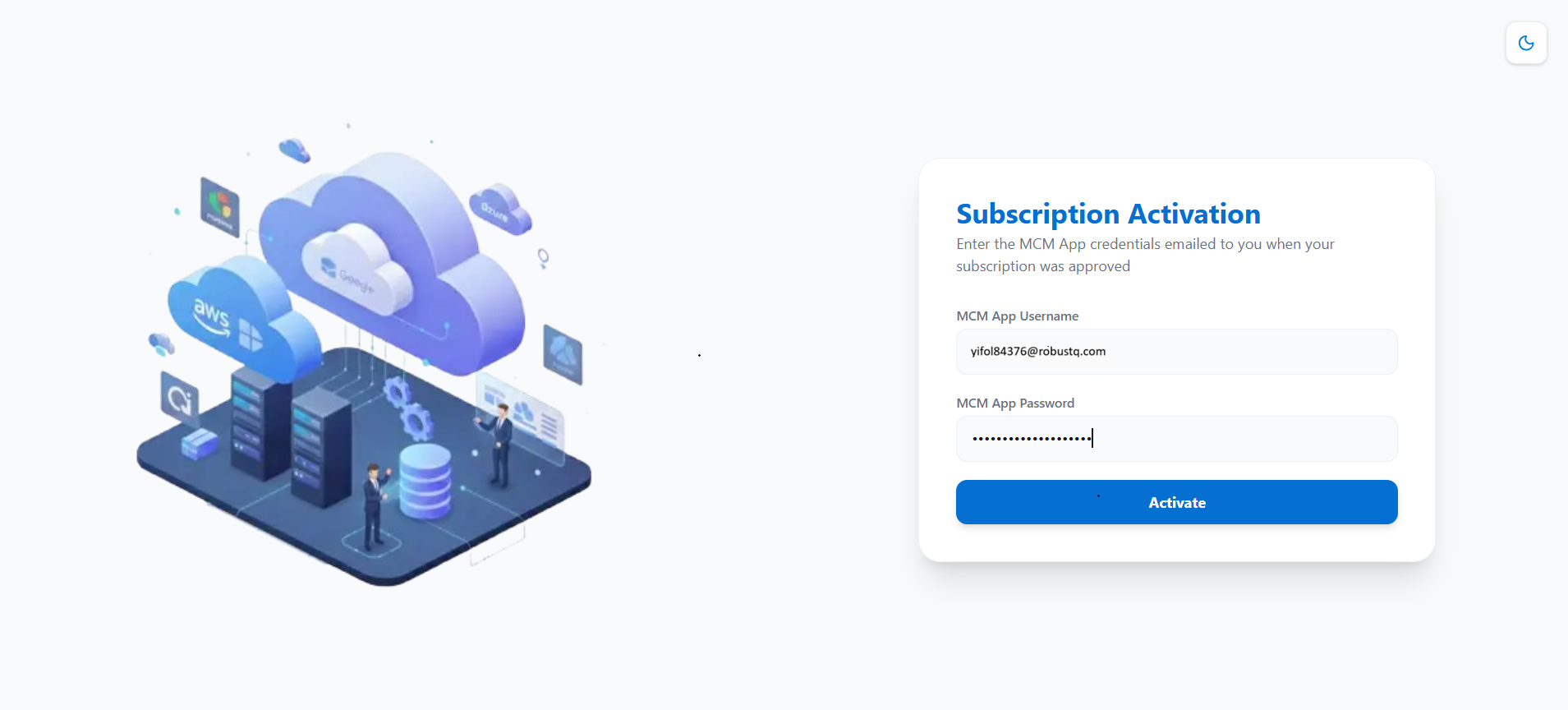
Once deployment completes, navigate to https://<VM1_IP_OR_DOMAIN>/subscription in your browser:
-
Activate Subscription: Enter your Subscription Key and click Continue. Review the license details (organization, license name, plan, status, validity and owner), then click Activate.
-
Owner Account Created: Activation creates the account for the license owner and emails their login details. When you see Owner account created, click Continue to login.
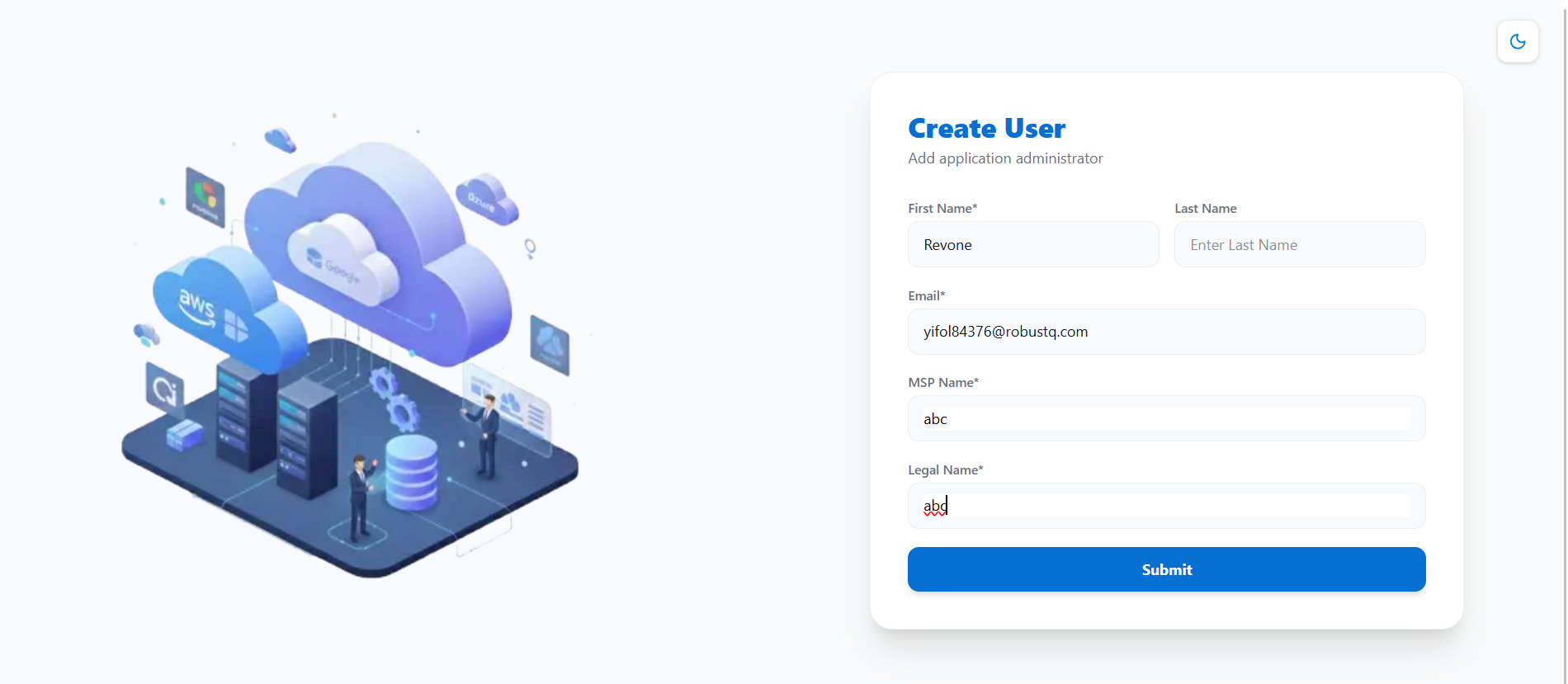
-
Log In to Platform: Log in with the credentials from the email and proceed to the User Guide: first-run activation.
4. Operations & Health Verification
You can verify the status and health of all deployed services with the mcm tool (optional) on VM1 (Access Node):
mcm status         # platform version, URL and per-service replica status
mcm healthcheck    # point-in-time health snapshot of every service
General Verification and Control
For verification steps, stack teardown commands, and utility control scripts (starting, stopping, restarting, or upgrading the platform components), please refer to the Helper Scripts and Commands Guide.
For custom domain configuration and SSL/TLS certificate management, please refer to the Domain and TLS Certificate Configuration Guide.
For troubleshooting configuration, certificate, or service initialization errors, refer to the Troubleshooting Guide.