Cloud Resource Discovery
7.1 Overview
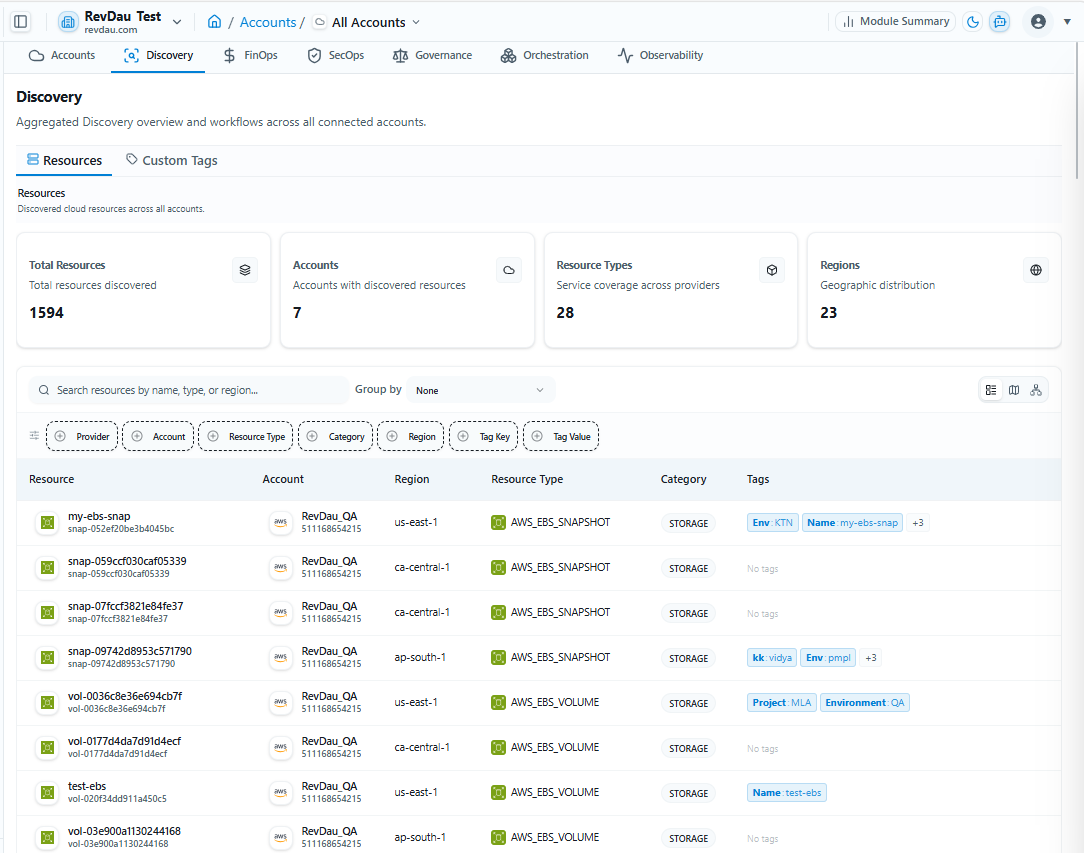
Discovery continuously scans connected providers and maintains a normalized inventory of resources. Both scheduled and manual resource discovery are supported.
| Attribute | Description |
|---|---|
| Resource ID | Unique Identifier |
| Resource Name | Resource Name |
| Resource Type | EC2, VM, S3, etc. |
| Provider | AWS / Azure |
| Region | Resource Region |
7.2 Resource Search
Users can search and filter resources by:
-
Global search across all resources
-
Filter by Provider
-
Filter by Region
-
Filter by Tags
-
Filter by Status
Resource discovery is available at both all-accounts level and account-specific level. Discovery jobs are automatically triggered when a new account is onboarded.
7.3 Scheduled Job Trigger
Discovery runs automatically per the default schedule. You can also configure a custom schedule from the Discovery Settings tab.
7.4 Manual Job Trigger
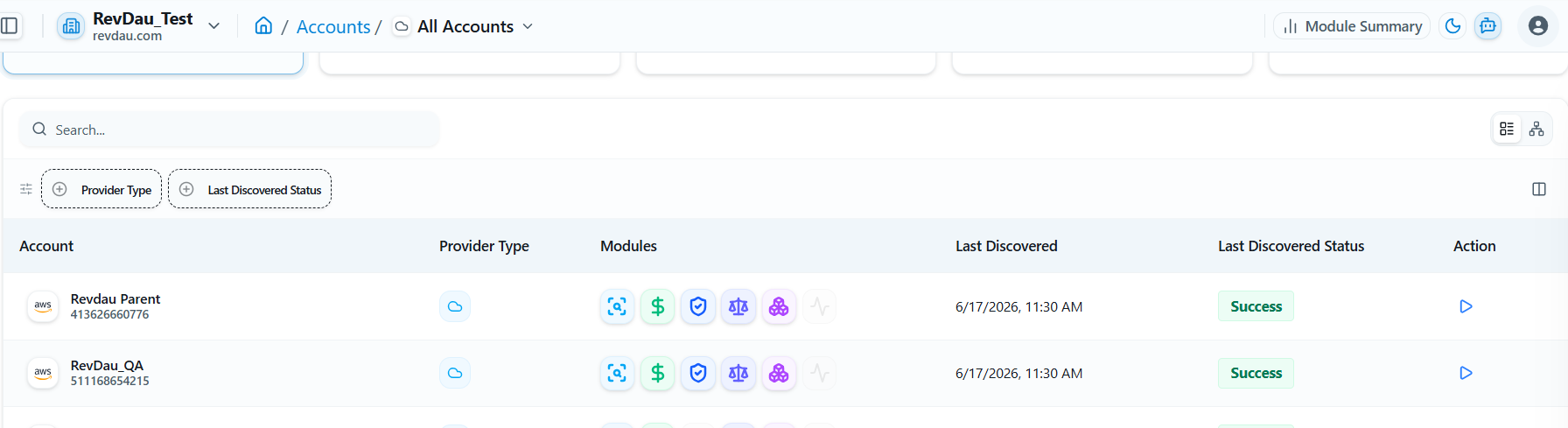
Option A — via Accounts Page
Step 1 Go to the Accounts page and click the Action column for the required account.
Option B — via Account-Specific View
Step 1 Select the specific account and click it.
Step 2 Click Trigger Discovery Job.
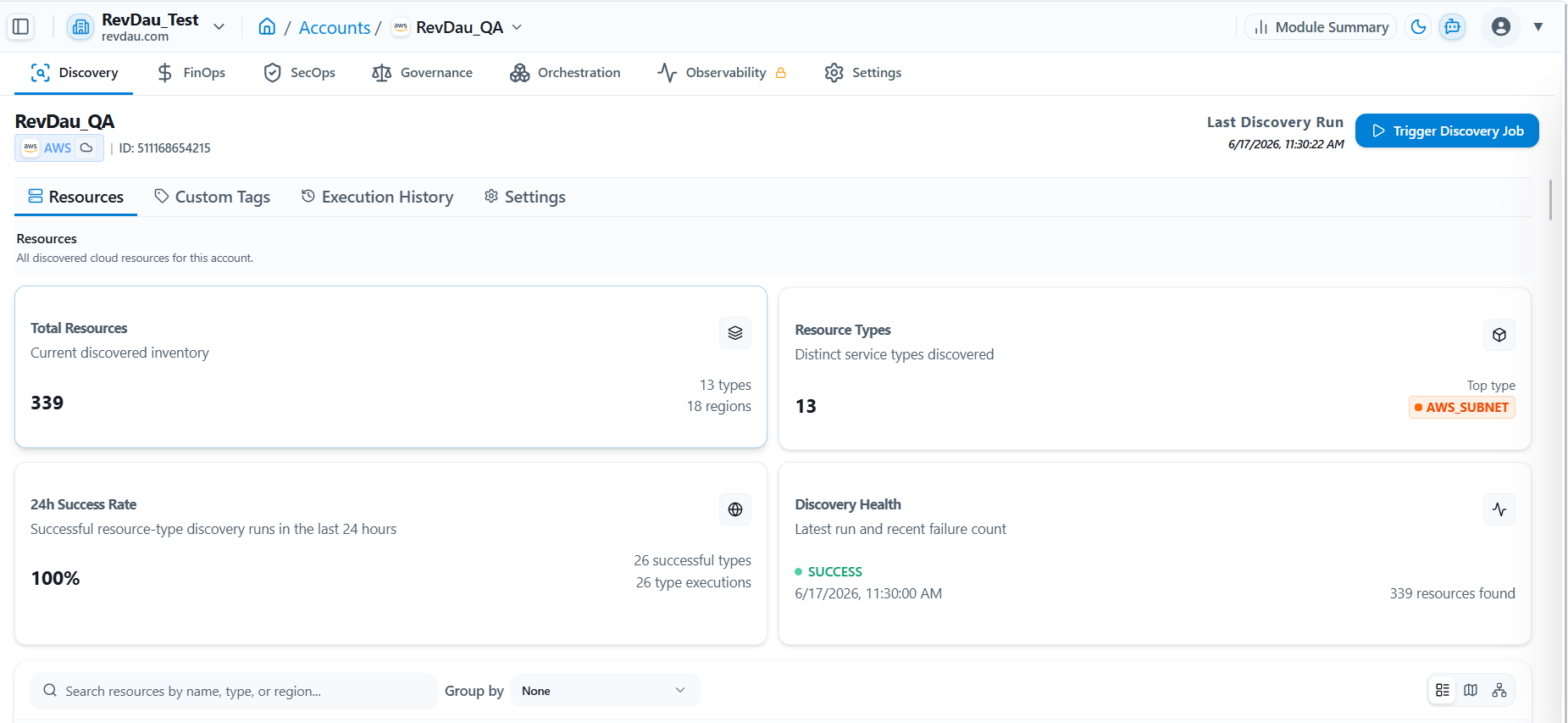
To view discovered resources: use the Discovery tab for all-accounts view, or select a specific account for account-specific discovery.
7.5 Other Options in Resource Discovery
7.5.1 Resource-Specific Details
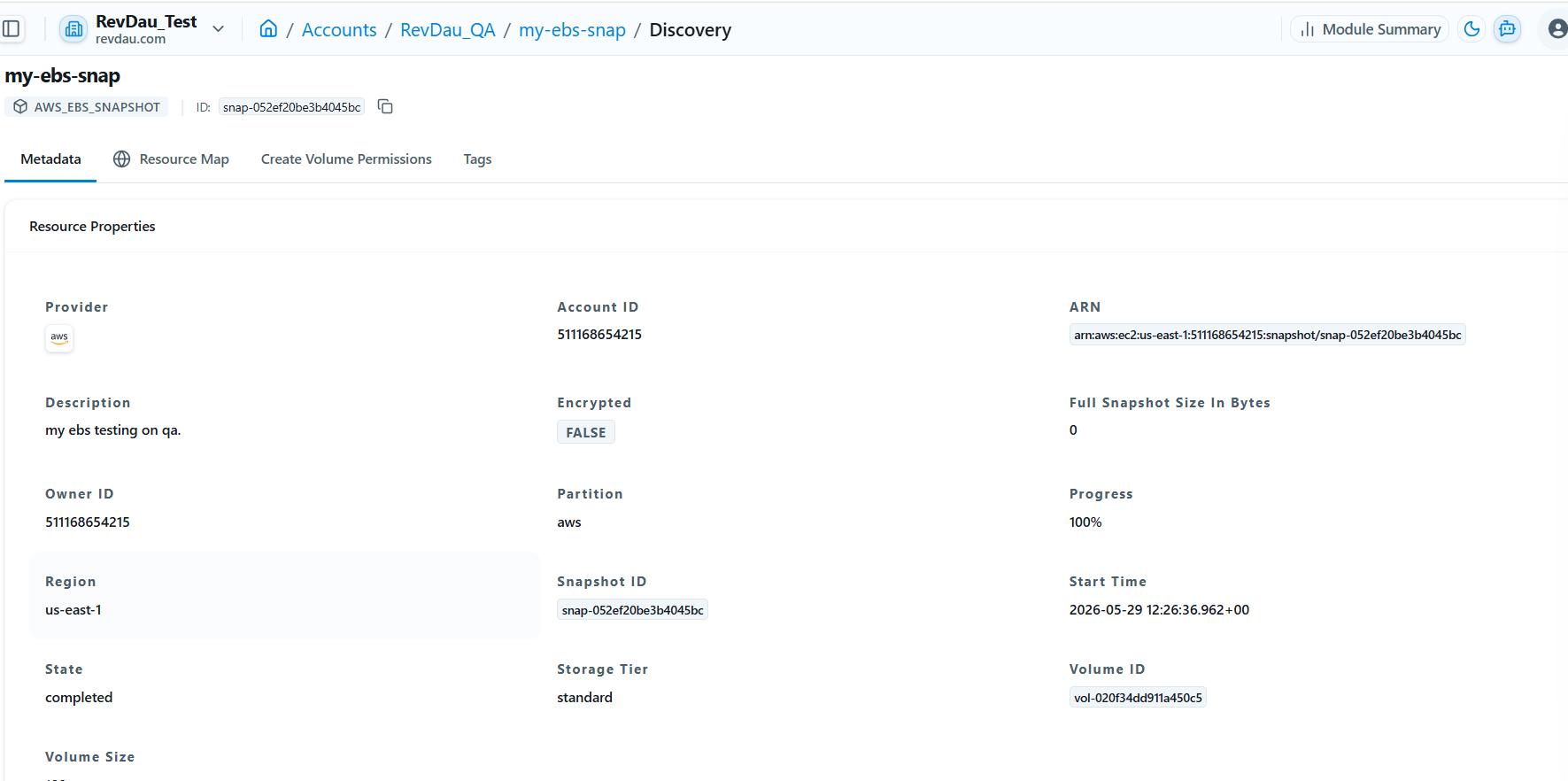
Select a specific account, then select a resource to view all its related attributes.
7.5.2 Custom Tags
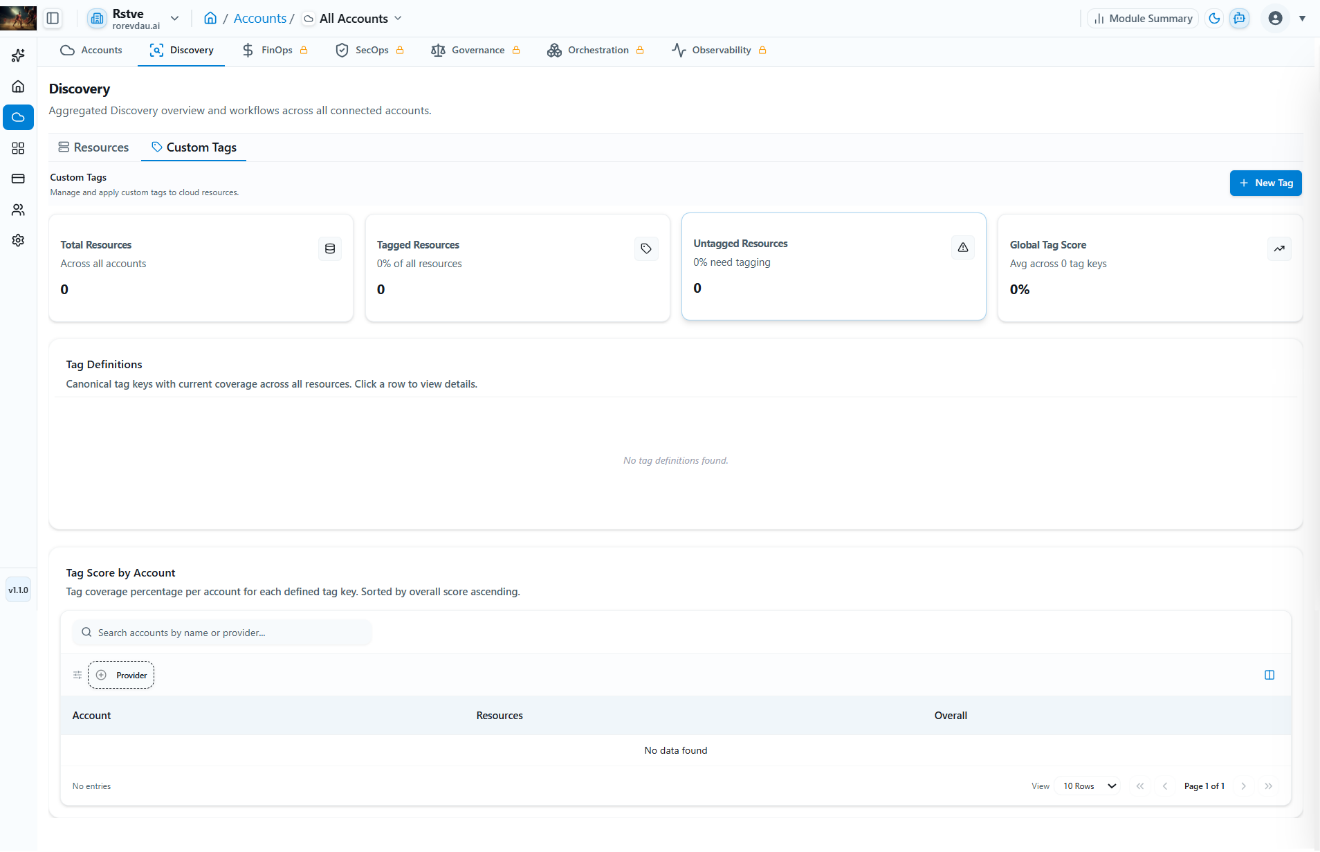
Create tags and attach them to specific resources as required.
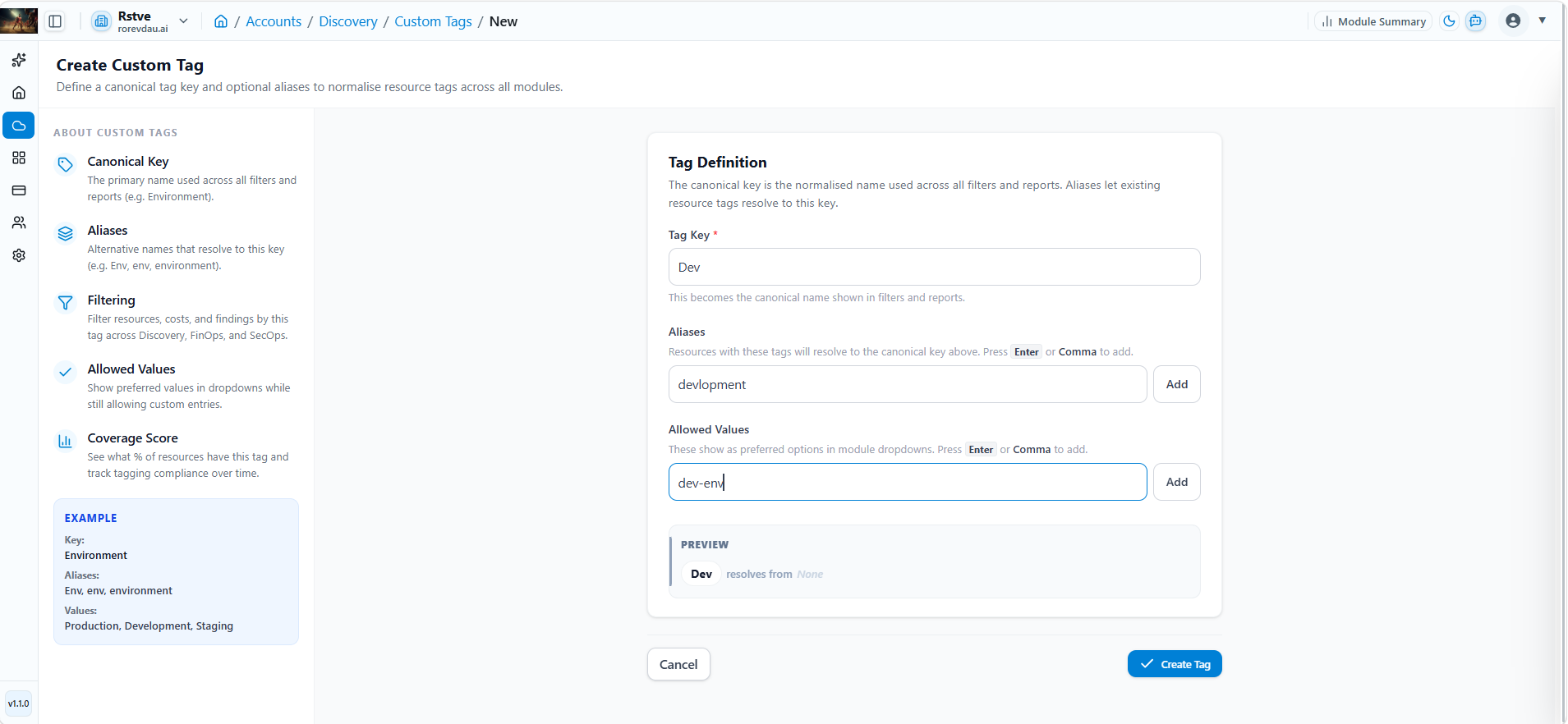
Create a Custom Tag
Step 1 Go to Discovery > Custom Tags > New Tag.
Step 2 Enter Tag Key.
Step 3 Enter Aliases (Optional).
Step 4 Enter Allowed Values (Optional).
Step 5 Click Create Tag.
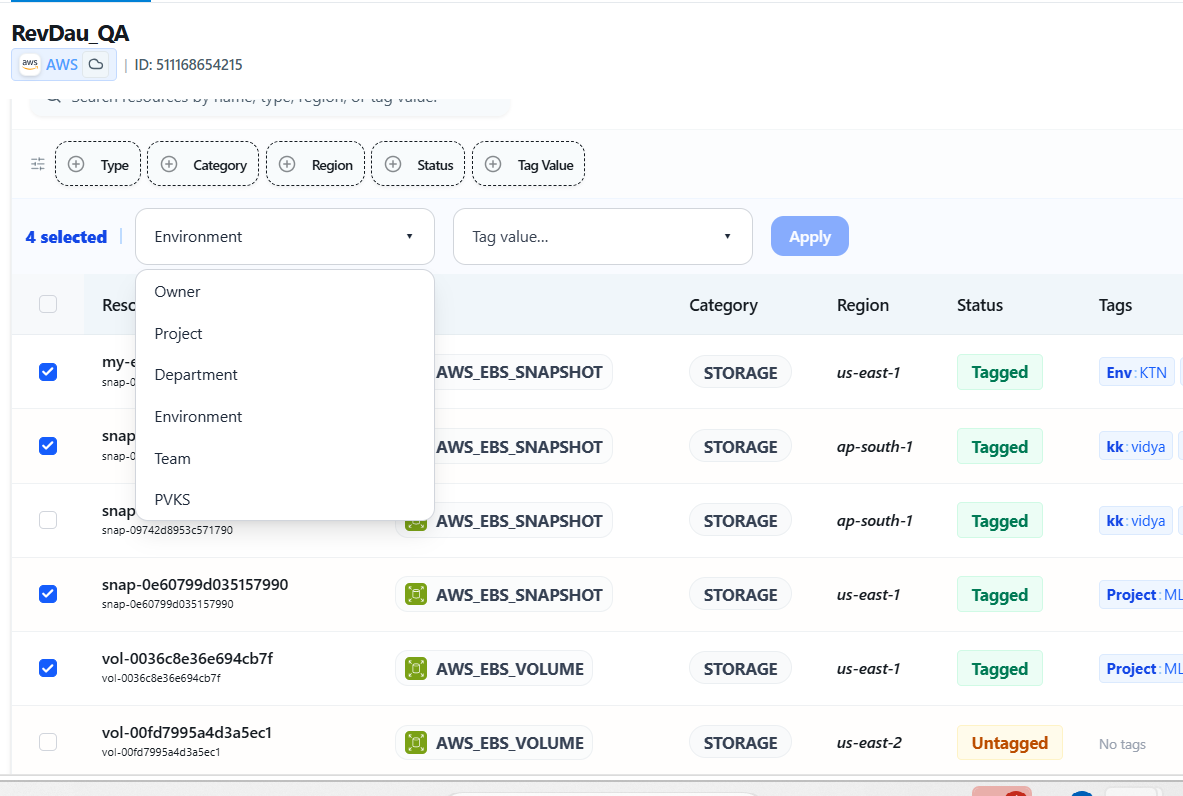
Tag Untagged Resources
Step 1 Select one or multiple resources.
Step 2 Select Tag Key.
Step 3 Select Tag Value or add a custom value.
Step 4 Click Apply. Refresh or wait for automatic discovery to see the tags applied.
7.5.3 Execution History
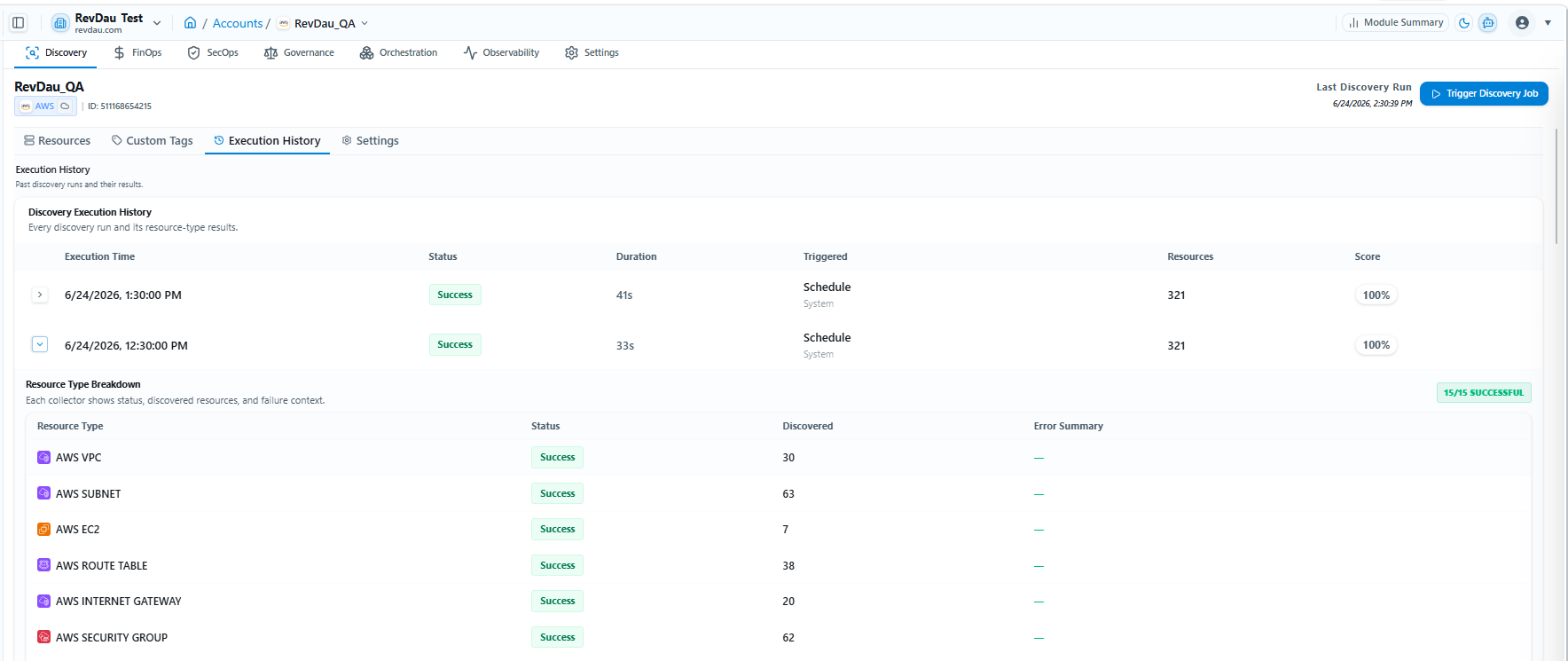
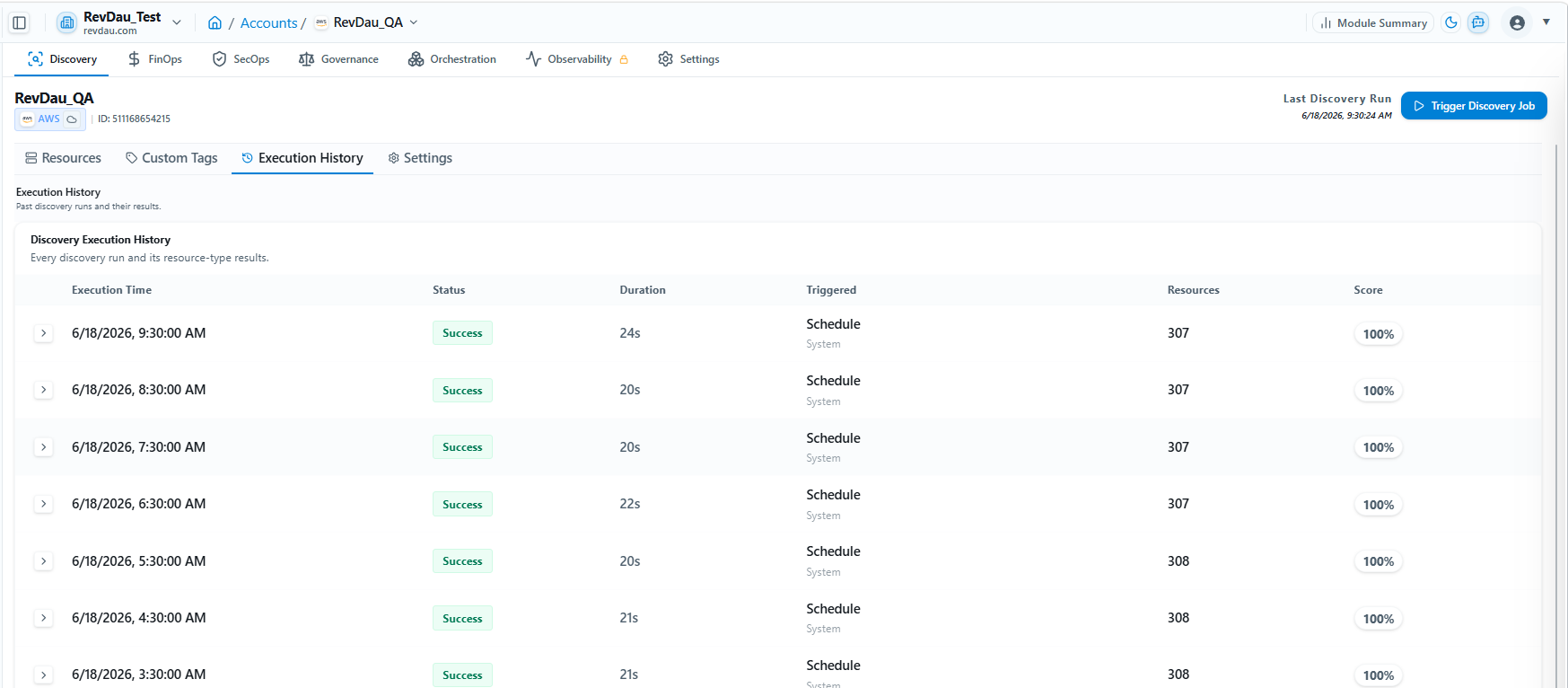
Account-specific discovery job execution history is available under the Execution History tab, showing past discovery runs and their results. Each entry includes:
-
Execution Time
-
Status
-
Duration
-
Triggered
-
Resources
-
Score
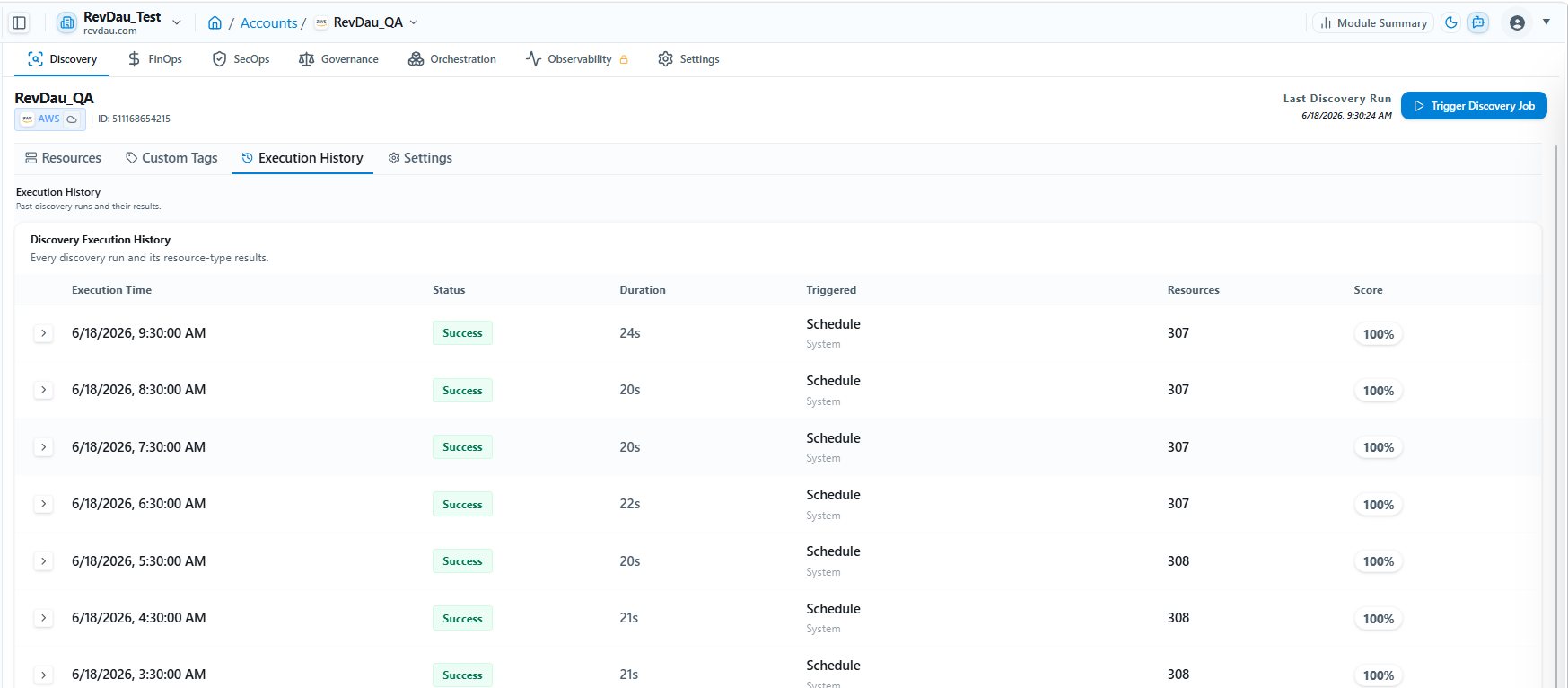
Each history entry also includes a Resource Type Breakdown — every collector's status, discovered resources, and failure context:
-
Resource Type Breakdown
-
Resource-Specific Status
-
Resource-Specific Discovery Count
-
Error Summary
7.5.4 Discovery Module Settings
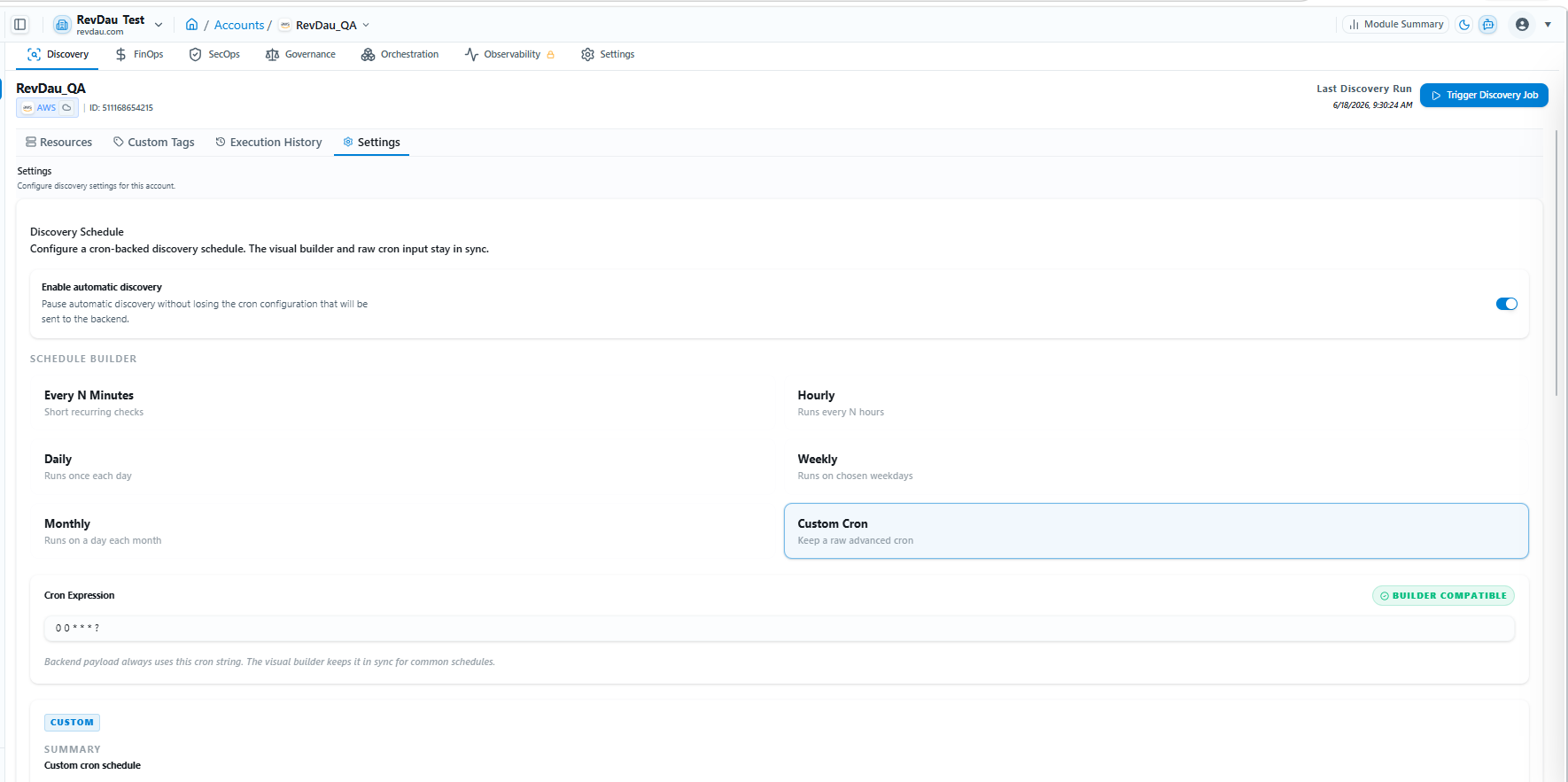
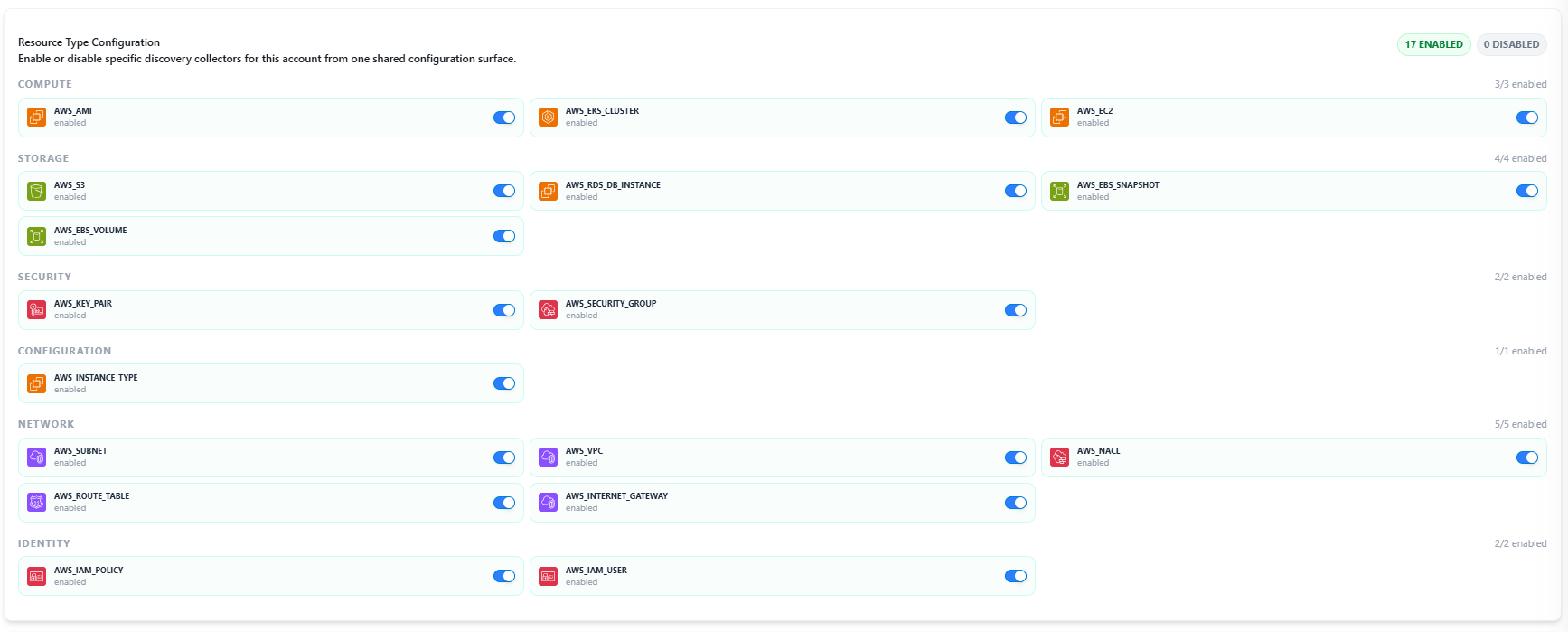
The Settings tab allows you to manage:
-
Set Automatic Scheduler
-
Resource Type Configuration (17 available resource types)
-
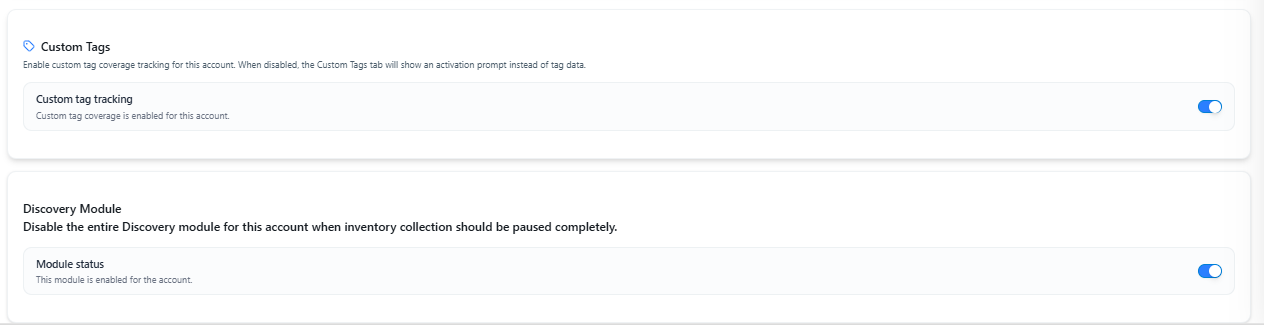
Enable Custom Tag
-
Discovery Module Status (Enable/Disable per account)
7.5.4.1 Set Automatic Discovery Scheduler
Set a custom discovery schedule as per your preference from the available options.
7.5.4.2 Select Resources for Discovery
Select resources for discovery from the list and enable or disable them as required. There are 17 resources in the list.
7.5.4.3 Custom Tag and Discovery Module Status
Enable the custom tag feature to track, create, and apply custom tags. The Discovery module can be enabled or disabled for a specific account from this settings section.