
Enterprise User Guide
Forgot Password
4 Forgot Password
If the user forgets the password, then click on the Forgot password link.
Follow the given steps to set new password:
- Step 1 Enter your Email ID.
- Step 2 Click on the Reset Password button.
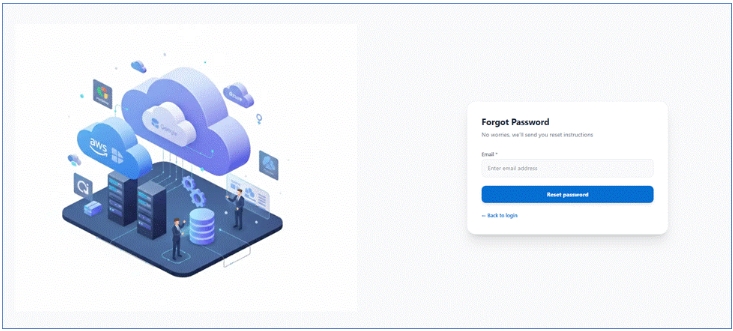
- Step 3 Click on the back to login. If email is not received, then click to resend. Now Check your Email:
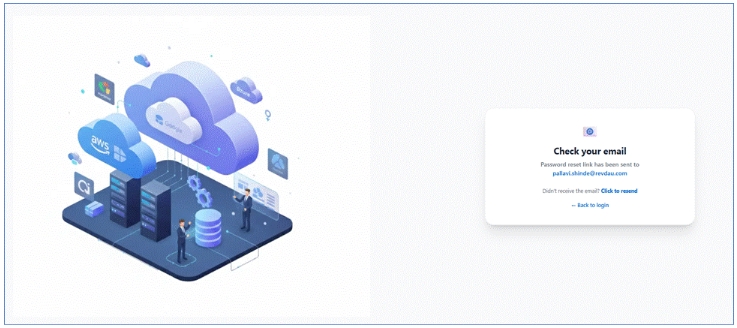
4.1 Receive Email for Password Reset Request
Enter your email address and click Reset Password. You will receive an email containing a temporary password.
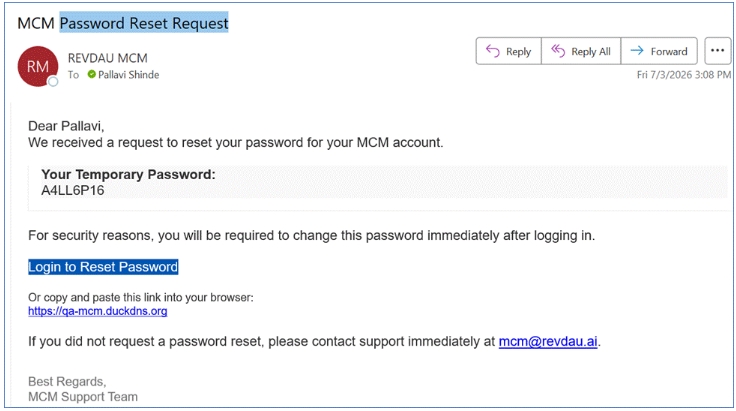
4.2 Verify Your Temporary Password
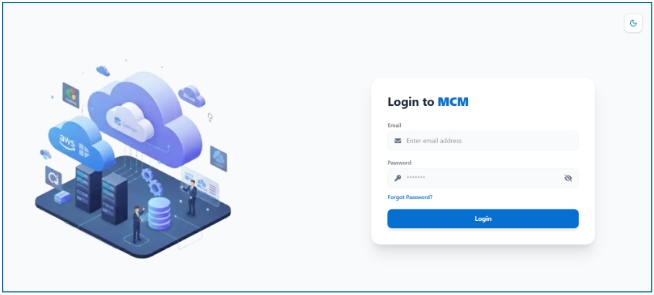
- Navigate to the Login URL:
http://mcm-app/login - Enter your registered Email address.
- Enter the Temporary Password (e.g.,
9A2L6P1L).
4.3 Change Temporary Password
Once the temporary password is verified, update your password immediately for security purposes. After the password change is complete, log in using your new credentials.
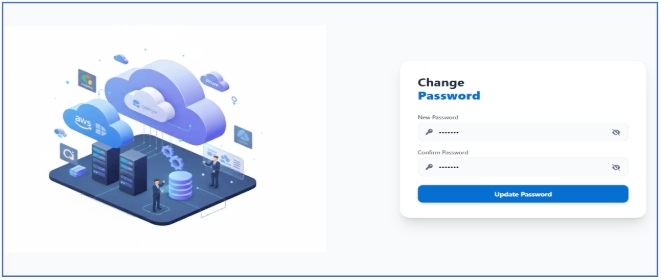
- Enter a New Password.
- Enter Confirm Password.
- Click Update Password to finalize.