
Cost Management (FinOps)
The FinOps module is accessible at both all-accounts level and account-specific level, with date range filtering and various chart types available.
8.1 Overview Dashboard
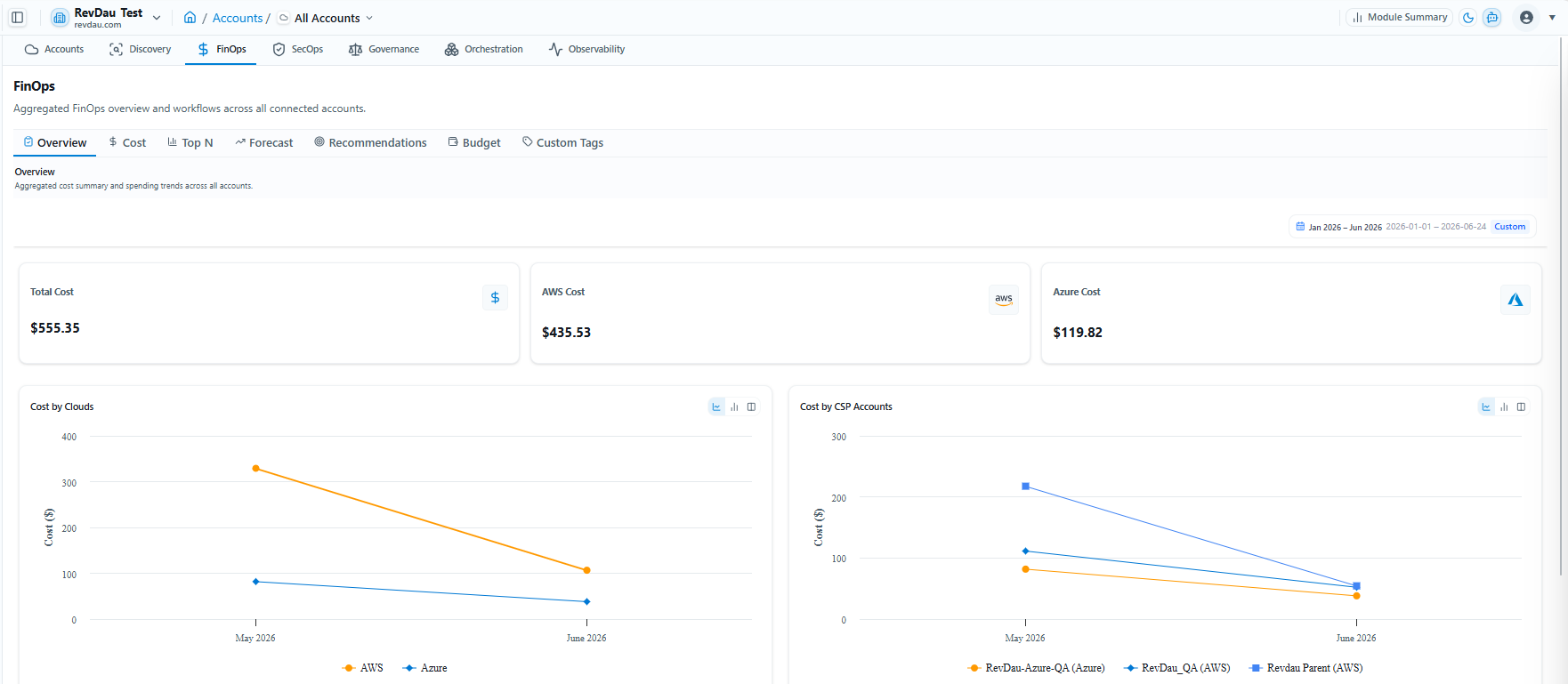
| FinOps Overview Metrics |
|---|
| Total Spend |
| AWS Spend |
| Azure Spend |
| Cost by Cloud |
| Cost by CSP Accounts |
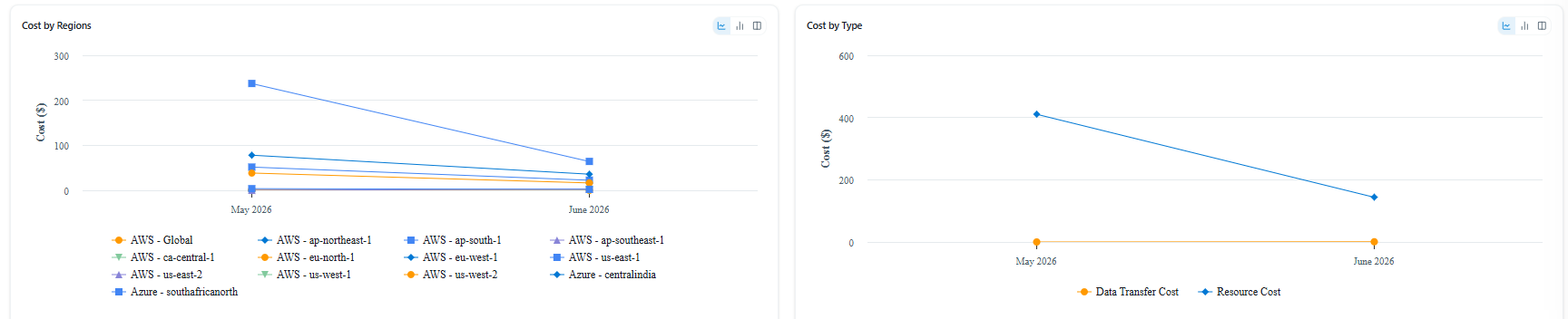
| Cost by Region |
| Cost by Type |
8.2 Cost Tab
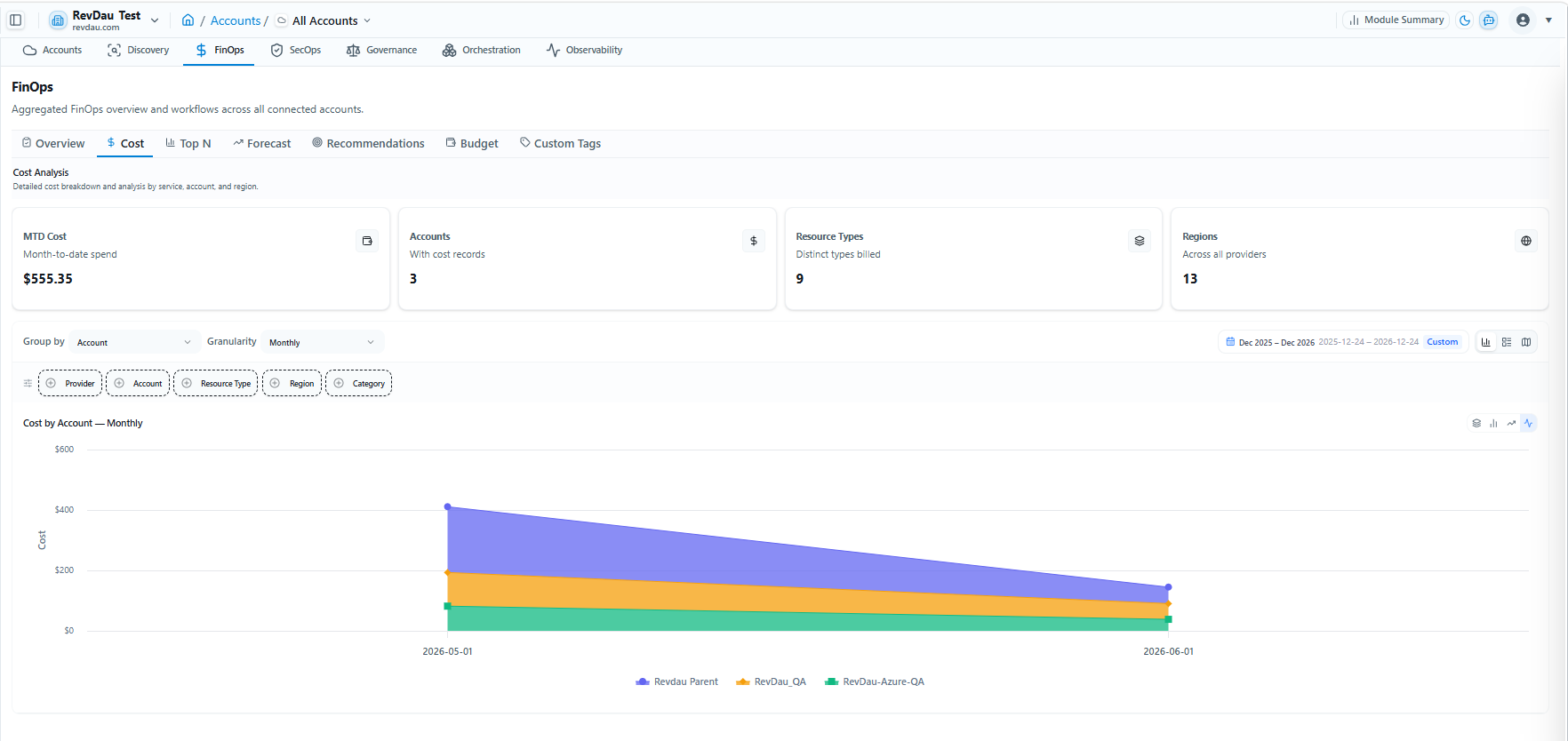
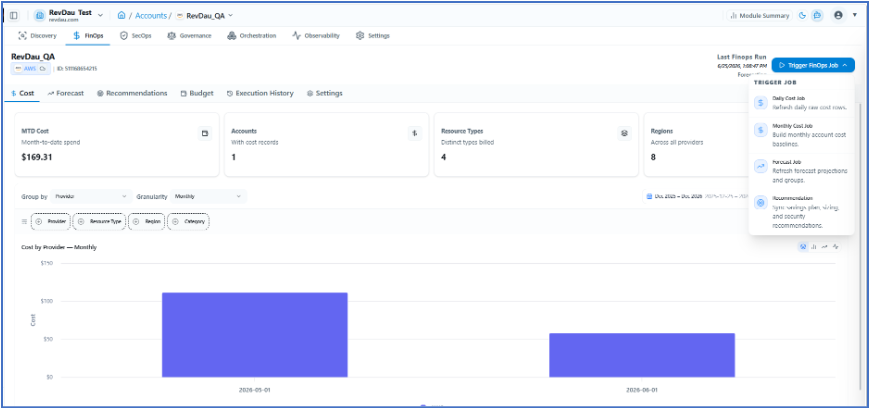
Detailed cost breakdown and analysis by service, account, and region, with multiple chart views available.
-
Month-to-date spend
-
Accounts with cost records
-
Resource Types — distinct types billed
-
Regions — across all providers
Available filters: Account, Provider, Region, Resource Type, Cost Type, Cost Sub Type, Service, and time periods (Monthly, Weekly, Daily, Custom Date Range).
8.3 Top N Dashboard
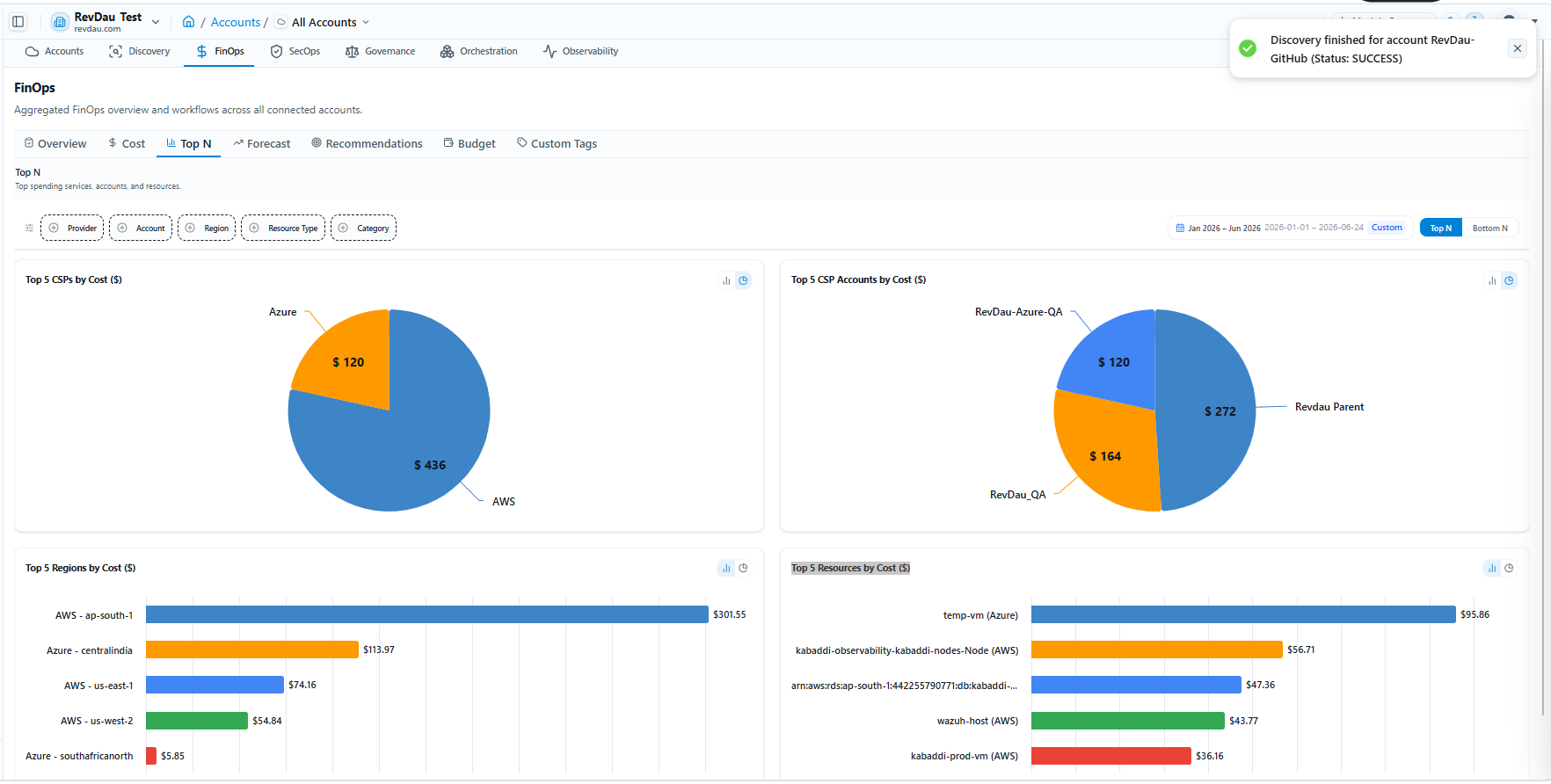
View top-spending services, accounts, and resources. Available dashboards:
-
Top 5 CSPs by Cost ($)
-
Top 5 CSP Accounts by Cost ($)
-
Top 5 Regions by Cost ($)
-
Top 5 Resources by Cost ($)
Filters available: Provider, Account, Region, Resource Type, Category.
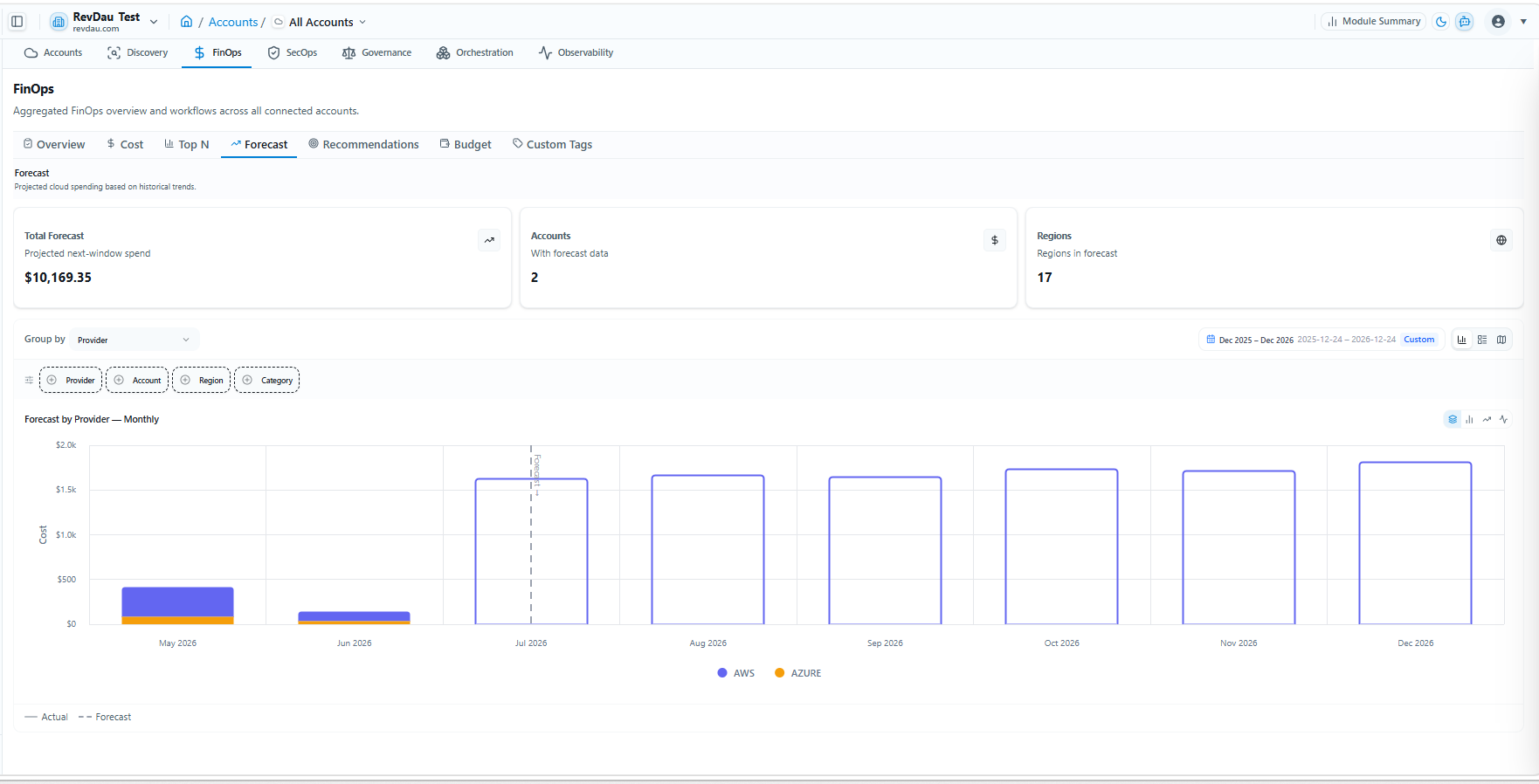
8.4 Forecast Dashboard
Projected cloud spending based on historical trends.
-
Total Forecast
-
Accounts with Forecast Data
-
Regions in Forecast
Filters: Provider, Account, Region, Category. Chart view: Forecast by Provider — Monthly.
8.5 Recommendations
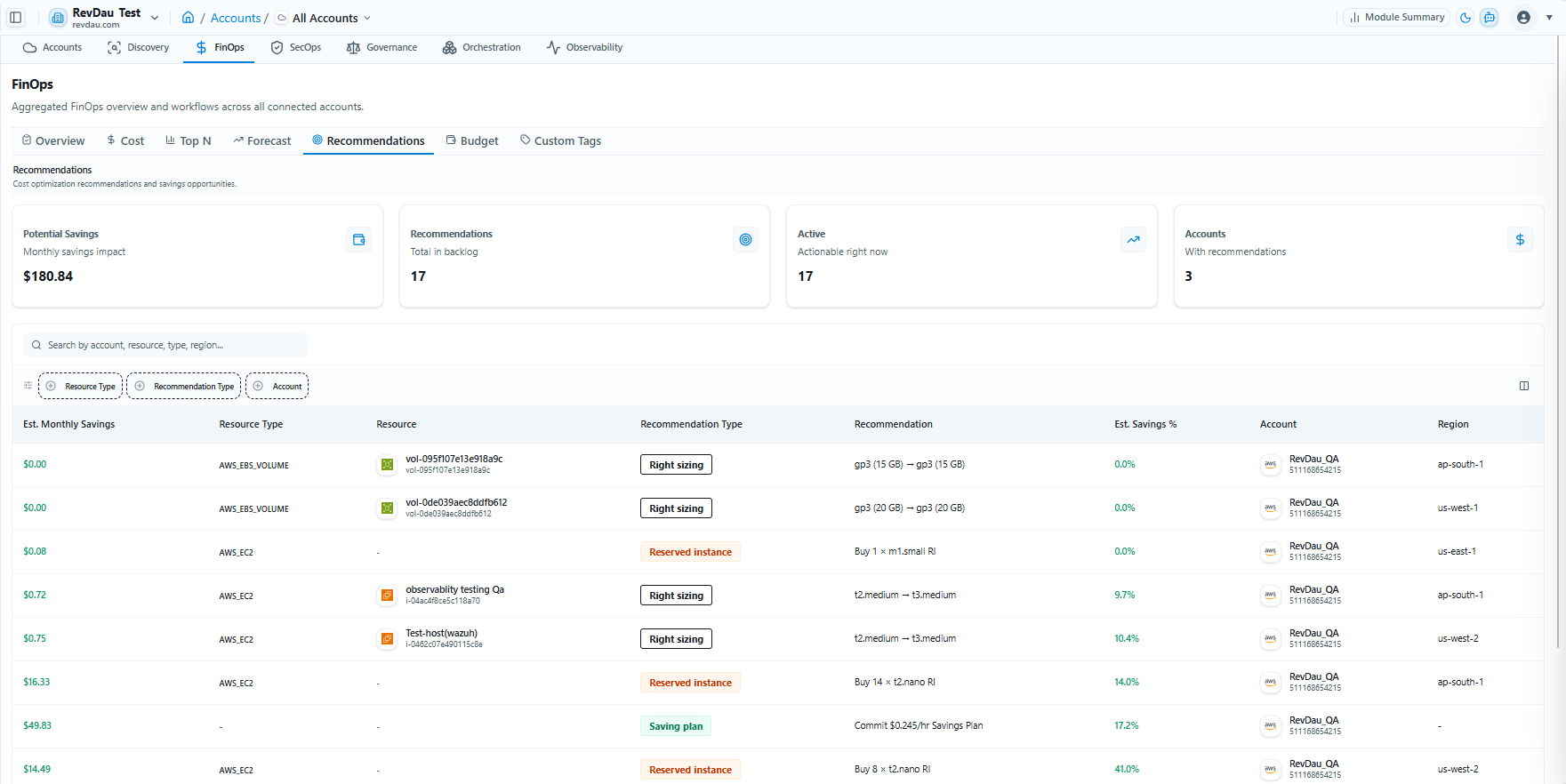
Cost optimization recommendations from AWS Compute Optimizer and Azure Advisor, including:
-
Right-Sizing
-
Reserved Instances
-
Savings Plans
| Recommendation Metrics |
|---|
| Potential Savings — Monthly savings impact |
| Recommendations — Total in backlog |
| Active — Actionable right now |
| Accounts — With recommendations |
Available filters: Resource Type, Recommendation Type, Account.
Table attributes:
-
Est. Monthly Savings
-
Resource Type
-
Resource
-
Recommendation Type
-
Recommendation
-
Est. Savings %
-
Account
-
Region
8.6 Budget Management
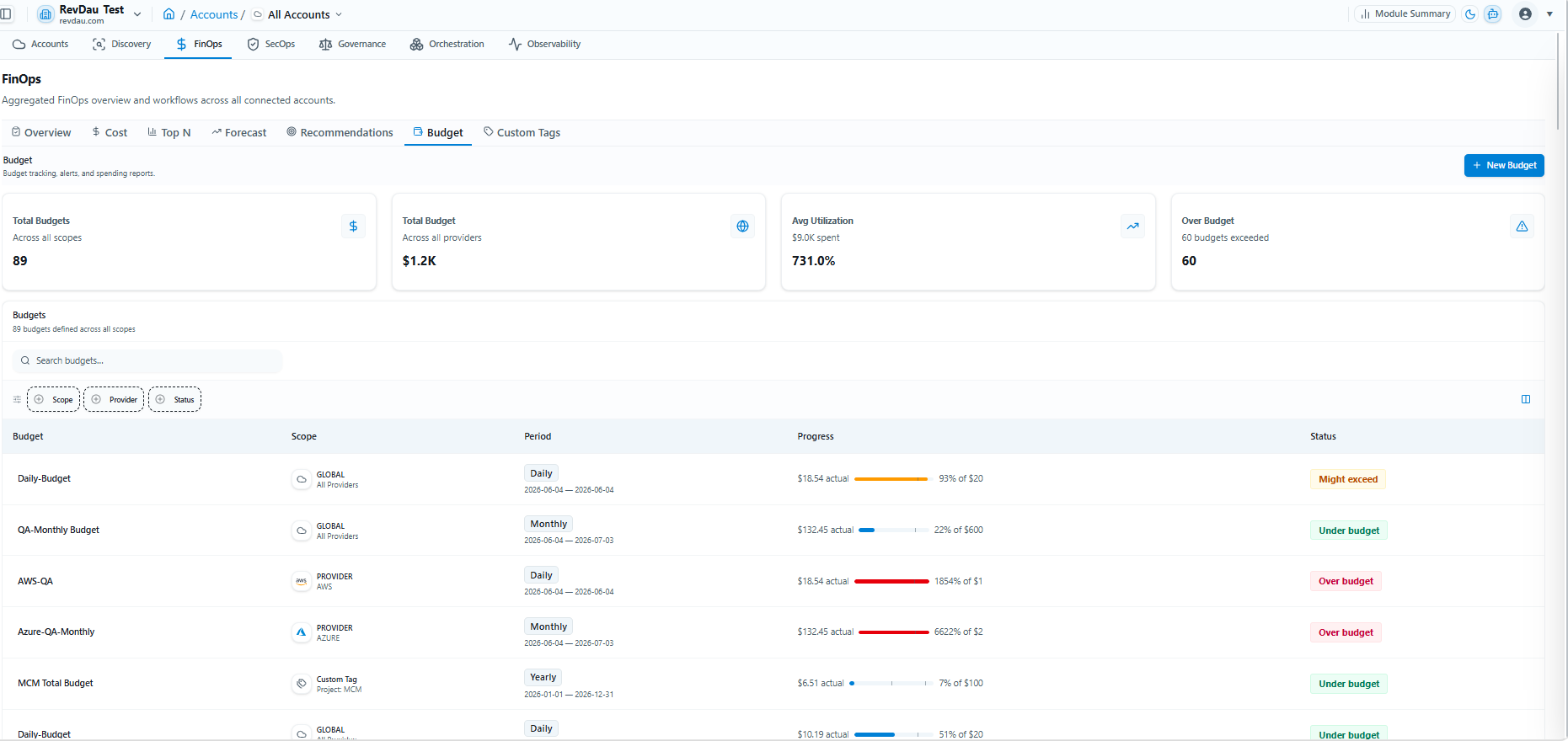
Create and track budgets across different time periods and scopes. Budget tracking, alerts, and spending reports are all available.
-
Total Budgets — Across all scopes
-
Total Budget — Across all providers
-
Avg Utilization
-
Over Budget count
All budgets are listed across all defined scopes, with the following attributes:
-
Budget Name
-
Scope
-
Period
-
Progress
-
Status
Create budget based on:
-
Provider
-
Account
-
Subscription
-
Tags
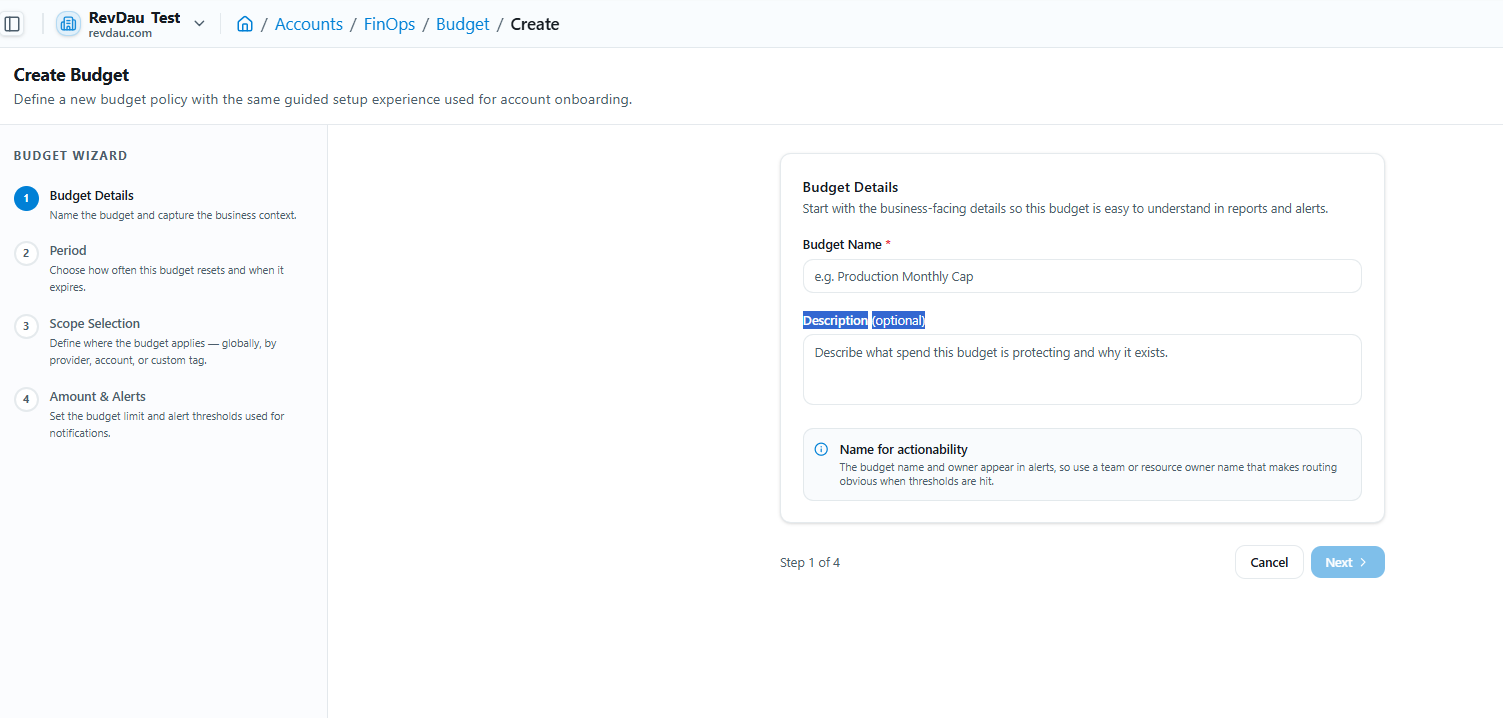
Create a Budget
Step 1 Click + New Budget.
Step 2 Enter Budget Name.
Step 3 Enter Description (Optional).
Step 4 Click Next.
Step 5 Select Budget Period, Start Date, and optionally set Budget Expiry. Click Next.
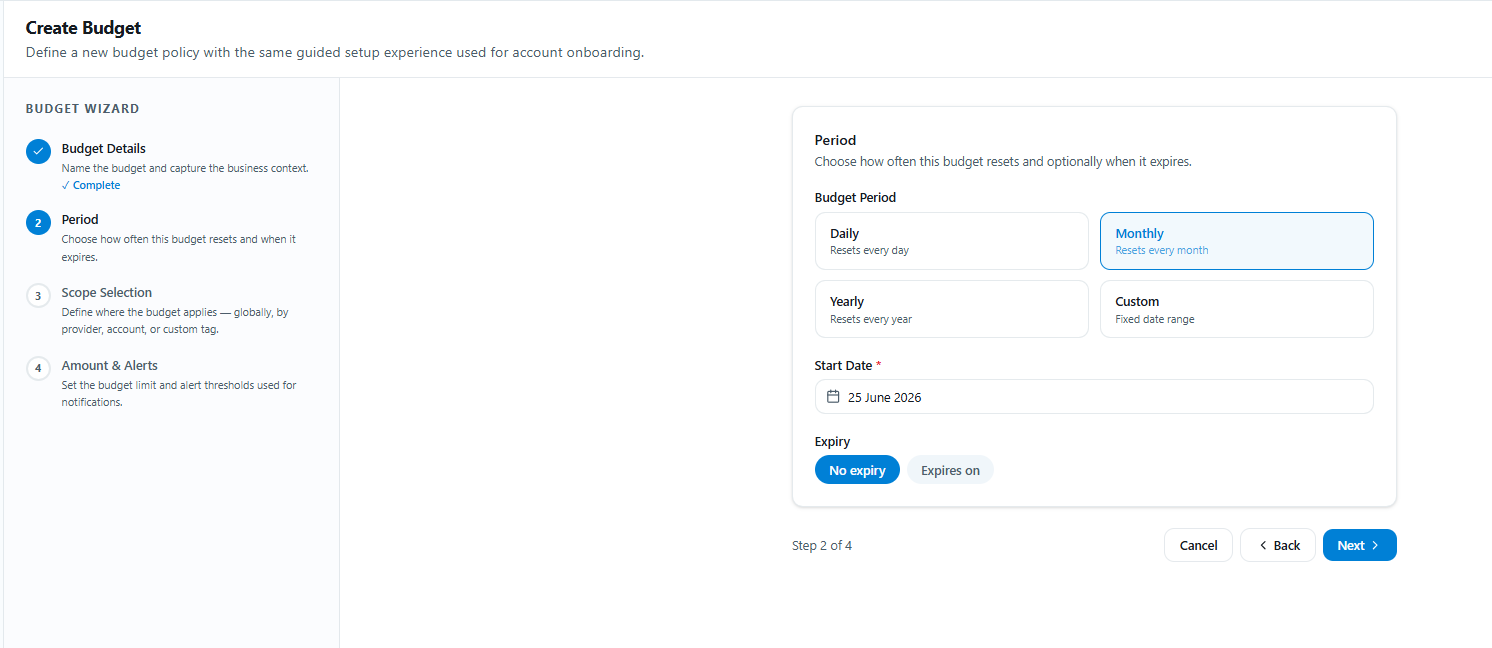
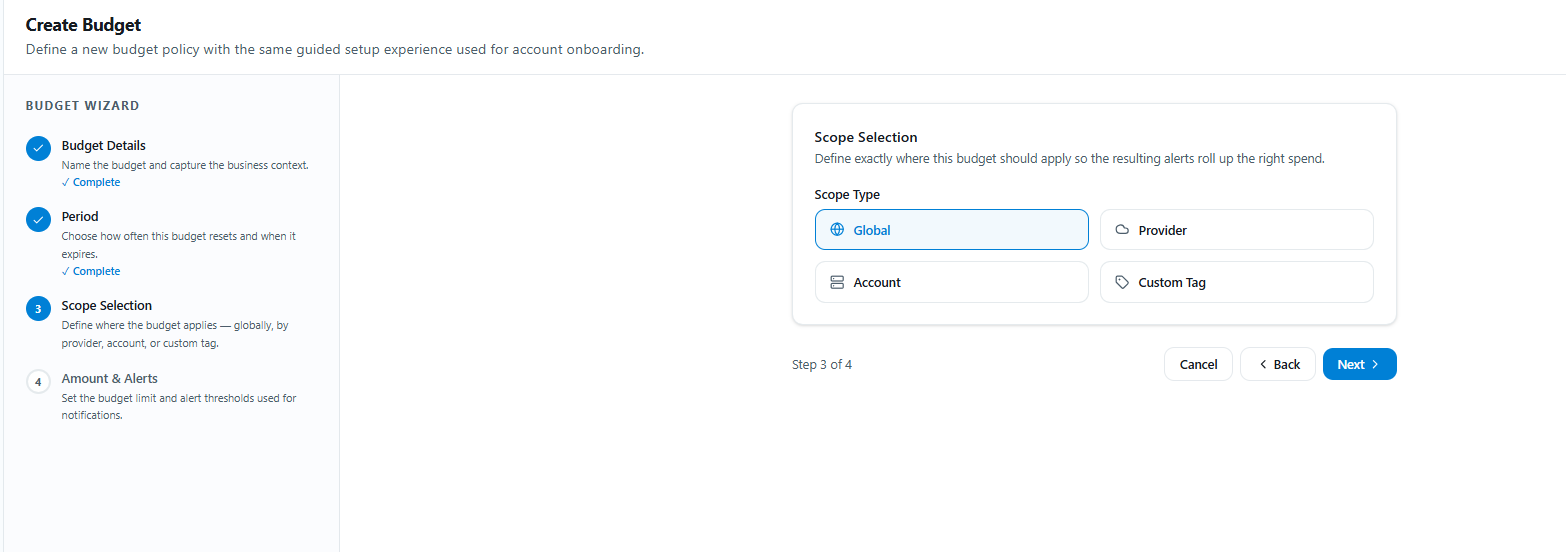
Step 6 Select Budget Scope: Globally, by Provider, by Account, or by Custom Tag. Click Next.
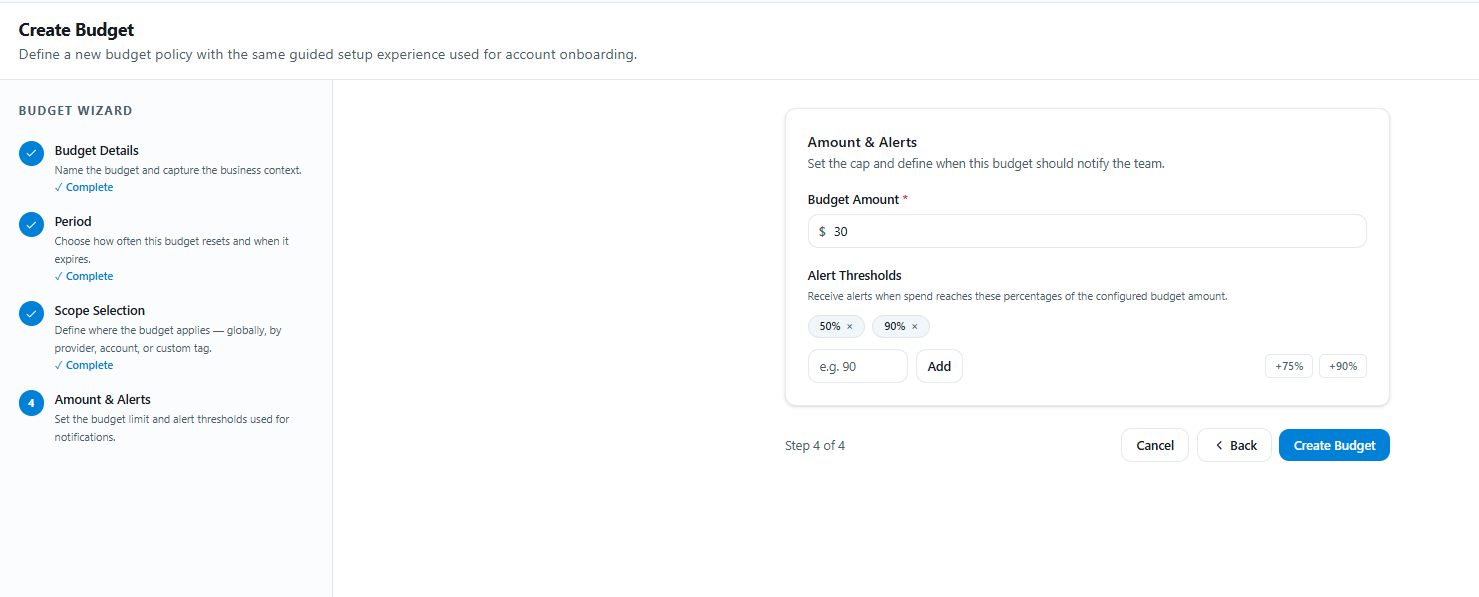
Step 7 Set the budget Amount and configure Alerts. Save to complete.
Budget Scope options define where the budget applies:
-
Globally
-
By Provider
-
Account
-
Custom Tag
The final step sets the Amount & Alerts — the spending cap and when this budget should notify the team.
8.7 Custom Tags (FinOps)
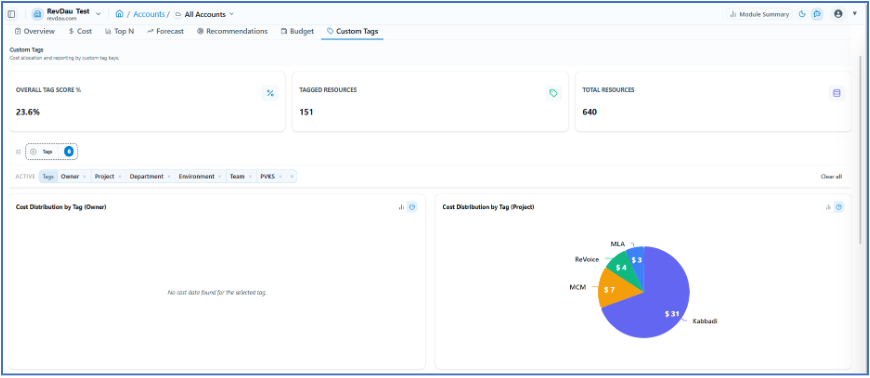
Custom tags in FinOps are used for cost allocation and reporting. The Custom Tag dashboard shows:
-
Overall Tag Score
-
Tagged Resources
-
Total Resources
-
Cost Distribution by Tag (chart)
8.8 Trigger FinOps Job
FinOps jobs can be triggered via scheduler or manually. Click the Trigger Job button to run a manual job.
8.9 Execution History
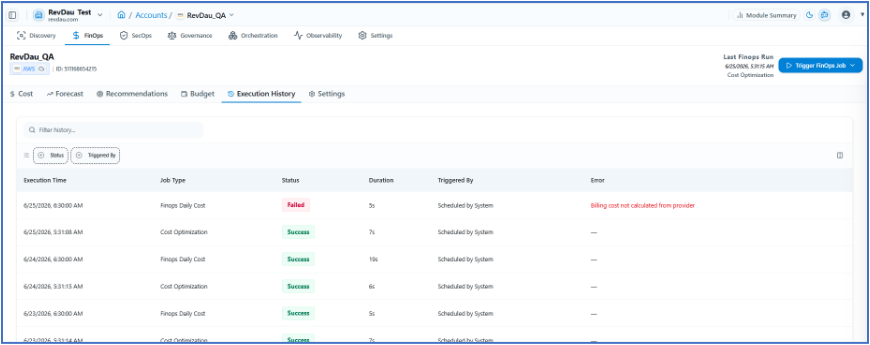
Access execution history at the account-specific level. Filter by status and triggered-by. History details include:
-
Execution Time
-
Job Type
-
Status
-
Duration
-
Triggered By
-
Error (if any)
8.10 Settings
FinOps Settings (account-specific) include:
-
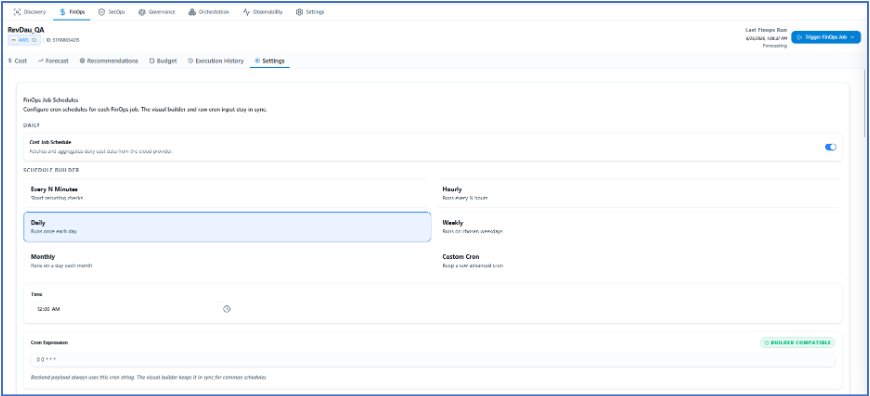
FinOps Job Scheduler Settings
-
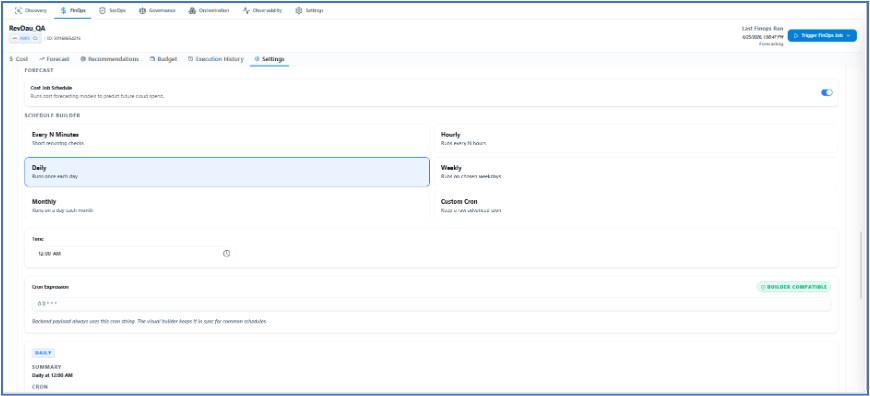
Forecast Job Scheduler Settings
-
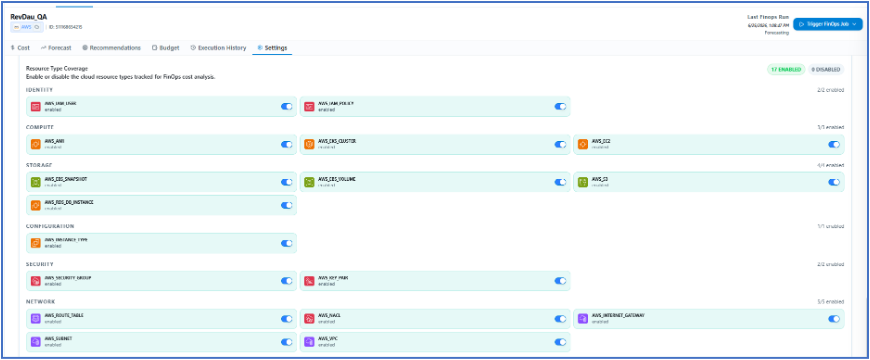
Resource Type Coverage — Enable or disable tracked resource types
-
FinOps Module Status — Enable or disable per account
FinOps Job Schedule:
The Forecast Cost Job Schedule runs cost forecasting models to predict future cloud spend, by account Specific.
By the account level Resource Type Coverage Enable or disable the cloud resource types tracked for FinOps cost analysis.
FinOps Module Disable the entire FinOps module for this account when cost tracking should be paused completely only by account specific.
