MSP User Guide
User Management
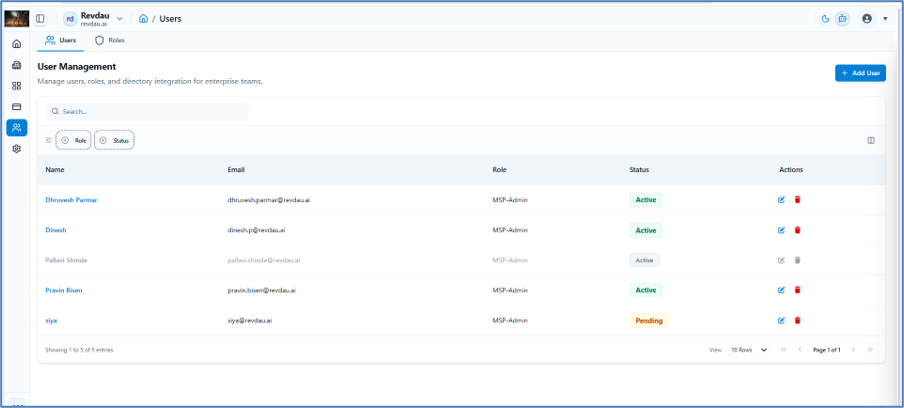
Manage users, roles, and access permissions from the User Management section.
- Add, edit, and delete users.
- Assign roles and manage access levels.
11.1 Users
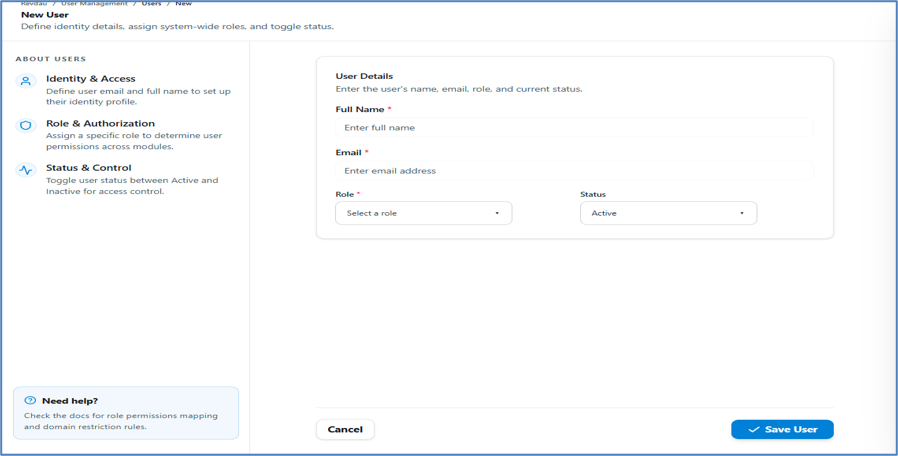
Steps to Create a New MSP User
- Click Add User.
- Enter Username.
- Enter Email Address.
- Select User Role: MSP Admin or MSP Viewer.
- Select User Status: Active or Inactive.
- Click Save User.
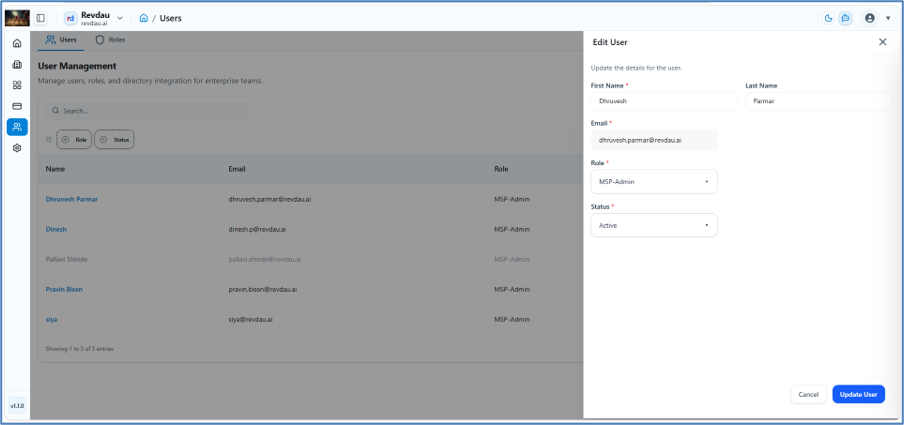
To edit or delete a user, use the action column in the Users table. Editable fields include:
- First Name
- Last Name
- Role
- Status
11.2 Roles
Create and manage access roles including Admin and Viewer. System‑created roles cannot be edited or deleted, but custom roles can be created to meet specific requirements.
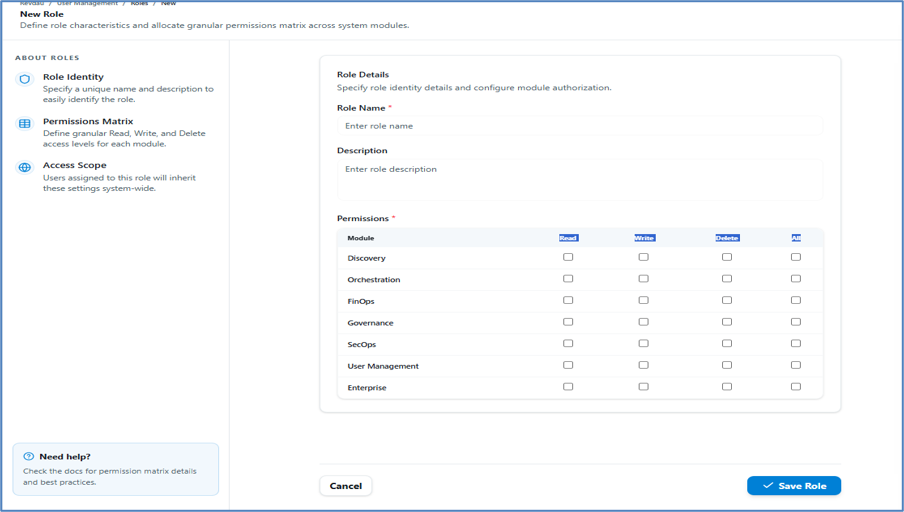
Steps to Create a Custom Role
- Click Add Role.
- Enter Role Name.
- Enter Role Description.
- Select Role Permissions: Read, Write, Delete, All — per specific module.
- Click Save Role.
The custom role will be visible in the Role Table.