Login & Getting Started
2.1 Receive Email
Once the user account is created, a Temporary Password will be sent to the registered email address.
-
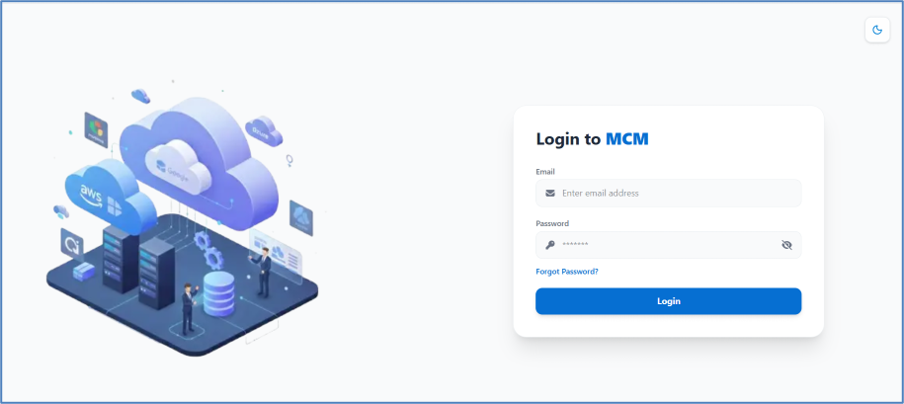
Open the login URL and enter your email address and password.
-
Click Login to access the platform.
-
Use Forgot Password if needed.
2.2 Verify Your Temporary Password
Step 1 Navigate to the Login URL: http://mcm-app/login
Step 2 Enter your registered Email address.
Step 3 Enter Temporary Password: 9A2L6P1L
2.3 Change Temporary Password
Once the temporary password is verified, update your password immediately for security purposes. After the password change is complete, log in using your new credentials.
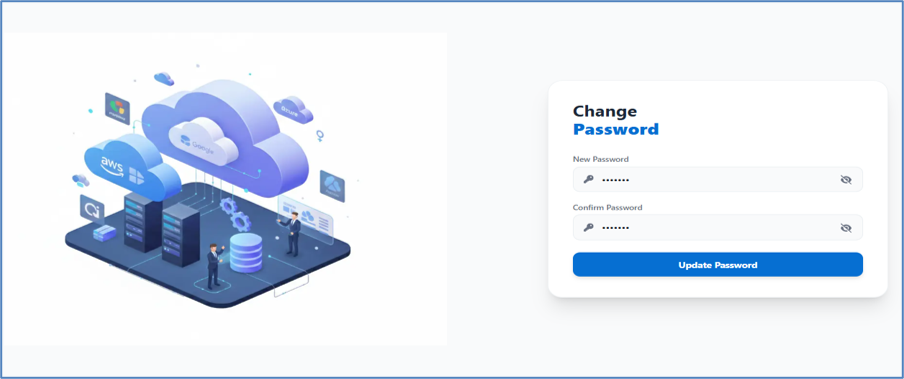
Step 1 Enter your Current / Temporary Password.
Step 2 Enter a New Password and Confirm Password.
Step 3 Click Submit to save changes.
Choose a strong password with at least 8 characters, including uppercase, lowercase, numbers, and symbols.
2.4 Getting Started
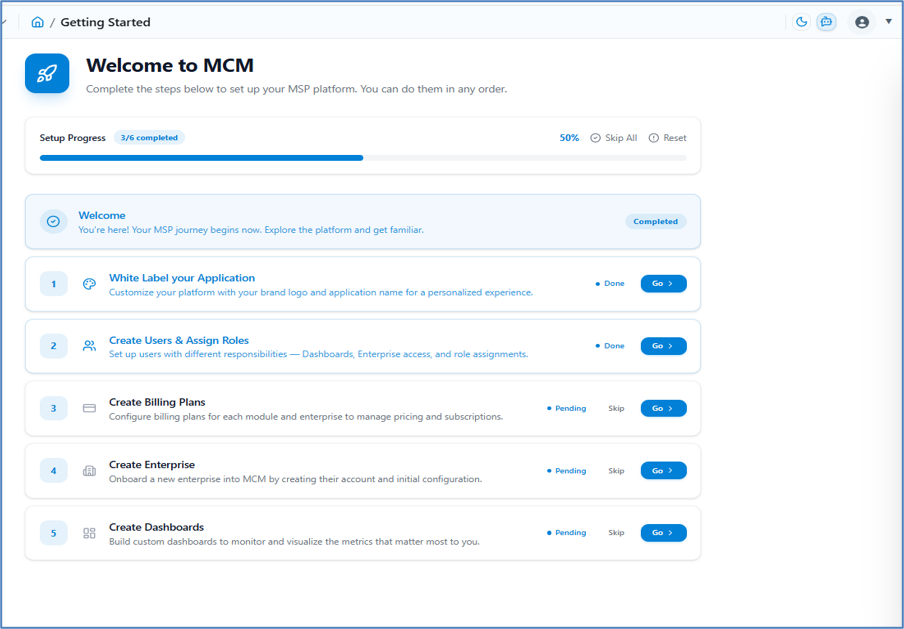
After login, the Getting Started dashboard guides you through the initial setup:
-
Follow setup steps: Add Users, Create Enterprise Account.
-
Track your progress using the setup progress bar.