
Billing Management
Billing Plans
The Billing Plans page allows administrators to create, manage, and monitor subscription plans available to enterprises. Each billing plan is associated with a specific platform module and defines the pricing and availability of that service.
This page provides visibility into plan usage, pricing, status, and enterprise adoption across the platform.
Billing Plans List
The Billing Plans table displays all available subscription plans configured in the platform.
Available Columns
| Column | Description |
|---|---|
| Plan Name | Name of the billing plan |
| Module | Platform module associated with the plan |
| Price | Subscription price for the plan |
| Enterprises | Number of enterprises currently subscribed to the plan |
| Plan Scope | Availability scope of the plan |
| Status | Current status of the billing plan |
Search and Filtering
Administrators can quickly find plans using the available search and filter options.
Search
Use the Search field to locate billing plans by:
- Plan name
- Module name
Filters
The Billing Plans page provides filtering options such as:
Module
Filter plans based on the associated module, including:
- Discovery
- FinOps
- SecOps
- Governance
- Orchestration
- Observability
Status
Filter plans according to their current state:
- Active
- Inactive
Filtering helps administrators quickly identify relevant plans and manage subscriptions more efficiently.
Modules
Each billing plan is linked to a single platform module.
Supported Modules
Discovery
Provides cloud asset discovery, inventory management, and resource visibility.
FinOps
Enables cloud cost management, optimization, budgeting, and financial reporting.
SecOps
Provides security monitoring, compliance assessments, and risk management capabilities.
Governance
Supports policy enforcement, compliance controls, and cloud governance management.
Orchestration
Enables workflow automation and cloud operations management.
Observability
Provides monitoring, logging, alerting, and operational visibility across cloud environments.
Pricing Information
The Price column displays the subscription cost for each plan.
Administrators can use this information to:
- Compare available plans.
- Review module pricing.
- Manage subscription offerings.
- Evaluate enterprise licensing costs.
Enterprise Adoption
The Enterprises column indicates how many enterprises are currently using a specific billing plan.
This information helps administrators:
- Monitor plan popularity.
- Track module adoption.
- Evaluate subscription trends.
- Identify highly utilized services.
Plan Scope
The Plan Scope field defines how a billing plan is made available within the platform.
Global
A Global plan is available for assignment to all eligible enterprises within the platform.
Additional plan scopes may be available depending on platform configuration and business requirements.
Plan Status
Each billing plan can have one of the following statuses:
Active
- Available for enterprise subscriptions.
- Can be assigned to enterprises.
- Included in plan selection during onboarding or subscription changes.
Inactive
- Not available for new subscriptions.
- Existing subscriptions may be retained based on platform policies.
- Hidden from standard plan assignment workflows.
Create New Plan
To create a new billing plan:
- Click Create New Plan.
- Select the module associated with the plan.
- Configure pricing and plan details.
- Define plan scope and status.
- Save the plan configuration.
The newly created plan becomes available according to its configured status and scope.
Export Data
The Billing Plans page supports exporting plan information for reporting and analysis purposes.
Available export formats may include:
- CSV
- Excel
Exported data can be used for auditing, financial reporting, and subscription management.
Pagination
For environments with multiple plans, pagination controls are available.
Features include:
- Configurable rows per page.
- Page navigation controls.
- Record count display.
- First, previous, next, and last page navigation options.
The Billing module provides two primary tabs:
- Billing Plan
- Billing Request
8.1 Billing Plan
Before adding a new Enterprise, a Billing Plan must be created and available for assignment.
Create and manage pricing plans, then assign them to modules.
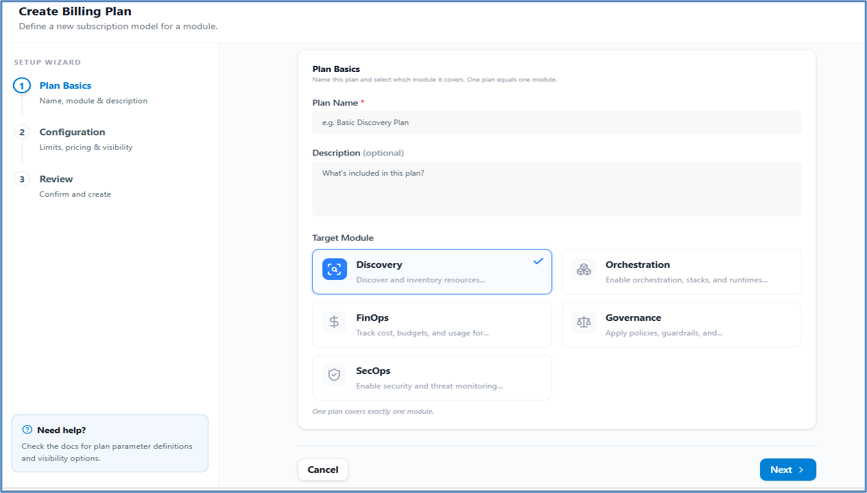
Steps to Create a Billing Plan
-
Click Add Billing Plan.
-
Enter the Billing Plan Name.
-
Write a Plan Description.
-
Select the Billing Module.
-
Click Next.
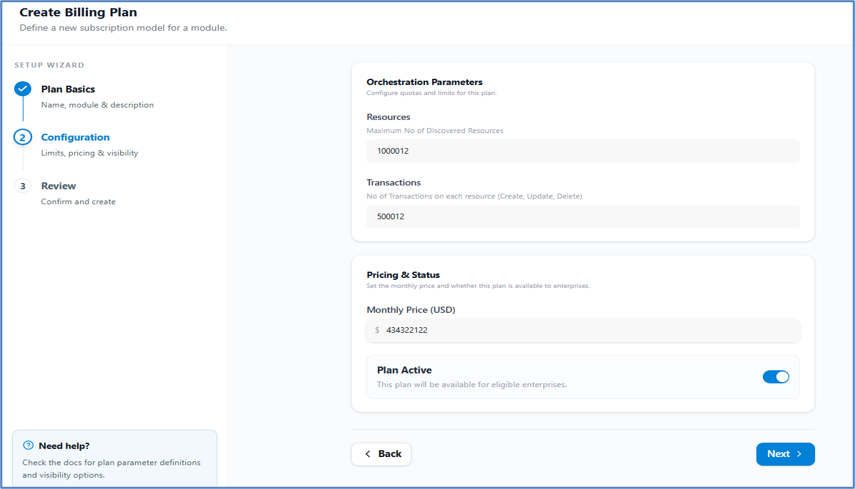
On the next page, configure quotas and limits:
- Add Maximum number of Discovered Resource limits.
- Add Number of Transactions limit per resource (Create, Update, Delete).
- Set the Monthly Price.
- Set Plan Status: Active or Inactive.
- Click Next.
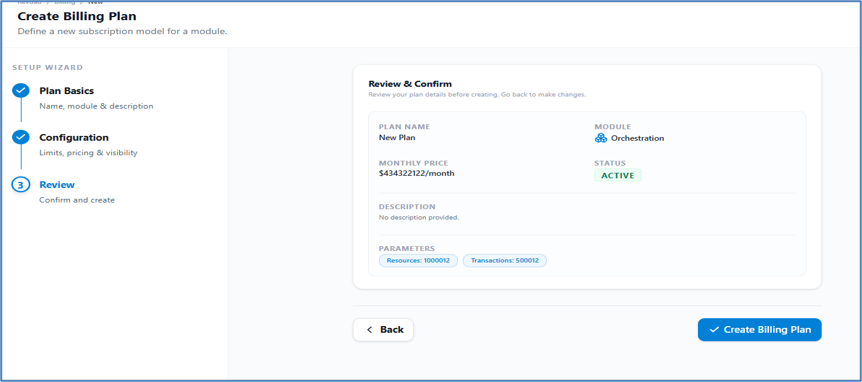
Review your plan details on the summary page. Go back to make changes or click Create Billing Plan to finalize. Your plan will appear in the Billing Plan Table.
8.2 Billing Requests
-
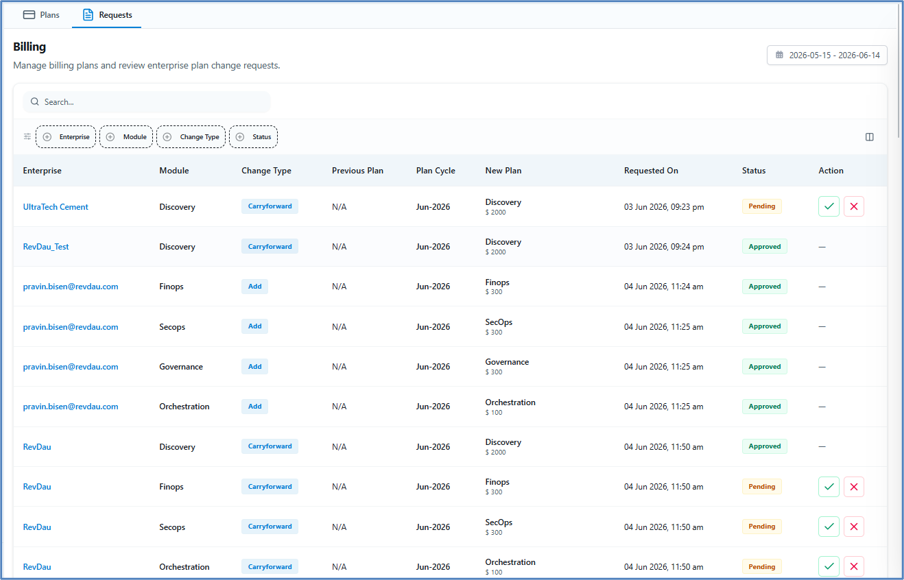
View enterprise billing requests.
-
Approve or reject requests by clicking the action column.
-
Track the full billing lifecycle.
Plan Change Requests
The Plan Change Requests page allows administrators to review, approve, or reject subscription plan changes requested by enterprises. Changes submitted by enterprises are listed here for administrative review before they are applied.
Approved plan changes take effect on the first day of the target billing period according to the organization's subscription policy.
Request Overview
The page provides a centralized view of all submitted billing plan change requests across enterprises.
Administrators can:
- Review submitted plan change requests.
- Monitor request status.
- Approve or reject pending requests.
- Track processed requests.
- Audit subscription modification history.
A request summary badge is displayed at the top of the page showing the number of pending requests requiring attention.
Plan Change Requests Table
The request table displays detailed information for each plan change request.
Available Columns
| Column | Description |
|---|---|
| Enterprise | Name of the enterprise that submitted the request |
| Module | Platform module associated with the requested plan |
| Plan Name | Requested billing plan |
| Validity | Duration of the billing plan subscription |
| Submitted | Date the request was submitted |
| Status | Current request status |
| Actions | Administrative actions available for the request |
Search and Filtering
Administrators can quickly locate requests using the available search and filter options.
Search
Use the Search by enterprise name field to find requests for a specific enterprise.
Filters
The following filters are available:
Enterprise
Filter requests by enterprise name.
Module
Filter requests based on the selected platform module:
- Discovery
- FinOps
- SecOps
- Governance
- Orchestration
- Observability
Status
Filter requests according to their current state:
- Pending
- Approved
- Rejected
- Processed
Filtering helps administrators focus on specific requests and streamline approval workflows.
Request Statuses
Each change request progresses through a defined lifecycle.
Pending
A request has been submitted and is awaiting administrative review.
Available Actions:
- Confirm (Approve)
- Reject
Approved
The request has been approved and is scheduled for processing.
Status Outcome:
- Plan change will be applied according to billing cycle rules.
- No additional action is required.
Rejected
The request has been denied and will not be processed.
Status Outcome:
- Enterprise retains its current subscription plan.
- The requested change is cancelled.
Processed
The approved request has been successfully applied.
Status Outcome:
- Subscription has been updated.
- Request workflow is complete.
Reviewing Requests
Administrators should review each request before approval.
When reviewing a request, verify:
- Enterprise details.
- Requested module.
- Selected billing plan.
- Subscription validity period.
- Business and licensing requirements.
Approving a Request
To approve a plan change request:
- Locate the request in the table.
- Review the request details.
- Click Confirm.
- The request status changes to Approved.
- The change will be applied according to the configured billing cycle.
Notes
- Approved changes typically take effect at the beginning of the next billing period.
- Approval actions may impact billing and subscription costs.
Rejecting a Request
To reject a plan change request:
- Locate the request.
- Review the request details.
- Click Reject.
- The request status changes to **Rejected