
Enterprise Management
Enterprises
The Enterprises page allows administrators to manage tenant organizations, monitor enterprise status, review enabled modules, and access enterprise-specific configurations. This page serves as the central location for managing multi-enterprise relationships and account delegation.
Enterprise List
The Enterprise List displays all onboarded enterprises along with important details and management options.
Available Columns
| Column | Description |
|---|---|
| Name | Name of the enterprise organization |
| Domain | Primary domain associated with the enterprise |
| Primary contact email address | |
| Modules | Enabled platform modules for the enterprise |
| Created At | Date the enterprise was created |
| Created By | User who created the enterprise |
| Status | Current enterprise status |
| Actions | Available actions for accessing and managing the enterprise |
Search and Filtering
Administrators can quickly locate enterprises using the available search and filtering options.
Search
Use the Search field to find enterprises by:
- Enterprise name
- Domain name
- Contact email address
Filters
The Status filter can be used to display enterprises based on their current state:
- Active
- Suspended
Filtering helps administrators focus on specific groups of enterprises for management and monitoring purposes.
Enterprise Modules
The Modules column displays the modules that are enabled for each enterprise.
Supported modules include:
- Discovery – Cloud asset discovery and inventory management.
- FinOps – Cost monitoring, optimization, and financial insights.
- SecOps – Security monitoring and compliance management.
- Governance – Policy enforcement and resource governance.
- Orchestration – Workflow automation and operational management.
- Observability – Monitoring, alerting, and operational visibility.
Enabled modules appear as active icons, while disabled modules are displayed in a disabled state.
Enterprise Status
Each enterprise can have one of the following statuses:
Active
An Active enterprise is fully operational and users can access all enabled platform features.
Suspended
A Suspended enterprise has restricted access and may not be able to utilize platform services until reactivated.
The status badge provides a quick indication of the enterprise's operational state.
Add Enterprise
To onboard a new enterprise:
- Click + Add Enterprise.
- Enter the required enterprise information.
- Configure enterprise settings and module access.
- Save the configuration to create the enterprise.
The newly created enterprise will appear in the Enterprise List.
Enterprise Actions
The Actions column provides quick access to enterprise-level management functions.
Administrators can use the available action icons to:
- Access enterprise details.
- Switch to a specific enterprise context.
- Manage enterprise configuration and resources.
- Perform enterprise administration activities.
Export Data
The Enterprises page supports data export for reporting and auditing purposes.
Available export formats include:
- CSV
- Excel
Export functionality allows administrators to download enterprise information for offline review and reporting.
Pagination
For environments with multiple enterprises, pagination controls are available at the bottom of the page.
Features include:
- Configurable rows per page.
- Page navigation controls.
- Record count display.
- First, previous, next, and last page navigation options.
Process to Add a New Enterprise
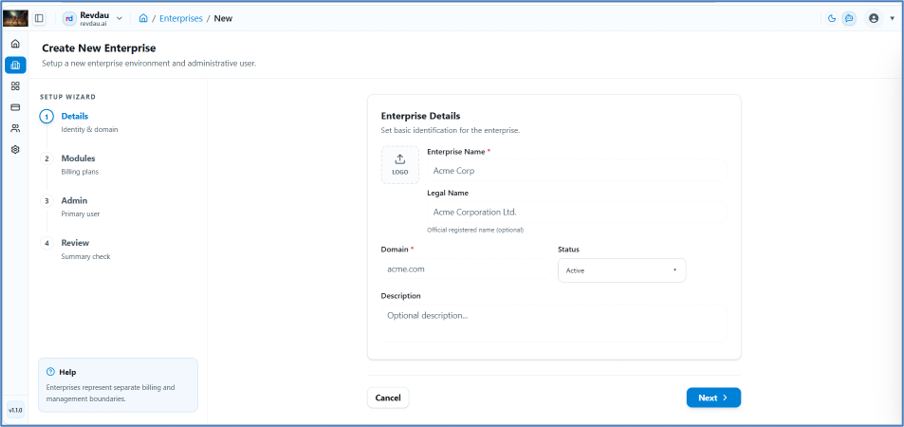
Step 1 – Identity & Domain
- Click Add Enterprise.
- Enter Enterprise Name.
- Enter Legal Name.
- Enter Domain Name.
- Set Status.
- Enter Description.
- Click Next.
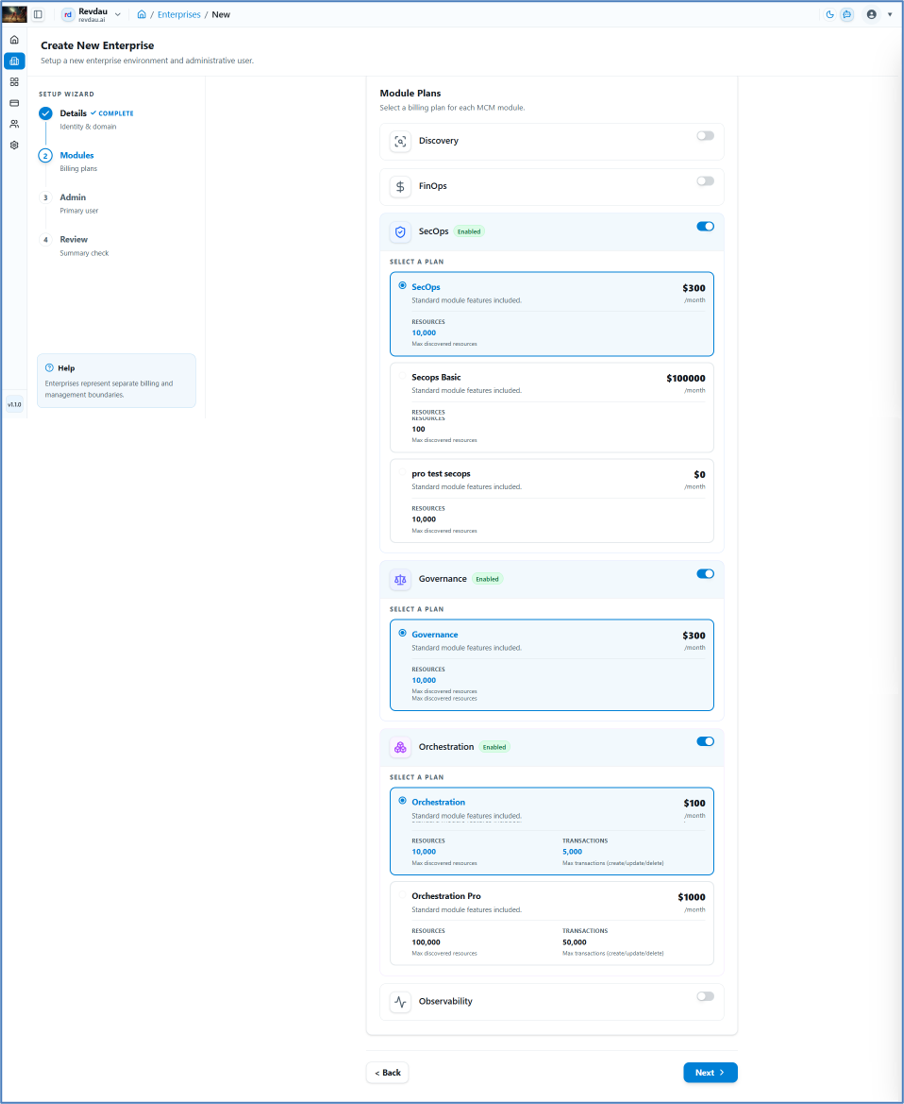
Step 2 – Module Selection
- Select modules as per enterprise requirements.
- Click Next.
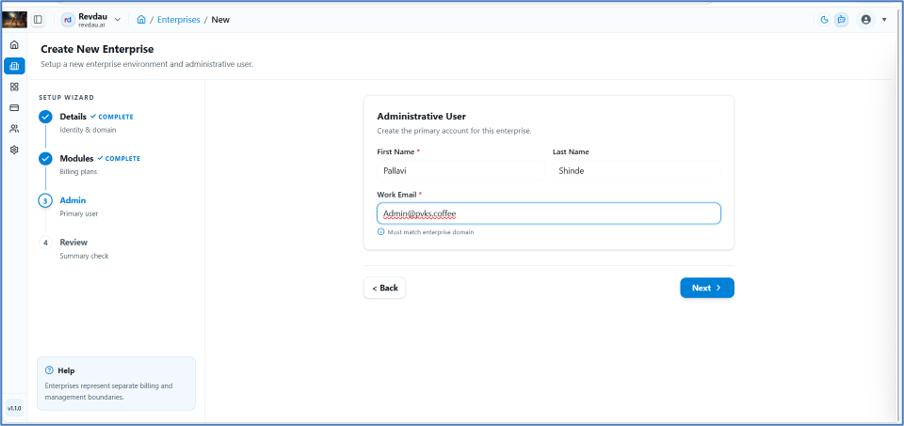
Step 3 – Enterprise Admin Details
- Enter First Name of the Admin User.
- Enter Last Name.
- Enter Work Email of the Enterprise Admin.
- Click Next.
Step 4 – Summary & Confirm
- Review the full configuration.
- Click Create Enterprise to finalize.
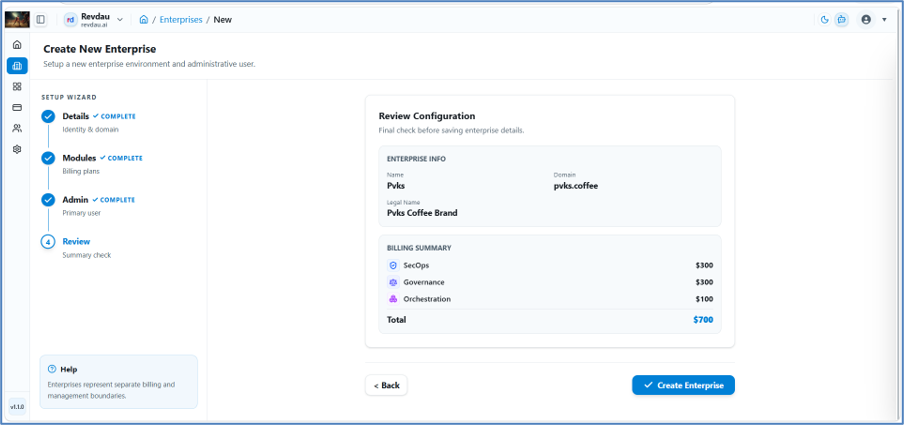
The new enterprise record will appear in the Enterprise table.
Enterprise Overview
The Enterprise Overview page provides detailed information about a specific enterprise, including enterprise details, primary user information, and subscribed modules with associated billing plans. This page helps administrators review enterprise configuration, ownership, subscription details, and operational status from a single location.
Enterprise Details
The Enterprise Details section displays key information about the selected enterprise.
Available Information
| Field | Description |
|---|---|
| Enterprise Name | Name of the enterprise organization |
| Domain | Primary domain associated with the enterprise |
| Status | Current status of the enterprise |
| Created At | Date and time the enterprise was created |
| Created By | User who created the enterprise |
| Description | Additional information or notes related to the enterprise |
Enterprise Status
An enterprise can have one of the following statuses:
- Active: The enterprise is enabled and can access subscribed platform services.
- Suspended: The enterprise has restricted access until it is reactivated.
The status badge provides a quick indication of the enterprise's operational state.
First User Details
The First User Details section displays information about the primary user created during enterprise onboarding.
Available Information
| Field | Description |
|---|---|
| Full Name | Name of the primary enterprise user |
| Email address of the primary enterprise user |
This information helps administrators identify the initial enterprise owner or primary point of contact.
Modules & Billing Plans
The Modules & Billing Plans section displays all subscribed platform modules along with their assigned billing plans and pricing information.
Available Columns
| Column | Description |
|---|---|
| Module | Name of the subscribed platform module |
| Plan Name | Assigned subscription plan for the module |
| Description | Additional information about the selected plan |
| Price | Subscription cost associated with the module |
Billing Information
The billing plan table allows administrators to:
- Review subscribed modules.
- View the associated billing plan for each module.
- Compare module pricing.
- Verify subscription details for the enterprise.
- Monitor platform licensing and service usage.
Navigation Options
The Enterprise page includes the following tabs:
Overview
Displays enterprise information, primary user details, and module subscription information.
Settings
Allows administrators to manage enterprise configuration, update settings, and modify enterprise-level preferences.
Enterprise Settings
The Enterprise Settings page allows administrators to manage and update enterprise information, operational status, branding, and configuration details. This page provides the controls required to maintain enterprise records and perform enterprise-level administrative actions.
Enterprise Details
The Enterprise Details section contains the core identification and configuration settings for the enterprise.
Available Fields
| Field | Description |
|---|---|
| Enterprise Logo | Upload or update the enterprise logo used throughout the platform |
| Enterprise Name | Display name of the enterprise |
| Legal Name | Official registered business name of the organization |
| Domain | Primary domain associated with the enterprise |
| Status | Current operational status of the enterprise |
| Description | Additional information or notes about the enterprise |
Enterprise Logo
Administrators can upload a custom logo for the enterprise.
Supported Actions
- Upload a new enterprise logo.
- Replace an existing logo.
- Customize enterprise branding across the platform.
The uploaded logo is used throughout the platform to visually identify the enterprise.
Enterprise Name
The Enterprise Name field specifies the display name of the enterprise.
Legal Name
The Legal Name field stores the organization's official registered business name.
Domain
The Domain field defines the primary domain associated with the enterprise.
Enterprise Status
The Status dropdown allows administrators to control the operational state of the enterprise.
Description
The Description field allows administrators to maintain additional enterprise information.
Typical use cases include:
- Business description
- Organizational notes
- Internal administrative comments
- Enterprise-specific details
This field is optional.
Updating Enterprise Information
After making changes:
- Review all updated information.
- Click Update Enterprise.
- The system validates the entered information.
- Changes are saved and applied to the enterprise configuration.
Cancel Changes
To discard unsaved modifications:
- Click Cancel.
- All unsaved changes are ignored.
- The page returns to its previous state.
Danger Zone
The Danger Zone section contains irreversible administrative actions that impact the entire enterprise.
Delete Enterprise
The Delete Enterprise action permanently removes the selected enterprise and all associated platform data.
Warning
- This action cannot be undone.
- All enterprise-related configurations will be removed.
- Associated users, settings, subscriptions, and enterprise data may be permanently deleted.
- Access to the enterprise will no longer be available after deletion.
Recommended Before Deletion
Before deleting an enterprise:
- Verify that the correct enterprise is selected.
- Export any required data.
- Inform affected users and stakeholders.
- Ensure that enterprise removal has been approved according to organizational procedures.