
Settings
Configure organization details and branding from the Settings section.
The Setting module provides Five primary tabs:
1. General
2. MCM App
3. Domain & TLS
4. AI Assistant Setup
5. Profile
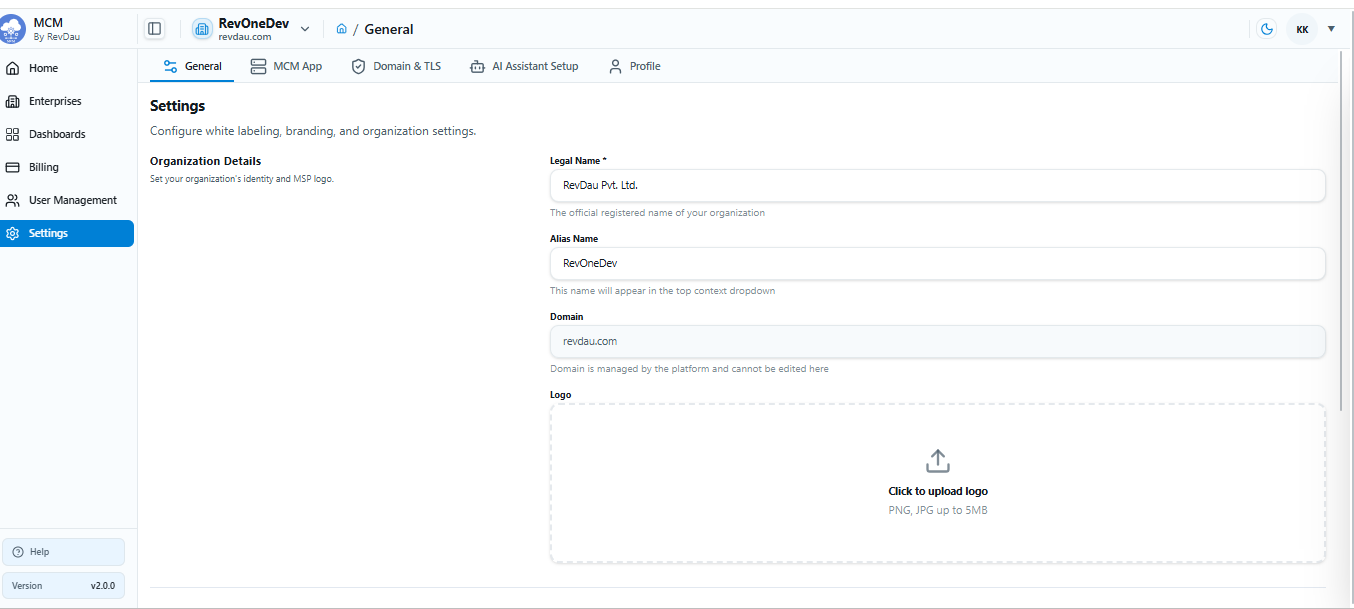
1. General
Organization Details
- Legal Name (required)
- Alias Name
- Domain
- Logo
Branding Customization
- Application Name
- Application Logo
Additional options:
- Reset Default – Restore default branding settings
- Reset Getting Started Guide – Restart the onboarding guide
2. MCM App
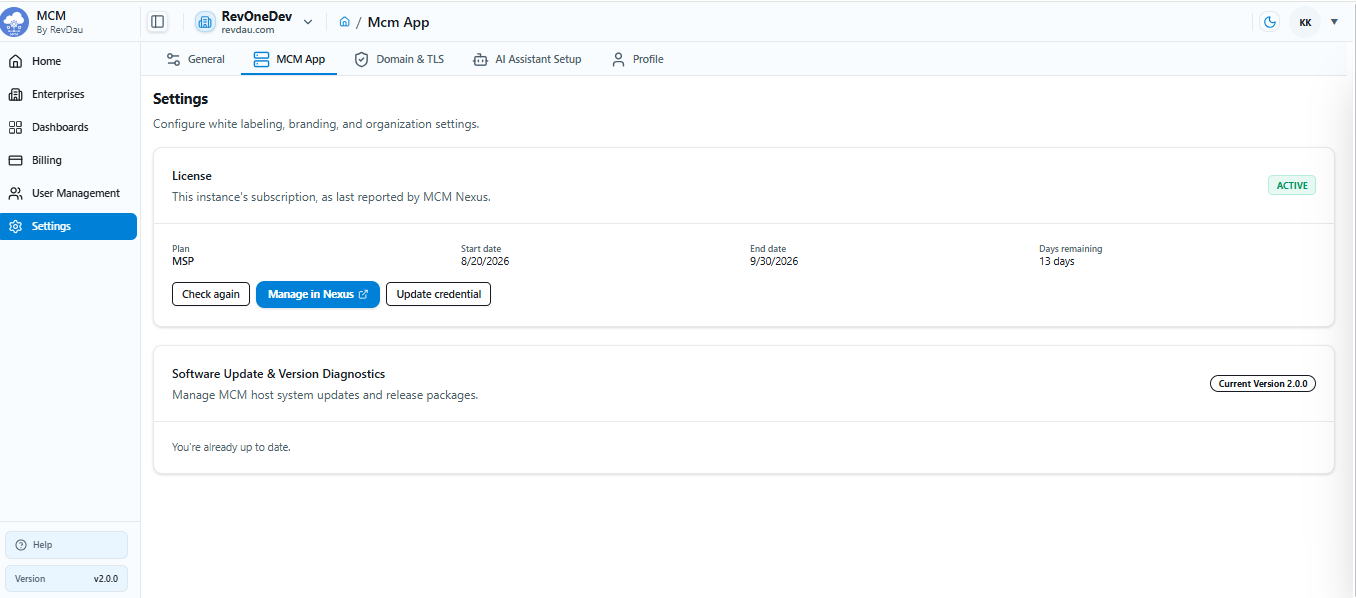
License
The License section displays subscription details retrieved from MCM Nexus.
Available Information:
Plan- Displays the subscribed licensing plan.
Start date- The date on which the license became active.
End date- The license expiration date.
Days remaining- Number of days remaining before the license expires.
Available Actions:
Check Again: Click Check Again to refresh the license information and retrieve the latest status from MCM Nexus.
Manage in Nexus: Click Manage in Nexus to open the MCM Nexus portal where administrators can:
- Review subscription details
- Upgrade or renew licenses
- Manage account settings
- View billing and plan information
Software Update & Version Diagnostics:
The Software Update & Version Diagnostics section provides information about the installed application version and update status.
Current Version: The version badge displays the software version currently installed on the instance.
3. Domain & TLS
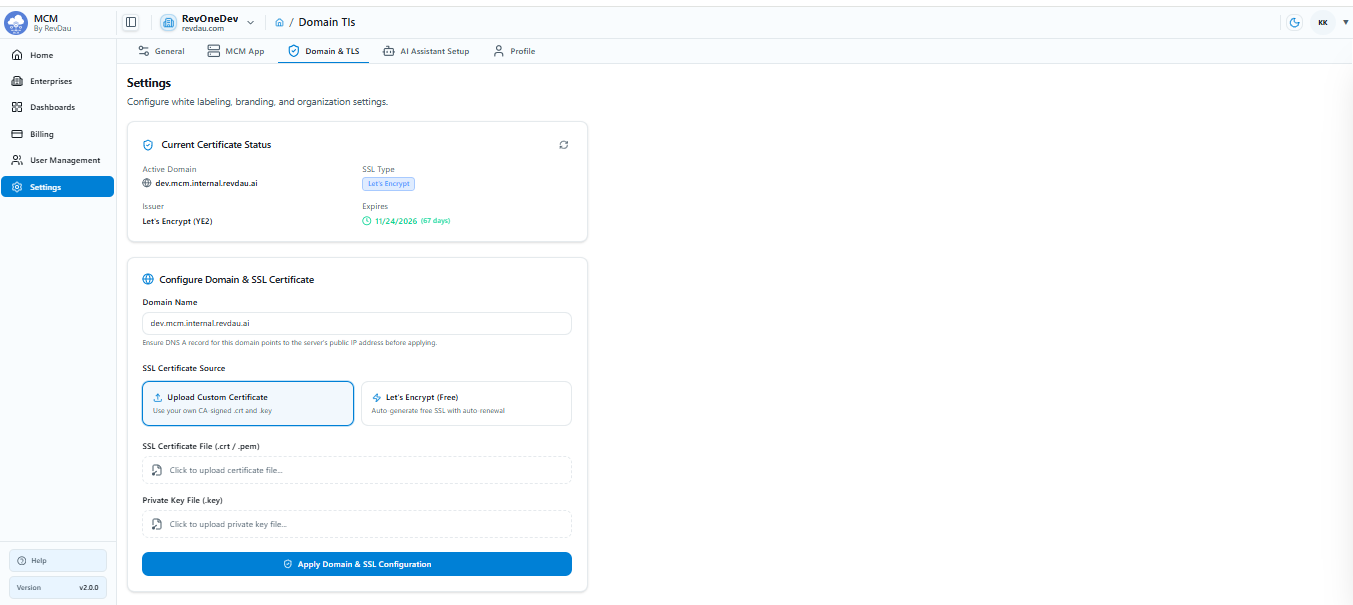
The Domain & TLS page allows administrators to configure a custom domain and secure it with an SSL/TLS certificate.
Current Certificate Status:
The Current Certificate Status section provides information about the SSL certificate currently assigned to the domain.
Active Domain: The domain currently associated with the application.
- SSL Type: Certificate provider or source.
- Issuer: Certificate Authority (CA) that issued the certificate.
- Expires: Certificate expiration date and remaining validity period.
- Refresh: Reloads the certificate status information.
Configure Domain & SSL Certificate: Use this section to configure a custom domain and apply an SSL certificate.
Domain Name: Enter the fully qualified domain name (FQDN) that will be used to access the application.
SSL Certificate Source: Choose one of the following certificate options.
Upload Custom Certificate: Select this option when you already have a certificate issued by a trusted Certificate Authority.
Let's Encrypt (Free): Select this option to automatically generate and manage a free SSL certificate using Let's Encrypt.
SSL Certificate File: Upload the certificate file associated with the configured domain.
Supported formats:
.crt.pem
Private Key File (.key): Upload the private key corresponding to the SSL certificate.
Apply domain and SSL Configuration
4. AI Assistant Setup
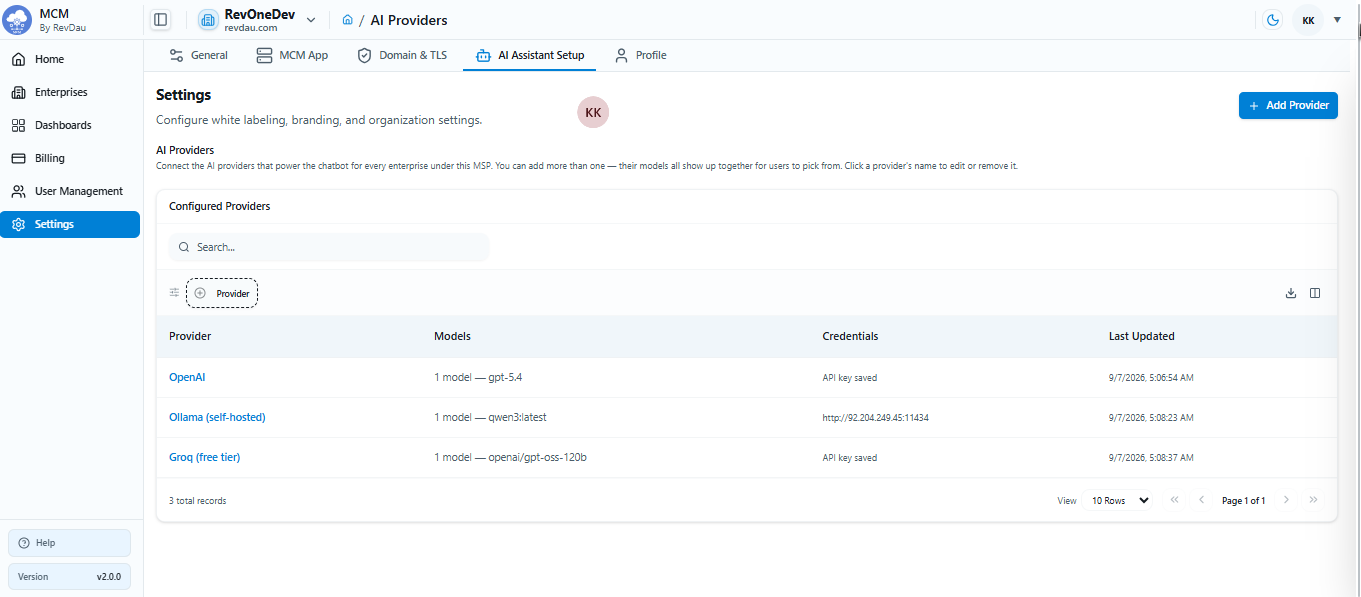
The AI Providers page allows administrators to configure and manage AI model providers that power the AI Assistant.
Configured Providers Table
The table displays all configured AI providers and their associated models.
Search: Use the search box to quickly locate a configured provider.
Provider: Displays the provider name.
Models: Displays the AI models available through the provider.
Credentials: Displays the configured endpoint or credential status.
Last Updated: Shows the date and time when the provider configuration was last modified.
Export Data: The Export Data button allows administrators to download the list of configured AI providers and their associated details
Toggle Columns: The Toggle Columns button allows administrators to customize the table view by showing or hiding specific columns.
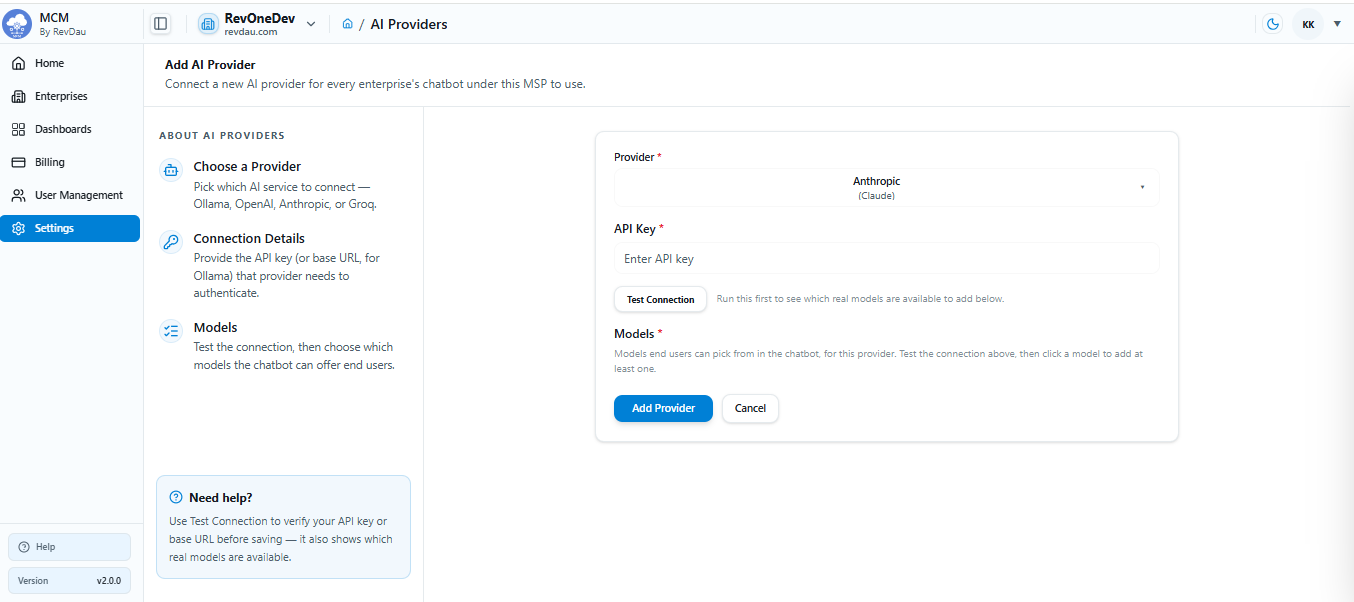
Add Provider
Click Add Provider to configure a new AI service provider.
Provider (required): Select the AI provider from the drop-down list.
API Key (required): Enter the API key provided by the selected AI service.
Test Connection: Click Test Connection to validate the provider configuration.
Models (required): After a successful connection test, the available models are displayed.
Select one or more models that should be available to users.
Button Descriptions
Add Provider:
Saves the provider configuration and makes the selected models available to the AI Assistant.
Cancel:
Cancels the current operation and returns to the AI Providers page without saving any changes.
5. Profile
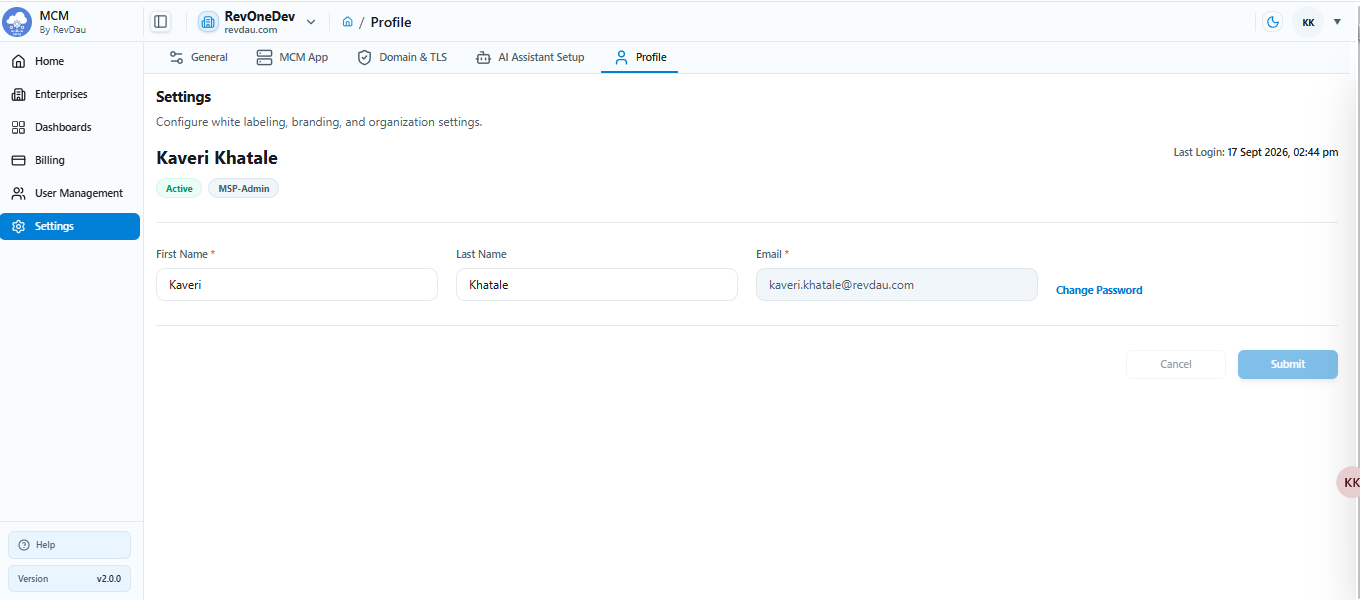
The Profile page displays your personal information:
First Name (required): Enter or update the user's first name.
Last Name(required): Enter or update the user's last name.
Email: Displays the email address associated with the account.
Change Password: Click Change Password to update the account password.
Submit: Saves the updated profile information.
Cancel: Discards any unsaved changes and restores the previously saved information.
Last Login: Displays the date and time of the user's most recent successful login.
Once all changes are made, click Save Changes to apply.