Dashboard Creation
Create custom dashboards tailored to your operational needs.
The MSP Dashboards page allows Managed Service Provider (MSP) administrators to create, manage, and access custom dashboards for monitoring multiple customers, cloud environments, operational metrics, and platform-wide insights.
Custom dashboards help MSP teams centralize important information and create personalized views for monitoring customer environments, governance, security, FinOps, and operational performance.
Overview
The MSP Dashboards page enables administrators to:
- Create custom dashboards.
- Organize customer-specific views.
- Monitor cloud operations across multiple enterprises.
- Access dashboards from a centralized location.
- Configure default dashboards.
- Customize reporting and visualization layouts.
- Improve operational visibility.
Dashboard Workspace
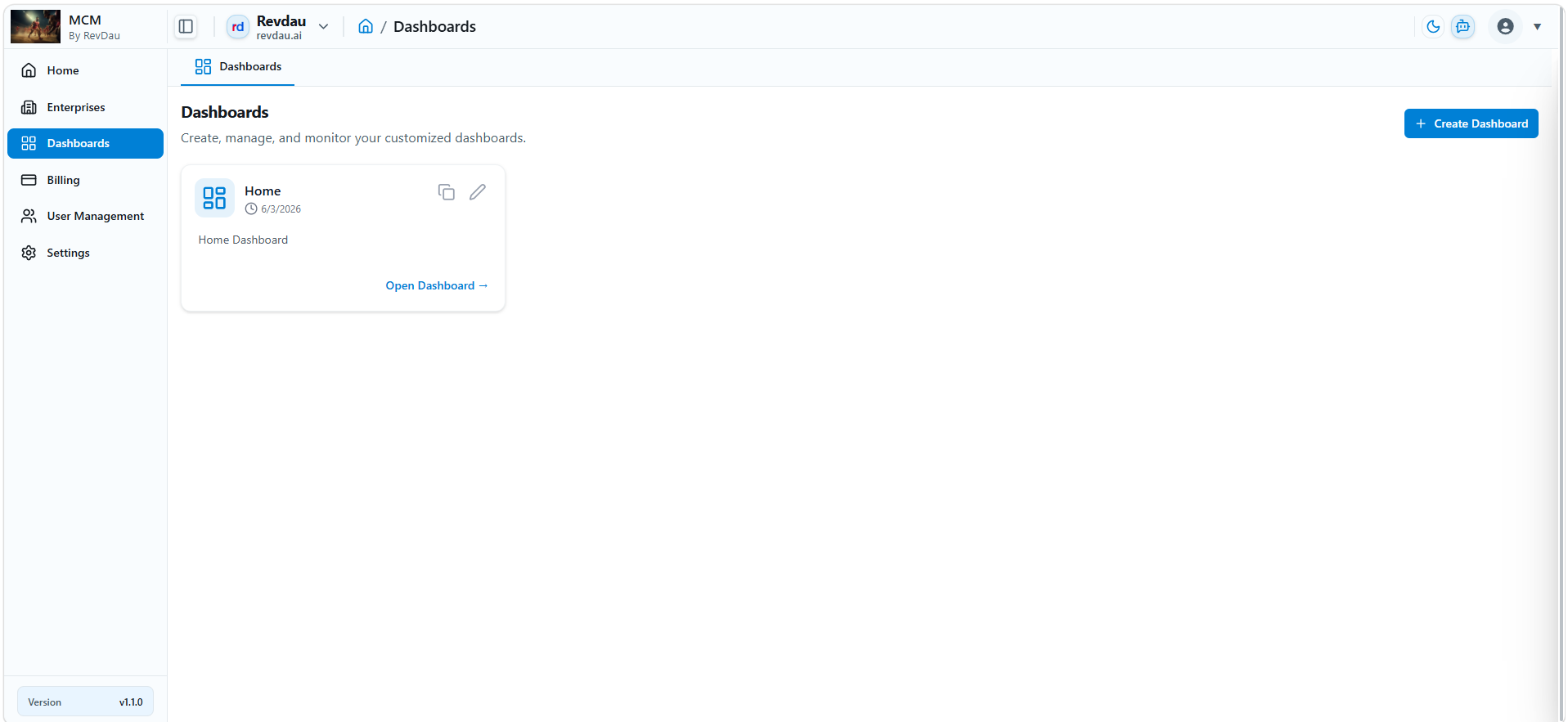
The dashboard workspace displays all available dashboards created within the MSP environment.
If no dashboards have been created, the page displays a dashboard creation prompt.
Example:
No dashboards yet.
Create Your First Dashboard
Users can start building dashboards immediately using the dashboard creation wizard.
Dashboard List
Once dashboards have been created, each dashboard appears as a dashboard card containing:
- Dashboard Name
- Creation Date
- Description
- Dashboard Actions
This layout helps users quickly identify and access available dashboards.
Create Dashboard
Users can create a new dashboard by clicking:
Create Dashboardor
Create Your First DashboardThe dashboard creation panel opens on the right side of the page.
Create MSP Dashboard
The Create Dashboard page allows MSP administrators to create new custom dashboards tailored to operational, governance, financial, security, or customer-specific requirements.
A dashboard can be configured with a unique name, description, and default dashboard settings.
Dashboard Configuration
The dashboard creation panel contains the following configuration fields.
Dashboard Name
The Dashboard Name field specifies the display name of the dashboard.
Examples:
Operations OverviewCustomer Health DashboardGovernance Compliance DashboardMSP Executive SummaryRequirements
- Dashboard Name is required.
- Names should clearly represent the dashboard purpose.
- Dashboard names should be unique and easily identifiable.
Set Default Dashboard
The Set Default Dashboard option allows users to designate a dashboard as their default dashboard view.
When configured:
- The selected dashboard becomes the preferred landing dashboard.
- Users can quickly access their most frequently used dashboard.
- Dashboard navigation is simplified.
Select a dashboard from the dropdown list to assign it as the default dashboard.
Description
The Description field provides additional details about the dashboard.
Examples:
Provides operational visibility into customer resources, costs, and governance compliance.Tracks cloud spending, budget utilization, and optimization opportunities across managed enterprises.Displays security findings and compliance status for customer environments.Descriptions help administrators identify dashboard purposes and improve dashboard organization.
Steps to Create a New Dashboard
Step 1
Navigate to:
DashboardsStep 2
Click:
Create Dashboardor
Create Your First DashboardThe dashboard creation panel opens.
Step 3
Enter a Dashboard Name.
Example:
MSP Operations DashboardStep 4
(Optional) Select a dashboard under:
Set Default DashboardThis will make the selected dashboard the default dashboard view.
Step 5
Enter a dashboard description.
Example:
Provides a consolidated view of customer operations, governance, cloud spending, and security insights.Step 6
Review the dashboard details.
Verify:
- Dashboard Name
- Default Dashboard selection
- Dashboard Description
Step 7
Click:
Create DashboardThe new dashboard is created and added to the Dashboard List.
Cancel Dashboard Creation
To exit without creating a dashboard:
- Click Cancel.
- The creation panel closes.
- No dashboard is created.
Dashboard Use Cases
MSP dashboards can be created for various business needs, including:
Operations Dashboard
Monitor:
- Customer resources
- Discovery status
- Infrastructure health
- Operational performance
FinOps Dashboard
Monitor:
- Cloud spending
- Budget utilization
- Cost optimization opportunities
- Forecasted costs
Governance Dashboard
Monitor:
- Compliance scores
- Policy violations
- Governance trends
- Audit readiness
Security Dashboard
Monitor:
- Security findings
- Risk exposure
- Critical vulnerabilities
- Compliance posture
Executive Dashboard
Monitor:
- Business KPI metrics
- Customer adoption
- Revenue insights
- Multi-customer summaries