
Initial Application Setup
Once the application deployment is complete, open the IP or Domain where the application is deployed in a web browser. The user will see the subscription page when it opens for the first time, where the user needs to add the application subscription details as per below:
2.1 Subscription Details
Here, add the details of the MSP-Admin Email and MSP subscription key to follow the given steps. The icon at the top right corner helps users to change the application theme to dark mode. For the subscription key, you need to connect with the Revdau Team.
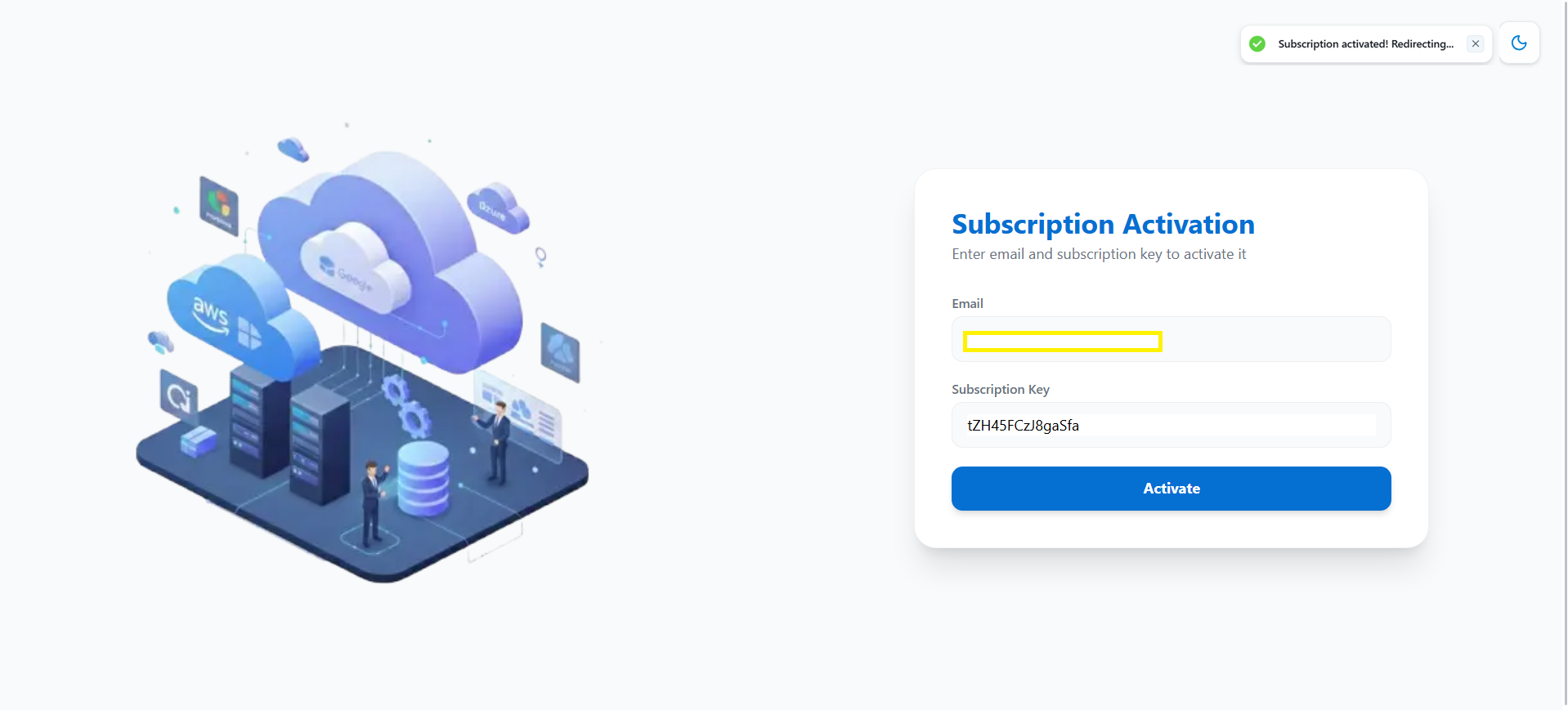
Step 1 Enter MSP Admin Email.
Step 2 Enter Subscription key.
2.2 Create MSP Admin User
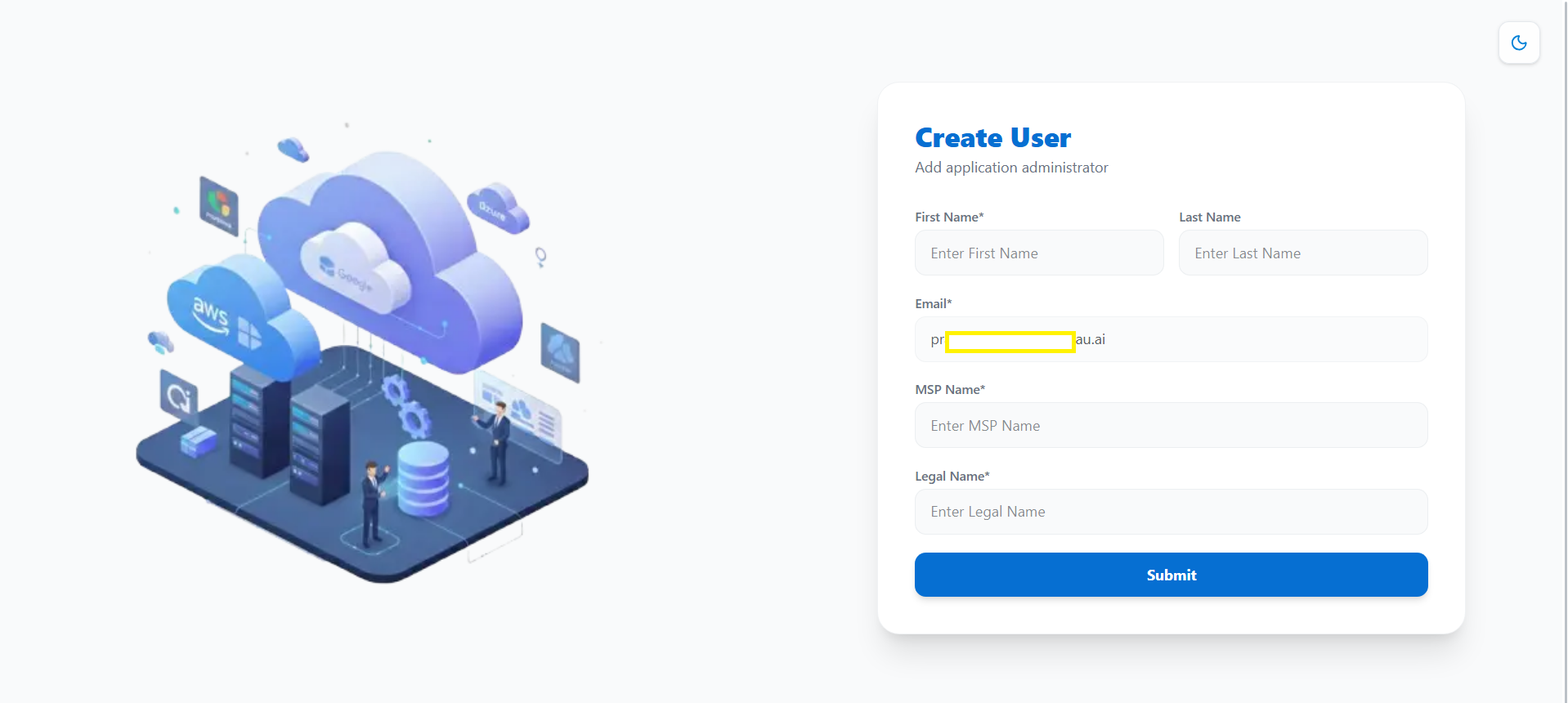
Fill out the MSP Admin user details and MSP Details. Follow the steps given below:
Step 1 Enter MSP Admin First Name.
Step 2 Enter MSP Admin's Last Name (Optional).
(Email of the MSP Admin user carries forward from the first screen.)
Step 3 Enter MSP Name.
Step 4 Enter MSP's Legal Name.
Step 5 Click the Submit button.
2.3 Verification Email Sent
Please check your email inbox and click on the verification link to continue. Just click on the Okay button.