
Cost Management (FinOps)
The FinOps module is accessible at both all-accounts level and account-specific level, with date range filtering and various chart types available.
8.1 Overview Dashboard
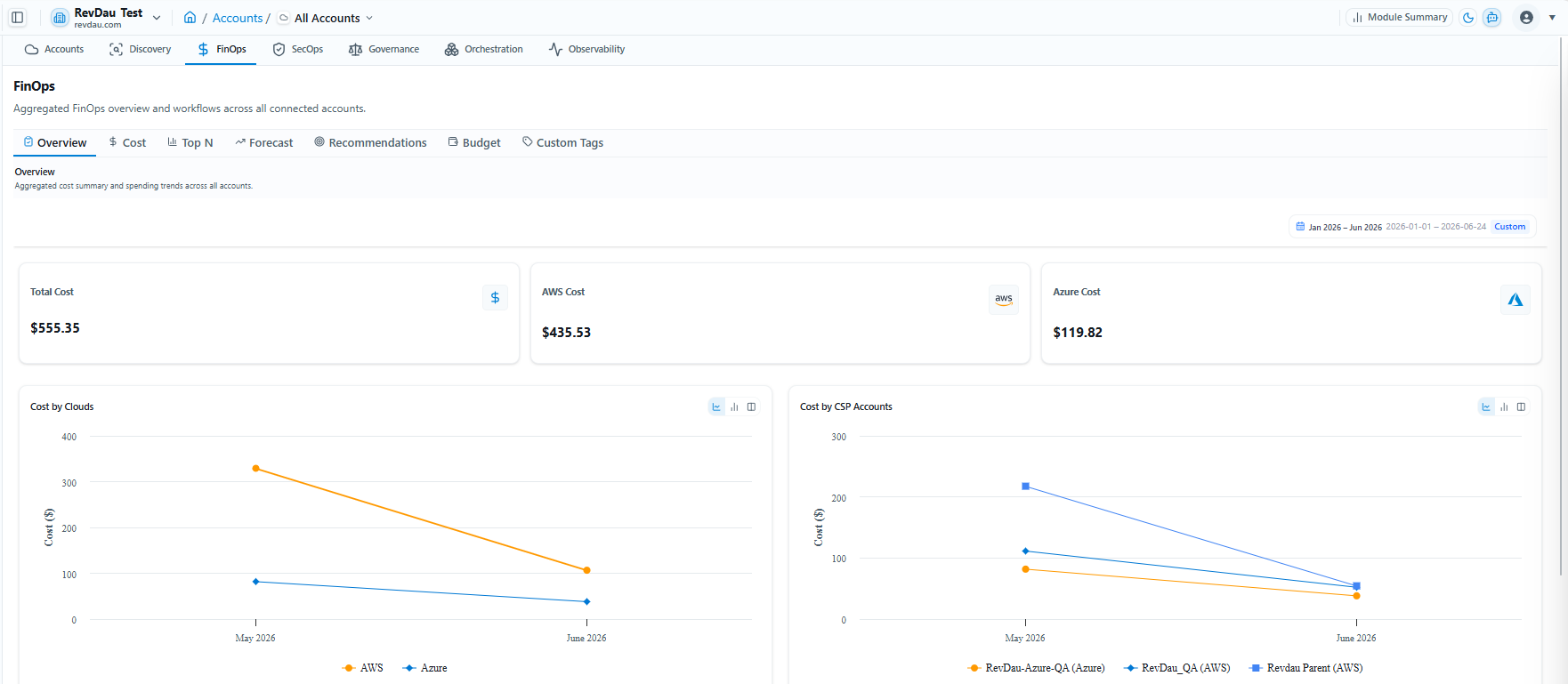
| FinOps Overview Metrics |
|---|
| Total Spend |
| AWS Spend |
| Azure Spend |
| Cost by Cloud |
| Cost by CSP Accounts |
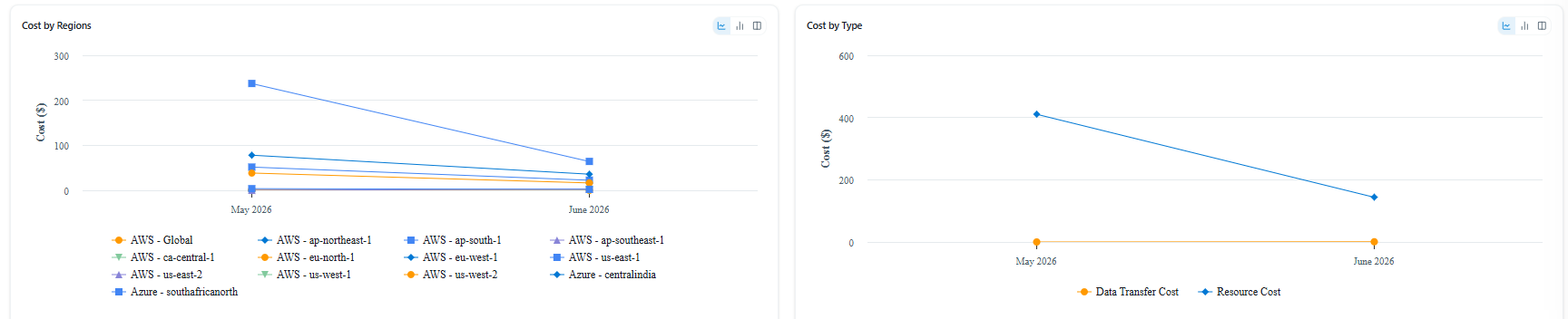
| Cost by Region |
| Cost by Type |
8.2 Cost Tab
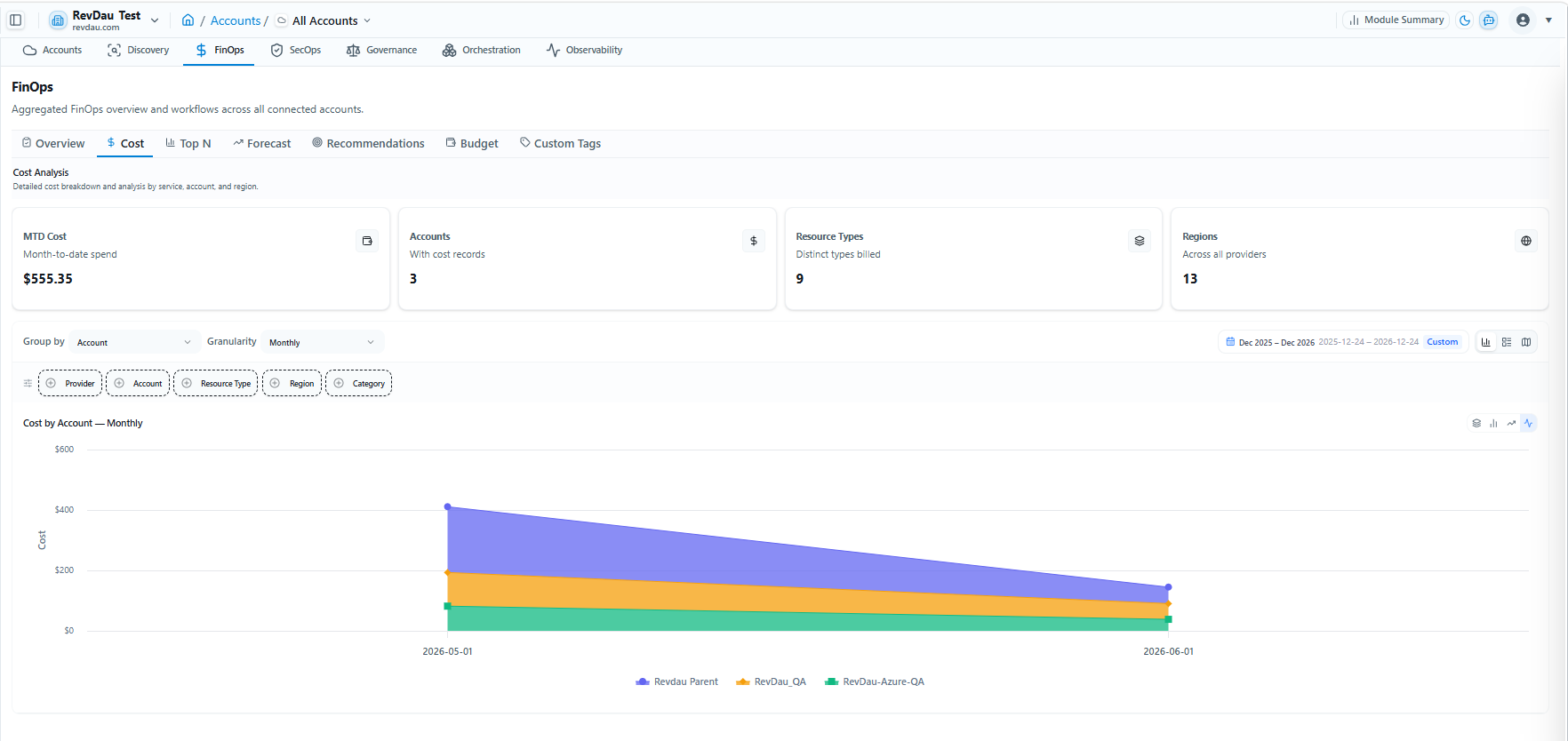
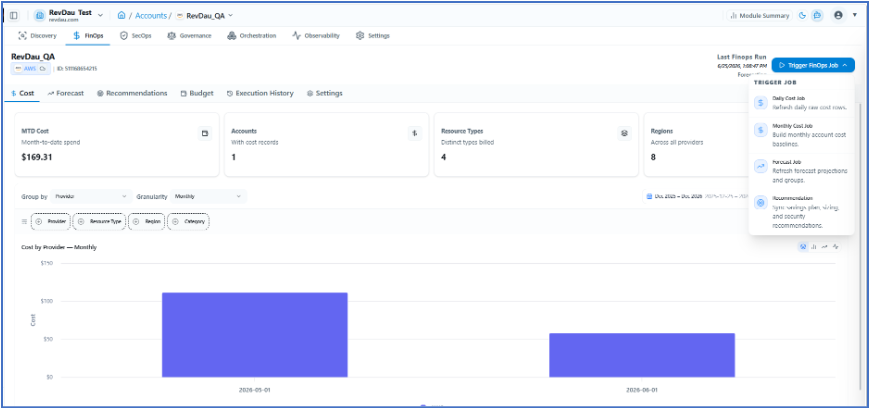
Detailed cost breakdown and analysis by service, account, and region, with multiple chart views available.
-
Month-to-date spend
-
Accounts with cost records
-
Resource Types — distinct types billed
-
Regions — across all providers
Available filters: Account, Provider, Region, Resource Type, Cost Type, Cost Sub Type, Service, and time periods (Monthly, Weekly, Daily, Custom Date Range).
8.3 Top N Dashboard
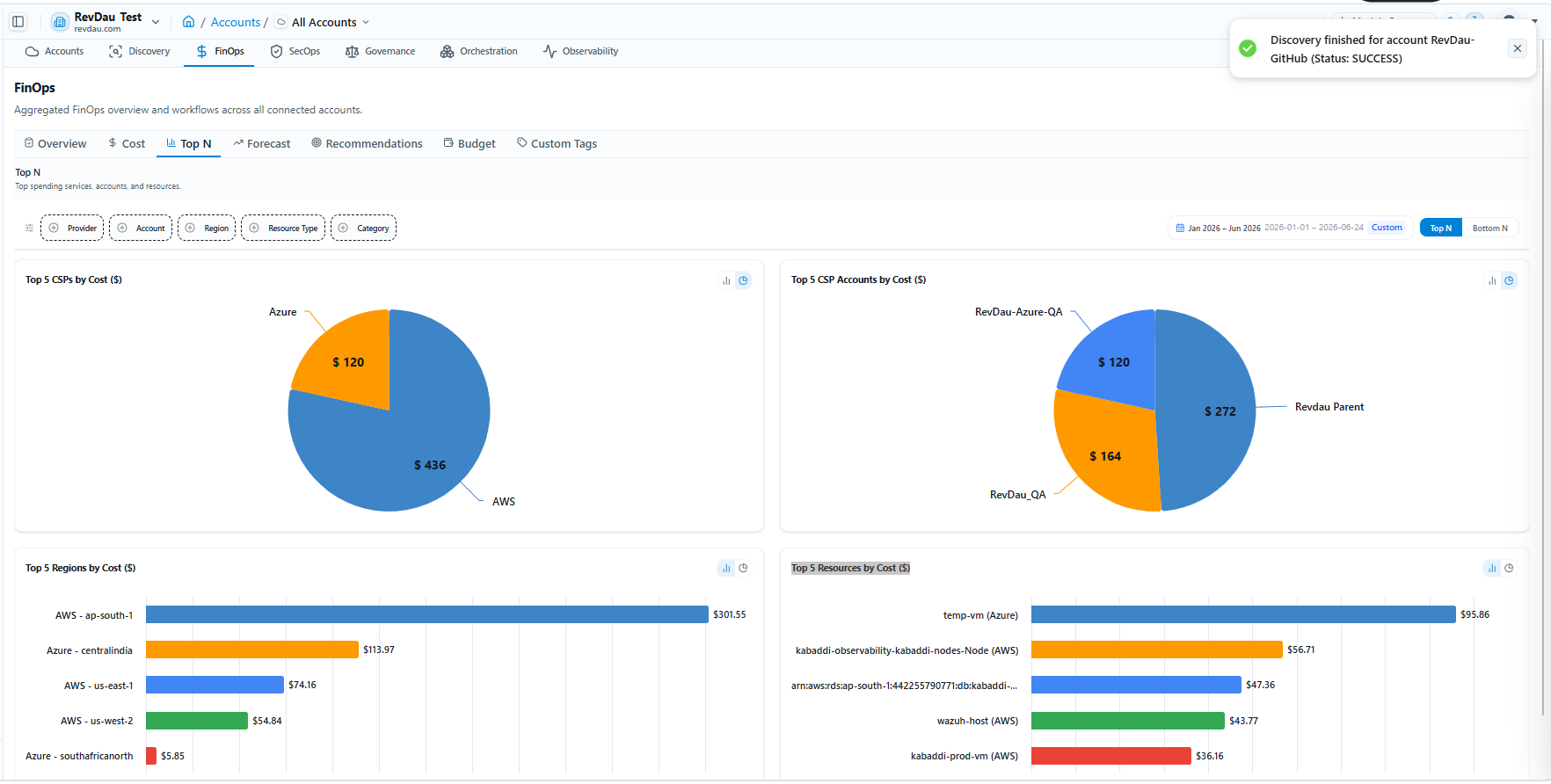
View top-spending services, accounts, and resources. Available dashboards:
-
Top 5 CSPs by Cost ($)
-
Top 5 CSP Accounts by Cost ($)
-
Top 5 Regions by Cost ($)
-
Top 5 Resources by Cost ($)
Filters available: Provider, Account, Region, Resource Type, Category.
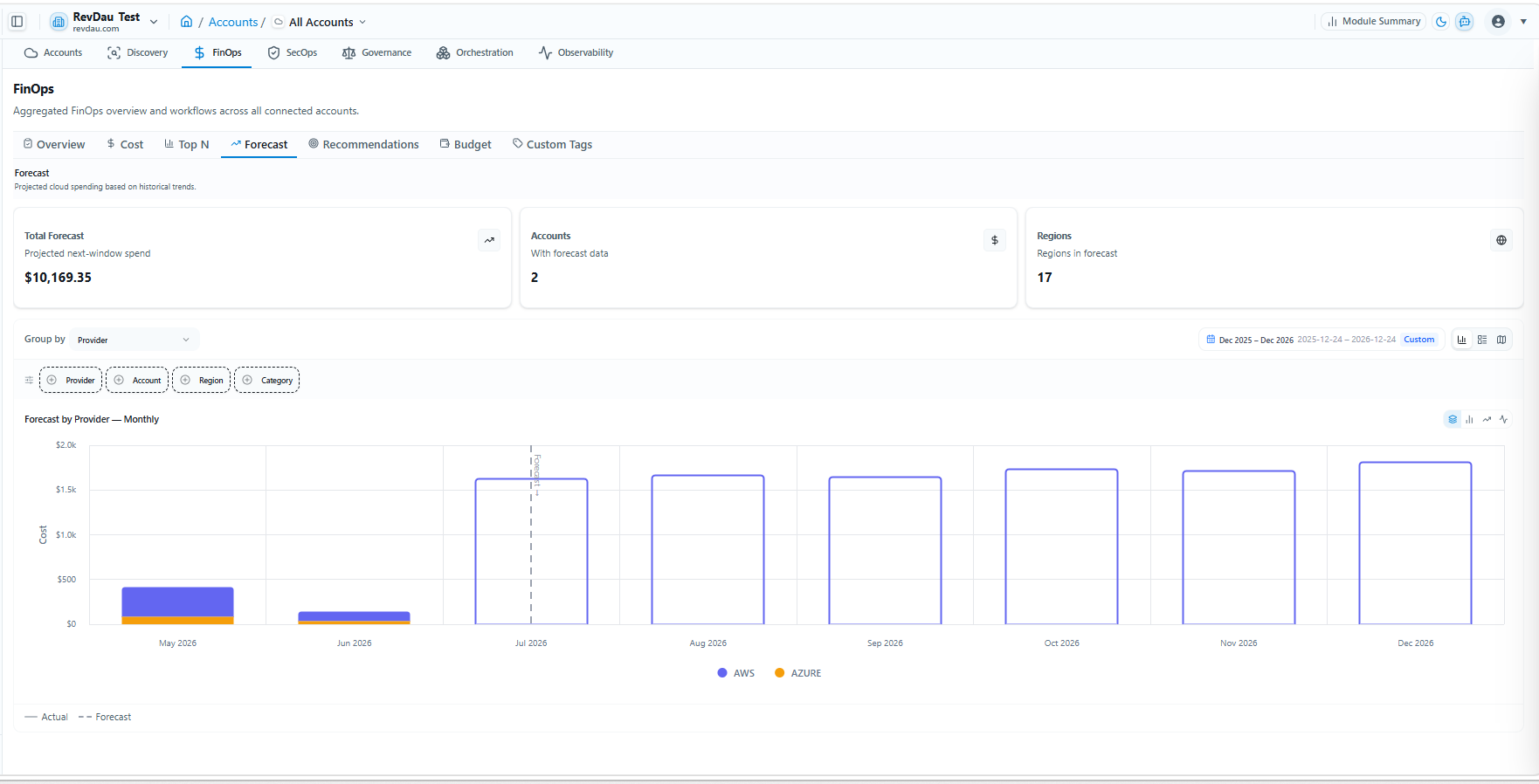
8.4 Forecast Dashboard
Projected cloud spending based on historical trends.
-
Total Forecast
-
Accounts with Forecast Data
-
Regions in Forecast
Filters: Provider, Account, Region, Category. Chart view: Forecast by Provider — Monthly.
8.5 Recommendations
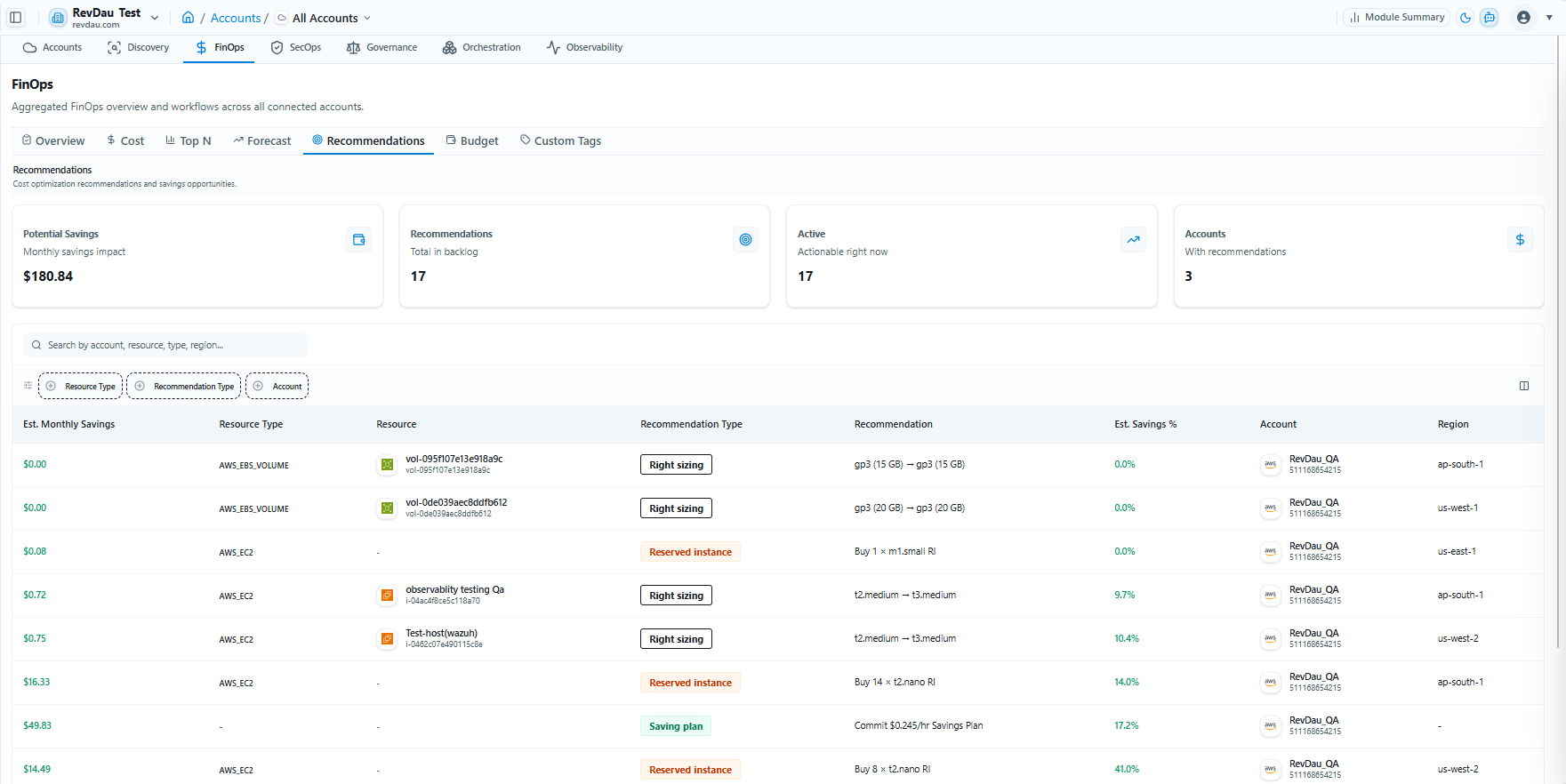
Cost optimization recommendations from AWS Compute Optimizer and Azure Advisor, including:
-
Right-Sizing
-
Reserved Instances
-
Savings Plans
| Recommendation Metrics |
|---|
| Potential Savings — Monthly savings impact |
| Recommendations — Total in backlog |
| Active — Actionable right now |
| Accounts — With recommendations |
Available filters: Resource Type, Recommendation Type, Account.
Table attributes:
-
Est. Monthly Savings
-
Resource Type
-
Resource
-
Recommendation Type
-
Recommendation
-
Est. Savings %
-
Account
-
Region
8.6 Budget Management
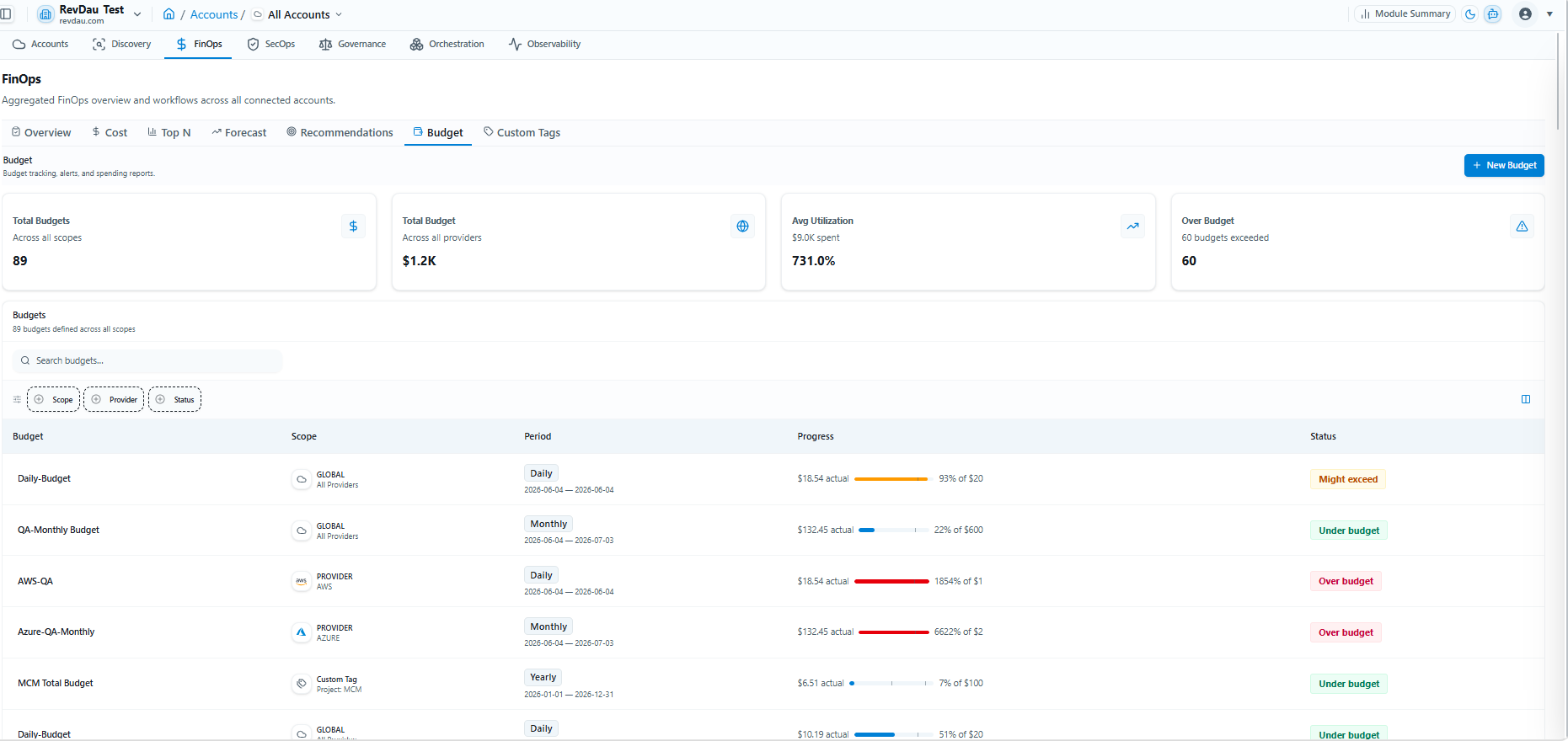
Create and track budgets across different time periods and scopes. Budget tracking, alerts, and spending reports are all available.
-
Total Budgets — Across all scopes
-
Total Budget — Across all providers
-
Avg Utilization
-
Over Budget count
All budgets are listed across all defined scopes, with the following attributes:
-
Budget Name
-
Scope
-
Period
-
Progress
-
Status
Create budget based on:
-
Provider
-
Account
-
Subscription
-
Tags
Create a Budget
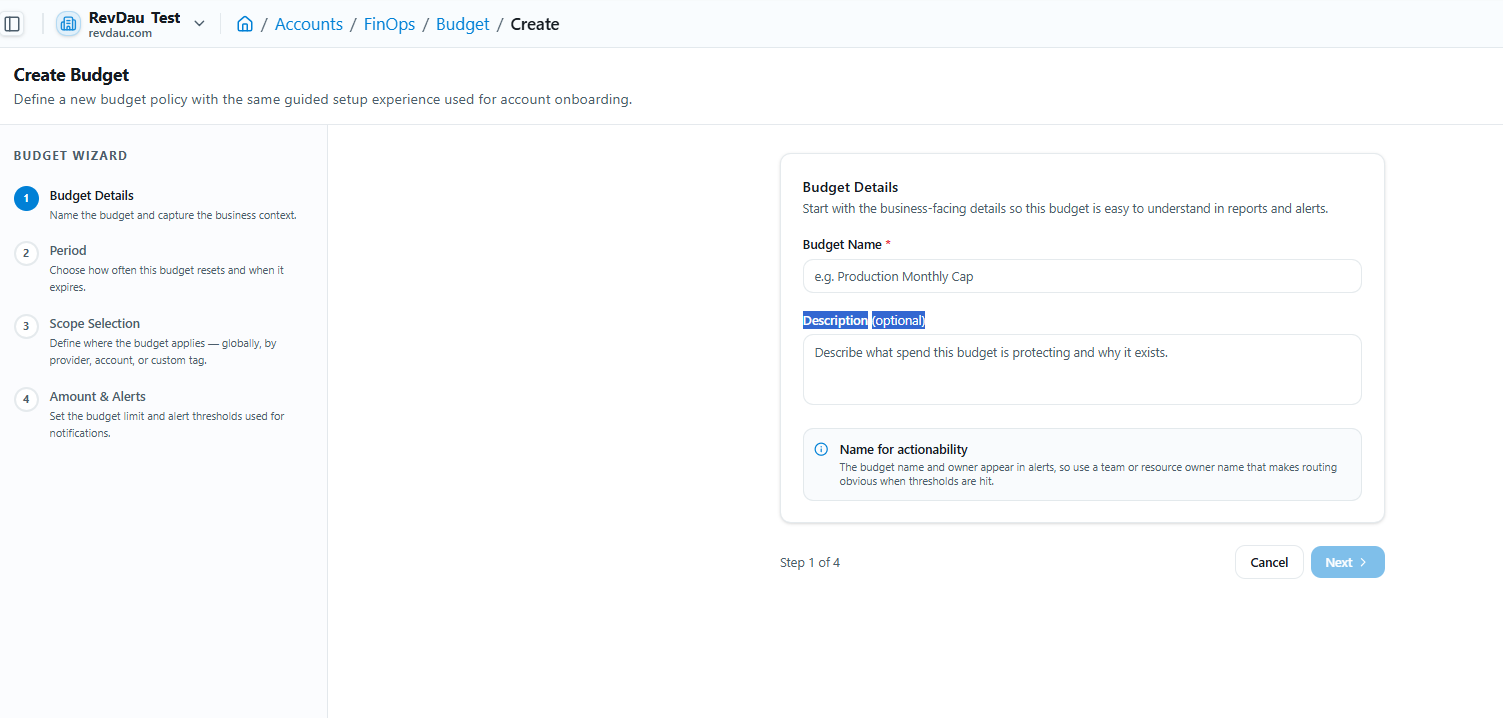
Step 1 Click + New Budget.
Step 2 Enter Budget Name.
Step 3 Enter Description (Optional).
Step 4 Click Next.
Step 5 Select Budget Period, Start Date, and optionally set Budget Expiry. Click Next.
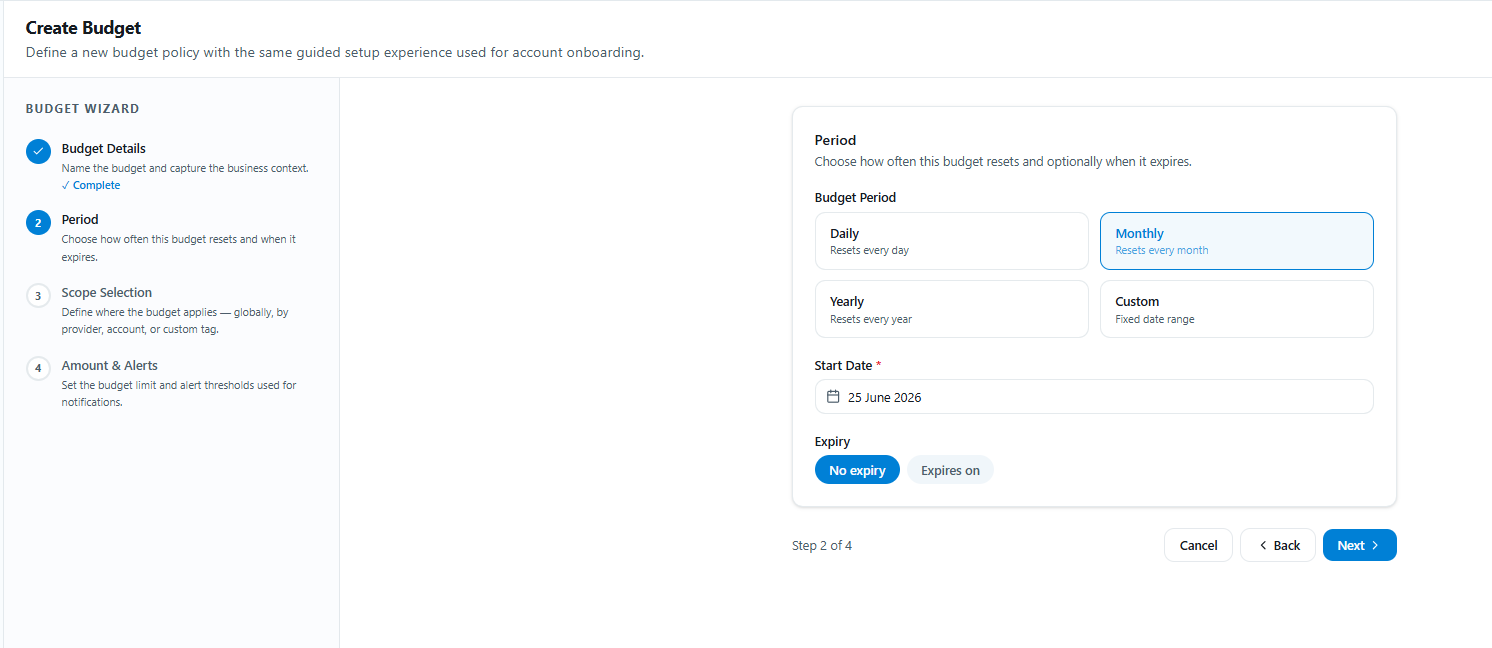
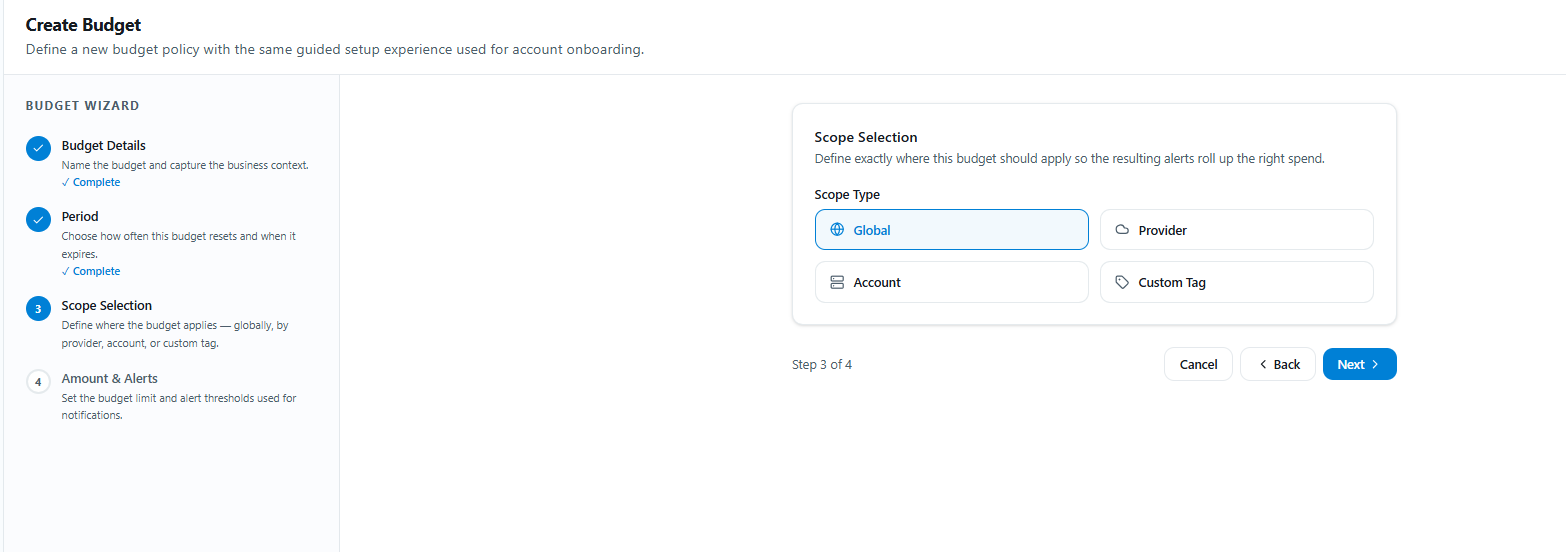
Step 6 Select Budget Scope: Globally, by Provider, by Account, or by Custom Tag. Click Next.
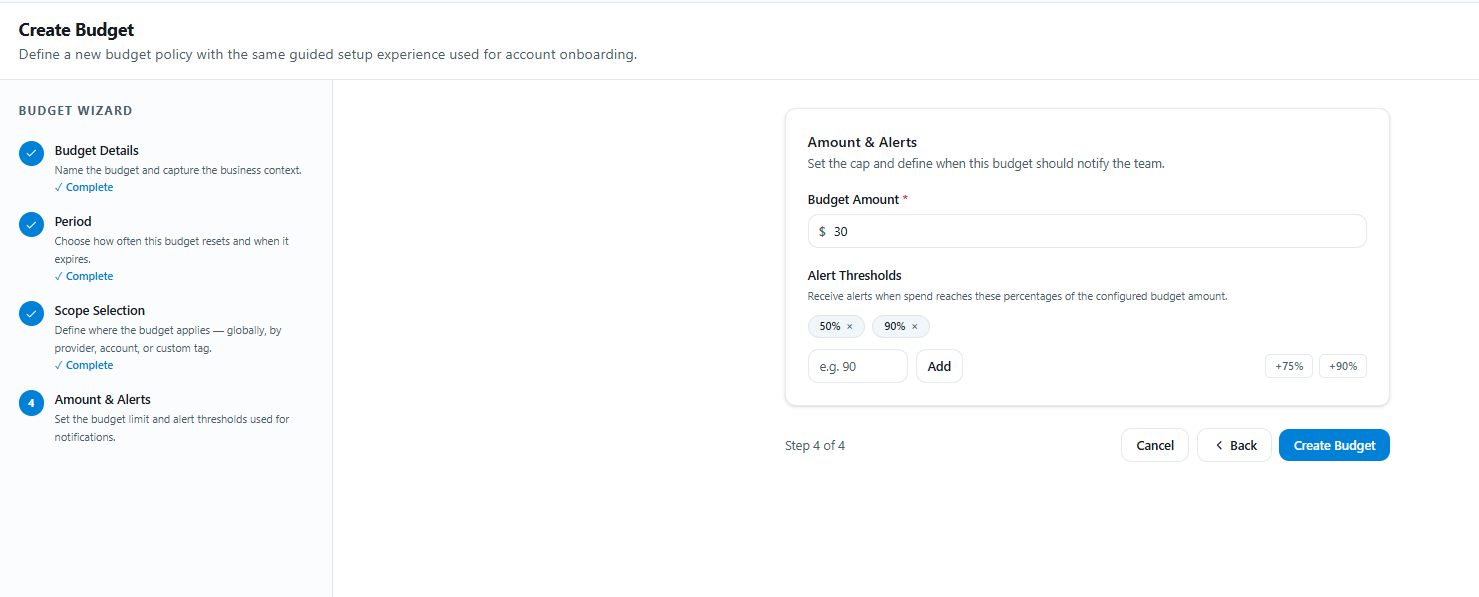
Step 7 Set the budget Amount and configure Alerts. Save to complete.
Budget Scope options define where the budget applies:
-
Globally
-
By Provider
-
Account
-
Custom Tag
The final step sets the Amount & Alerts — the spending cap and when this budget should notify the team.
Budget History
The Budget History page provides visibility into historical budget performance, spending trends, and budget utilization over time. It helps administrators monitor actual cloud spending against defined budget limits and analyze spending patterns across selected periods.
This page enables proactive cost management and helps organizations maintain financial control over their cloud environments.
Overview
The Budget History page allows users to:
- Monitor budget consumption.
- Analyze spending trends over time.
- Compare actual spending against budget limits.
- Track budget utilization percentages.
- View historical cost data.
- Review budget threshold activity.
Budget Summary
At the top of the page, key budget metrics are displayed.
Period
Displays the active budget period.
Examples:
- Monthly
- Quarterly
- Yearly
The selected period determines how spending is measured and reported.
Budget per Period
Displays the configured budget amount for the selected period.
Example:
$280.00This represents the spending limit established for the budget cycle.
Current Period Spend
Displays the total cost incurred during the current budget period.
Example:
$117.45The percentage indicator shows how much of the budget has been consumed.
Budget Status
The status section provides a quick overview of budget health.
Scheduled
Indicates that the budget is actively being monitored based on the configured schedule.
Expired
Indicates that the budget validity period has ended and may require renewal or reconfiguration.
Spend Analysis Chart
The Spend per Month chart visualizes spending patterns over time.
The chart displays:
- Actual cloud spend
- Budget limit
- Alert thresholds
- Historical spending trends
Chart Components
Actual Spend
Displays real cloud spending for each period.
Budget Line
Represents the configured spending limit.
Alert Thresholds
Dashed lines indicate configured alert levels.
Examples:
- Alert #1 (50%)
- Alert #2 (75%)
- Alert #3 (90%)
These indicators help administrators monitor spending before budget limits are exceeded.
Group By Options
The chart can be grouped based on available dimensions, such as:
- Provider
- Account
- Service
- Region
Grouping enables deeper cost analysis and spending breakdowns.
Historical Spending Records
The spending table provides historical budget performance.
Available Columns
| Column | Description |
|---|---|
| Period | Budget period being analyzed |
| Spend | Actual spending during the period |
| % of Budget | Percentage of budget consumed |
This information helps users compare spending behavior across multiple periods.
Budget Alerts
The Alerts page displays budget alert thresholds and their current status. Alert thresholds allow administrators to receive notifications when spending reaches predefined percentages of an allocated budget.
These alerts help organizations avoid unexpected cloud costs and budget overruns.
Alert Thresholds
Budget alerts are triggered when spending reaches configured percentages of the budget limit.
Example Alert Levels
50% of Budget
Notification is triggered when cloud spend reaches 50% of the budget amount.
Example:
Triggers at $140.0075% of Budget
Notification is triggered when cloud spend reaches 75% of the budget amount.
Example:
Triggers at $210.0090% of Budget
Notification is triggered when cloud spend reaches 90% of the budget amount.
Example:
Triggers at $252.00Alert Status
Each alert threshold displays its current state.
Pending
Indicates that the threshold has not yet been reached.
Triggered
Indicates that spending has crossed the configured threshold and a notification has been generated.
Resolved
Indicates that an alert has been acknowledged or the budget cycle has been completed.
Available statuses may vary depending on platform configuration.
Alert Notifications
When a threshold is reached, the platform can notify designated users through configured notification channels.
Possible notification methods include:
- Platform notifications
- Email alerts
- Integrated messaging systems
Budget Settings
The Budget Settings page provides configuration and management options for an individual budget. Administrators can review budget details, scope, thresholds, and lifecycle information from a centralized location.
General Information
The General section contains basic budget details.
Budget Name
Displays the unique name assigned to the budget.
Example:
testDescription
Displays the purpose or description of the budget.
This information helps identify the intended use of the budget.
Period Configuration
The Period section defines the budget monitoring duration.
Period Type
Specifies the budget cycle.
Examples:
- Monthly
- Quarterly
- Yearly
Start Date
Displays when the budget period begins.
End Date
Displays when the budget period expires.
Scope Configuration
The Scope section defines what resources the budget applies to.
Scope Type
Defines the level at which the budget is enforced.
Examples:
- Account
- Subscription
- Project
- Resource Group
Scope Value
Displays the specific identifier associated with the selected scope.
This allows budgets to be applied to targeted environments rather than the entire organization.
Budget & Alerts
The Budget & Alerts section summarizes current budget settings.
Budget Amount
Displays the configured spending limit.
Example:
$280.00Actual Spend
Displays the current spending tracked against the budget.
Example:
$117.45 (41.9%)Alert Thresholds
Displays all configured alert levels.
Examples:
- 50%
- 75%
- 90%
These thresholds determine when spending notifications are generated.
Update Budget Information
Administrators can modify budget details and save updated configurations.
To save changes:
- Update the required fields.
- Review budget settings.
- Click Save Changes.
- The platform validates and applies the new configuration.
Danger Zone
The Danger Zone contains actions that permanently affect the budget.
Delete Budget
The Delete Budget action permanently removes:
- Budget configuration
- Alert thresholds
- Historical budget association
Warning
- This action cannot be undone.
- Alerts associated with the budget will be removed.
- Future budget monitoring will stop.
Before deleting a budget:
- Verify the correct budget is selected.
- Export any required data.
- Confirm budget retirement requirements.
8.7 Custom Tags (FinOps)
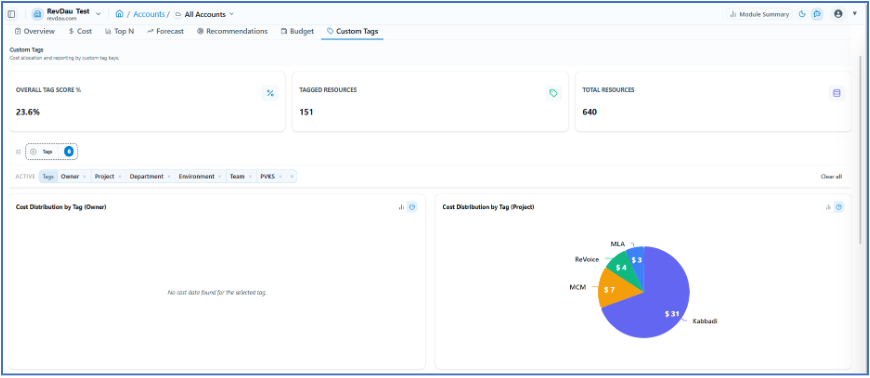
Custom tags in FinOps are used for cost allocation and reporting. The Custom Tag dashboard shows:
-
Overall Tag Score
-
Tagged Resources
-
Total Resources
-
Cost Distribution by Tag (chart)
8.8 Trigger FinOps Job
FinOps jobs can be triggered via scheduler or manually. Click the Trigger Job button to run a manual job.
8.9 Execution History
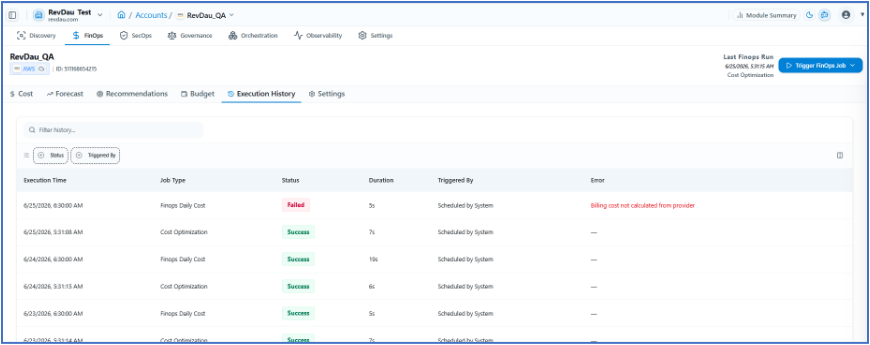
Access execution history at the account-specific level. Filter by status and triggered-by. History details include:
-
Execution Time
-
Job Type
-
Status
-
Duration
-
Triggered By
-
Error (if any)
8.10 Settings
FinOps Settings (account-specific) include:
-
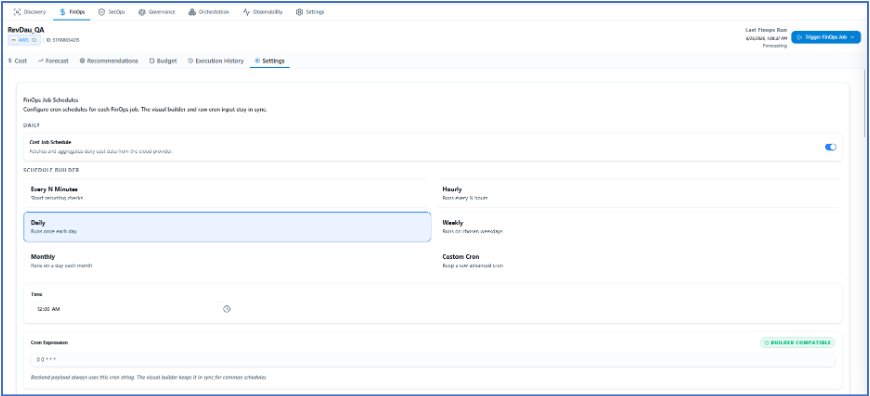
FinOps Job Scheduler Settings
-
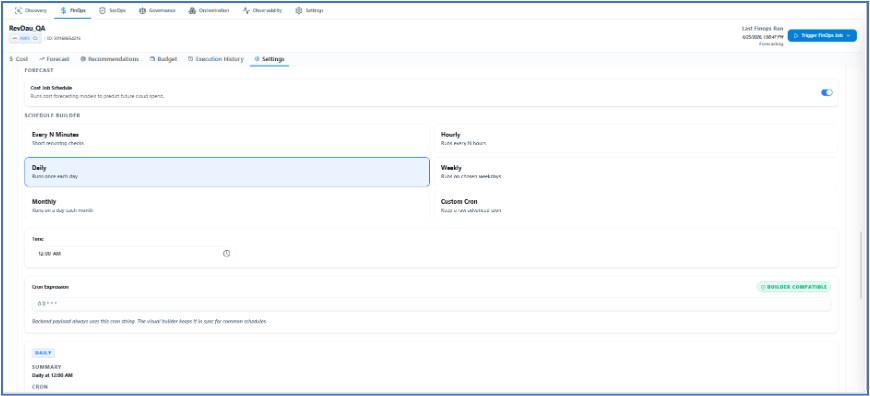
Forecast Job Scheduler Settings
-
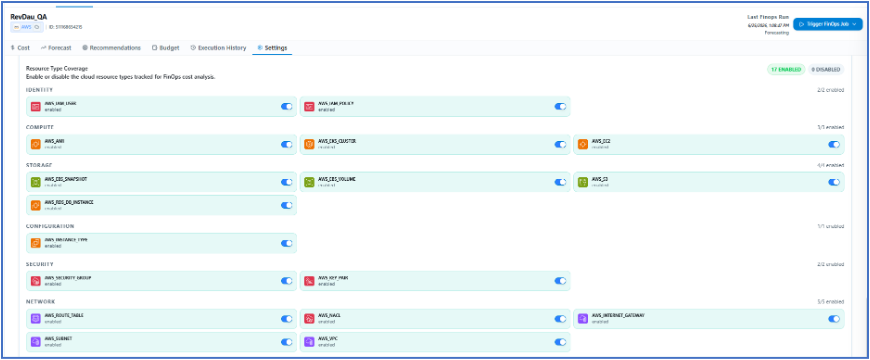
Resource Type Coverage — Enable or disable tracked resource types
-
FinOps Module Status — Enable or disable per account
FinOps Job Schedule:
The Forecast Cost Job Schedule runs cost forecasting models to predict future cloud spend, by account Specific.
By the account level Resource Type Coverage Enable or disable the cloud resource types tracked for FinOps cost analysis.
FinOps Module Disable the entire FinOps module for this account when cost tracking should be paused completely only by account specific.
