
Governance
10.1 Overview
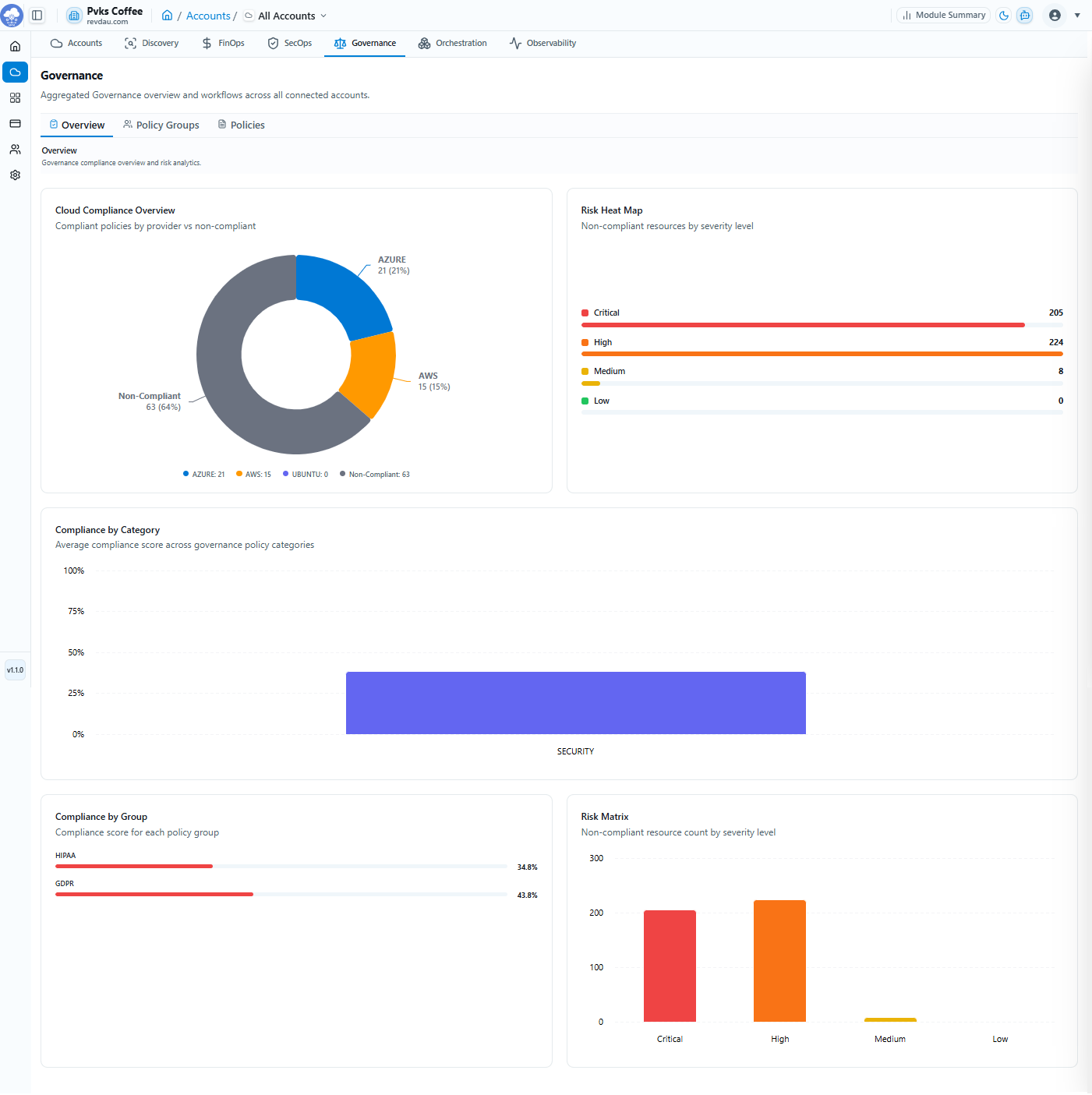
Governance enables policy-driven compliance enforcement with aggregated workflows across all connected accounts.
| Governance Dashboard Metrics |
|---|
| Cloud Compliance Overview — Compliant vs non-compliant policies by provider |
| Risk Heat Map — Non-compliant resources by severity level |
| Compliance by Category — Average compliance score across policy categories |
| Compliance by Group — Compliance score for each policy group |
| Risk Matrix — Non-compliant resource count by severity level |
10.2 Policy Groups
System-created policy groups available on the platform:
-
GDPR Pack — Prebuilt GDPR controls
-
HIPAA Pack — Healthcare compliance controls
-
SOC2 Pack — SOC2 compliance controls
-
NIST
-
ISO
-
CIS Benchmark
Policy Group tab has some cards with specific values like –
-
Total Groups – Organization-wide policy groups
-
Active – All active groups
-
Inactive – Not evaluated
-
Average Compliance – Across all groups
Policy Groups tab attributes: Group Name, Description, Policies, Compliance, Status, Created By. Export available list of policy groups as CSV, Excel, or PDF. Here you can search the policy group by its name, also apply filter of status, Created By.
10.3 Policies
Individual governance policies by type:
-
Cloud Policies — Powered by Cloud Custodian
-
Host Policies — Powered by Shell Scripts
10.4 Policy Lifecycle
| Stage | Action |
|---|---|
| 1 | Create Policy |
| 2 | Configure Schedule |
| 3 | Execute Policy |
| 4 | Review Results |
| 5 | Remediate Findings |
Create a Policy Group
Step 1 Go to Policy Groups and click + Create Group.
Step 2 Enter Group Name.
Step 3 Enter Description (Optional).
Step 4 Toggle Policy Status: Active or Inactive.
Step 5 Click Next, review details, then click Create Group.
Create a Policy
Step 1 General — Choose policy type, name, and assign a group.
Step 2 Definition — Write the policy YAML or host shell script.
Step 3 Review — Configure schedule and review before saving.
AI-Assisted Policy Generation
The AI-Assisted Policy Generation feature allows administrators to create governance and compliance policies using a built-in AI chatbot. Instead of manually writing policy definitions, users can describe their requirements in natural language and let the AI generate policy details automatically.
This capability helps accelerate policy creation, reduce manual effort, and ensure consistency across cloud governance controls.
Overview
The AI Policy Generator assists users in:
- Creating policies using natural language prompts.
- Generating policy names and descriptions.
- Drafting policy definitions and compliance rules.
- Reducing manual configuration effort.
- Accelerating governance implementation.
- Standardizing security and compliance policies.
The AI assistant can be accessed directly from the New Policy page using the integrated chat panel.
Accessing the AI Policy Generator
To generate a policy using AI:
- Navigate to Accounts → Governance → Policies.
- Click Create New Policy.
- Open the AI assistant panel located on the right side of the page.
- Enter a policy requirement in natural language.
- Review the generated policy draft.
- Apply the generated content to the policy form.
Policy Drafting Mode
The AI chatbot operates in Policy Drafting Mode, where it assists users in creating governance and compliance policies.
Users can provide instructions such as:
- Create an MFA enforcement policy.
- Create a security policy for public S3 buckets.
- Generate a policy to prevent open security groups.
- Create a compliance policy for resource tagging.
- Create a governance policy for unencrypted storage resources.
The AI interprets the requirement and generates policy recommendations automatically.
Example Policy Requests
Multi-Factor Authentication (MFA)
Example prompt:
Create an MFA policy for AWS users.The AI may generate:
- Policy Name
- Security category
- Severity level
- Compliance description
- Policy definition
Resource Tagging Policy
Example prompt:
Create a policy requiring all resources to have Environment and Owner tags.The AI can generate governance controls that validate resource tagging compliance.
Storage Encryption Policy
Example prompt:
Create a policy to ensure all storage resources are encrypted.The AI generates a compliance policy focused on encryption requirements.
Network Security Policy
Example prompt:
Create a policy to detect publicly accessible security groups.The generated policy may include recommended detection and remediation criteria.
AI Generated Policy Details
The AI can automatically populate policy information, including:
| Field | Description |
|---|---|
| Policy Name | Suggested policy name |
| Category | Recommended policy category |
| Severity | Suggested severity level |
| Description | Policy purpose and objectives |
| Policy Definition | Generated compliance rule logic |
| Governance Controls | Recommended validation requirements |
Users can review and modify generated content before saving the policy.
Reviewing Generated Content
After receiving an AI-generated draft:
- Review the policy title.
- Verify the policy description.
- Validate severity and category assignments.
- Examine the generated rule logic.
- Modify any fields as required.
- Continue through the policy creation workflow.
AI-generated content should always be reviewed before activation.
Example Workflow
- Open New Policy.
- Launch the AI assistant.
- Enter a prompt such as:
Create an AWS policy that enforces MFA for all IAM users.- Review the generated policy draft.
- Update fields if necessary.
- Apply the generated content.
- Complete the policy configuration wizard.
- Save and activate the policy.
Benefits
The AI-Assisted Policy Generation feature enables administrators to:
- Create governance policies more efficiently.
- Generate policy content using natural language.
- Reduce policy authoring complexity.
- Improve governance consistency across environments.
- Accelerate compliance program implementation.
- Leverage AI recommendations for policy development.
- Simplify policy management for cloud administrators.
AI-Assisted Host Policy & Remediation Script Generation
The AI-Assisted Host Policy Generator enables administrators to create host compliance policies and automated remediation scripts using the built-in AI chatbot. Instead of manually writing shell scripts and compliance checks, users can describe their requirements in natural language and allow the AI to generate both the compliance policy and the associated remediation logic.
This feature helps organizations rapidly implement host security standards, hardening controls, and compliance requirements across managed servers.
Overview
The AI assistant supports the generation of:
- Host compliance policies
- Shell-based compliance checks
- Expected policy outputs
- Auto-remediation scripts
- Security hardening controls
- CIS benchmark validations
- Operating system compliance rules
AI-generated policies can be reviewed and customized before activation.
Creating a Host Policy with AI
To generate a host policy using AI:
- Navigate to Accounts → Governance → Policies.
- Click New Policy.
- Select Host as the policy provider.
- Click Draft with AI or open the AI chat assistant.
- Enter the compliance requirement in natural language.
- Review the generated policy details.
- Validate the compliance script.
- Configure scheduling settings.
- Save and activate the policy.
Policy Drafting Mode
The integrated chatbot operates in Policy Drafting Mode, where it assists administrators in creating host-level compliance policies.
The AI can automatically generate:
- Policy Name
- Category
- Severity
- Description
- Compliance Script
- Expected Output
- Remediation Script
Example Policy Requests
Disable Root SSH Login
Example Prompt:
Create a security policy to ensure root SSH login is disabled on Linux hosts.The AI generates:
- Policy Name
- Security category
- Compliance validation script
- Expected output
- Remediation script
Example Expected Output:
PermitRootLogin noPassword Policy Enforcement
Example Prompt:
Create a host policy to enforce strong password complexity requirements.The AI may generate compliance checks that validate:
- Minimum password length
- Password complexity
- Password expiration settings
- Password history requirements
Disable Unused Services
Example Prompt:
Create a policy to ensure telnet services are disabled on all Linux hosts.The AI generates validation commands and remediation scripts to disable unauthorized services.
Audit Logging Policy
Example Prompt:
Create a compliance policy that verifies audit logging is enabled.The AI can generate audit configuration validation and remediation procedures.
AI-Generated Compliance Script
The Compliance Script validates whether a host complies with the desired policy.
Purpose
Compliance scripts are used to:
- Inspect host configurations.
- Validate security settings.
- Verify compliance requirements.
- Detect policy violations.
Example Validation
For an SSH root login policy, the compliance script may:
grep 'PermitRootLogin' /etc/ssh/sshd_configExpected Output:
PermitRootLogin noWhen the expected output is returned, the host is considered compliant.
AI-Generated Remediation Script
The AI assistant can also generate automatic remediation logic to correct non-compliant configurations.
The remediation script is displayed in the Auto-Remediation section.
Generate Remediation Script
To generate a remediation script:
- Create or generate a host policy.
- Open the AI chat panel.
- Request a remediation script.
Example:
Generate a remediation script for this policy.The AI analyzes the policy and generates a corresponding remediation script.
Example Remediation Requests
Root Login Remediation
Example Prompt:
Generate a remediation script to disable root SSH login.The AI may generate a script that:
- Updates SSH configuration settings.
- Sets
PermitRootLogin no. - Reloads the SSH service.
- Verifies successful application.
Password Policy Remediation
Example Prompt:
Generate a remediation script to enforce password complexity settings.The AI may generate commands that:
- Update PAM configuration.
- Modify password policy settings.
- Apply required authentication controls.
Service Hardening Remediation
Example Prompt:
Generate a remediation script to disable insecure services.The AI may generate scripts to:
- Stop services.
- Disable automatic startup.
- Remove unnecessary packages.
- Verify remediation success.
Auto-Remediation
The platform supports automated execution of remediation scripts whenever policy violations are detected.
To enable automatic remediation:
- Turn on Auto-Remediation.
- Review the generated remediation script.
- Enable Execute script automatically on failure.
- Save the policy.
When a host fails a compliance check:
- The remediation script runs automatically.
- The system attempts to restore compliance.
- Results are recorded in policy execution history.
Reviewing AI-Generated Content
Before activating any generated policy or remediation script, administrators should review:
Policy Details
- Policy name
- Category
- Severity
- Description
Compliance Logic
- Validation commands
- Expected outputs
- Compliance conditions
Remediation Logic
- Configuration changes
- Service restarts
- Package modifications
- Command safety
Example Workflow
Step 1: Generate Policy
Enter:
Create a policy to disable root SSH login on Linux servers.Step 2: Review Generated Compliance Script
Verify:
- Compliance logic.
- Expected output.
- Severity level.
Step 3: Generate Remediation Script
Enter:
Generate a remediation script for this policy.Step 4: Review Script
Ensure:
- Commands are correct.
- Services are properly restarted.
- Configuration changes match policy requirements.
Step 5: Enable Auto-Remediation
Enable:
Execute script automatically on failureStep 6: Save Policy
Complete the remaining policy setup steps and activate the policy.
10.5 Settings
Governance module settings are account-specific. You can enable or disable the module for a selected account to pause policy checks.