
Accounts and onboarding
Connect clouds, source control, registries and hosts, see them in one place, and switch modules on per account.
Everything MCM does starts with an account: a cloud subscription, a code organization, a registry or a server you connect once. Connect it, and Discovery, FinOps, SecOps, Governance, Orchestration and Observability can go to work on it, as far as that platform supports each module.
Open Accounts from the sidebar. You need access to account management to see the page; see Roles and access.
What you can connect
Which platforms you can connect, and what MCM discovers on each, is listed on Supported platforms. In short, the modules available per kind of account are:
| Platform | Discovery | FinOps | SecOps | Governance | Orchestration | Observability |
|---|---|---|---|---|---|---|
 AWS AWS | ✅ | ✅ | ✅ | ✅ | ✅ | ✅ |
 Azure Azure | ✅ | ✅ | ✅ | ✅ | ✅ | ✅ |
 GitHub GitHub | ✅ | ➖ | ✅ | ➖ | ➖ | ➖ |
 GitLab GitLab | ✅ | ➖ | ✅ | ➖ | ➖ | ➖ |
 Bitbucket Bitbucket | ✅ | ➖ | ✅ | ➖ | ➖ | ➖ |
 Docker Hub Docker Hub | ✅ | ➖ | ✅ | ➖ | ➖ | ➖ |
| Docker | ✅ | ➖ | ❌ | ❌ | ➖ | ❌ |
 Linux hosts Linux hosts | ✅ | ➖ | ✅ | ✅ | ➖ | ✅ |
✅ available · ➖ does not apply to this kind of account · ❌ applies, but is not available for this account
In the onboarding wizard the providers are grouped into categories. You can connect more than one account of the same provider.
| Category | Providers |
|---|---|
| Cloud (CSP) | AWS, Azure |
| Source Control | GitHub, GitLab, Bitbucket |
| Host | Ubuntu, Debian, RHEL, CentOS, SUSE, Amazon Linux, Oracle Linux, Rocky Linux, AlmaLinux |
| Containers | Docker |
| Registry | Docker Hub |
The Accounts tab
The Accounts tab lists every account you can see, with summary cards on top. Click a card to filter the table to that kind of account, and click it again to clear the filter.
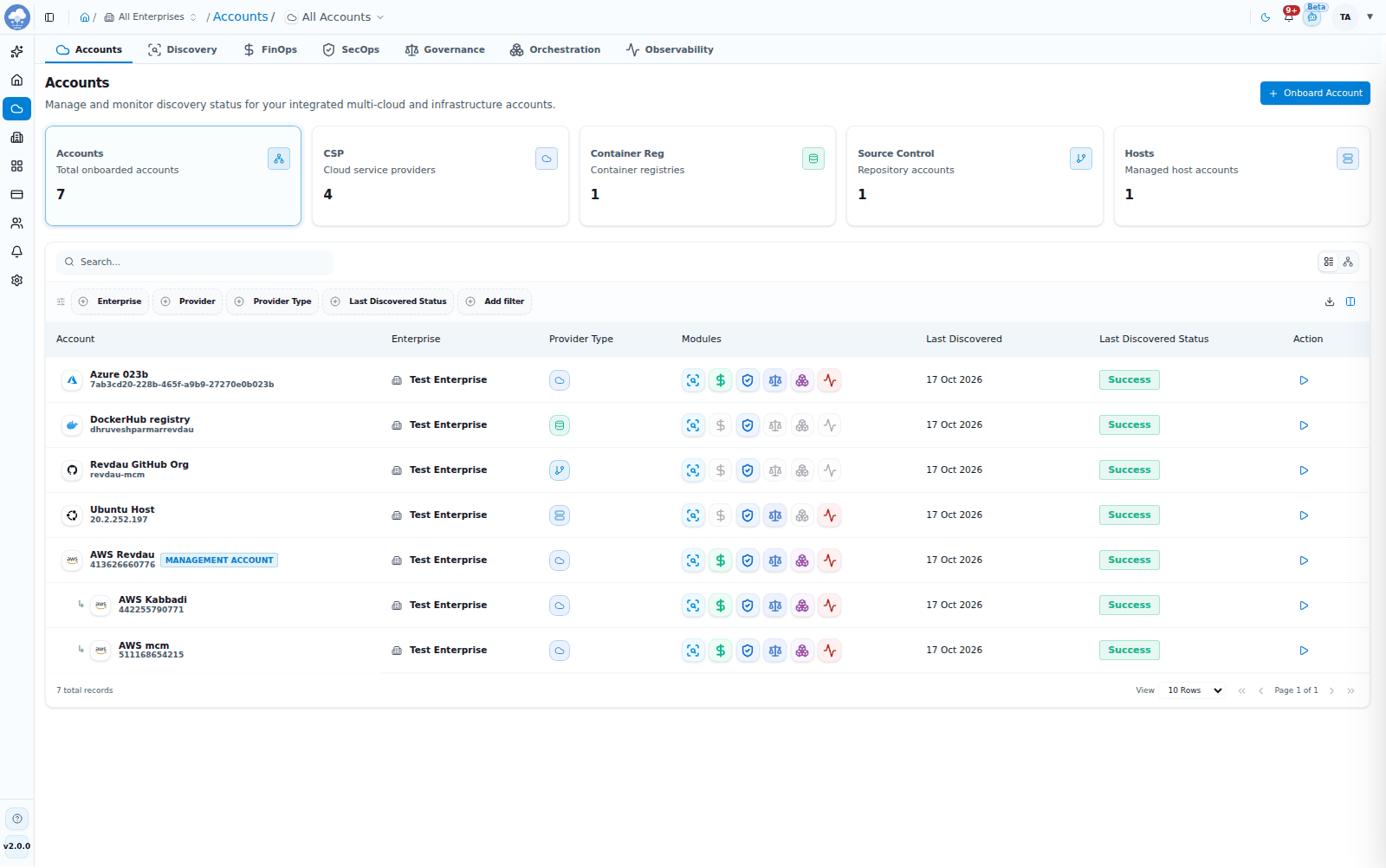
The Accounts tab with its summary tiles and account table.
| Card | Shows |
|---|---|
| Accounts | All onboarded accounts |
| CSP | Cloud service providers (AWS, Azure) |
| Container Reg | Container registries |
| Source Control | Repository accounts |
| Hosts | Linux hosts |
The table has these columns:
| Column | What it shows |
|---|---|
| Account | Name and identifier |
| Enterprise | The enterprise the account belongs to |
| Provider | The connected platform |
| Provider Type | CSP, Container Registry, Host, Source Control or Container Orchestration |
| Modules | The modules enabled for the account |
| Last Discovered | When discovery last ran |
| Last Discovered Status | The result of that run |
| Action | Run Discovery |
Switch between Table and Topology views, search, and export the list. Run Discovery starts a discovery for that account right away. It is unavailable while discovery is already running, or while the account is disabled or still a draft.
Every account belongs to an enterprise. Which enterprises you see is decided by the Enterprise picker in the top bar; see Console tour.
Switching between accounts
Beside the picker, the breadcrumb on Accounts has an All Accounts switcher, with your accounts grouped by provider.
- Tick two or more accounts to narrow every module tab to just those accounts.
- Pick one account to open it. You stay on the same module and sub-tab, so you can compare the same view account by account.
Module tabs adapt to the selection. A module the selected enterprise has not purchased shows a lock with Add <Module> Module and Hide this tab. If none of the selected accounts' platforms support a module, the tab says the module is not available for this selection.
Onboard an account
Click Onboard Account. The wizard has four steps.
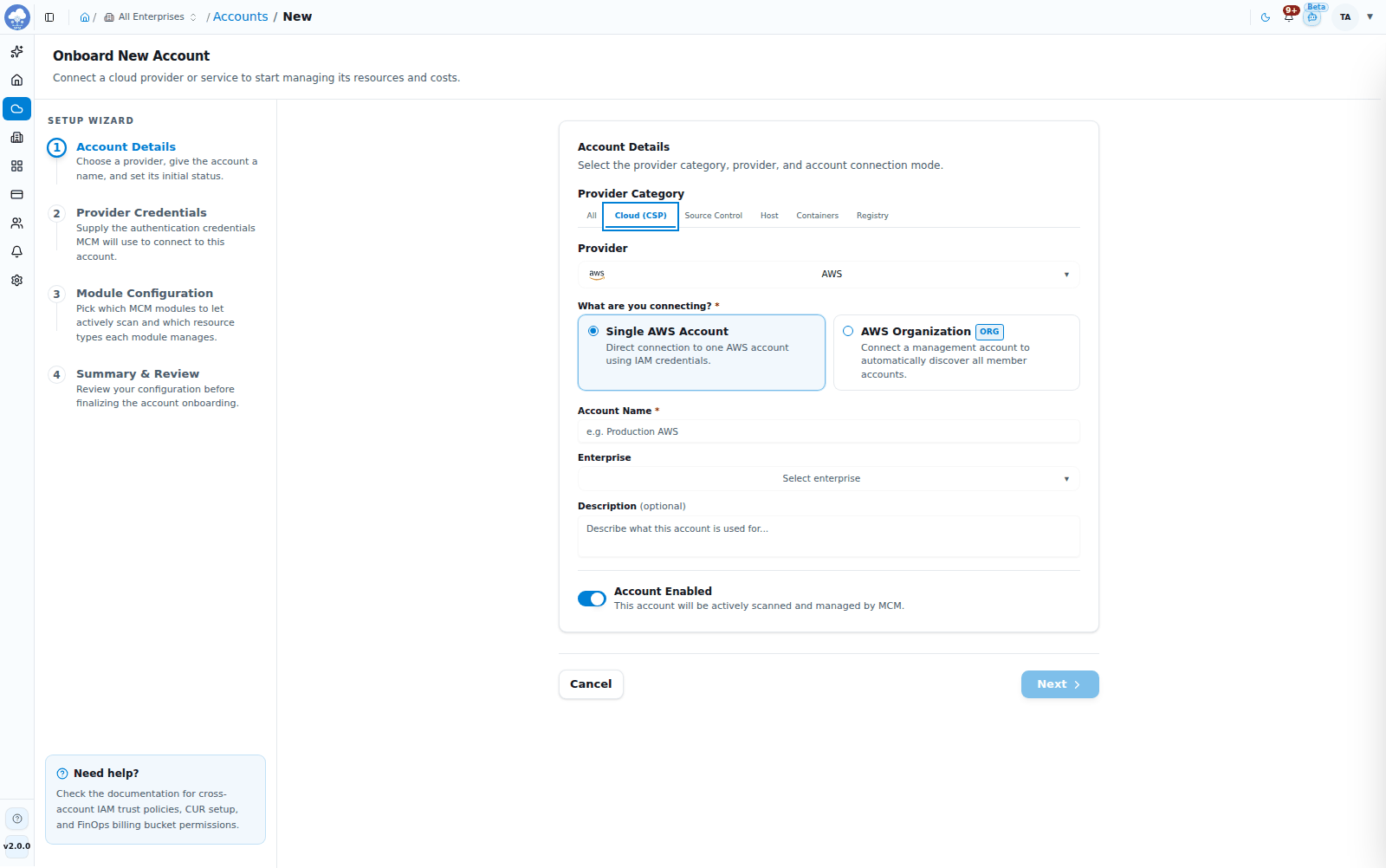
The Onboard New Account wizard, Account Details step for a cloud provider.
Step 1: Account Details
- Pick a Provider Category (All, Cloud (CSP), Source Control, Host, Containers or Registry), then the Provider.
- For AWS, under What are you connecting?, choose Single AWS Account or AWS Organization.
- Enter an Account Name and, if you like, a Description.
- Choose the Enterprise the account belongs to.
- Account Enabled controls whether MCM actively scans and manages the account.
Step 2: Provider Credentials
What you enter depends on the platform. MCM verifies the connection before you move on.
| Platform | What you provide |
|---|---|
| AWS | Access key ID and secret access key |
| Azure | Subscription ID, tenant ID, client ID and client secret |
| GitHub | Personal access token and organization or username |
| GitLab | Access token, and a base URL only for self-hosted GitLab |
| Bitbucket | API token or app password, and a base URL only for self-hosted Bitbucket (leave blank for Bitbucket Cloud) |
| Docker Hub | Username, access token or password, and optionally the namespaces or organizations to cover |
| Docker | Docker daemon URL or socket (and TLS certificates if you use them) |
| Linux hosts | Host name or IP, SSH port, SSH user, and a private key or password (plus a key passphrase if the key has one) |
The permissions MCM needs on each platform are listed on Required permissions, and what connecting can add to your cloud bill is explained on Cloud cost impact.
Step 3: Module Configuration
Switch on the modules you want. Only the modules that apply to the platform are offered, and each one lets you choose what it should cover.
- Discovery is always on, because every other module builds on it. All Discovery resource types are selected by default, and you can deselect any you do not need. For AWS and Azure it also offers these switches:
- Audit Log collects the account's audit events (who did what, and when) and keeps them for a retention period you set (6 months by default, from 1 to 36). Inventory Drift and Audit Log Security Scanning are built on it, so turning it off turns them off too. On AWS this is where you choose the CloudTrail source (see Choose where CloudTrail and cost reports come from); Azure needs no setup.
- Inventory Drift shows which resources were created or deleted and who did it. It needs the Audit Log, and it runs as its own job.
- Custom Tag switches on tag tracking and bulk tagging for the account.
- For GitHub, GitLab and Bitbucket, Discovery lets you choose the branches to discover and scan, by name or pattern (the default is the
mainbranch). For Docker Hub you choose the image tags to discover and scan, by name or pattern (the default is thelatesttag). - FinOps offers Recommendations and Forecast (both on by default). By default every cost line of your cloud bill is collected so monthly totals match your bill; turn on Enable cost filter to collect only the resource types you select. For AWS, CUR Report Configuration lets you choose where the cost and usage report comes from (see Choose where CloudTrail and cost reports come from).
- SecOps for AWS and Azure offers Audit Log Security Scanning, a switch on top of the Audit Log. For Azure the audit log is the subscription's Activity Log, which MCM reads directly with read-only access, so there is nothing to configure and nothing is created in your subscription. For Linux hosts you choose the runtime and network security features, which install a monitoring agent on the host.
Where MCM creates something in your AWS account (a report bucket or a trail), the wizard says so and pre-fills default names that you can edit.
Choose where CloudTrail and cost reports come from
For each AWS account you choose one of three sources, for the Cost & Usage Report (CUR) and for CloudTrail. You can change the choice later with the Edit button on the Cost & Usage Report (CUR) card and on the combined CloudTrail & S3 bucket card of the account.
| Option | What it means | What you enter |
|---|---|---|
| Use my existing S3 bucket (read-only) | MCM only reads from your bucket. It never creates, changes or deletes the bucket, trail or report export. | The S3 bucket name, plus an optional S3 prefix. No trail or report name is needed. For CloudTrail, MCM works out by itself whether the bucket holds a single-account trail or an AWS Organizations trail. |
| Let MCM create it | MCM creates the bucket and the trail or report export for you. | Defaults are pre-filled and editable: for CloudTrail the trail name, the bucket and an optional S3 prefix; for the cost report the report name and bucket. |
| Use the data from another account | Pick an AWS account that already holds the bucket. That account reads it once and the data is filled in for this account too. | Just pick the account from the dropdown. This account needs no bucket details or access. |
Good to know:
- On the account that owns the data, Use this for other accounts… lets you tick several accounts of the enterprise and point them at this account's bucket in one step.
- The same choices are available for every kind of AWS account: a single account, an Organization management account and its member accounts.
- An existing bucket can live in another AWS account or region, for example a central log-archive account. Its bucket policy must let the account's credentials list and read it.
- The dropdown for Use the data from another account lists accounts of the same enterprise, its parent enterprise and its child enterprises. A source account that itself uses another account's data cannot be picked.
- It also works for an AWS Organization: a management account's member accounts follow it, and organization members can use the organization default or another account for the cost report.
- Changing a source never deletes anything. The trail, report export or bucket you used before stays in your AWS account, and keeps costing storage fees, until you remove it yourself. The wizard warns you about this.
- Optional auto-delete (off by default) applies only to buckets MCM created. S3 removes objects older than the number of days you set: at least 30 days for CloudTrail, at least 93 for cost reports, and at most 3650. It is never applied to your own existing buckets or to shared ones, it needs extra S3 lifecycle permissions (see Required permissions), and deleted data cannot be recovered.
- New cost report exports created by MCM include extra columns, such as line item type, currency, net and blended cost, account names, availability zone and service code. Exports created earlier are not changed.
Step 4: Summary & Review
Check the configuration, go back to change anything, then click Onboard Account. The account appears in the table and discovery starts automatically.
Onboard an AWS Organization
Choose AWS Organization in step 1 to connect a management account and all its member accounts at once. The steps are:
- Account Details: name the connection and label the management account.
- AWS Credentials: the management account's access key and secret.
- Discover Child Accounts: MCM lists the member accounts. For each one, review the Display Name, choose the Enterprise it belongs to and select the ones to onboard. Refresh Accounts reloads the list.
- Module Configuration: review every account you selected, one at a time. The page shows how many accounts you have reviewed ("N of M accounts reviewed"). Click Confirm this account on each, or Use defaults for all remaining to accept defaults for the rest. You cannot continue until every selected account is reviewed; to skip an account, deselect it in the previous step. A member account can use the organization's cost report (Use Organization / Parent Management Account CUR) or another account's, and can reuse an organization-wide CloudTrail (see Choose where CloudTrail and cost reports come from).
- Summary & Review: confirm and connect.
Assigning member accounts to different enterprises is how an MSP keeps each customer's accounts separate.
The account page
Click an account to open it. The tabs are Discovery, FinOps, SecOps, Governance, Orchestration, Observability, Users and Settings. Only the tabs the platform supports are shown, for example a GitHub account shows Discovery and SecOps. The header shows the last discovery run and the Trigger Discovery Job button.
- Users lists who has access to this account and lets you grant or change access. See Roles and access.
- Settings is one page of collapsible sections: General (name, provider, account ID and whether the account is enabled), Credentials (secrets stay masked until you edit them; for members of an AWS Organization they are managed by the organization), one section per module with its switch, schedules and options, and a Danger zone to delete the account. Changes are saved together with the Save button that appears at the bottom.
Turn modules on and off
In the account's Settings, every module has its own section with a switch. Turning a module off stops its activity on that account, and resource-type choices are remembered if you turn it back on. Discovery cannot be turned off, because the other modules depend on it. Switching the account itself to disabled in General pauses all discovery, monitoring and module activity without removing data. Delete Account in the Danger zone removes the account and its data from MCM permanently.
Tips
- Onboard with least-privilege credentials, as described on Required permissions.
- Leave Account Enabled on if you want discovery to start straight away.
- Use the summary cards to find, for example, every host or every source control account in two clicks.