
Billing
Create module billing plans, review plan change requests, and follow each enterprise's current, upcoming and past plans.
Billing in MCM works at two levels:
- Platform billing lives under Billing in the sidebar. Here you define the plans you sell and decide on plan change requests.
- Enterprise billing lives on each enterprise's own Billing Plans tab under Enterprises. Here you see what an enterprise has now, what is coming and what it had before, and request an extra module.
One plan covers one module (Discovery, FinOps, SecOps, Governance, Orchestration or Observability). Billing is optional per enterprise: if Billing required is off for an enterprise, it has full access to every module and the plan views have nothing to show. See Enterprises.
The Billing page needs read access to Billing Plan; without it MCM shows "You don't have permission to view billing plans". MSP Owner, MSP Admin and MSP Viewer can open it, as can the enterprise roles. Creating plans needs write access (MSP Owner and MSP Admin). See Roles and access.
Billing plans
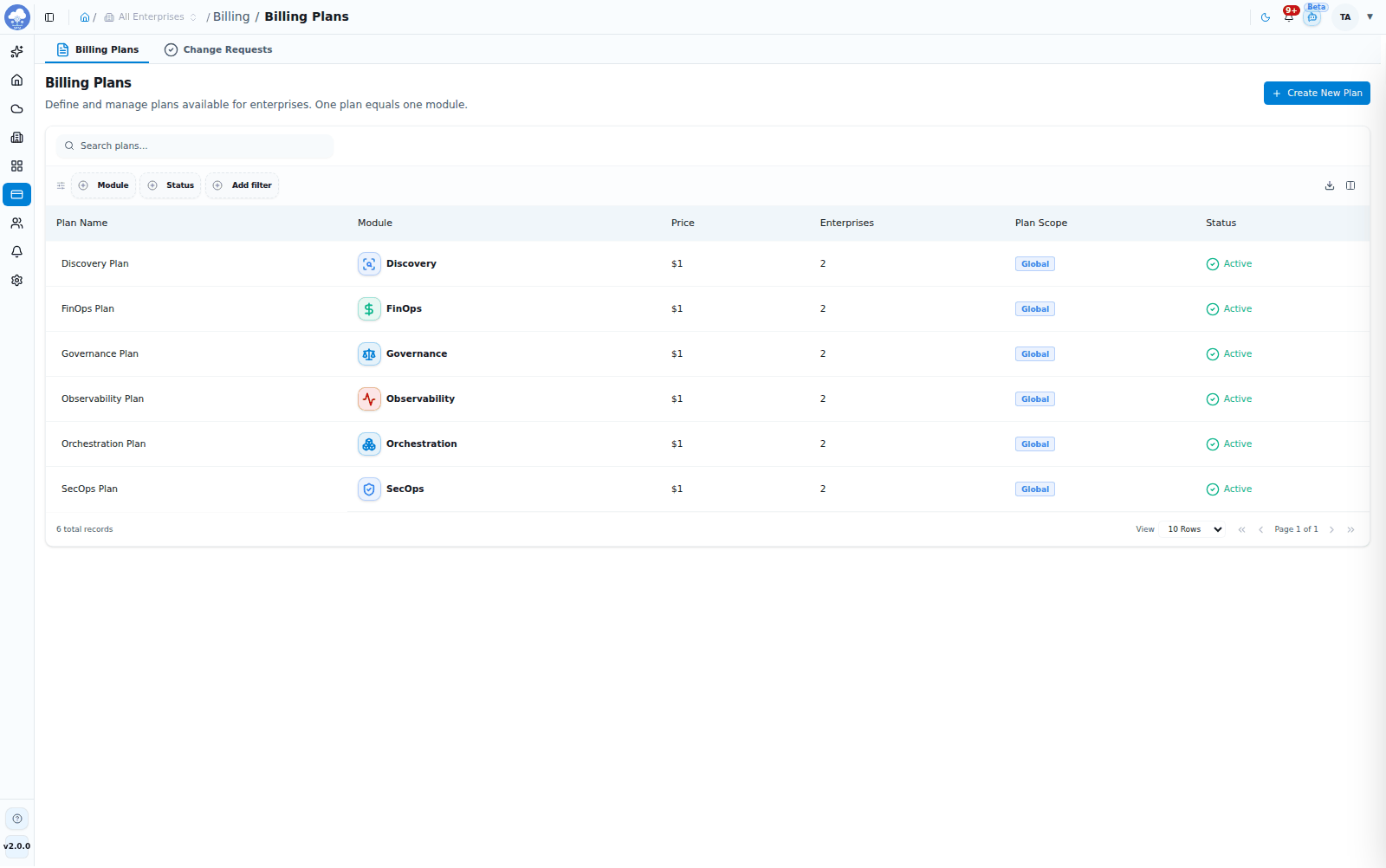
The Billing Plans list, one plan per module.
Billing → Billing Plans ("Define and manage plans available for enterprises. One plan equals one module.") lists every plan.
| Column | What it shows |
|---|---|
| Plan Name | The plan name and description |
| Module | The module the plan covers |
| Price | The price per billing cycle |
| Enterprises | How many enterprises use the plan |
| Plan Scope | Global (available to every enterprise) or the specific enterprises it is limited to |
| Status | ACTIVE or INACTIVE |
Search by name, filter by module and status, and export the list as CSV, Excel or PDF. Click a plan to open it: its Overview shows the details and the enterprises subscribed to it, and its Settings tab lets you edit it or delete it from the Danger Zone (Delete Plan).
An active plan can be assigned to enterprises. An inactive plan is not offered for new subscriptions.
Create a plan
Unless an enterprise has Billing required switched off, the plan it needs must exist before you create the enterprise.
- Choose Billing → Billing Plans → Create New Plan. The Create Billing Plan wizard has three steps: Plan Basics, Configuration and Review.
- On Plan Basics, enter the Plan Name and Plan Description, choose the Module and set the Status (Active or Inactive). Choose Next.
- On Configuration, set the Module Parameters, which are the limits for the chosen module. They depend on the module, for example the number of discovered resources, transactions for Orchestration, total cloud cost for FinOps, or monitored hosts for Observability.
- Enter the Price and the Validity (Days), which must be greater than zero.
- Choose Target Enterprises: All Enterprises (Global), or select specific enterprises. Choose Next.
- Review the summary and choose Create Billing Plan.
The plan appears in the table and is available according to its status and scope.
Plan change requests
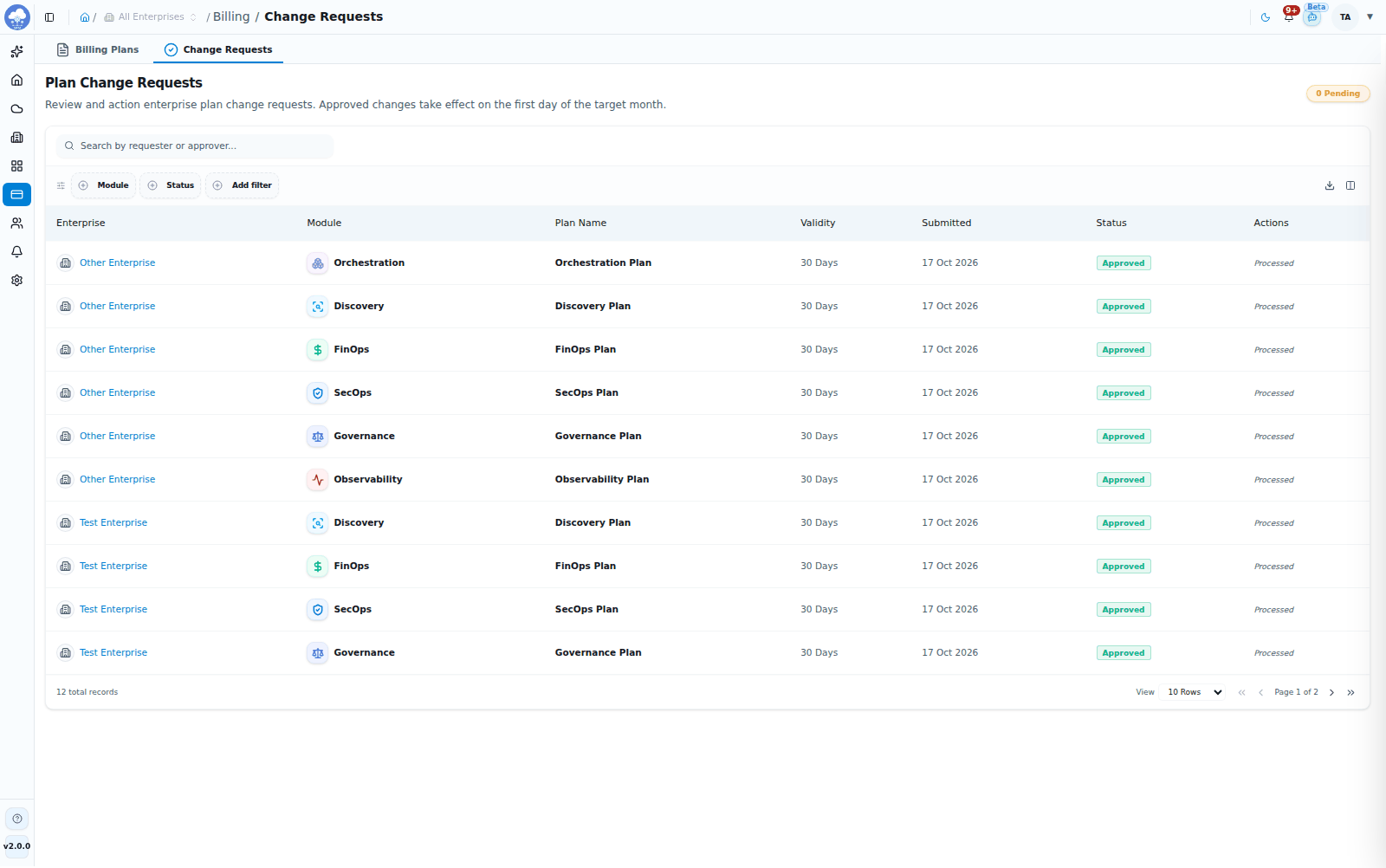
Plan Change Requests awaiting or past approval.
Billing → Change Requests ("Plan Change Requests") is where enterprise requests wait for a decision. A badge at the top shows how many are Pending.
| Column | What it shows |
|---|---|
| Enterprise | Who asked |
| Module | The module concerned |
| Plan Name | The plan requested |
| Validity | How long the plan runs |
| Submitted | When the request was made |
| Status | Pending, Approved or Rejected |
| Actions | Confirm and Reject on pending requests |
Search by requester and filter by module, status and type of change (for example adding a module versus changing a plan).
- Open Billing → Change Requests and find the pending request.
- Check the enterprise, module, plan and validity.
- Choose Confirm to approve ("Billing request approved") or Reject ("Billing request rejected").
An approved change takes effect on the first day of the target month. A rejected request leaves the enterprise on its current plan. Either way, the outcome appears in the enterprise's Plan History.
An enterprise's plans
Open Enterprises, choose an enterprise and open its Billing Plans tab. It has three views.
Current Plan
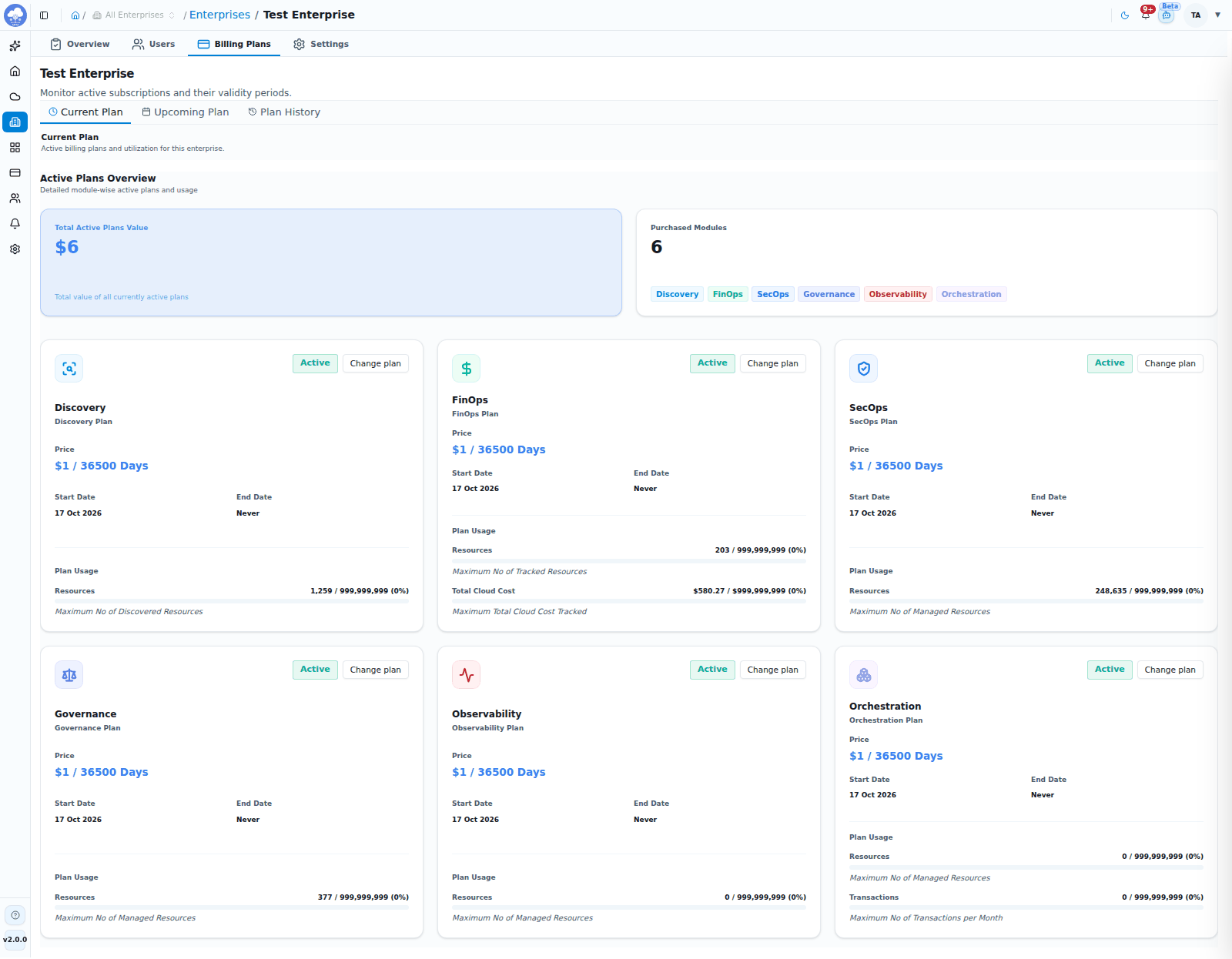
An enterprise Current Plan tab with active module plans and usage.
Active Plans Overview shows the module-wise plans the enterprise is on now ("Detailed module-wise active plans and usage").
- Total Active Plans Value and Purchased Modules summarise the subscription.
- Each module has a card with its plan name, status, Price and validity, Start Date, End Date and Plan Usage: usage bars against the plan's limits, such as resources, transactions or cloud cost. A bar turns amber at 90% and red when the limit is reached, which is the moment to consider a bigger plan.
- Choose Change plan on a module card to ask for a different plan or to request its removal (Remove Plan Request), then Send Request. A platform administrator decides it under Billing → Change Requests.
- If nothing is active you will see "Billing plans not found".
Upcoming Plan
Everything on its way, and the place to ask for more.
- Pending Subscriptions lists requests waiting for approval, and approved plans waiting to be switched on. Each shows the module, a type badge (such as ADD, UPDATE or DELETE), the plan, price and limits.
- Cancel Request withdraws a pending request.
- Approved, pending activation items have an Activate Plan button.
- Plan Preview shows Current Base, Plan Additions and Projected Total.
Request an extra module
- Open the enterprise's Billing Plans → Upcoming Plan.
- Under Add Plan, choose the module in Plan Type (Module).
- Under Select a Billing Plan, pick a plan. Each shows its price, validity and limits. If the module has none you will see "No billing plans available".
- Choose Add Plan. MCM confirms "Plan request submitted successfully!" and the request appears under Pending Subscriptions.
A platform administrator then decides on it under Billing → Change Requests. Once approved, choose Activate Plan on the Upcoming Plan view and the module shows up under Current Plan.
You can also start here from the Accounts area: when your enterprise has not bought a module, its tab shows Add Module Module, which opens the enterprise's Billing Plans tab.
Plan History
Subscription History has two views.
History List ("Browse and audit all expired, deactivated, or deleted plans") shows:
| Column | What it shows |
|---|---|
| Module | The module the plan belongs to |
| Plan Name | The plan |
| Price | The price |
| Status | Active, Pending, Rejected, Inactive or Deleted |
| Start Date / End Date | When the plan began and ends |
Search by plan name and filter by module, status, billing plan and date range.
Activity Log follows the full lifecycle of requests and plans. Events are Request Submitted, Request Approved, Request Rejected, Plan Activated and Plan Expired. Filter by plan and event type.
Tips
- Create a plan for every module before onboarding enterprises, because the wizard cannot enable a module that has no plan.
- Keep an eye on usage bars in Current Plan, and request a bigger plan before a limit is reached.
- For a platform-wide billing view, open the MSP Billing Dashboard under Dashboards.
Enterprises
Create and manage the customer organizations on your platform, nest them in a hierarchy, choose their modules and give each one its first administrator.
Settings
Brand the console, manage allowed domains, keep your subscription and software current, secure your domain, connect AI providers and maintain currency rates.