
Governance
Define compliance policies once, run them across accounts and hosts, and see your compliance at a glance.
Governance helps you stay compliant without chasing it by hand. Write policies (or have the AI assistant draft them), organise them into policy groups, run them on a schedule or on demand, and watch your compliance score across every connected account and host.
| Provider | Governance policies |
|---|---|
 AWS AWS | ✅ |
 Azure Azure | ✅ |
| Linux hosts (Ubuntu, Debian, RHEL, CentOS, Amazon Linux, SUSE, Rocky Linux, AlmaLinux, Oracle Linux) | ✅ |
 GitHub, GitLab, Bitbucket, Docker Hub GitHub, GitLab, Bitbucket, Docker Hub | ➖ |
 Docker Docker | ❌ |
✅ available · ➖ does not apply to this kind of account · ❌ applies, but not available
If your enterprise has not purchased Governance, the tab shows a lock and an Add Governance Module request. See the console tour.
All-accounts view
Open Accounts → Governance. The tabs are Overview, Policy Groups and Policies. Overview and Policies follow the Enterprise picker and the All Accounts switcher.
Overview
Your compliance posture on one page:
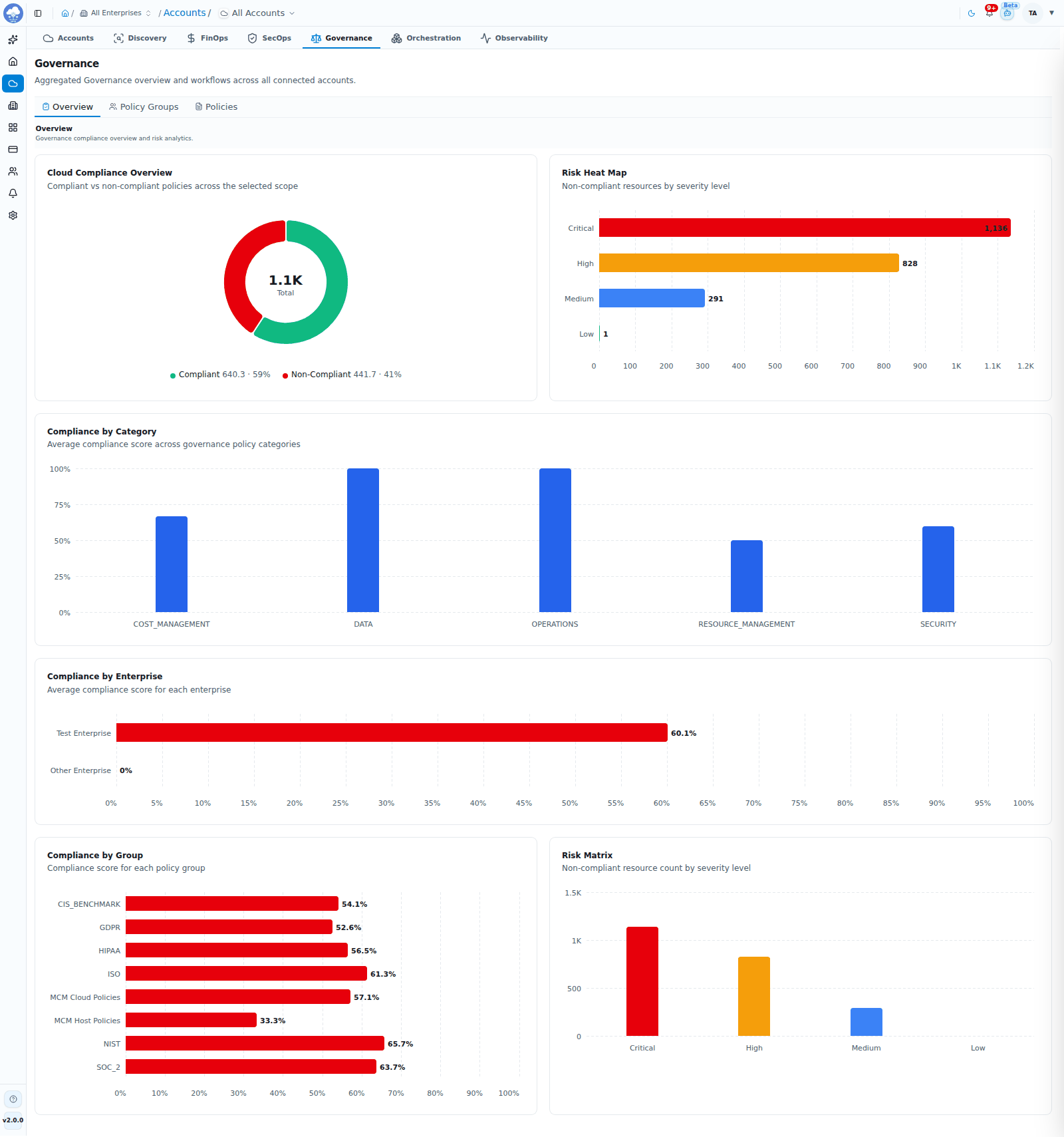
Governance Overview: compliance by category, enterprise and group.
- Cloud Compliance Overview: compliant versus non-compliant, with the split per provider when you hover.
- Risk Heat Map: non-compliant resources by severity.
- Compliance by Category: average compliance score for each policy category.
- Compliance by Enterprise: average compliance score for each enterprise.
- Compliance by Group: the score for each policy group.
- Risk Matrix: the count of non-compliant resources by severity.
Policy Groups
A policy group collects related policies, for example one group per standard or team, and gives you a compliance score for the set.
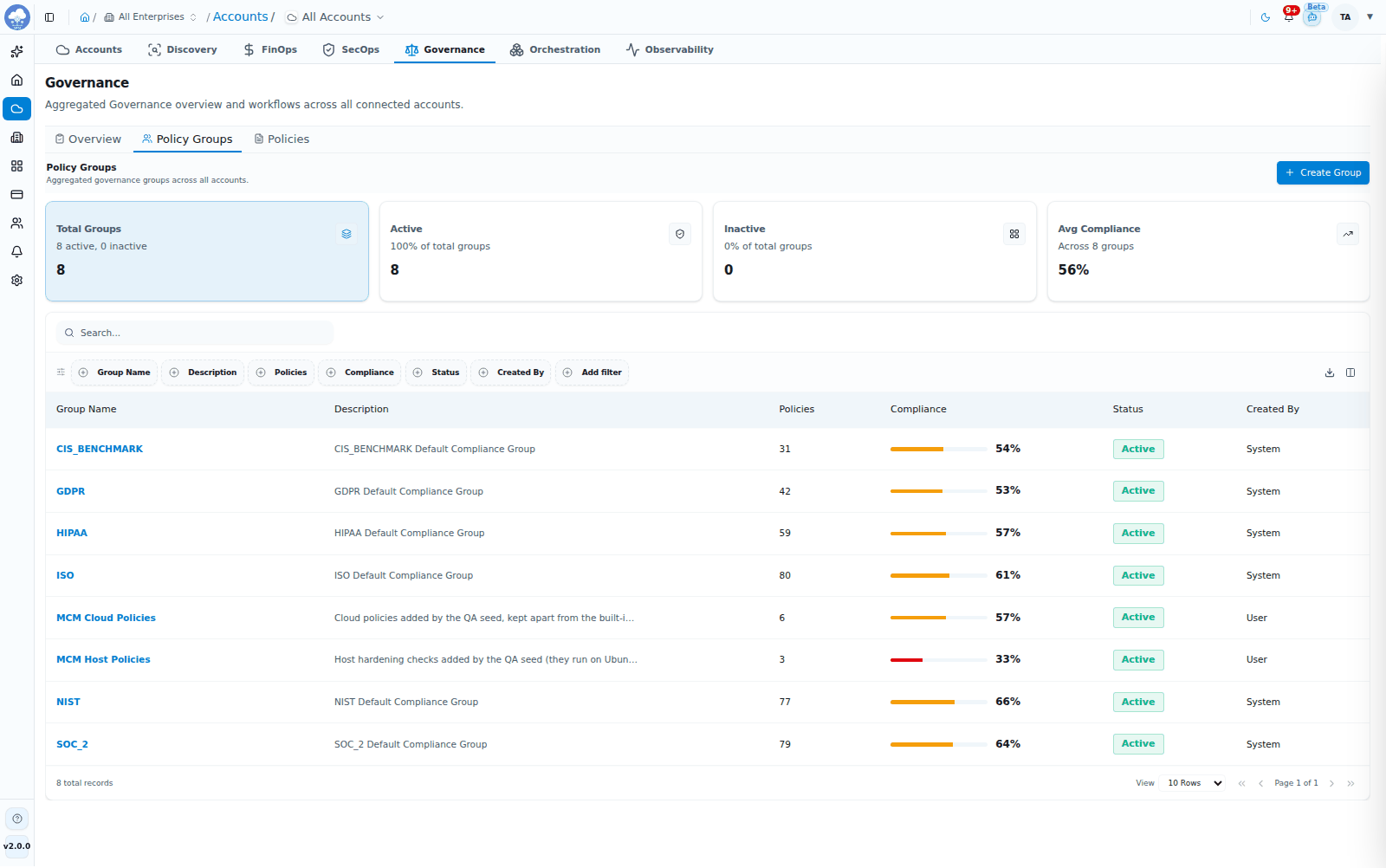
Policy Groups with policy counts and average compliance.
- Cards for Total Groups, Active, Inactive and Avg Compliance.
- A searchable table with Group Name, Description, Policies, Compliance, Status and Created By. Filter by status and creator, and export the list as CSV, Excel or PDF.
- Some groups are system-managed. For those, only the status can be changed and new policies cannot be added.
Create a group
- Click Create Group.
- Enter a Group Name and, optionally, a Description, and choose whether the group is Group Active.
- Review and click Create Group.
Policy groups are installation-wide: the Enterprise picker does not narrow them.
Policies
Individual compliance rules.
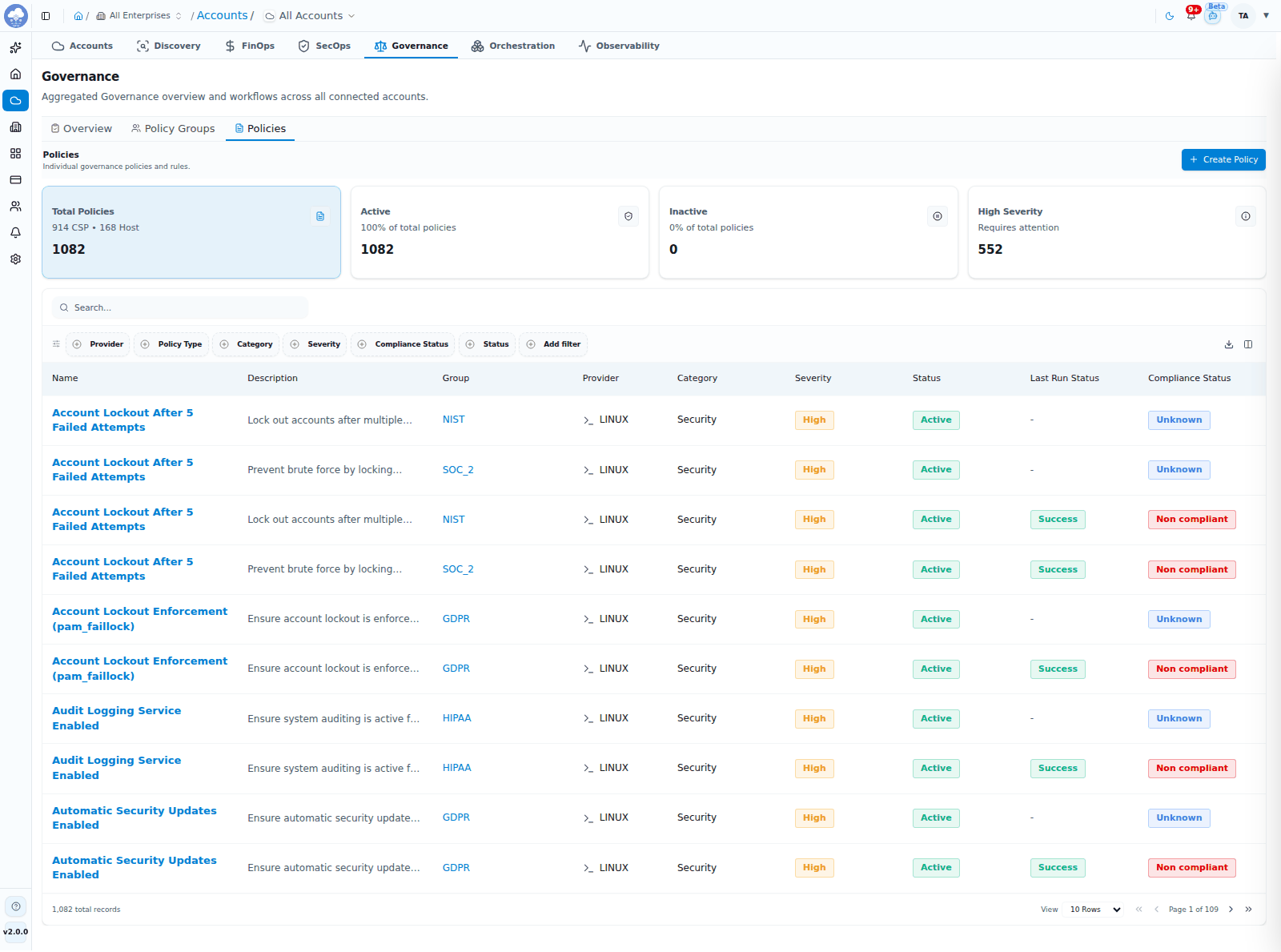
The Policies list with severity, status and compliance.
- Cards for Total Policies, Active, Inactive and High Severity.
- A searchable table with Name, Description, Group, Provider, Category, Severity, Status, Last Run Status and Compliance Status. Filter by Provider, Policy Type (Cloud or Host), Category, Severity, Compliance Status and Status, and export as CSV, Excel or PDF.
Create a policy
Click Create Policy. The wizard has four steps.
- General: choose the Provider (AWS, Azure or Linux), name the policy, pick its group, severity and status, and add a description. Click Draft with AI to start from an AI-generated draft.
- Definition: for AWS and Azure, write the policy as YAML and use Validate YAML to check it. For Linux hosts, provide a Compliance Script, its Expected Output and, optionally, a Remediation Script. Turn on Enable Auto-Remediation to run the remediation script automatically when a host fails the check.
- Schedule: turn on Enable scheduled evaluation and set when it should run automatically, or leave it off to run policies manually.
- Review and save.
You can also ask the AI assistant to draft a policy from anywhere in the console with the /create-policy quick action (for example, /create-policy Require encryption at rest for all S3 buckets). Always read an AI-generated policy and remediation script before you activate it. See Draft policies with AI.
Run a policy
Open a policy and click Run Policy (AWS and Azure). For Linux hosts the buttons are Check Compliance and Run Remediation. Running is disabled while the policy's group is inactive. You can also run every policy in a group from the group's page.
Inside a policy
A policy has four tabs: Overview, Policy, Execution History and Settings.
- Overview shows cards for the Resource Count (or Host Count), Last Run Status, Severity and Schedule, with the resources or hosts it evaluated.
- Policy shows (and lets you edit) the policy definition and, for hosts, the expected output and remediation. Validate before you save.
- Execution History lists past runs. If a run fails for an account, the failure is recorded here so you can see which account failed and why.
- Settings lets you edit the schedule and delete the policy.
Governance groups
Each policy group has its own page with five tabs: Overview, Policies, Executions, Users and Settings.
- Overview: overall compliance, the enterprises and accounts evaluated, and how each policy and account scored.
- Policies: the policies in the group, with cards for Policies, Compliance Score, Active and High Severity. Run Policy runs the group's policies; New Policy adds one.
- Executions: results of the group's policies per account and host.
- Users: who has access to this group and through which role. Administrators with user-management rights can add people, change roles or remove access. See Roles and access. Governance groups can be shared on their own, using the Governance Group Admin and Governance Group Viewer roles.
- Settings: change the name, description and status, or Delete Group. System-managed groups only allow a status change.
Single-account view
Open an account and choose its Governance tab. The tabs are Policy Groups and Policies, limited to that account.
In the account's Settings tab, the Governance section has a switch for the account. Disable it to pause policy checks for that account; enable it again to resume. If a policy run fails for an account, the failure is recorded in the policy's execution history so you can see which account failed and why.
Tips
- Group policies by standard or team so each group's score means something.
- Set a schedule so compliance is measured regularly, not only when someone remembers.
- For Linux hosts, test the compliance script and expected output before enabling auto-remediation.
- Use Draft with AI to get a first version quickly, then review it.
- Route governance notifications to the right people under Notifications → Preferences, in the Governance category.