
Getting started
Follow the guided setup checklist, from branding and users to your first connected cloud account and active modules.
Getting Started is your personal setup checklist. It walks you through the steps that take MCM from an empty console to connected accounts, discovered resources and active modules, and it only shows you what you are allowed to do.
After you sign in, MCM opens Getting Started until every step you can act on is either done or skipped. After that, you land on Home. If you sign in with single sign-on you always start on Getting Started.
What you see
The page is titled Welcome to MCM and shows:
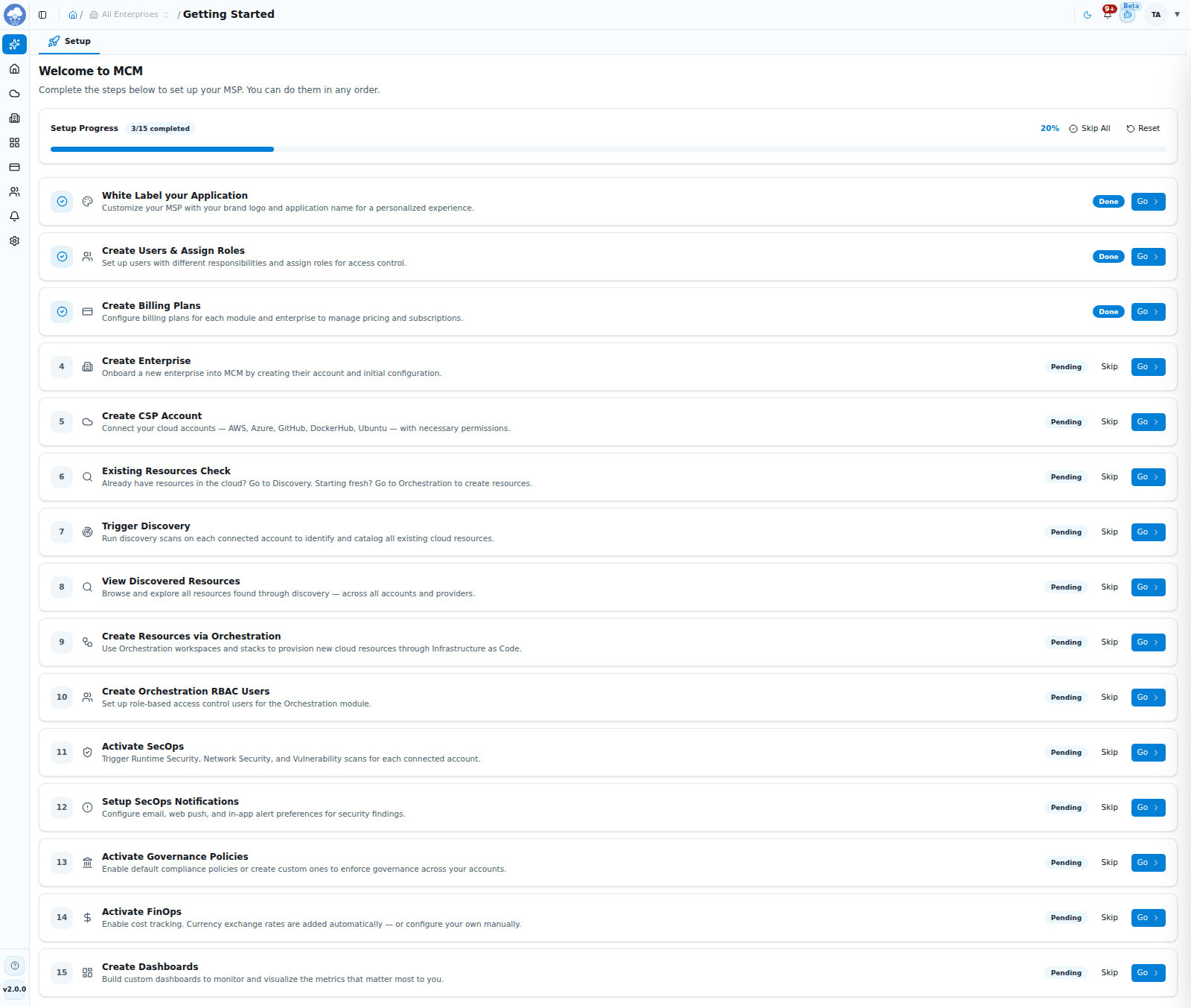
The Getting Started checklist with its progress bar and steps.
- Setup Progress with a counter ("3/10 completed") and a percentage bar.
- Skip All to skip every step that is still pending.
- Reset to mark every step you can act on as pending again.
- One card per step, in a suggested order, each with its own buttons.
You can do the steps in any order.
The steps
| Step | Takes you to | You need |
|---|---|---|
| White Label your Application | Settings → General | Update access to platform settings |
| Create Users & Assign Roles | User Management | Write access to users |
| Create Billing Plans | Billing → Billing Plans | Write access to billing plans |
| Create Enterprise | Enterprises | Write access to enterprises |
| Create CSP Account | Accounts | Write access to accounts |
| Existing Resources Check | Accounts → Discovery → Resources | Discovery |
| Trigger Discovery | Accounts | Discovery |
| View Discovered Resources | Accounts → Discovery → Resources | Discovery |
| Create Resources via Orchestration | Accounts → Orchestration → Workspace | Orchestration |
| Create Orchestration RBAC Users | User Management | Write access to roles |
| Activate SecOps | Accounts → SecOps → Scan Findings | SecOps |
| Setup SecOps Notifications | Notifications → Preferences | SecOps |
| Activate Governance Policies | Accounts → Governance → Policies | Governance |
| Activate FinOps | Accounts → FinOps → Overview | FinOps |
| Create Dashboards | Dashboards | Write access to dashboards |
Which steps you see as active depends on your role, so an MSP owner sees the platform-wide steps (branding, billing plans, enterprises) alongside the account and module steps, while a user with a narrower role sees a shorter list. See Roles and access.
Step states
Each step shows one of these:
| What you see | What it means |
|---|---|
| Pending badge, Skip and Go buttons | Not done yet |
| Done badge | Completed |
| Skipped badge, Undo and Go buttons | You skipped it. Undo puts it back to pending |
| Locked button | The module for this step has not been purchased for your enterprise. Clicking it explains that the module is not purchased. Locked steps that are still pending are skipped automatically |
| Greyed out, "You don't have permission" | Your role does not include this action. Ask an administrator, or ignore the step |
Steps you cannot act on, locked or not permitted, do not count towards your progress.
Work through a step
- Click Go on a step. MCM marks it done and opens the page where you carry it out.
- Finish the task on that page.
- Come back to Getting Started at any time to see your progress.
Changed your mind? Click Skip to set a step aside, or Undo on a skipped step to bring it back.
The next-step card
While steps remain, a small Continue Onboarding card appears at the bottom right of other pages. It names the next pending step, explains it in a line and offers a Proceed to… button that takes you straight there. Use the × to hide it for the rest of your session. Visiting a step's page also counts that step as done, and the card never shows on the Getting Started page itself.
Finish, skip or start over
- Finish: when every step you can act on is done or skipped, Getting Started disappears from the sidebar and sign-in takes you to Home.
- Reset: click Reset on the Getting Started page, or use Settings → General → Reset Getting Started (platform administrators). Either marks every step you can act on as pending again; the Settings button also opens Getting Started for you.
Tips
- Start with users and roles if several people will share the work, then connect your first cloud account.
- A locked step is not an error. Once the module is added to your enterprise's plan, the step becomes available.
- Skipping is safe. You can still do any skipped task later from its normal page.