
Roles and access
How roles, scopes and default roles decide what each person can see and do.
Access in MCM 2.0 comes from two things: a role (which actions on which modules) and a scope (over which enterprises, accounts or resources). A role bound to a scope is called a binding. A user can hold several bindings, but the same role only once.
Scope
A role can be bound to:
| Scope | Meaning |
|---|---|
| Enterprises | All enterprises, or specific ones |
| Accounts | Specific accounts within chosen enterprises |
| Stacks, Dashboards, Custom tags, Budgets, Governance groups | All of that type, or specific ones |
A role bound to all enterprises is what used to be called an "MSP" user: it works at platform level. Everyone else sees only the enterprises, accounts and resources their bindings reach, and every list and dashboard is filtered accordingly.
Default roles
MCM ships 18 default roles. They are managed by the platform and cannot be edited.
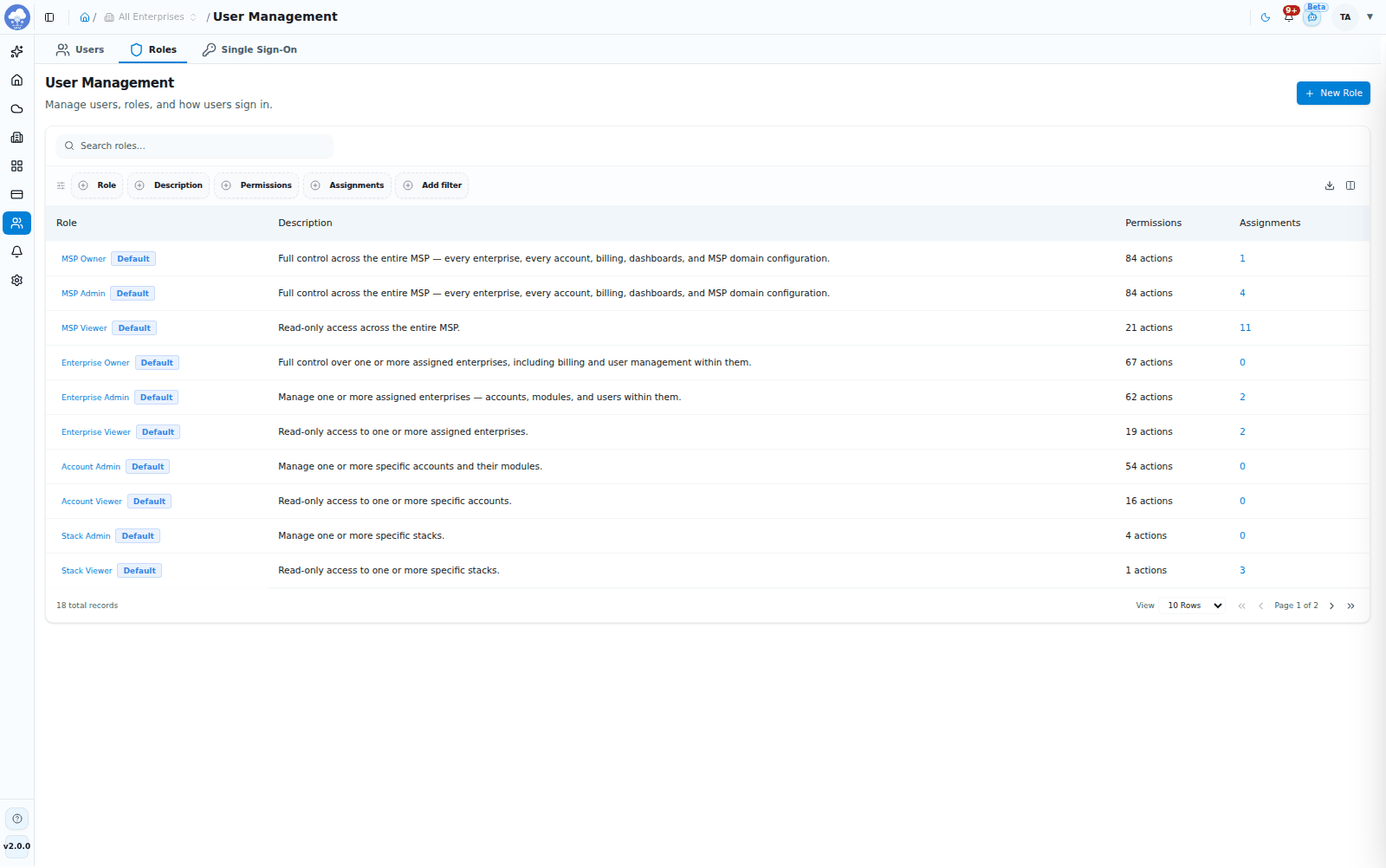
The Roles tab with the default roles and their permission counts.
| Family | Roles | Typical use |
|---|---|---|
| MSP tier | MSP Owner, MSP Admin, MSP Viewer | Run the platform across all enterprises |
| Enterprise tier | Enterprise Owner, Enterprise Admin, Enterprise Viewer | Run chosen enterprises |
| Account tier | Account Admin, Account Viewer | Work with specific accounts only |
| Resource roles | Stack, Dashboard, Budget, Custom Tag and Governance Group Admin / Viewer | Access to one type of resource |
In short: Owners have full control, Admins manage day-to-day work, Viewers are read-only. MSP Owner and MSP Admin can manage single sign-on. Enterprise roles cannot change platform settings, roles, or single sign-on.
Need something different? Create a custom role under User Management → Roles, choose the actions it grants per module (shown as Read, Write, Delete, Execute), and choose what it is Assigned over. You can only grant actions you hold yourself, and you cannot change your own role, scope or status.
Users
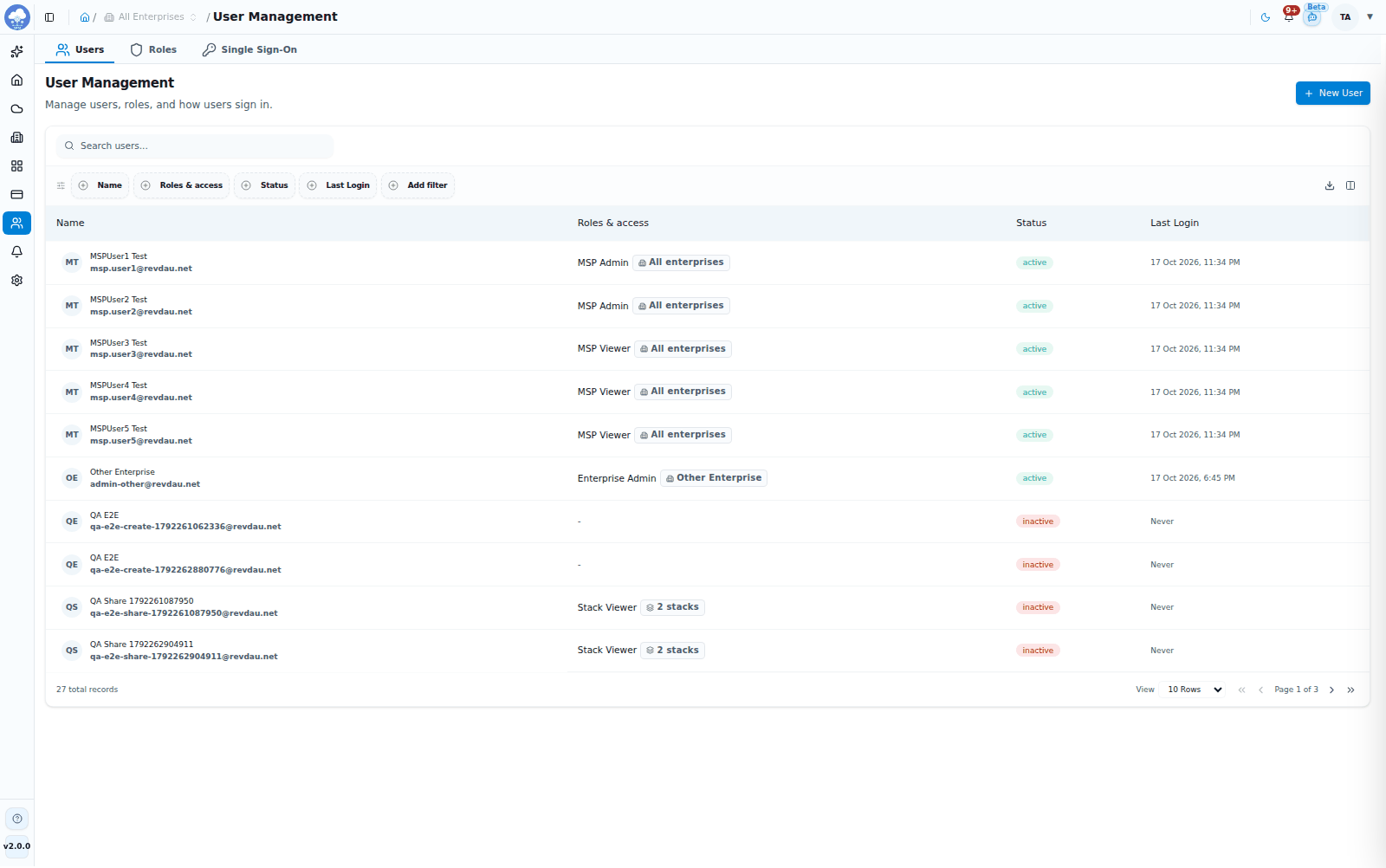
The Users tab with roles, scope and status.
User Management → Users → New User walks you through Basic Info, Roles & Access, then Summary & Review. Each user's page has an Overview and Settings tab.
On an enterprise's Users tab you can assign existing users to that enterprise and change their access. You cannot remove your own access, and users with global access are edited from their own page.
People with access to a resource
Enterprises, accounts, stacks, dashboards, budgets, governance groups and custom tags each have a Users tab showing who has access and through which role. Administrators with user-management rights for that enterprise can add people, change their role or remove them there.
Single Sign-On
User Management → Single Sign-On manages connections to your identity provider: Microsoft Entra ID (recommended), Custom OIDC and Custom SAML.
- New Connection → Connect. Choose the provider and enter its details. For Entra ID, complete the one-time app registration first. OIDC needs the authorization, token and user-info URLs, client ID and secret; SAML needs the sign-on service URL, entity ID and signing certificate.
- Default Access. Choose whether users are created automatically on first sign-in, which roles they receive, and whether single sign-on is required (blocks password sign-in for those domains).
- Summary & Review, then create.
From a connection's page you can Test sign-in, Verify domain ownership with DNS TXT records, and Disconnect. The list shows each connection's domains, default access, password sign-in setting, users and last sign-in.
Domains
Under Settings → General → Domain Policy, the platform owner defines the email domains allowed to sign in, up to 20 (the first, set at activation, cannot be removed). Each enterprise can then allow a subset.
What you see without access
You will see a "You don't have permission" message on the page. Ask a user with User Management rights to add the right role. Getting Started steps you cannot perform show as disabled, and steps for modules your enterprise has not purchased show as Locked.