
SecOps
One place to see security findings, cloud audit activity, and runtime and network alerts across your estate.
SecOps brings security signals from your cloud accounts, source code, container registries and hosts into a single view, so you can see what needs attention first. Findings are rated by severity, and you can start a scan whenever you want one.
What is covered
| Provider | Scan Findings | Audit Log Security Scanning | Runtime and Network Security |
|---|---|---|---|
 AWS AWS | ➖ | ✅ | ➖ |
 Azure Azure | ➖ | ✅ | ➖ |
 GitHub GitHub | ✅ | ➖ | ➖ |
 GitLab GitLab | ✅ | ➖ | ➖ |
 Bitbucket Bitbucket | ✅ | ➖ | ➖ |
| Docker Hub | ✅ | ➖ | ➖ |
| Linux hosts (Ubuntu, Debian, RHEL, CentOS, Amazon Linux, SUSE, Rocky Linux, AlmaLinux, Oracle Linux) | ➖ | ➖ | ✅ |
 Docker Docker | ❌ | ❌ | ❌ |
✅ available · ➖ does not apply to this provider · ❌ applies, but not available
For the exact platforms and versions, see supported platforms.
All-accounts view
Open Accounts → SecOps. What you see follows the Enterprise picker and the All Accounts switcher. Tabs appear only when they apply to your accounts:
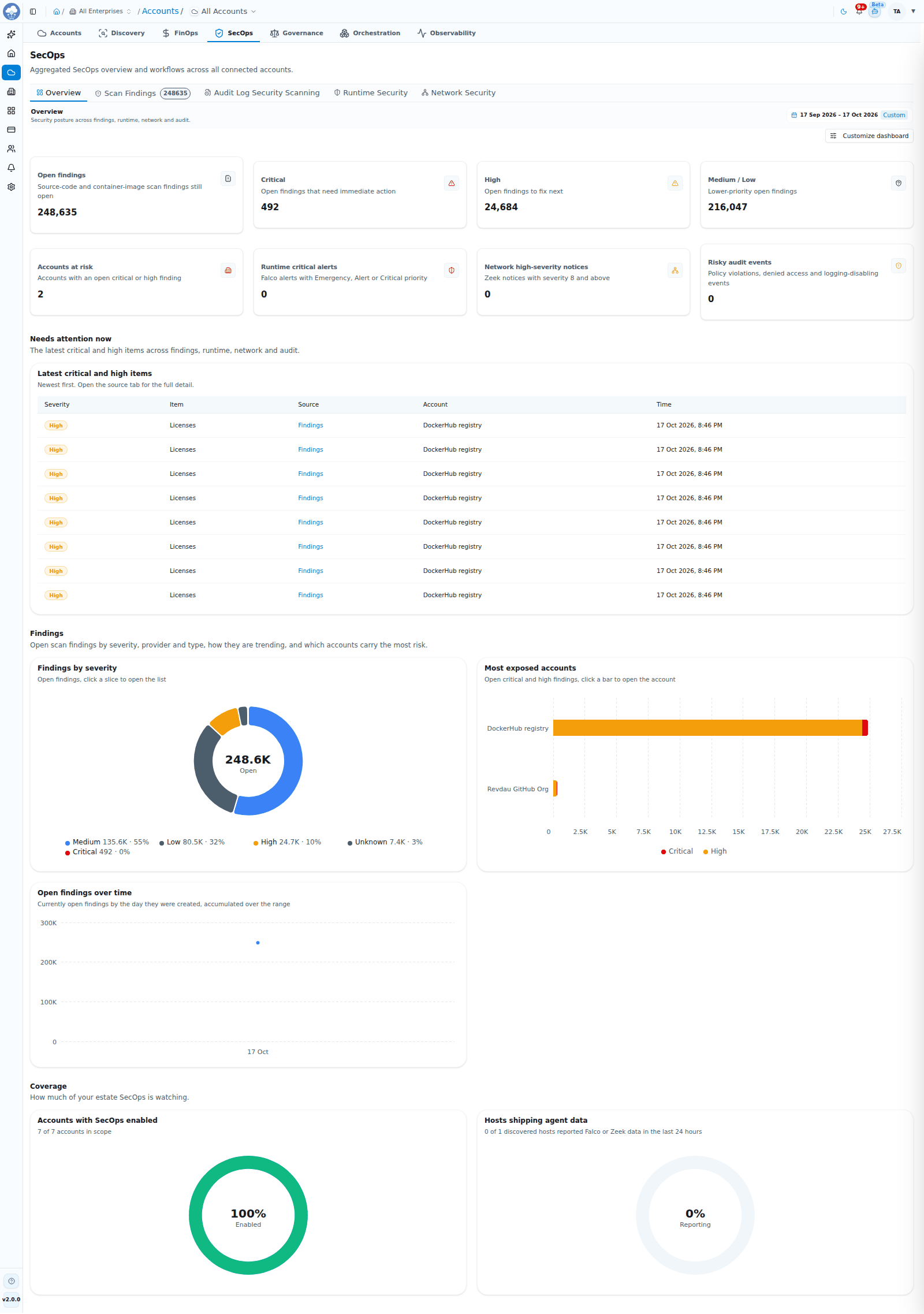
The SecOps Overview with findings by severity and most exposed accounts.
- Overview is always there: a security posture dashboard with the open findings by severity, the most exposed accounts, items that need attention now, and how many accounts and hosts have SecOps switched on. You choose which sections to show, including optional breakdowns, runtime and network, and audit log charts.
- Scan Findings is always there. The tab shows a count of findings.
- Audit Log Security Scanning appears when you have AWS or Azure accounts.
- Runtime Security and Network Security appear when you have Linux host accounts.
If your enterprise has not purchased SecOps, the tab shows a lock and an Add SecOps Module request.
Scan Findings
Source-code and container-image findings across all accounts. Repositories (GitHub, GitLab and Bitbucket) and Docker Hub images are scanned with Trivy for security issues and vulnerabilities.
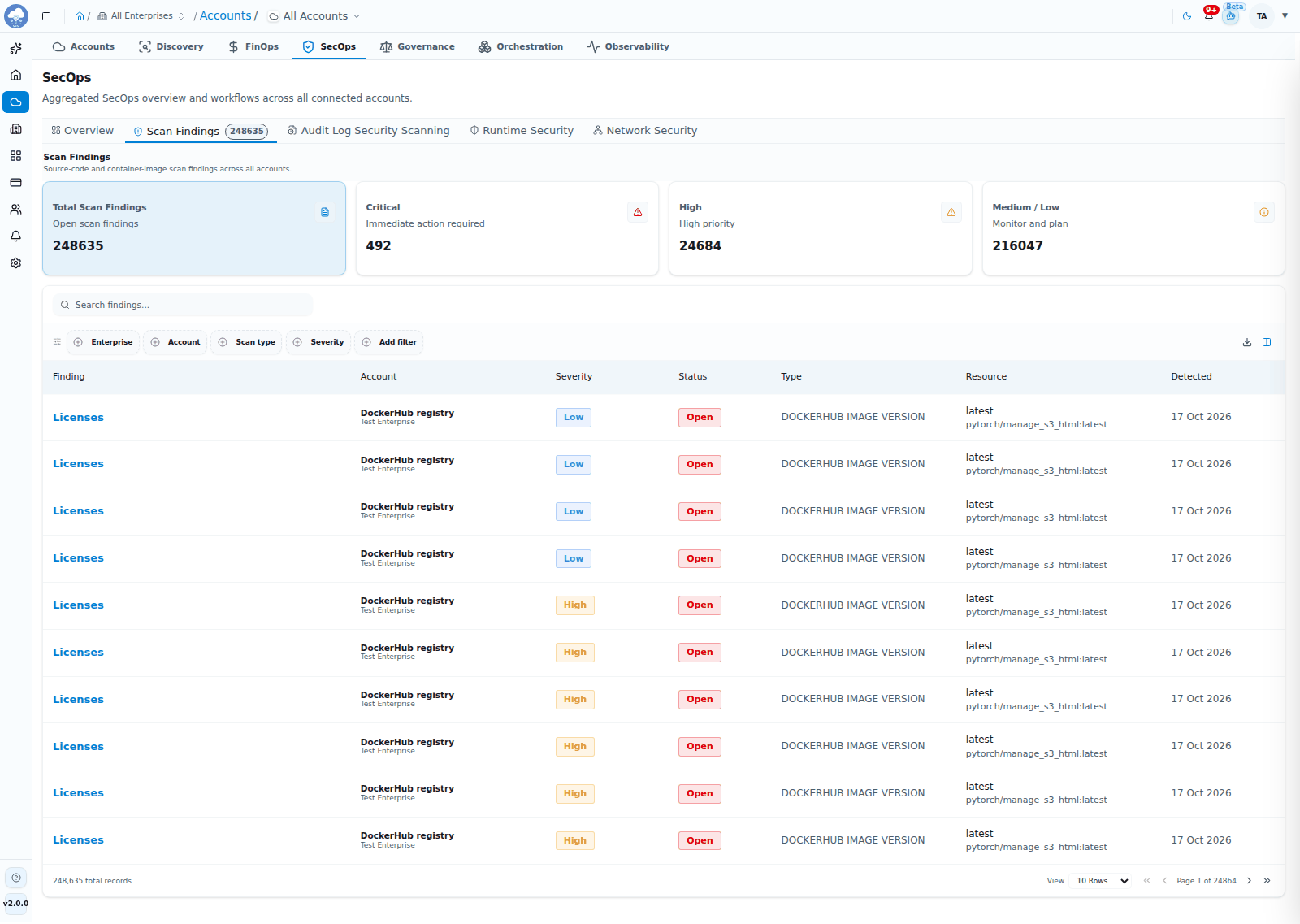
SecOps Scan Findings with severity and status.
- Cards for Total Scan Findings (open findings), Critical, High and Medium / Low. Click a card to focus the table on that severity.
- Search, and filter by Scan type (Source code or Container images), Enterprise, Account, Severity and Status.
- The table shows Finding, Description, Severity, Status, Type, Resource and Detected. Click a resource to open it.
- Export the list as CSV, Excel or PDF.
Audit Log Security Scanning
Analysis of your cloud audit logs (AWS CloudTrail and the Azure Activity Log) to surface risky activity. Choose the period with the date range picker; it starts with the last year.
-
AWS: MCM reads the new CloudTrail log files from the trail's S3 bucket about every 30 minutes, with no agent in between. The first read goes back about 30 days, and you can import earlier months (within your retention period) from Trigger SecOps Job → Import older audit logs. Each event gets a severity and the matching MITRE ATT&CK technique tags. You choose where the logs come from: your existing bucket (read-only), a bucket MCM creates, or another account's data. See Accounts and onboarding.
-
Azure: MCM reads the subscription's Activity Log (administrative events) about every 30 minutes through Azure's own monitoring service. Nothing is created in your subscription and there are no names to choose; read access is enough. The first read goes back about 30 days, and Azure itself keeps 90 days, which is as far back as you can import. Turning the feature off stops collection and keeps the events already stored. If an earlier setup created an Event Hub, storage account or diagnostic setting in your subscription, MCM does not delete them; you can remove them yourself.
-
Cards for IAM Changes, Root Logins, Policy Violations and Total Events.
-
An events table with details such as event name and time, category, who did it (user and user type), source IP, region, service, resource, status and severity. Filter by provider (AWS or Azure) and account.
Runtime Security
Runtime alerts from your onboarded Linux hosts, for the date range you choose.
- Cards for Critical Alerts, Warning Alerts, Total Alerts and Most Recent.
- A table with Time, Rule, Priority, Host, Process and User. Filter by Rule, Priority and Host.
Network Security
Network notices from your onboarded Linux hosts, for the date range you choose.
- Cards for High + Critical Notices, Medium Notices, Total Notices and Most Recent.
- A table with Time, Notice Type, Severity, Host, Source, Destination and Message. Filter by Notice Type, Severity and Host.
Severities
Findings and alerts are rated Critical, High, Medium or Low. Start with Critical and High; the cards at the top of Scan Findings show how many there are.
Single-account view
Open an account and choose its SecOps tab. The tabs depend on the kind of account:
| Account | Tabs |
|---|---|
| AWS and Azure | Audit Log Security Scanning, Execution History |
| Linux hosts | Runtime Security, Network Security, Execution History |
| GitHub, GitLab, Bitbucket and Docker Hub | Scan Findings, Execution History |
SecOps switches live in the account's Settings tab; see Settings.
On a single host, the Runtime Security cards summarise that host: Critical Findings, Coverage, Security Controls and Review Queue.
Run a scan
Click Trigger SecOps Job on the account page to start a scan on demand. For hosts, repositories and Docker Hub the menu offers SecOps Job. For AWS and Azure there is no scan to run: the menu offers Audit Log Collection (read the newest audit events now) and Import older audit logs (read earlier months). The button is disabled for accounts that are inactive or still in draft.
Execution History
Each scan run is listed with its Execution Time, Type, Account, Status, Duration, who Triggered it and any Error.
Settings
Open the account's Settings tab and find the SecOps section:
- Audit Log Security Scanning (AWS and Azure) is a switch on top of the Audit Log, which is part of Discovery. It is available only while the Audit Log is on. On Azure nothing is created in your subscription.
- Runtime Security and Network Security (hosts) install a security agent on the host over SSH (it needs root or sudo) and ask you to confirm first. Runtime and network data and observability metrics share one lightweight Elastic Agent. Turning a feature off uninstalls the agent; data already collected stays in MCM.
- For GitHub, GitLab and Bitbucket you choose the branches to scan (default: the main branch). For Docker Hub you choose the image tags to scan (default:
latest). - The SecOps module switch pauses or resumes SecOps for the account. While paused, schedules and future processing stop and existing data stays visible.
Tips
- Use the severity cards on Scan Findings to work from the top down.
- After connecting a new account, check Execution History to confirm the first scan completed.
- Keep Audit Log Security Scanning on for AWS and Azure accounts to see root logins and IAM changes as they happen.
- Route security notifications to the people who should act on them under Notifications → Preferences, in the SecOps category.