
Observability
Watch host metrics and logs from one place, with monitoring agents installed for you.
Observability brings the health and logs of your servers and virtual machines into the console, so you can spot a busy host or a failing service without logging in to each machine. It is available for AWS and Azure accounts and for Linux hosts. Open Accounts, then the Observability tab.
Metrics
The Metrics sub-tab monitors infrastructure metrics across all integrated resources.
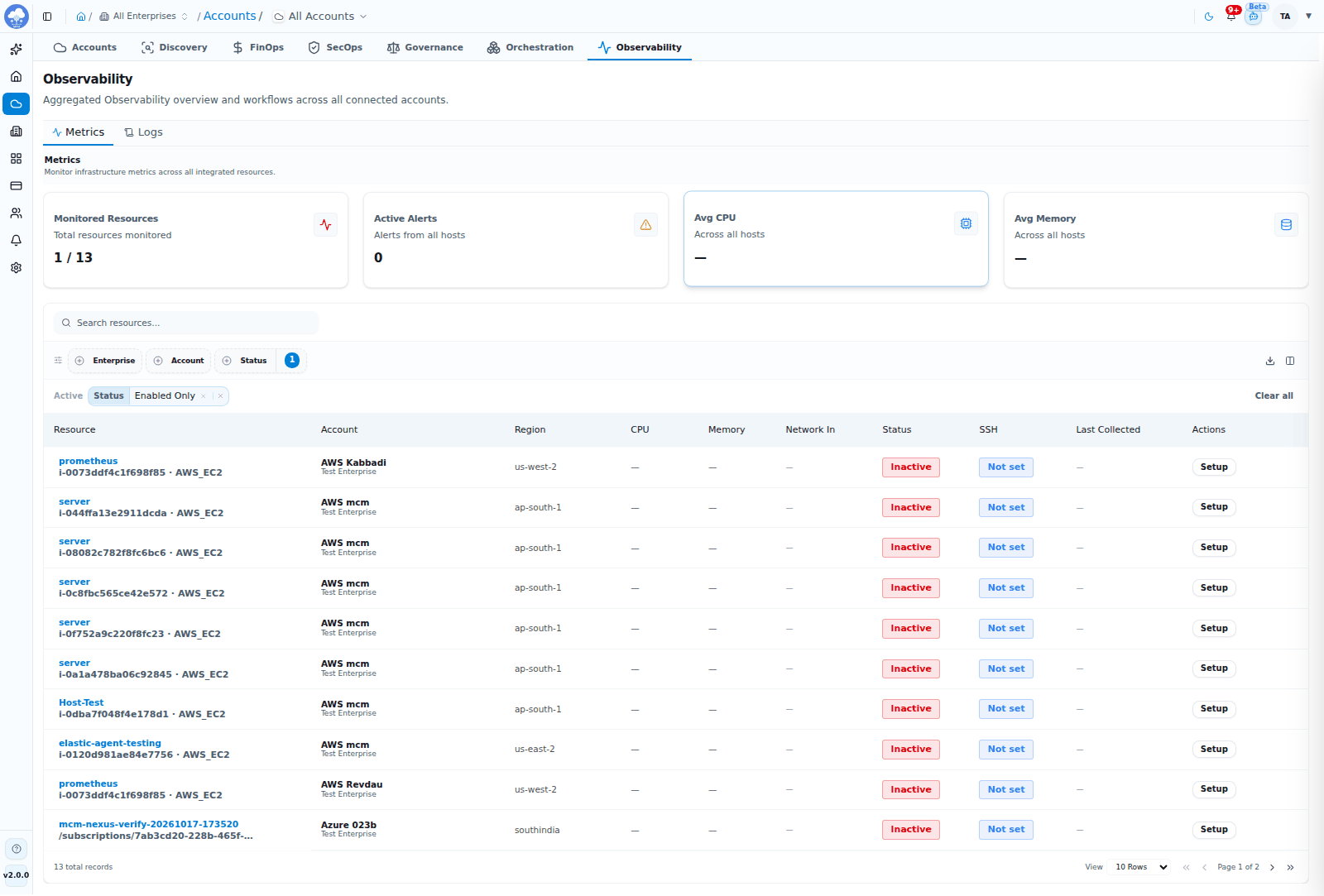
Observability Metrics: monitored resources and their status.
- Cards show Monitored Resources, Active Alerts, Avg CPU and Avg Memory.
- The table lists each Resource with its Account, Region, CPU, Memory, Network In, Status, SSH state and Last Collected time.
- Filter by enterprise, account and status (enabled or disabled), and search by resource, account or region.
- Resources that are not monitored yet show Setup, which takes you to that resource to enable monitoring.
Logs
The Logs sub-tab is a central stream of system and application logs.
- Cards show Total Logs, Errors, Warnings and Active Sources.
- Each entry has a Time, Level (INFO, WARN or ERROR), Resource, Account, Source and Message.
- Filter by level, enterprise, account and more, and search the messages.
Turn on monitoring for a resource
- Open the resource (Accounts → the account → the resource) and go to its Observability tab.
- Click Enable Observability and provide SSH credentials. MCM installs and configures the monitoring agent for you remotely (over SSH, with root or sudo access). It is the same lightweight Elastic Agent that carries SecOps runtime and network data on hosts, so there is only one agent to run.
- While the agent installs you see Installing Monitoring Agent.... Use Check Status to refresh.
- If installation fails, use Retrigger Installation after fixing the cause, such as a wrong key or a blocked port.
A resource's Observability tab shows Metrics (CPU usage, memory usage, network in, disk read), Logs (its syslog stream) and Execution History.
If you see Observability Inactive, the module is switched off for that account or your plan does not include it. Open the account's Settings to enable it; see Accounts and onboarding.
Tips
- Keep the SSH port reachable from MCM, otherwise the agent cannot be installed or checked.
- Watch Active Alerts and the ERROR filter in Logs after a deployment.