
Settings
Brand the console, manage allowed domains, keep your subscription and software current, secure your domain, connect AI providers and maintain currency rates.
Settings in the sidebar holds the platform-wide configuration. It has seven tabs: General, MCM App, Domain & TLS, Proxy, AI Assistant Setup, Currency Rates and Profile. Settings apply to the whole installation, not to one enterprise. Settings that belong to a single enterprise, such as its allowed domains, live on that enterprise's own page. See Enterprises.
Who can see what
What you see depends on your role. Pages you cannot use show "You don't have permission to view settings" instead of the content.
| Tab | MSP Owner | MSP Admin | MSP Viewer | Enterprise roles | Account roles |
|---|---|---|---|---|---|
| General | ✅ | ✅ | ➖ | ❌ | ❌ |
| MCM App | ✅ | ✅ | ➖ | ❌ | ❌ |
| Domain & TLS | ✅ | ✅ | ➖ | ❌ | ❌ |
| Proxy | ✅ | ✅ | ➖ | ❌ | ❌ |
| AI Assistant Setup | ✅ | ✅ | ➖ | ❌ | ❌ |
| Currency Rates | ✅ | ✅ | ➖ | ➖ | ➖ |
| Profile | ✅ | ✅ | ✅ | ✅ | ✅ |
✅ available, ➖ view only, ❌ not available (the tab shows a no-permission message).
- General, MCM App, Domain & TLS, Proxy and AI Assistant Setup need access to MSP Domain Configuration. Because General is the first tab, Enterprise Owner, Enterprise Admin, Enterprise Viewer, Account Admin and Account Viewer land on a no-permission message when they open Settings. They can still use Profile.
- Currency Rates appears only for roles that can read Currency Rates: the MSP, Enterprise and Account roles can all read it, and only MSP Owner and MSP Admin can add and change rates.
- Custom roles follow the permissions they were given. See Roles and access.
General
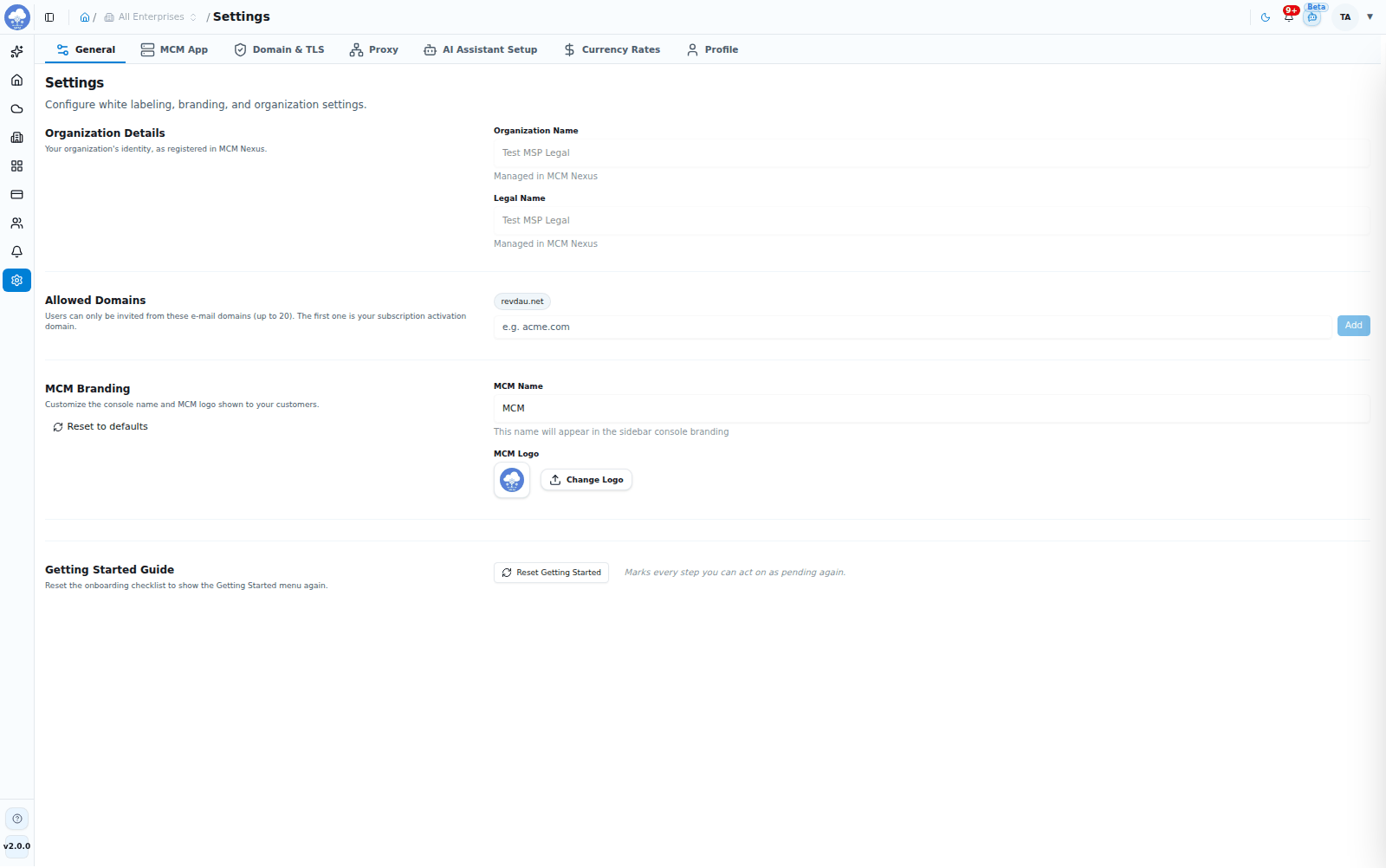
Settings, General tab: organization details, domains and branding.
Organization Details
Your organization's identity, as registered with MCM Nexus: Organization Name, Legal Name and Domain. These are read-only here. Organization Name and Legal Name are marked "Managed in MCM Nexus", and the domain is managed by the platform.
Domain Policy
The Domain Policy lists the Allowed Domains: the email domains users can be invited from. You can allow up to 20 domains.
- Type a domain such as
acme.comin the box and choose Add. - Remove a domain with the x on its chip. The first domain, from your subscription activation, cannot be removed.
- Each enterprise then chooses which of these domains it uses, on its own Settings tab.
MCM Branding
Customize the console name and logo your customers see.
- MCM Name: appears in the sidebar and as the browser tab title.
- MCM Logo: choose Change Logo to upload a PNG, JPG, SVG or WEBP image up to 5 MB.
- Reset to defaults puts the name and logo back to MCM's own. Nothing is saved until you choose Save Changes.
When you change something, a banner says "You have unsaved changes." with Reset and Save Changes.
Getting Started guide
Reset Getting Started marks every Getting Started step you can act on as pending again and opens the Getting Started page, so you can walk through the checklist once more.
MCM App
License
The License section shows this installation's subscription, as last reported by MCM Nexus, with a status chip such as Activated, Expired, Deactivated, Unreachable or Credential invalid. It lists the Key prefix, Plan, Start date, End date and Days remaining.
- Check again refreshes the details from MCM Nexus.
- Manage in Nexus opens the MCM Nexus portal, where you can review or renew the subscription.
- Update key is for when your Subscription Key has changed, for example after it was rotated. Enter the key (it starts with
mcm_sk_) and choose Save key. MCM confirms "Subscription key updated".
If MCM Nexus rejects the key stored on the installation, you are asked to update it the next time you sign in.
Software update and version diagnostics
Software Update & Version Diagnostics shows your Current Version and any newer releases.
- When a newer release is available, MCM offers Apply Patch, Upgrade to Minor or Upgrade to Major with its version, a short summary and a link to the full release notes. Your preferred channel carries a Preferred channel badge. Otherwise you will see "You're already up to date."
- Choose the upgrade. MCM downloads the release and shows its progress.
- When the download is ready, MCM says the version "is downloaded and ready". Installing restarts services on this instance, so pick a good moment, then choose Install Now.
- A System Upgrade Countdown in Progress counts down and takes you to a maintenance page while the upgrade runs. A banner at the top of the console tells other users about it too.
The result is shown as "Successfully upgraded to" the new version, or as a failure with the reason.
Auto-Download
Auto-Download: On / Off downloads newer releases on your chosen Channel (Patch, Minor or Major) as soon as they are available. Installing always stays a separate step that you start yourself.
Tip: The sidebar shows the version you are running at the bottom.
Domain & TLS
Serve MCM on your own domain name with a certificate you trust.
Current Certificate Status shows the Active Domain (or "Not configured (using IP)"), SSL Type, Issuer and Expires. Use the refresh button to reload it.
To change them, under Configure Domain & SSL Certificate:
- Enter the Domain Name: a fully qualified name such as
mcm.example.com. - Choose the SSL Certificate Source:
- Upload Custom Certificate: use your own CA-signed certificate. Upload the SSL Certificate File (
.crtor.pem) and the Private Key File (.key). - Let's Encrypt (Free): MCM issues and renews a free certificate for you. Enter a Notification Email Address, which Let's Encrypt uses for expiry notices and urgent security alerts.
- Upload Custom Certificate: use your own CA-signed certificate. Upload the SSL Certificate File (
- Choose Apply Domain & SSL Configuration.
- A Service Interruption Warning explains that the change re-binds network services, with expected downtime of about 3 to 5 minutes. Choose Proceed with SSL Update to continue, or Cancel.
MCM shows progress through each stage and reports if something fails. While it runs, a maintenance banner is shown at the top of the console.
Proxy
Run MCM in a network that reaches the internet only through an HTTP or HTTPS forward proxy. Without a proxy, MCM connects directly.
Current Proxy Status shows the configured HTTP Proxy, HTTPS Proxy and No Proxy list and when they were last updated, or "No Proxy Configured" if MCM connects directly. Use the refresh button to reload it.
To add or change the proxy, under Add Proxy Configuration (or Update Proxy Configuration):
- Enter the HTTP Proxy URL, the HTTPS Proxy URL, or both. Each must start with
http://orhttps://, and at least one is required. - Optionally enter No Proxy: a comma-separated list of hosts or domains that should bypass the proxy, for example
localhost,127.0.0.1,.internal. - Choose Apply Proxy Configuration.
- A Service Interruption Warning explains that the change updates the system's proxy settings and restarts MCM services one after another, with expected downtime of about 1 to 3 minutes and no data loss. Choose Proceed with Proxy Update to continue, or Cancel.
MCM shows progress stage by stage and reports if something fails, and a maintenance banner is shown at the top of the console while it runs. To go back to a direct connection, choose Remove Proxy Configuration and confirm with Remove Proxy.
AI Assistant Setup
AI Providers connects the AI providers that power the AI Assistant for every enterprise. You can add more than one; their models all appear together in the assistant's model picker.
The Configured Providers table shows each Provider, its Models, Credentials (an API key saved, or the Ollama base URL) and Last Updated. Search it or filter by Credentials Saved or No Credentials.
Add a provider
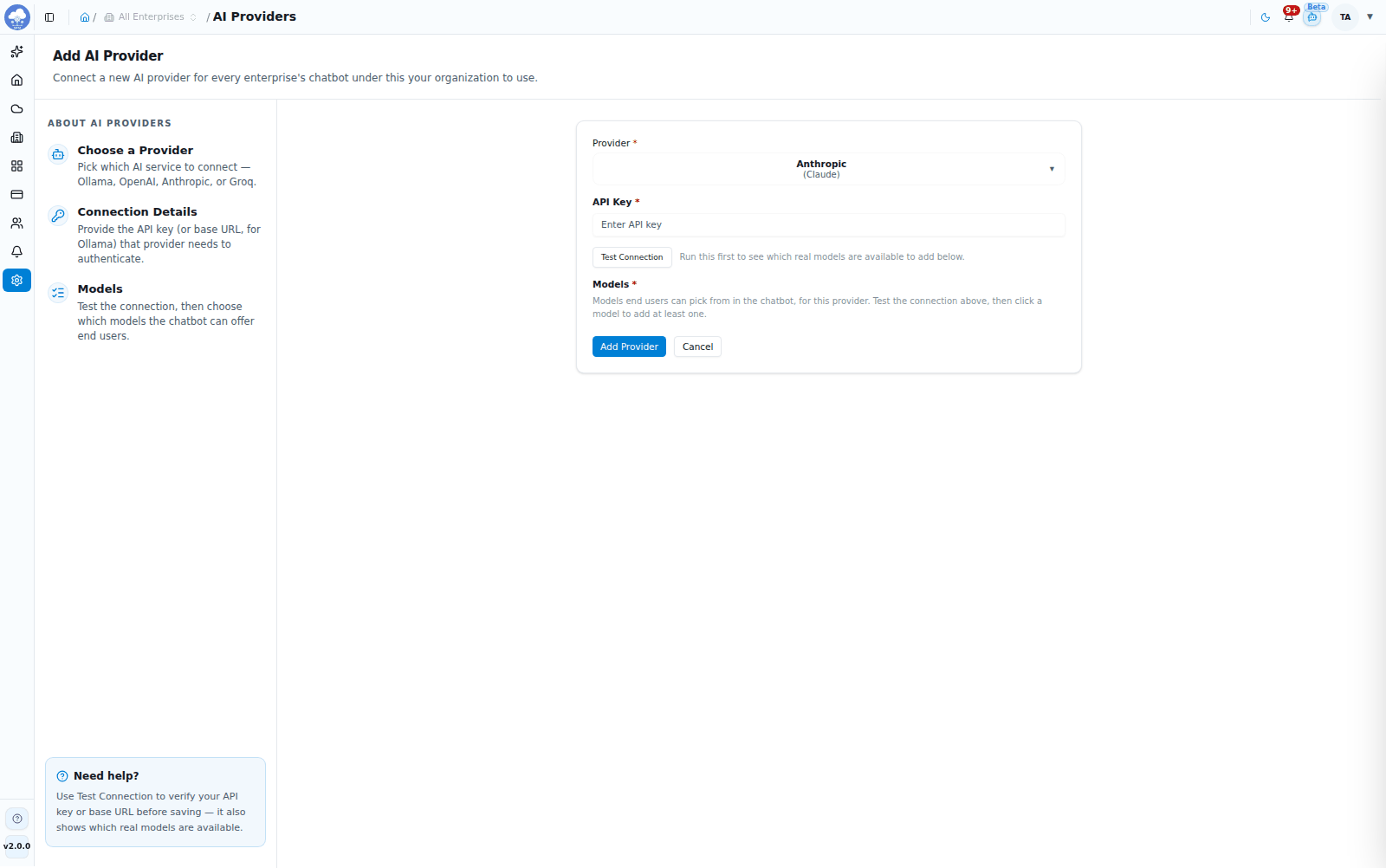
Adding an AI provider.
- Choose Add Provider.
- Select the Provider: Ollama (self-hosted), OpenAI, Anthropic (Claude) or Groq (free tier).
- Enter the Base URL (required for Ollama) and the API Key (required for OpenAI, Anthropic and Groq; not needed for Ollama).
- Choose Test Connection.
- Under Models, select one or more models people can pick in the assistant. At least one is required.
- Choose Add Provider.
To edit a provider, click its name. You can change its connection details and models (leave API Key blank to keep the saved one), or remove it. Until a provider is configured, users opening the assistant see "No AI provider configured". For the full walkthrough, see AI provider setup.
Currency Rates
Exchange rates are global: one set, managed here, is shared by every enterprise.
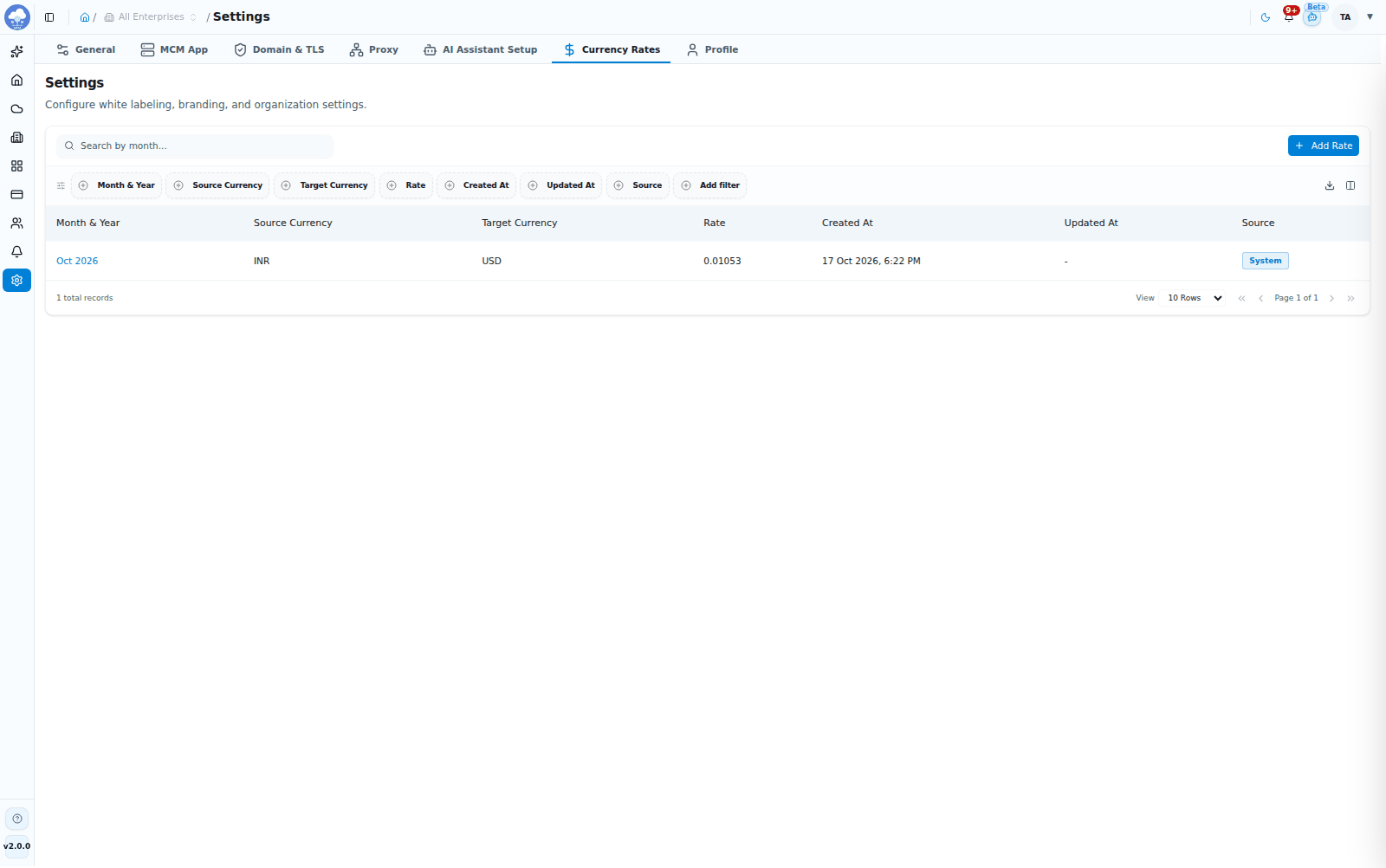
Currency Rates for FinOps conversion.
The table lists each rate's Month & Year, Source Currency, Target Currency, Rate, Created At, Updated At and Source (System or Manual). Users with write access see Add Rate.
- Choose Add Rate.
- Pick the month and year, the source and target currencies, and enter the Rate.
- Choose Save Rate. MCM confirms "Rate added successfully!".
Open a rate to see its Overview or to edit or remove it from its Settings.
Profile
Profile shows your own details and is available to everyone. It is the same page as My Profile in the avatar menu. See Profile.