
Console tour
The header, navigation and the Enterprise and Account pickers that decide what you are looking at.
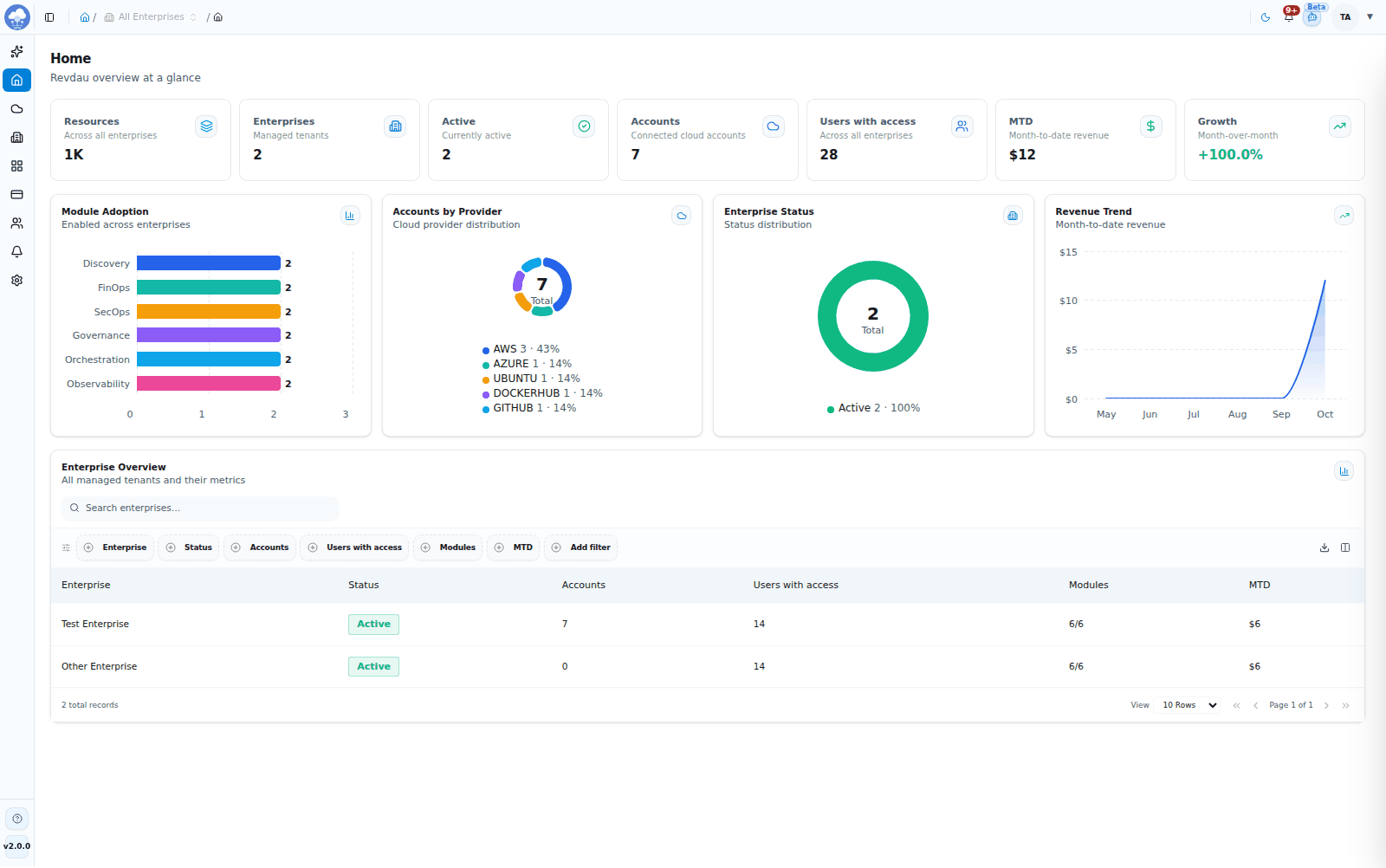
The MCM header, sidebar and the Home dashboard.
The header
Every page has the same header:
- Logo and collapse button on the left to shrink the sidebar.
- Breadcrumb in the centre: Home, the Enterprise picker, then the page you are on.
- Theme toggle (sun/moon) to switch between light and dark.
- Notification bell, with a badge counting unread notifications and announcements.
- Ask AI Assistant to open the assistant.
- Your avatar with your name and email, My Profile and Log Out.
The sidebar
The sidebar is the same for everyone:
| Item | What it is for |
|---|---|
| Getting Started | A checklist of next steps. It disappears once you have completed or skipped every step you can act on |
| Home | Your home dashboard |
| Accounts | Accounts and every module: Discovery, FinOps, SecOps, Governance, Orchestration, Observability |
| Enterprises | Create and manage enterprises, their users and their billing plans |
| Dashboards | Prebuilt and custom dashboards |
| Billing | Billing plans and plan change requests |
| User Management | Users, roles, single sign-on |
| Notifications | Inbox and preferences |
| Settings | Platform settings and your profile |
At the bottom, Help links to the documentation and to support, and the current console version is shown.
Stacks now live under Accounts → Orchestration, not in the sidebar.
What happens when you lack permission
Menu items are always shown. If your role does not include a page, it opens with a message such as "You don't have permission to view accounts. Contact your administrator." Ask an administrator to adjust your role; see Roles and access.
Choosing what you are looking at
Enterprise picker
In the breadcrumb, the Enterprise picker chooses which enterprises the Accounts area shows.
- It is multi-select, with search and an All Enterprises option. The trigger reads the enterprise name, "N Enterprises" or "All Enterprises".
- By default every active enterprise is selected. At least one must stay selected.
- Parent enterprises are grouped with their children. Enterprises that are not active are listed but cannot be selected.
- It only applies on Accounts. Elsewhere it is greyed out ("Enterprise filter applies to Accounts"). Change the selection on Accounts and other pages that follow it keep that choice.
- Your selection is remembered in your browser.
Some information is installation-wide and ignores the picker: budgets, custom tags and AI provider settings.
If you have no enterprise access at all, Accounts shows a No Enterprise Access message.
Account switcher
On Accounts, the breadcrumb also has an All Accounts switcher, with accounts grouped by provider.
- Tick two or more accounts to filter the module tabs to just those accounts.
- Pick a single account to open that account, staying on the same module and sub-tab.
Locked modules
A module tab with a lock icon means the selected enterprise has not purchased that module. The tab explains this and offers an Add <Module> Module request, or Hide this tab. If none of the selected accounts' providers support a module, you see "not available for this selection".
Banners
Important notices appear at the top of every page: announcements (information, maintenance or critical), platform upgrades and maintenance windows. You can dismiss information announcements and platform job banners; maintenance and critical announcements stay until they end. See Console basics.