
Discovery
Keep a live inventory of every resource across your accounts, tag it, and see what changed and who changed it.
Discovery keeps an up-to-date inventory of the resources in every connected account, so you always know what you have, where it runs and how it is tagged. Every other module builds on this inventory.
Open Accounts, then the Discovery tab for all accounts at once, or open a single account and use its Discovery tab. Discovery runs automatically when an account is onboarded and then on a schedule. You can also run it on demand.
All accounts or one account
| All accounts (Accounts → Discovery) | One account | |
|---|---|---|
| Sub-tabs | Resources, Custom Tags, Inventory Drift | Resources, Custom Tags, Inventory Drift, Execution History |
| Scope | The enterprises and accounts selected in the pickers | That account only |
Use the Enterprise picker and the All Accounts switcher to narrow the all-accounts view; see Console tour. The resources and drift you see are always limited to what your role allows.
Resources
The Resources sub-tab shows cards for total resources, accounts, resource types and regions, followed by the inventory.
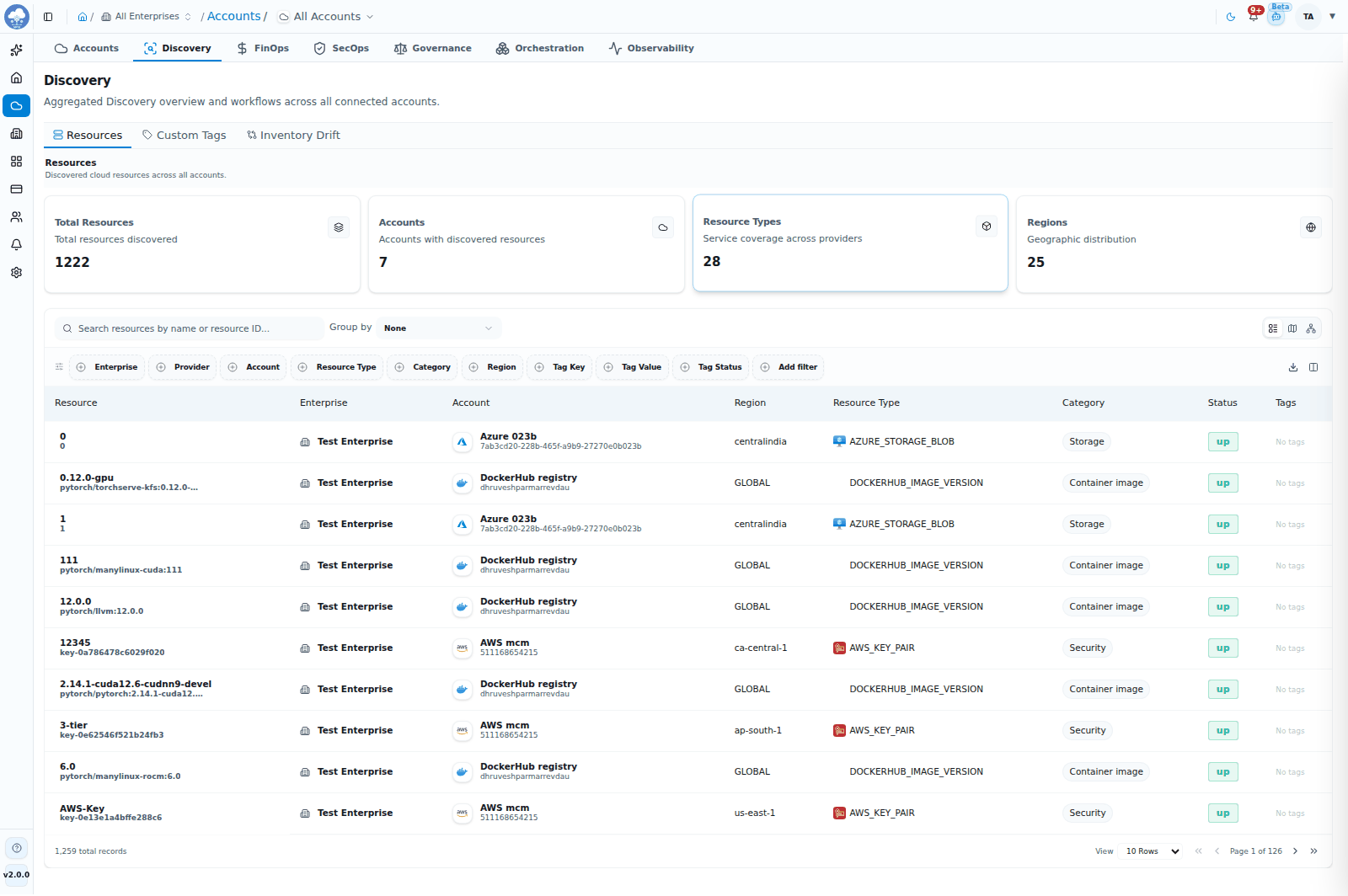
Discovery Resources: every discovered resource across your accounts.
- Switch between table, map and topology views.
- Search, and filter by provider, account, enterprise, resource type, category, region, tag key, tag value and whether a resource is tagged or untagged.
- Group by resource type, category, region, enterprise or tag.
- Export the list.
- Resources deleted in the cloud stay in the list, marked as deleted, for a limited time so you can review them.
Click a resource to open its detail page. Its tabs depend on the platform. For example AWS resources offer all six modules plus Settings, while a GitHub resource offers Discovery and SecOps.
For what is discovered on each platform, see Supported platforms.
Run discovery
- From the Accounts tab: click Run Discovery in the account's Action column.
- From the account page: click Trigger Discovery Job and pick what to run: Discovery Job and, where Inventory Drift is on, Inventory Drift — run now (derives the newest created and deleted resources) or Rebuild Inventory Drift (derives earlier months again from your stored audit logs). Inventory Drift runs as its own job, separate from the Audit Log collection it builds on.
Both are unavailable while a run is in progress or while the account is disabled or a draft.
To change the automatic schedule, open the account's Settings tab and find the Discovery section. There you set the discovery schedule, choose which resource types are discovered, and switch Custom tag tracking, the Audit Log (with its retention period) and Inventory Drift on or off. Save with the Save button.
Execution history
An account's Discovery → Execution History lists every discovery run and its resource-type results: when it ran (Execution Time), its Status, Duration, what Triggered it, and an Error summary when something failed. It is the first place to look when an inventory seems out of date.
Custom tags
Custom tags give you one consistent tagging standard across clouds, and show how well your resources follow it.
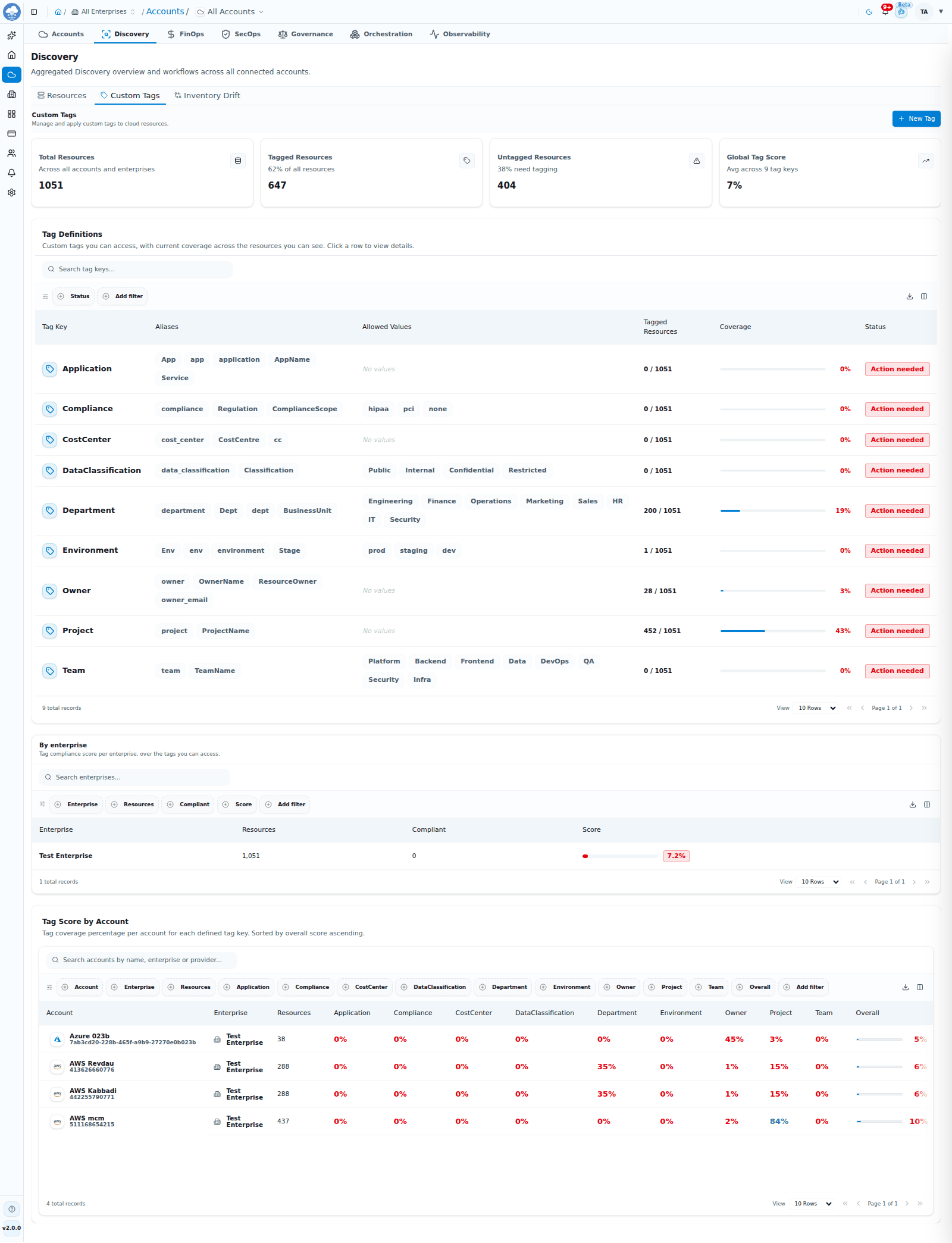
Custom Tags: tag definitions and how well each one is applied.
- The Custom Tags sub-tab shows total, tagged and untagged resources, a global tag score, and a score per enterprise and per account.
- Custom tags are a platform-wide setting: they are not narrowed by the Enterprise picker.
- Tagging is available for AWS and Azure accounts, and is switched on per account (at onboarding, or in the account's Discovery settings).
To create a tag, open the account's Discovery → Custom Tags and click New Tag. Enter the Tag Key, and optionally Aliases (other spellings that should count as this key) and Allowed Values.
Open a tag to see its Overview, Resources, Suggestions, Users and Settings. To tag resources, open Resources, select them (up to 50 at a time), choose a value, and click Apply. Suggestions proposes tags that can be pushed down to child resources or pulled up from them; select the ones you want and apply them in bulk. The change shows up after the next refresh or discovery run. The Users tab lets you share a single tag with specific people; see Roles and access.
Inventory drift
Inventory Drift shows what changed in your inventory, who changed it and when.
- Cards show Added (resources created in the cloud), Deleted (resources removed from the cloud) and Unidentified (audit events that do not name a resource).
- The table lists the Action (Added or Deleted), Resource, Type, User, Time, Region, Event and Account. Filter by action, type, user, region, event and account.
- On AWS it uses the account's CloudTrail to show who changed what. Turning Inventory Drift on sets up CloudTrail if it is missing, and a SecOps plan is not required. CloudTrail then stays in place while either Audit Log Security Scanning or Inventory Drift is on.
- On Azure it reads the subscription's Activity Log with read-only access. Nothing is created in your subscription.
- It is available for AWS and Azure, and turned on per account: switch it on during onboarding, or open the account's Inventory Drift tab and click Enable Inventory Drift.
Discovery is always on
Discovery cannot be turned off for an account, because FinOps, SecOps, Governance and the other modules depend on it. When you onboard an account, all Discovery and FinOps resource types are selected by default, and you can deselect any you do not need.
Tips
- Check Execution History before assuming a resource is missing.
- Use Group by → Tag to spot untagged resources, then fix them in bulk with Apply.
- Run Discovery after a big change in the cloud if you do not want to wait for the next scheduled run.