
Orchestration
Provision infrastructure with reusable Terraform stacks and managed workspaces, with plans you can review before anything changes.
Orchestration lets you create and manage infrastructure in your cloud accounts from one place, using Terraform. Package a configuration once as a stack, then deploy it as many times as you need as workspaces. It is available for AWS and Azure accounts.
Open Accounts, then the Orchestration tab. Stacks no longer have their own item in the sidebar: they live here.
Workspaces
A workspace is a managed deployment of infrastructure. The Workspace sub-tab shows cards for Total Workspaces, Successful Deployments and Failed Deployments, and a list with the workspace name, description, accounts, status, scheduler, last run and who created it. You can filter the list, and each row has an action to create a plan or run the workspace when one is ready.
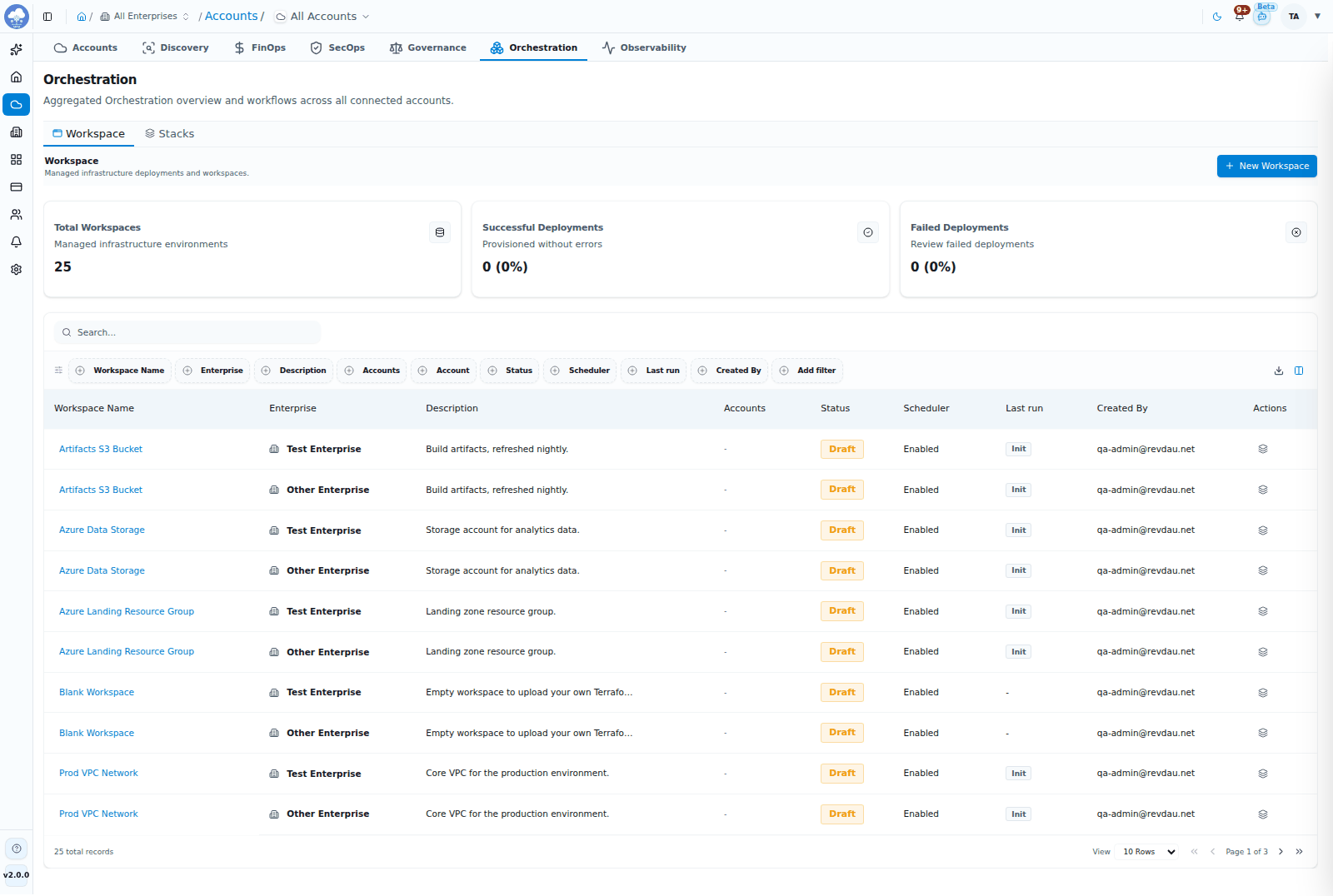
The Workspace list with deployment tiles.
Create a workspace
Click New Workspace. The wizard has three steps.
- Source: name the workspace and, optionally, turn on Enable Schedule or Set Expiry (the workspace is removed automatically at that date and time). Then choose where the Terraform comes from:
- Existing Stacks: start from a ready-made or your own stack.
- Terraform Files: upload
.tf,.tfvarsor JSON files, or click Generate with AI to have the assistant draft them. - Blueprint Canvas: drag resources and connect them visually.
- Configure: review the files and variables and choose the target account. The step button reads Save & Plan.
- Plan & Apply: review the plan, including an estimated monthly cost, then click Deploy Changes.
You can also ask the AI assistant to draft a workspace with /create-workspace. See Workspaces and Terraform with AI.
Work with a workspace
Open a workspace to see its tabs:
| Tab | What it is for |
|---|---|
| Overview | Status and the latest plan and run |
| Files | The Terraform files |
| Execution History | Every plan and apply, with results |
| States | The state of what has been deployed |
| Variables | Input values for the configuration |
| Outputs | Values the deployment exposes, such as addresses and IDs |
| Settings | Name, schedule, expiry and other options |
Stacks
A stack is a reusable Terraform configuration. The Stacks sub-tab shows cards for Total Stacks, Built-in Stacks (provided by MCM), and User Created Stacks, and lists each stack's name, description and creator.
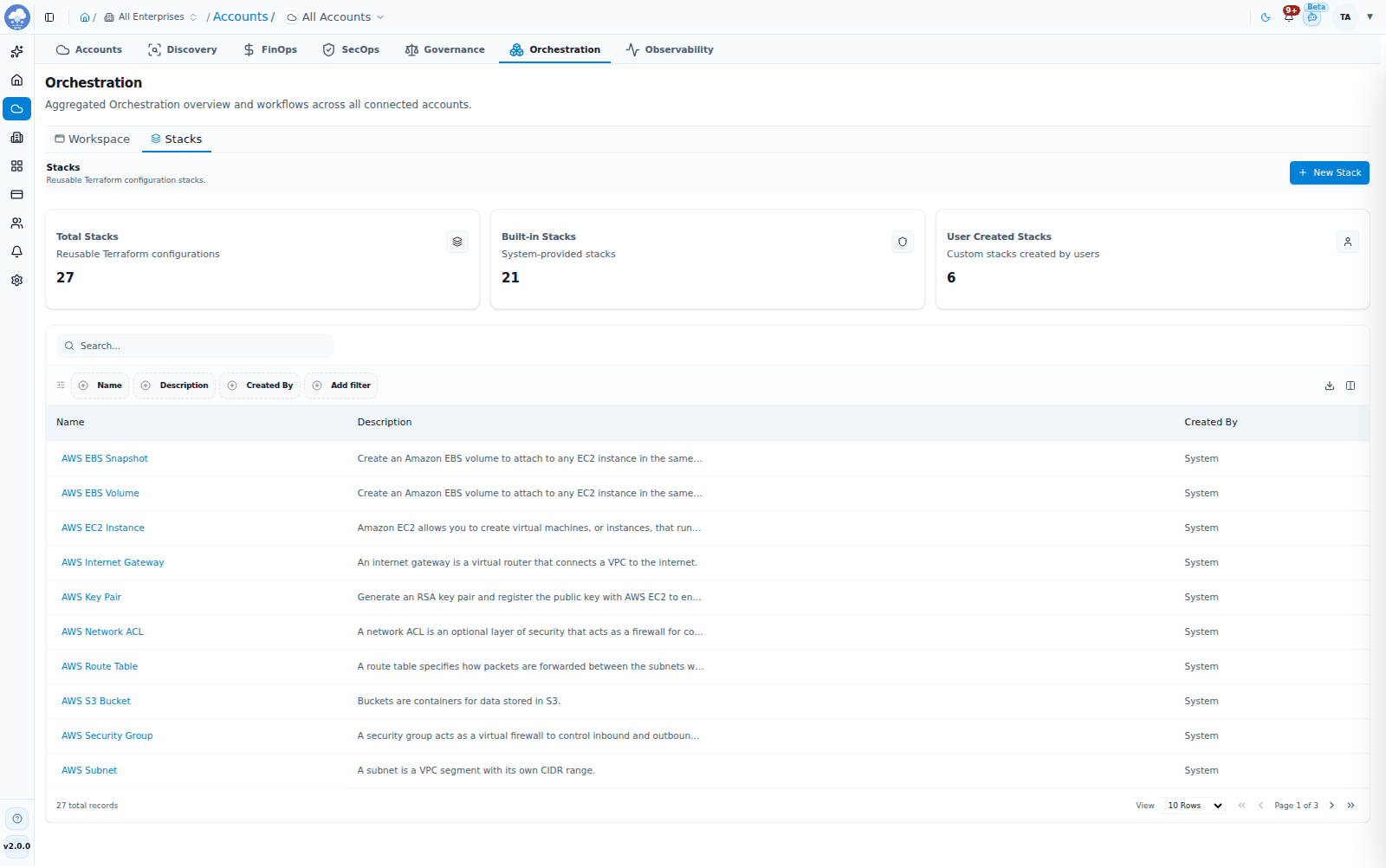
The Stacks library of reusable Terraform configurations.
- Start from the built-in stacks for common AWS and Azure resources, or create your own with Terraform Files: name the stack, upload the source, then organize its variables.
- Open a stack to see its Files, Variables, Outputs, Users and Settings.
- The Users tab controls who can use that stack. You can give someone access to individual stacks without opening up all of Orchestration; see Roles and access.
The Stacks sub-tab is hidden while you have narrowed Accounts to specific accounts with the account switcher. To pause Orchestration for one account, switch it off in the Orchestration section of that account's Settings tab.
Typical flow
- Pick or create a stack.
- Create a workspace from it and choose the target account.
- Review the plan and the estimated cost.
- Deploy, then follow progress under Execution History.
Tips
- Use Set Expiry for test environments so they clean up after themselves.
- Use Enable Schedule to have the workspace regularly checked and synchronized.
- Give teams access to specific stacks through the stack's Users tab.