
Enterprises
Create and manage the customer organizations on your platform, nest them in a hierarchy, choose their modules and give each one its first administrator.
An enterprise is a customer organization on MCM. Each enterprise has its own accounts, users, module plans and allowed email domains, and everything it owns stays separate from other enterprises. Open Enterprises in the sidebar to see them all, onboard new ones in a guided wizard and manage each one from a single page.
You need access to Enterprise Management to open the page. If your role does not include it, MCM shows a "You don't have permission to view enterprises" message. Creating an enterprise needs write access (MSP Owner and MSP Admin have it), and deleting needs delete access (MSP Owner). See Roles and access.
The enterprise list
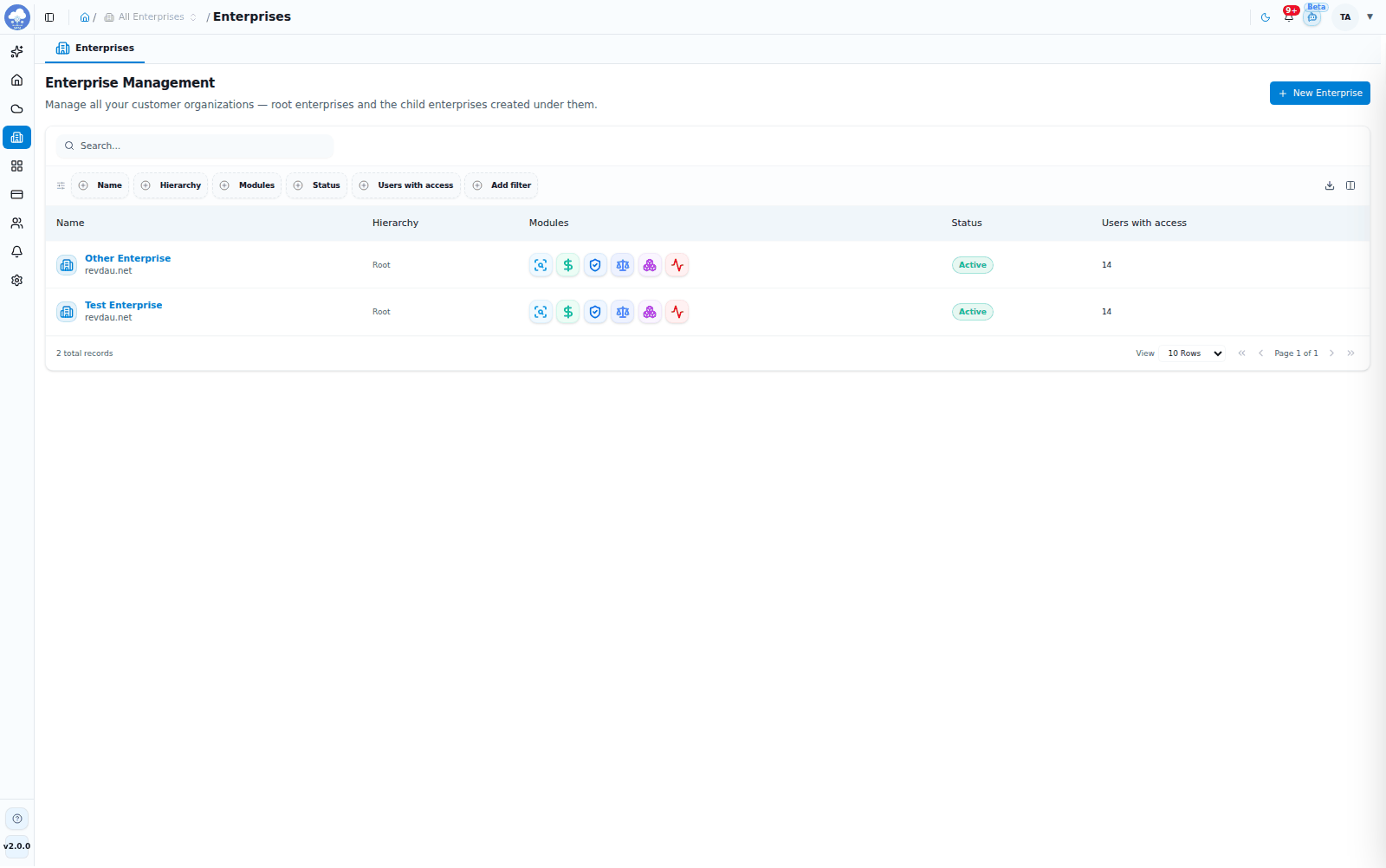
The Enterprises list with modules and users with access.
Enterprises opens the Enterprise Management page, listing the enterprises your role can reach.
| Column | What it shows |
|---|---|
| Name | The enterprise name and logo. Child enterprises appear indented under their parent |
| Hierarchy | Root, Root with children, or Child of the parent's name |
| Modules | An icon for each module, lit when the enterprise has it and dimmed when it does not |
| Status | Active, Pending or Inactive |
| Users with access | How many people can reach the enterprise |
Use the search box and the column filters to narrow the list, and the export menu to download it as CSV, Excel or PDF. Click an enterprise to open its page.
Statuses mean:
- Active: fully operational. Only active enterprises can be chosen in the Enterprise picker in the header.
- Pending: created but still waiting for final configuration.
- Inactive: access is switched off until you reactivate it.
Parent and child enterprises
You can nest an enterprise under another one, in the same way an AWS child account sits under a management account.
- A root enterprise has no parent and can have children.
- A child enterprise belongs to one root enterprise.
- The hierarchy is one level deep. A child cannot have children of its own, and an enterprise that already has children cannot become a child.
Pick the parent with the Parent Enterprise field when you create or edit an enterprise. Leave it as None (root enterprise) to create a root. The enterprise's Overview tab lists its Child Enterprises.
Create an enterprise
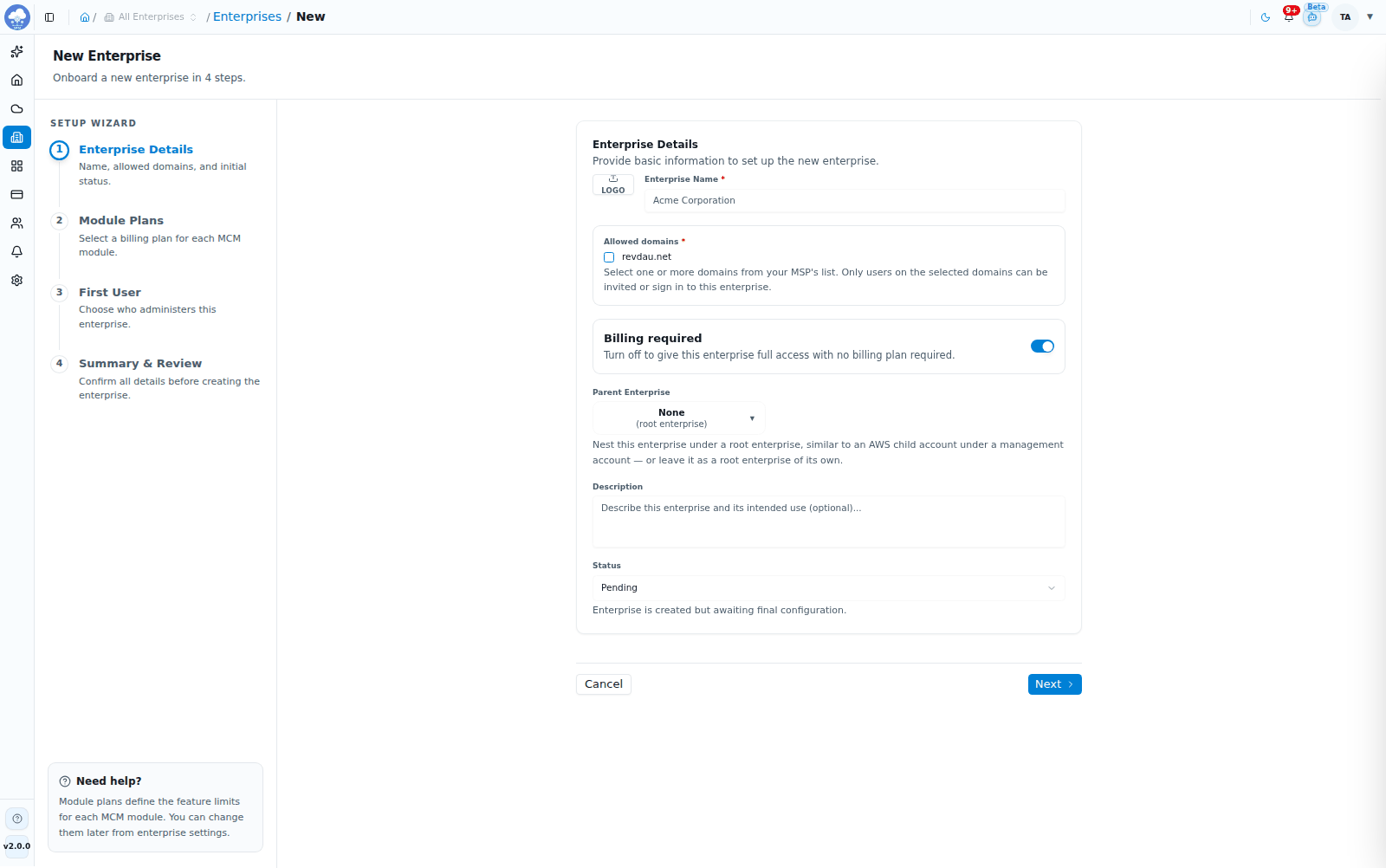
The New Enterprise wizard, Enterprise Details step.
- Open Enterprises and choose New Enterprise. The New Enterprise wizard ("Onboard a new enterprise in 4 steps") shows your progress on the left.
- Complete the four steps below.
- On the last step, choose Create Enterprise.
The new enterprise appears in the list.
Step 1: Enterprise Details
| Field | Notes |
|---|---|
| Logo | Optional. Click the logo box to upload an image |
| Enterprise Name | Required |
| Allowed domains | Optional. Separate several domains with commas, for example acme.com, test.com |
| Billing required | On by default. See below |
| Parent Enterprise | A root enterprise, or None (root enterprise) |
| Description | Required |
| Status | Active (usable immediately), Pending (awaiting final configuration) or Inactive (access switched off) |
Allowed domains decide whose email addresses can be invited to, or sign in to, the enterprise.
- Each domain must be one your platform allows (see Domain policy).
- Leave the field empty and the enterprise uses your platform's activation domain.
- Several enterprises can share a domain.
- The first administrator's work email must use one of the enterprise's domains.
Billing required controls whether the enterprise needs billing plans. Turn it off to give the enterprise access to every module with no plan assigned. Step 2 then shows "Billing not required for this enterprise".
Step 2: Module Plans
Each module is a card you can switch on or off. Switch a module on and choose one of its billing plans; each plan shows its price, validity and limits. Only one plan per module is allowed.
- With billing on, Discovery is required (marked with an asterisk) and you cannot continue without a Discovery plan.
- Modules you leave off show as Skipped in the summary and are not activated.
- Plans are created under Billing. A module with no plans cannot be switched on.
Tip: Module plans define the limits for each module. Plan changes later go through the enterprise's Billing Plans tab.
Step 3: First User
Choose who will administer the enterprise. This person always becomes an Enterprise Admin of it.
- Select an existing user: give someone who already has an MCM login admin access to this enterprise. They keep any access they already have. If you set allowed domains, only users on those domains can be picked.
- Create a new user: enter First Name, Last Name (optional) and Work Email. MCM creates the login and emails a temporary password. You can also limit the new administrator's access to specific stacks, dashboards, custom tags, budgets and governance groups instead of All; if you narrow stacks or dashboards, select at least one.
Step 4: Summary & Review
Check the enterprise details, billing setting, module plans and first user. Use Edit on a card to go back to that step, then choose Create Enterprise.
The enterprise page
Open an enterprise to see its page, with four tabs.
Overview
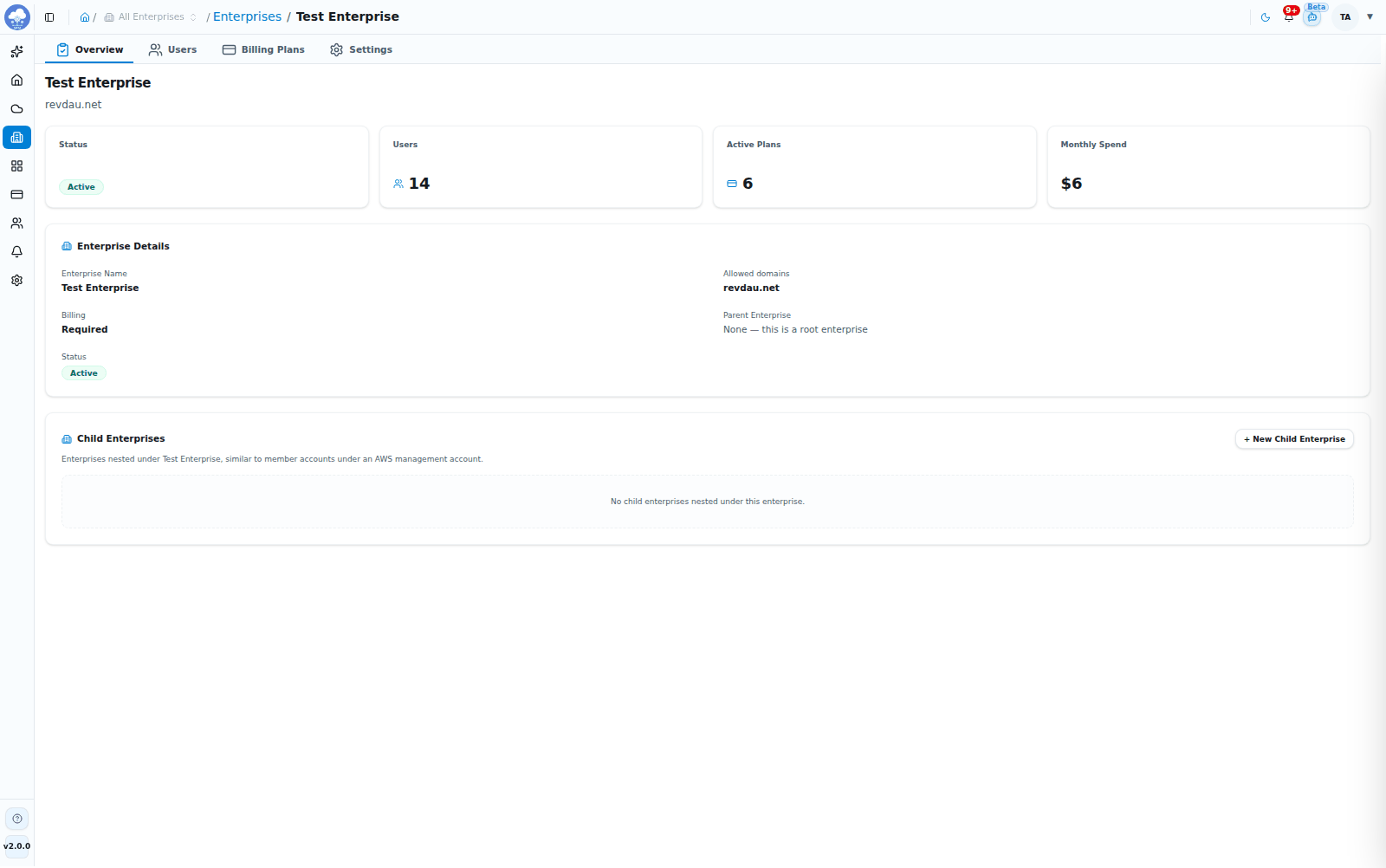
An enterprise Overview tab.
- Cards for Status, Users, Active Plans and Monthly Spend.
- Enterprise Details: name, allowed domains, billing, parent enterprise and status.
- Child Enterprises: for a root enterprise, a searchable list of the enterprises nested under it, with + New Child Enterprise, which opens the New Enterprise wizard with this enterprise already chosen as the Parent Enterprise. If there are none you will see "No child enterprises nested under this enterprise."
Users
Assigned Users lists everyone granted access to the enterprise, their role on it, status and last login. People with the right to manage users in this enterprise can Share access to add people, change a person's role, or remove them. You cannot remove your own access, and users with access to all enterprises are edited from their own page under User Management. See Roles and access.
Billing Plans
The enterprise's own subscription, in three views: Current Plan, Upcoming Plan and Plan History. See Billing.
Settings
- Enterprise details: update the logo, name, billing setting, parent, status and description, then choose Update Enterprise (or Cancel to leave without saving). The Allowed domains field is read-only here; change domains in Domain Policy below it.
- Domain Policy: see below.
- Danger Zone: Delete Enterprise.
Domain policy
Domain policy keeps sign-ins and invitations to your approved email domains.
- Platform level. Under Settings → General → Domain Policy, the platform owner lists up to 20 allowed domains. The first one, set when the platform was activated, cannot be removed. See Settings.
- Enterprise level. On an enterprise's Settings tab, Domain Policy shows the platform's domains as checkboxes. Tick the ones this enterprise should use. An enterprise must keep at least one domain. Saving shows "Domain policy updated".
Delete an enterprise
On the enterprise's Settings tab, choose Delete Enterprise in the Danger Zone and confirm with Delete. Deleting permanently removes the enterprise and all its associated data, including its accounts. It cannot be undone.
Before you delete:
- Check you have the right enterprise open.
- Export anything you still need.
- Tell the people who use it.
Work inside an enterprise
The Enterprise picker in the header chooses which enterprises the Accounts area shows. It is enabled on the Accounts pages only and defaults to every active enterprise. See Console tour. Every account you onboard belongs to one enterprise, which you choose during onboarding.