
FinOps
See where your cloud money goes, forecast it, find savings, and keep spend inside budgets.
FinOps turns your cloud bills into answers: what you spend, where, what you are likely to spend next, and what you could save. Track costs across every connected account, set budgets that warn you before you overspend, and slice spend by your own custom tags.
FinOps supports AWS and Azure accounts.
| Provider | FinOps |
|---|---|
 AWS AWS | ✅ |
 Azure Azure | ✅ |
 GitHub, GitLab, Bitbucket, Docker Hub, Docker, Linux hosts GitHub, GitLab, Bitbucket, Docker Hub, Docker, Linux hosts | ➖ |
✅ available · ➖ does not apply to this kind of account
If your enterprise has not purchased FinOps, the FinOps tab shows a lock and an Add FinOps Module request. See the console tour.
All-accounts view
Open Accounts → FinOps to see cost across everything you can reach. What you see follows the Enterprise picker and the All Accounts switcher: pick enterprises or accounts and every tab narrows with them. Budgets and custom tags are the exception, because they are not tied to one enterprise (see below).
The tabs are Overview, Cost, Top N, Forecast, Recommendations, Budget and Custom Tags.
Overview
An at-a-glance summary for the selected period (it starts from the beginning of the year; change it with the date range picker).
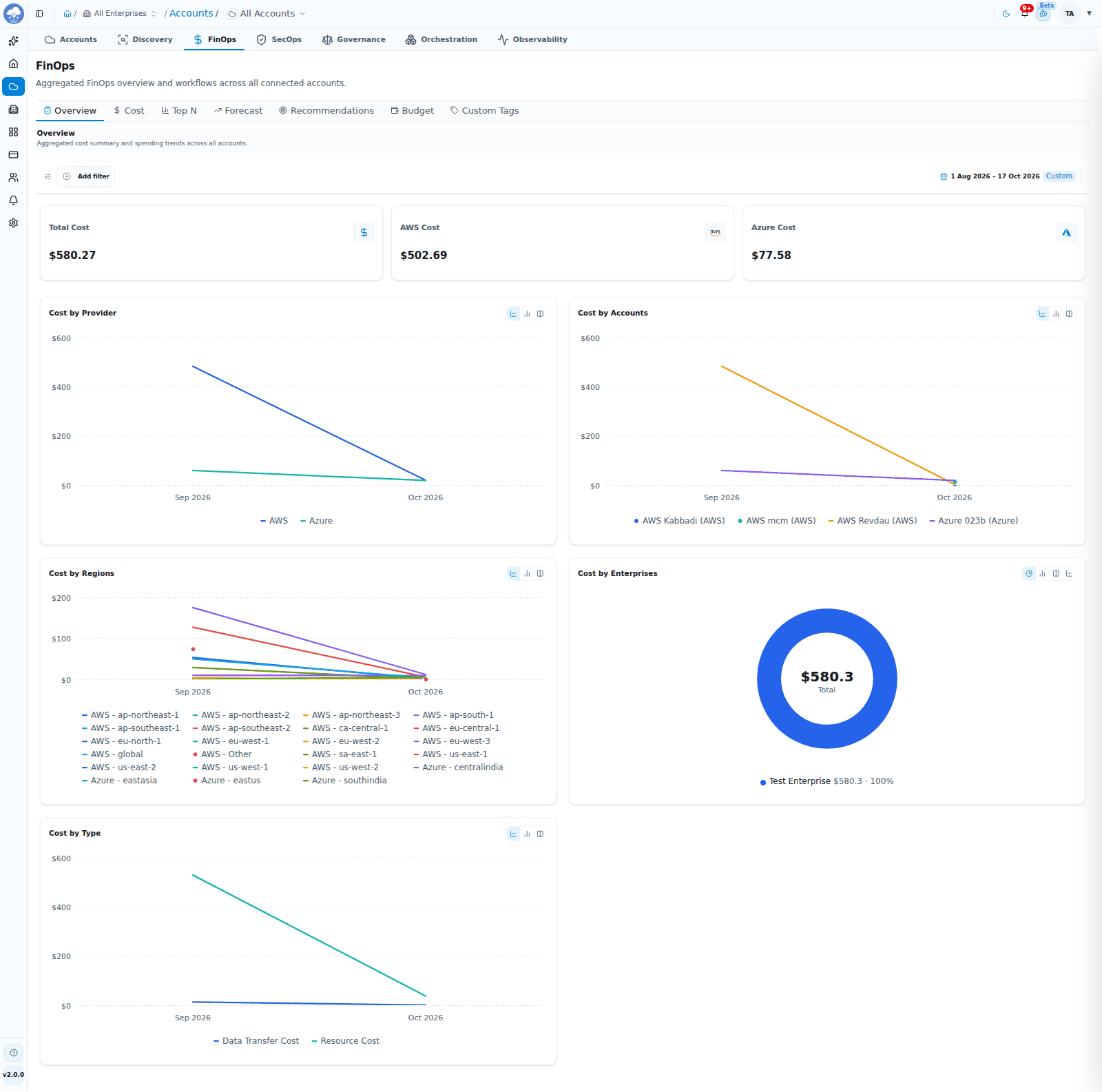
FinOps Overview: cost by provider, account, region and enterprise.
- Total Cost, AWS Cost and Azure Cost cards.
- Charts for Cost by Provider, Cost by Accounts, Cost by Regions, Cost by Enterprises and Cost by Type. Each chart can be switched between a line chart, a stacked bar and a grouped bar.
Cost
Cost Analysis: detailed cost by service, account and region.
- Cards for MTD Cost (month-to-date spend), Accounts, Resource Types and Regions.
- Switch between Table view, Graph view and Map view.
- Choose Daily, Weekly or Monthly granularity and a date range.
- Group the chart by Enterprise, Account, Provider, Region, Category, Resource Type, Cost Type or Cost Sub-type, or by none.
- Filter by Provider, Account, Region, Resource Type, Category, Cost Type, Cost Sub-type and Quantity Unit. In the graph view, switch between stacked, bar, line and area charts.
Top N
Find your biggest (or smallest) cost drivers. Switch between Top N and Bottom N. The charts show the top or bottom 5 CSPs, Enterprises, CSP Accounts, Regions and Resources by cost, each as a bar or pie chart. Filter by Provider, Account, Region, Resource Type and Category, and change the date range. Click a chart to jump to the Cost tab.
Forecast
Projected cloud spend based on your history, by provider and month.
- Cards for Total Forecast, Accounts with forecast data and Regions in the forecast.
- Filter by Provider, Account, Region and Category.
Recommendations
Savings opportunities for your AWS and Azure resources, such as right-sizing, reserved instances and savings plans.
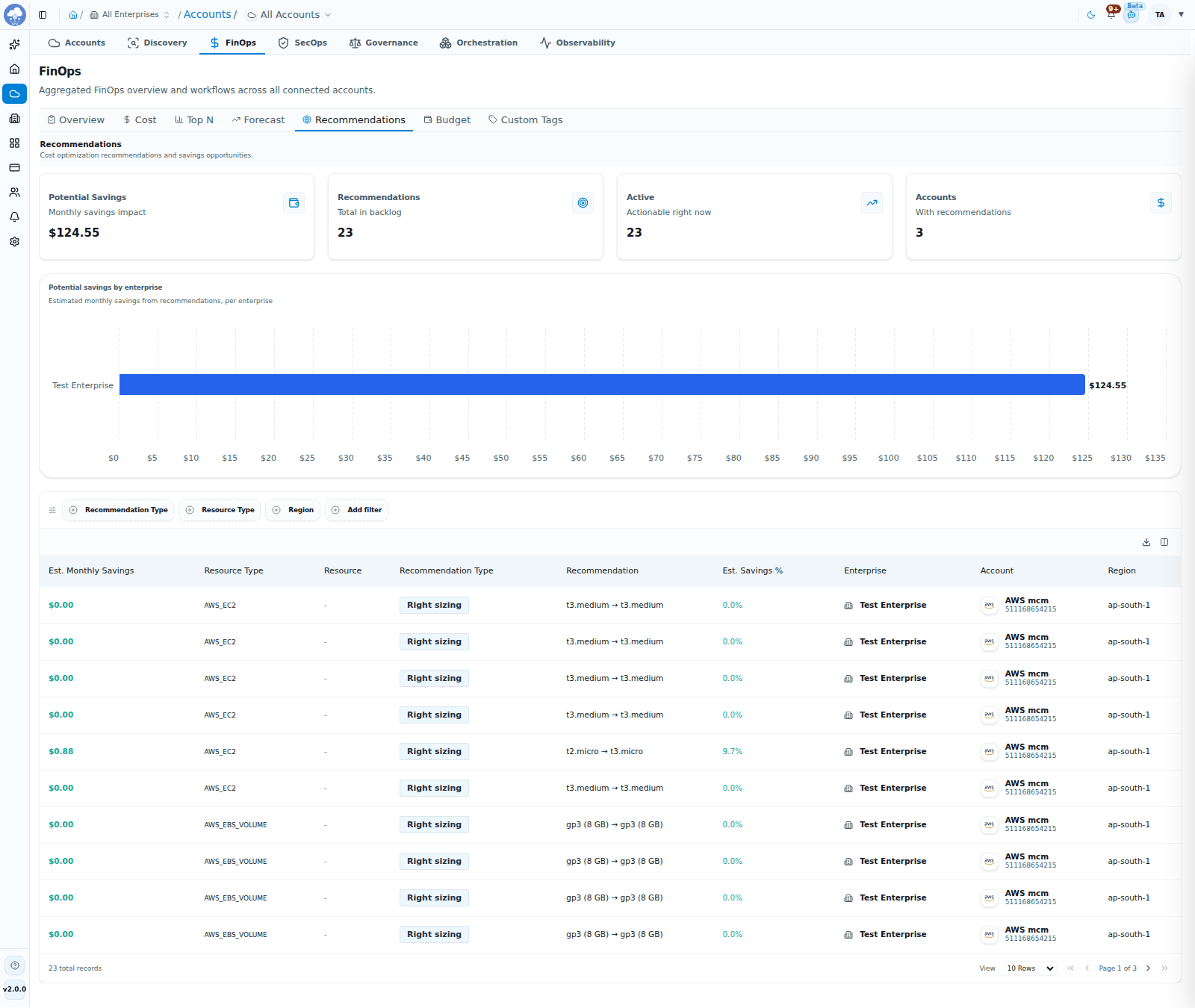
Recommendations with potential monthly savings.
- Cards: Potential Savings (monthly savings impact), Recommendations (total in backlog), Active (actionable right now) and Accounts with recommendations.
- Filter by Recommendation Type, Resource Type and Region.
- The table shows Est. Monthly Savings, Resource Type, Resource, Recommendation Type, Recommendation, Est. Savings %, Account and Region. Open a recommendation for the details behind it, including current spend and the suggested change.
Budget
A single list of every budget you can access. See Budgets.
Custom Tags
Cost allocation by your own tag keys. See Custom tags as a cost lens.
Budgets
A budget is a spending limit with early warnings. You decide the amount, the period and what it covers, and MCM tracks actual spend against it.
Budgets are installation-wide. They are not narrowed by the Enterprise picker, and each budget can cover one, several or all of your enterprises. You see the budgets you have access to, across all enterprises.
The budget list
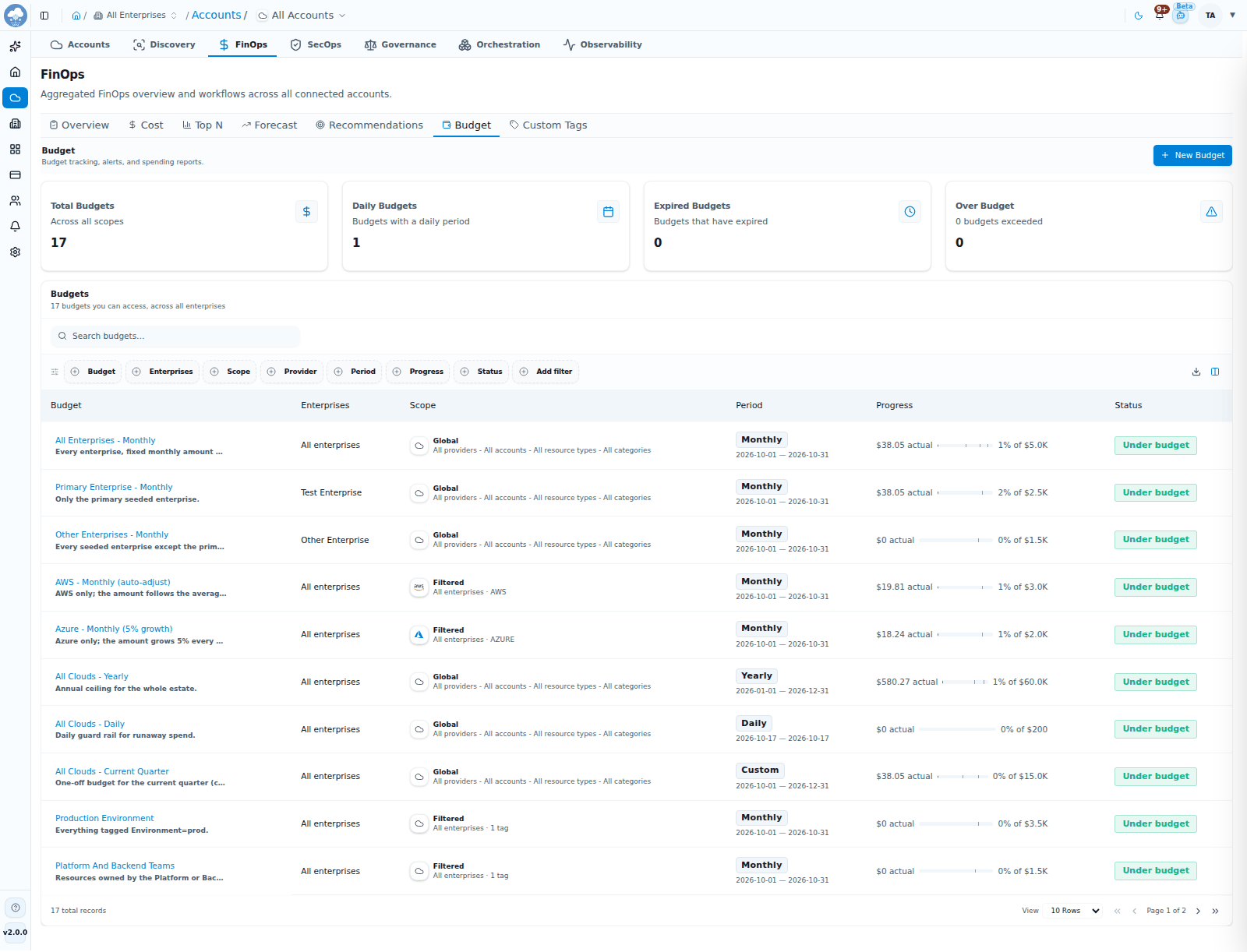
The FinOps budget list with scope, period and progress.
Accounts → FinOps → Budget shows cards for Total Budgets, Daily Budgets, Expired Budgets and Over Budget, and a searchable table with Budget, Enterprises, Amount, Scope, Provider, Period, Progress and Status.
- Scope is Global (everything you can see) or Custom Scope / Filtered (narrowed by providers, accounts, categories, resource types or tags).
- Status is Under Budget, Over Budget or Expired.
- A Suggestion badge means a new amount is waiting for you to review.
Create a budget
- Open Accounts → FinOps → Budget and click New Budget.
- Budget Details: enter a Budget Name and, optionally, a Description. The name appears in alerts, so use a team or owner name that makes routing obvious.
- Period: choose Daily, Monthly, Yearly or Custom, then a Start Date (and an End Date for Custom). Optionally set an Expiry.
- Scope Selection: choose All my enterprises or Choose enterprises, then optionally narrow by Cloud Providers, Accounts, Resource Categories, Resource Types and Tags. Leave the narrowing fields empty for a budget that covers everything.
- Amount & Alerts: set the Budget Amount and your Alert Thresholds (percentages of the budget, up to five). For Daily, Monthly and Yearly budgets you can also choose Next-Period Suggestions:
- No suggestions: keep the amount fixed.
- From past spend: suggest the average of the last N periods (Lookback Periods).
- Fixed % growth: suggest the current amount plus a Growth Percentage.
- Click Create Budget.
Inside a budget
Click a budget to open it. It has four tabs: Budget History, Alerts, Users and Settings.
Budget History shows how spend tracks against the limit.
- Cards for Period, Budget per Period (the configured limit) and Current Period Spend with the percentage used.
- A Spend per period chart with your budget line and alert thresholds. Group it by the dimensions available and pick a date range.
- A table of Period, Spend and % of Budget, so you can compare periods.
Alerts lists each threshold, the amount at which it triggers and its status (pending until reached). Alerts reach you through Notifications → Preferences: choose in-app, web push or email for the Budget & Cost category.
Users shows who has access to this budget and through which role. Administrators with user-management rights can add people, change roles or remove access. See Roles and access. A budget has its own Users tab because budgets can be shared on their own, without giving anyone access to the rest of an enterprise (for example with the Budget Admin and Budget Viewer roles).
Settings lets you rename the budget, change its description, scope, amount and alert thresholds, and save your changes. The period and dates are read-only. Changes to scope, amount and thresholds apply to the current period going forward; finished periods keep what they were tracked under.
- New amount suggested: when a suggestion is ready, a banner shows the current and suggested amounts. Nothing changes until you click Accept; Dismiss keeps the current amount.
- Danger Zone → Delete Budget removes the budget permanently.
Custom tags as a cost lens
Custom tags let you define your own tag keys once and have MCM treat variations (aliases) as the same key across accounts. FinOps uses them to answer "what does each team, project or environment cost?".
Open Accounts → FinOps → Custom Tags to see:
- Overall Tag Score %, Tagged Resources and Total Resources, showing how well your resources are tagged.
- Cost distribution by tag value, as a bar or pie chart. Cost that cannot be matched to a tag shows as Unallocated.
- Filters by tag and a date range.
Custom tags are installation-wide, like budgets, and are created and managed under Accounts → Discovery → Custom Tags. Each tag has its own page with Overview, Resources, Suggestions, Users and Settings tabs.
Currency rates
Currency rates are defined once for the whole installation under Settings → Currency Rates, shared by every enterprise. The tab only appears if your role includes access to currency rates.
Single-account view
Open an account and choose its FinOps tab for the same analysis limited to that account. The tabs are Cost, Forecast, Recommendations, Budget (the budgets that cover this account) and Execution History. FinOps options are in the FinOps section of the account's Settings tab.
Run a FinOps job
FinOps data refreshes on a schedule, and you can refresh it on demand. On the account page, click Trigger FinOps Job and choose:
| Job | What it does |
|---|---|
| Daily Cost Job | Refreshes daily cost rows |
| Monthly Cost Job | Builds monthly account cost baselines |
| Import Older Cost Data | Loads earlier whole months from the account's billing data; only completed months can be imported, and a month already imported is replaced |
| Forecast Job | Refreshes forecast projections |
| Recommendation | Syncs savings and sizing recommendations |
Execution History
Every FinOps job run is listed with its Execution Time, Type, Account, Status, Duration, who Triggered it and any Error.
Settings
In the account's Settings tab, the FinOps section has:
- Job schedules for the daily cost, monthly cost and forecast jobs.
- Recommendations and Forecast switches. When a feature is off its jobs are skipped and its tab is hidden for the account.
- For AWS, the Cost & Usage Report (CUR) card, to change where the cost report comes from (see Accounts and onboarding).
- Enable cost filter: by default every cost line of your cloud bill is collected, so monthly totals match your bill. Turn the filter on to collect only the resource types you select; MCM warns you that totals will then be lower than your bill.
- The FinOps module switch pauses or resumes FinOps for the account. Existing data stays visible while paused.
Save your changes with the Save button.
Tips
- Start with Overview and Top N to spot your biggest drivers, then use Cost to drill in.
- Set a budget with alert thresholds at, say, 50%, 75% and 90% so you hear early.
- Use Next-Period Suggestions to keep budgets realistic as spend changes.
- Tag consistently, then use Custom Tags to allocate spend to teams.
- Use Recommendations regularly: the Potential Savings card shows what is on the table.