
Dashboards
Pick the dashboard you land on, explore the eight ready-made dashboards, build your own and control who can see them.
Dashboards turn your cloud data into one-glance answers. MCM comes with eight ready-made dashboards, lets you build as many of your own as you need, and lets every user choose which dashboard is their Home.
Home
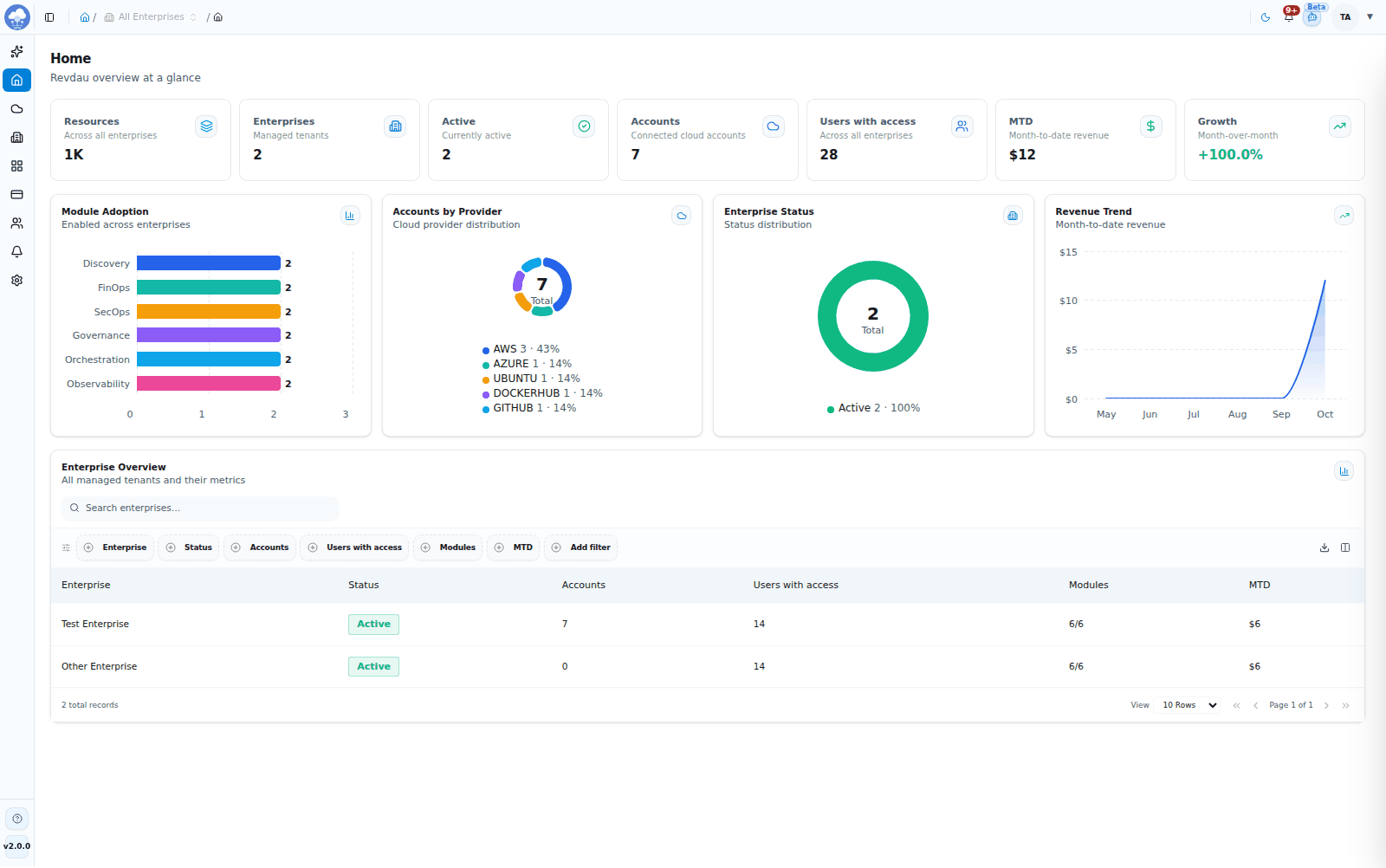
The Home dashboard with its KPI tiles, charts and enterprise table.
Home opens your chosen dashboard. Until you choose one, Home shows MSP Overview for everyone. The numbers on any dashboard are limited to the enterprises and accounts your role can reach, so two people looking at the same dashboard can see different totals. See Roles and access.
Your Home choice is personal and does not change what anyone else sees.
Set a dashboard as Home
- Open Dashboards and click the dashboard you want.
- Open its Settings tab.
- Under Home page, click Set as Home.
The next time you open Home, that dashboard appears. To go back to the default, open the same Settings tab and click Remove as Home. If you chose a custom or module dashboard, Home also shows a Reset to Default button. If the dashboard you chose is deleted or you lose access to it, Home falls back to MSP Overview.
Choosing or removing your Home needs permission to edit dashboards. People with read-only access can open Home but cannot change it.
Ready-made dashboards
Open Dashboards to see every dashboard in one list, as cards or as a table. The eight ready-made dashboards are created by System: you can open them, give people access and set any of them as Home (the three tabbed ones can also be duplicated), but their name, description and content are read-only and they cannot be deleted. If an installation is missing any of them, they are added automatically.
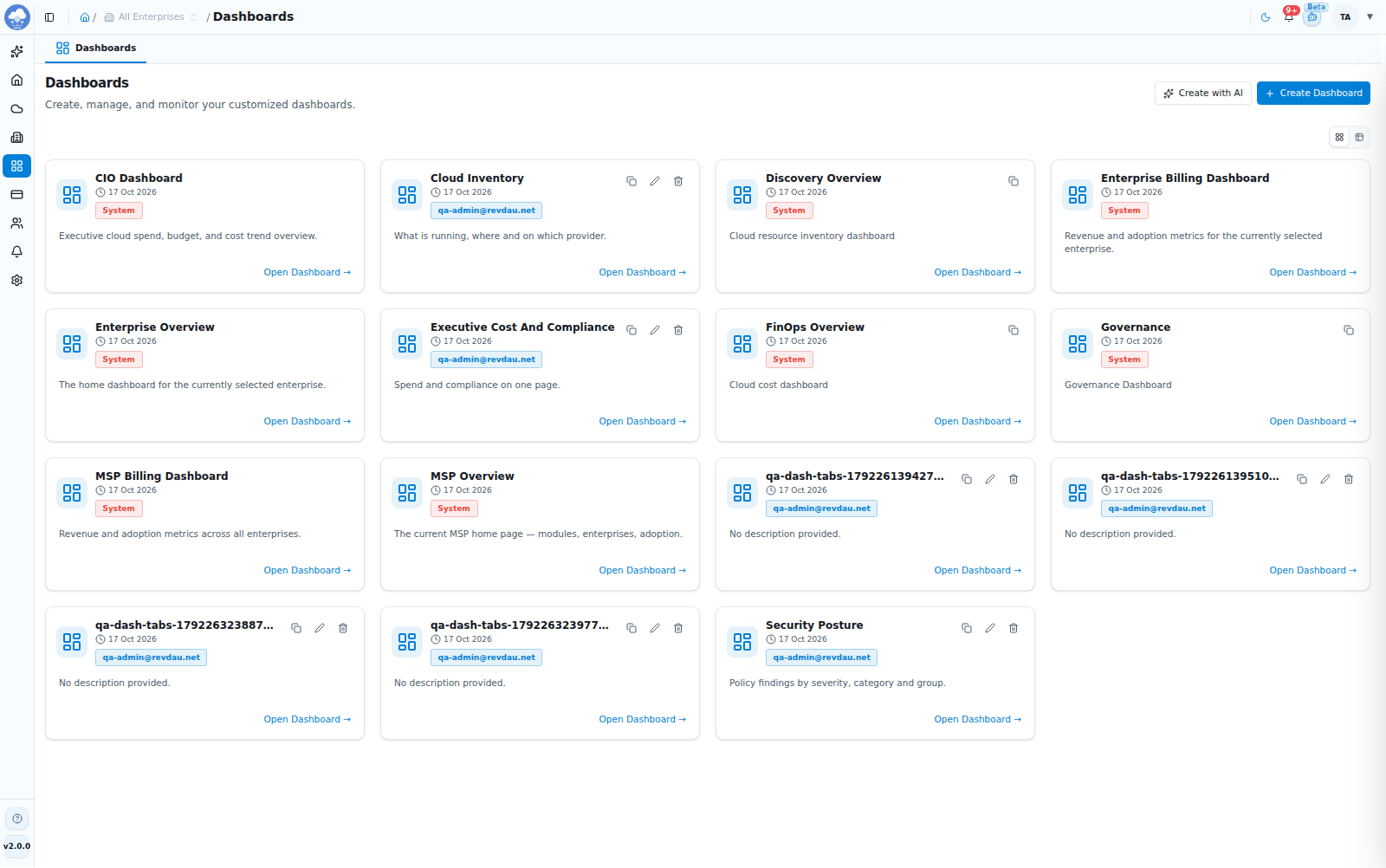
The Dashboards page with the ready-made and custom dashboards.
| Dashboard | Built for | What it shows |
|---|---|---|
| MSP Overview | MSP teams | Your whole estate: resources, enterprises, accounts, users, revenue and adoption |
| MSP Billing Dashboard | MSP teams | Revenue, billing plans and plan-change requests across enterprises |
| Enterprise Overview | Enterprise teams | One enterprise at a glance: accounts, resources, compliance, cost and module summaries |
| Enterprise Billing Dashboard | Enterprise teams | What the enterprise is billed, plan usage and renewals |
| CIO Dashboard | Executives | AWS and Azure cloud spend, how it is changing and how it compares to budget |
| Governance | Everyone | Compliance scores, risk and policy details in tabs |
| FinOps Overview | Everyone | Cost by provider, cost trend and cost by resource in tabs |
| Discovery Overview | Everyone | Resources by provider and type, and resource details in tabs |
Every dashboard has a Users tab to see who has access and a Settings tab for the Home control. The purpose-built dashboards open on an Overview tab next to them.
MSP Overview
The default Home. Seven summary cards give you Resources, Enterprises, Active enterprises, Accounts, Users with access, month-to-date revenue (MTD) and month-over-month Growth; the Enterprises and Active cards open the Enterprises list. Below them, charts show Module Adoption, Accounts by Provider, Enterprise Status and Revenue Trend, followed by a searchable Enterprise Overview table with status, accounts, users with access, modules and MTD revenue for each enterprise.
It covers every enterprise and account your role can reach, and nothing else.
MSP Billing Dashboard
Four cards show MTD Revenue, Revenue Growth, Active Plans and Pending Requests; the last two open Billing plans and Billing requests. Under them you get a six-month Revenue Trend, Revenue by Module, Plan Distribution (active and inactive plans per module), Top Performing Plans, Recent Change Requests with their status, and an Enterprise Billing Overview table.
Revenue is the price of the billing plans booked in each month.
Enterprise Overview
A welcome page for one enterprise. Four cards show Cloud Accounts, Total Resources, Users with access and Compliance Score with their change since last period, and each opens the matching page. Cloud Cost & Forecast compares actual spend with the forecast month by month, and Provider Split shows how resources are spread across providers.
Four module summaries sit underneath and take you straight into the module:
- FinOps: monthly spend and the three-month forecast.
- SecOps: critical and high severity findings by status.
- Governance: compliance score and violations.
- Orchestration: total workspaces and drift detected.
Enterprise Billing Dashboard
Four cards show your Current Monthly Bill, Active Subscriptions, Forecasted Spend and Variance against the previous period. Billing Trend compares your actual cloud spend with its forecast over six months, Cost Breakdown splits the monthly charge across modules, Active Plan Coverage shows each module plan with its usage against the plan limits for resources, transactions and cloud cost, and Renewal Schedule lists upcoming renewal dates with the amount and modules due.
CIO Dashboard
Built for executives who want the cost story without opening FinOps.
- Filters: a date range (the previous month by default, with quick picks for Prior Month, Prior Quarter and Trailing 12 Months), plus Provider and Account. It covers AWS and Azure.
- Cards: Total Cloud Spend, Spend Change (month, quarter or year over year, depending on the period) and Budget Variance. Click a card for the breakdown by cloud.
- Cloud Spend Trend Analysis, switchable between Absolute Spend, Spend Variance (Delta) and % Change Comparison.
- Provider Mix Distribution and Top 10 Accounts by Cloud Spend.
- Budget vs Actual by Department and a Budgets Summary table with budget, actual and variance, built from the budgets you manage in FinOps.
Governance, FinOps Overview and Discovery Overview
These three open like your own dashboards, with tabs, but are read-only:
- Governance: Overview (cloud compliance, compliance by group, risk heat map and compliance by category), Compliance, Risk and Policy Explorer.
- FinOps Overview: Overview (cost by provider and cost trend) and Cost Explorer (cost by resource).
- Discovery Overview: Overview (resources by provider and by type) and Resource Explorer (resource details).
Duplicate any of these three to get an editable copy you can adapt. The five purpose-built dashboards cannot be duplicated.
Which enterprises a dashboard uses
- Enterprise Overview shows one enterprise: the first one selected in the Enterprise picker. Its header reads "Welcome," followed by the enterprise name.
- Enterprise Billing Dashboard and CIO Dashboard use all the enterprises you have selected. With none selected, the Enterprise Billing Dashboard shows the active plans of every enterprise you can reach, but its trend, forecast and variance need at least one selected enterprise.
- MSP Overview and MSP Billing Dashboard cover everything your role reaches.
The Enterprise picker is only active on Accounts, so choose your enterprises there first and the other pages keep that selection. See Console tour.
Custom dashboards
Build dashboards for the questions your team asks every day: cost by provider, security findings, compliance, resource inventory.
Prefer to describe what you want in words? The AI assistant can build a dashboard for you. See Create dashboards with AI.
Create a dashboard
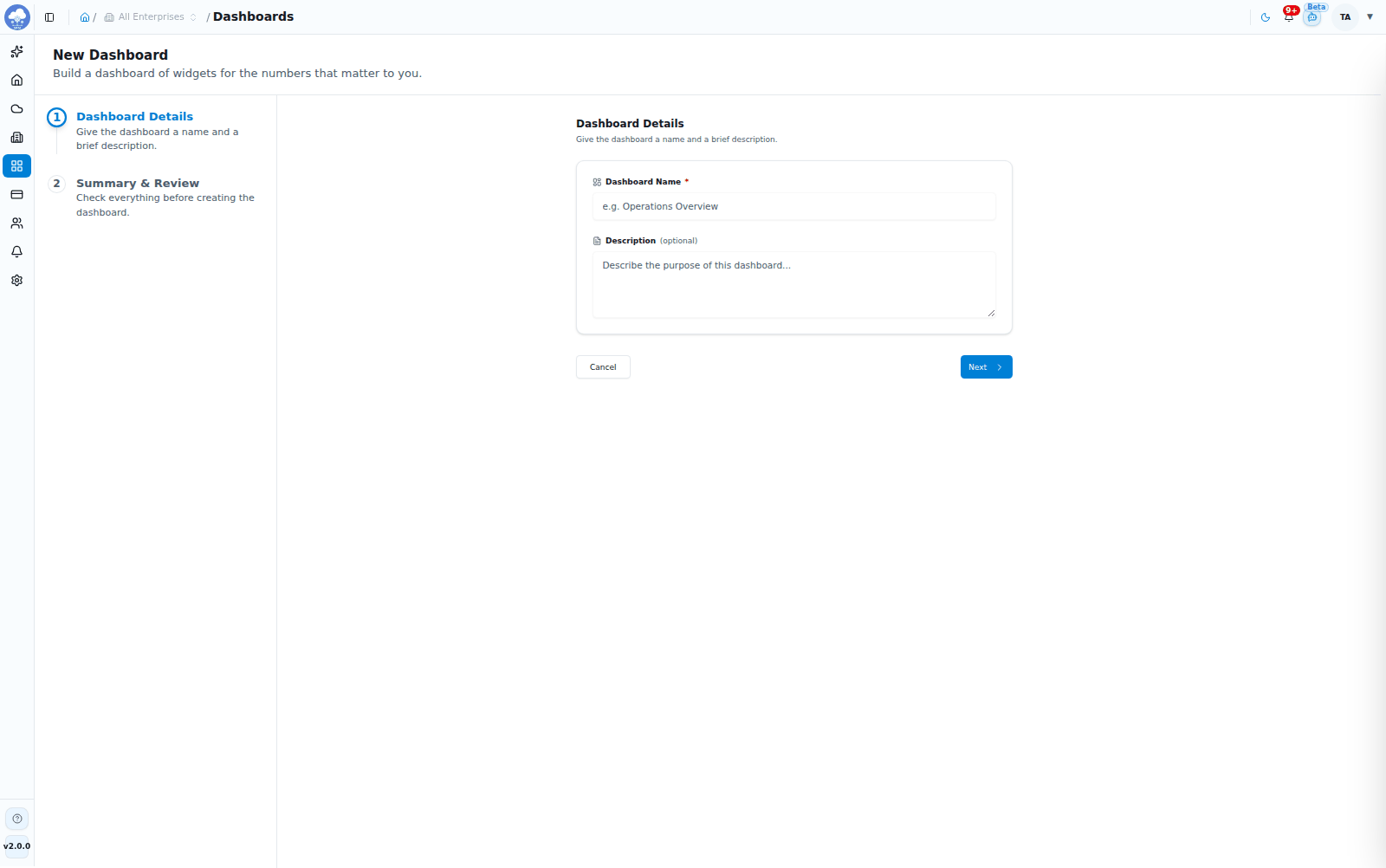
Creating a dashboard: name and description in the first wizard step.
- Open Dashboards and click Create Dashboard (or Create Your First Dashboard if the list is empty).
- On Dashboard Details, enter a name, for example "Operations Overview", and optionally a description. The name is required.
- On Summary & Review, check the details and create the dashboard.
You need write access to dashboards to create one, and people whose access is limited to specific dashboards cannot create new ones. The new dashboard opens with one tab, Main, ready for widgets.
Add content
- Add Widgets opens the widget panel. Choose Custom Widget to build your own, or Prebuilt Widgets for a gallery of ready-made cards, charts and maps.
- A custom widget can use data from any module. Pick the data, add filters, group by up to three fields, choose up to five measures and the time period, then show it as a table, line, area, bar or pie chart, or as stat cards. Each widget has a title and can be edited or removed later.
- + Add Tab adds another tab so you can group widgets, for example one tab per module. Tabs can be renamed or deleted, but a dashboard always keeps at least one.
- The Edit Layout button (pencil) lets you rearrange widgets. Click Save Layout (tick) when you are happy.
- The filter bar at the top narrows the data by date range, Provider, Account and Region.
Widgets only ever show data the person looking at the dashboard can access, whoever built them.
Manage dashboards
From the Dashboards list, each dashboard can be:
- Opened by clicking it.
- Duplicated. The copy is named with "(Copy)" and keeps all tabs and widgets, so you can adapt it without touching the original. This works for your own dashboards and for the three tabbed ready-made ones (Governance, FinOps Overview and Discovery Overview); the five purpose-built dashboards cannot be duplicated.
- Edited (name and description), or changed from its own Settings tab with Save Changes. The edit panel also lets you make a custom dashboard the default for Governance, FinOps or Discovery.
- Deleted. A confirmation asks first and deleting cannot be undone. A dashboard linked to a module is protected from deletion.
Edit and Delete are not offered for ready-made dashboards. Use the grid or table toggle above the list to switch views. The table adds Description, Created and Created By columns, where ready-made dashboards show System.
Who can see a dashboard
Every dashboard has a Users tab that lists the people with access and the role they have on it. Administrators can add people with a chosen role on that dashboard only, change a role or remove access, subject to their own permissions.
Roles can also be limited to specific dashboards. Dashboard Admin manages the dashboards you choose and Dashboard Viewer can only read them, so a team sees only the dashboards meant for it, can set only those as Home, and cannot create new ones. Among the broader roles, Viewers can read dashboards, Admins can also create and edit them, and Owners can also delete them. See Roles and access.
Giving someone a dashboard never widens their data: the numbers inside it are always limited to the enterprises and accounts their own roles reach.
Tips
- Set the dashboard you check first every morning as Home.
- Duplicate a dashboard that is close to what you need instead of starting from scratch.
- If Enterprise Overview shows an unexpected enterprise, check the Enterprise picker on Accounts. It uses the first enterprise selected.
- Give a team a Dashboard Viewer role on just the dashboards they need.