
Notifications and announcements
Stay on top of alerts in your inbox, choose how you are notified, and publish platform announcements to your users.
Notifications in the sidebar keeps you informed about what matters in your accounts and on the platform. It has an Inbox, Preferences, and, for platform owners, Announcements. The bell in the header shows a badge with your unread notifications and unread announcements together, and opens the same page.
Inbox
The Inbox ("View and manage all your notifications in one place.") lists your notifications.
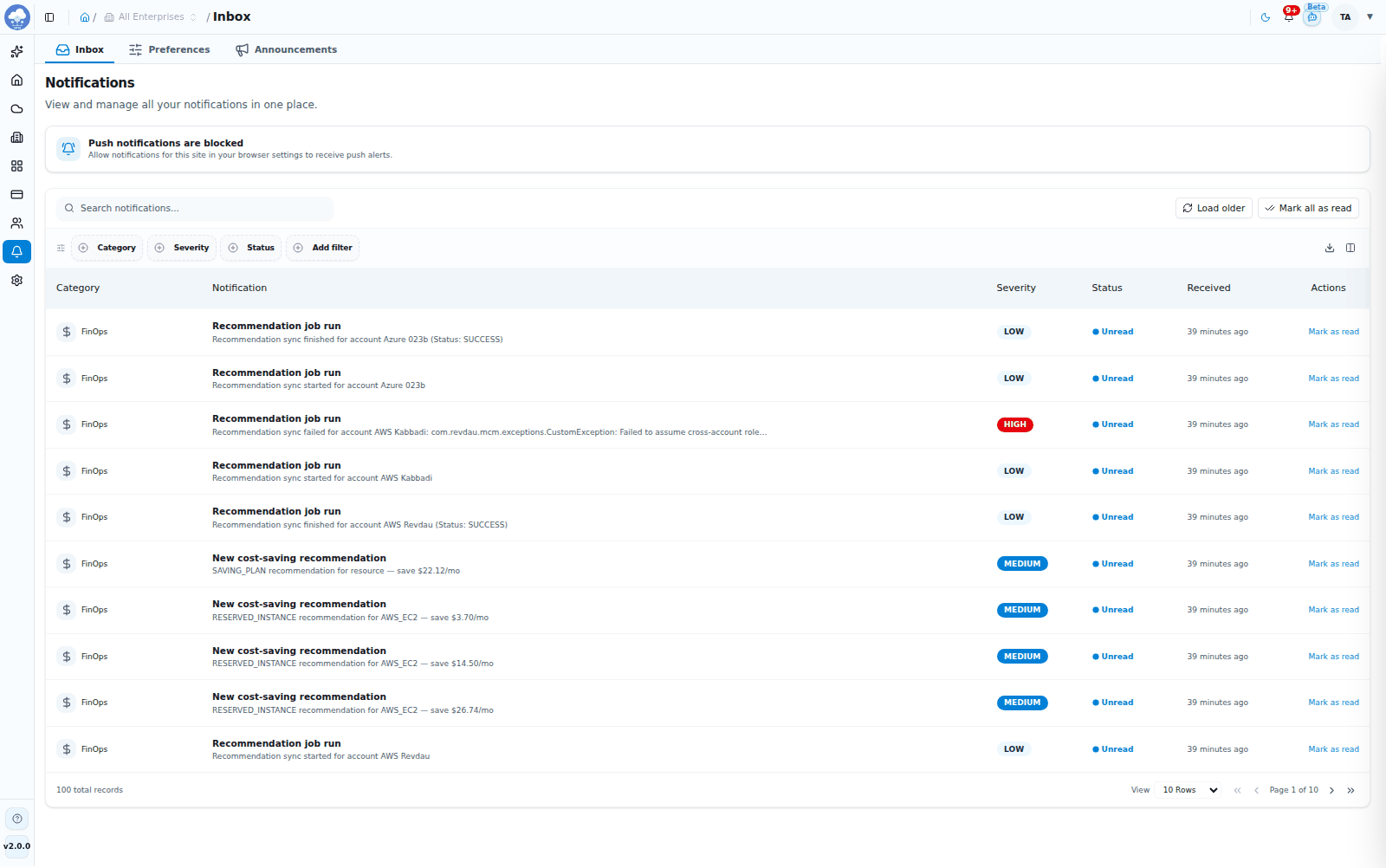
The notifications Inbox.
| Column | What it shows |
|---|---|
| Category | The area the notification belongs to |
| Notification | The message |
| Severity | Critical, High, Medium or Low |
| Status | Unread or Read |
| Received | When it arrived |
Categories are Cloud Accounts, FinOps, Discovery, Governance, SecOps, Orchestration, Module Usage Plans, Billing, User Management, System and Platform updates.
- Search with Search notifications... and filter by Category, Severity and Status.
- Click a notification to mark it read and, when it points to something, jump straight to it.
- Choose Mark as read on a row, or Mark all as read in the toolbar. Load older fetches earlier notifications.
Platform updates
When announcements are active for you, the inbox starts with a Platform updates block showing them with a severity badge and a count of new ones. Mark them read one by one or with Mark all as read.
Browser push notifications
If your browser supports it, the inbox offers Enable browser push notifications so you hear about things instantly, even when the tab is closed. Choose Enable and allow the prompt. If you see "Push notifications are blocked", allow notifications for this site in your browser settings.
Preferences
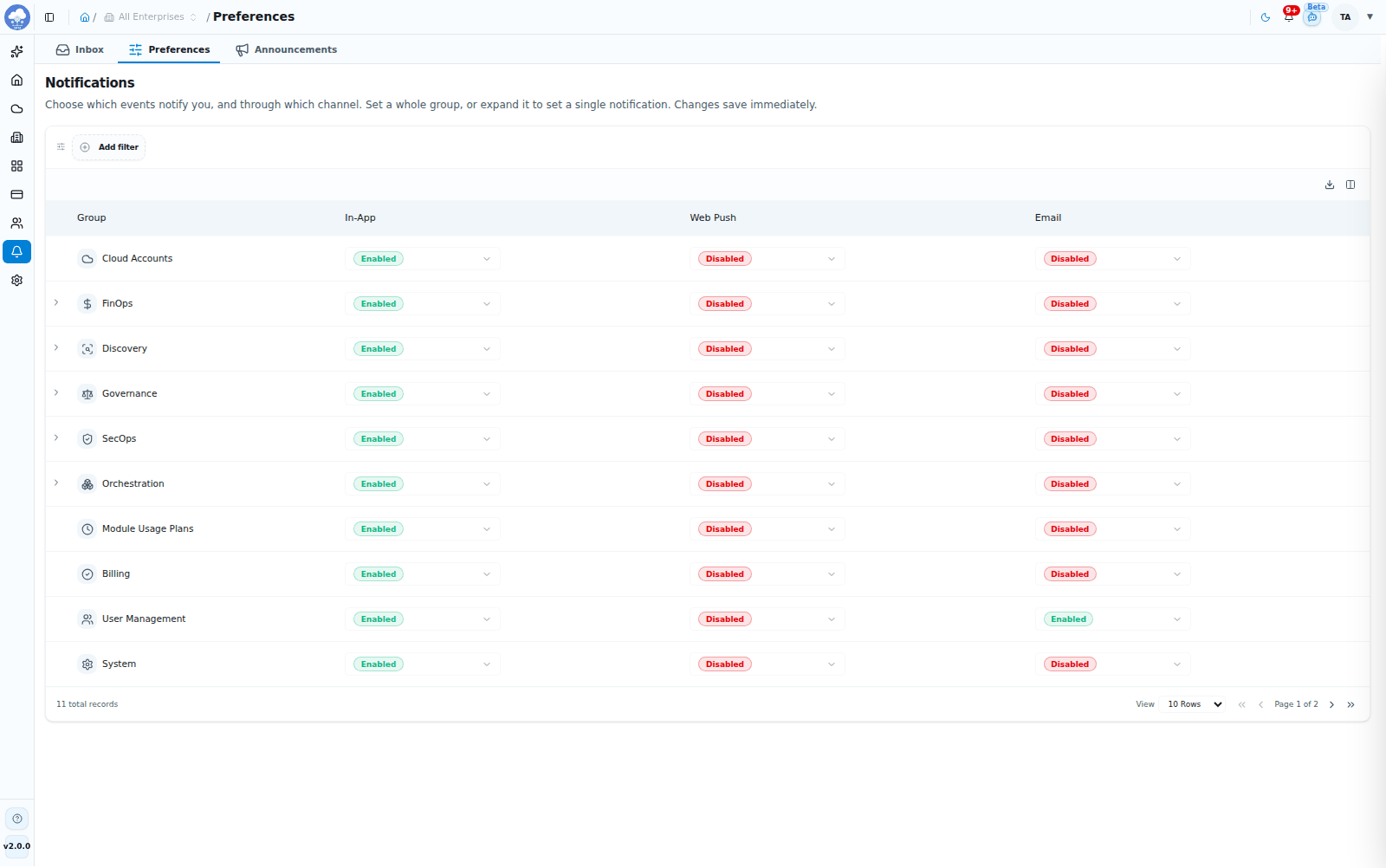
Notification Preferences by group and channel.
Preferences ("Choose which events notify you, and through which channel. Changes save immediately.") is a grid with one row per category and one column per channel: In-App, Web Push and Email. Set a whole category at once, or expand it to set a single notification. For each cell choose:
- Enabled
- High severity only
- Disabled
Tip: Set noisy categories to High severity only on email and keep In-App enabled, so nothing is lost but your inbox stays calm.
Announcements
Announcements let platform owners tell users about upgrades, maintenance or anything else that matters. The Announcements tab appears for users who can read MSP Domain Configuration (MSP Owner, MSP Admin and MSP Viewer). Creating, editing and deleting announcements needs write access, which MSP Owner has.
The table lists each Announcement, its Status (Active, Scheduled, Expired or Inactive), Severity, Audience, Starts and Ends. Search by title or message.
Publish an announcement
- Open Notifications → Announcements and choose New announcement.
- Enter a Title (required) and a Message.
- Choose the Severity (required): Info, Maintenance or Critical.
- Choose the Audience: Everyone, MSP users or Enterprise admins.
- Optionally set Starts at and Ends at to schedule it.
- Optionally tick Send web push notification and Send email.
- Choose Publish.
Use the pencil icon on a row to edit (Save changes) and the bin icon to delete. Deleting removes the announcement for all users and cannot be undone.
Platform banners
Active announcements also appear as a coloured banner at the top of the console, coloured by severity. Platform activity shows up the same way: PLATFORM UPGRADE while the platform is being upgraded, and MSP MAINTENANCE while a domain or certificate change is applied. Each banner can be dismissed. They arrive live, without a refresh.