
Profile
Update your name and picture, review your role and last sign-in, and change your password.
Your profile is the same for everyone, whatever their role. Open it from your avatar in the header and choose My Profile, or go to Settings → Profile.
What you see
The top of the page shows your picture, your full name, your status (Active or Inactive), your role and your Last Login. Checking the last login is a quick way to spot unexpected access.
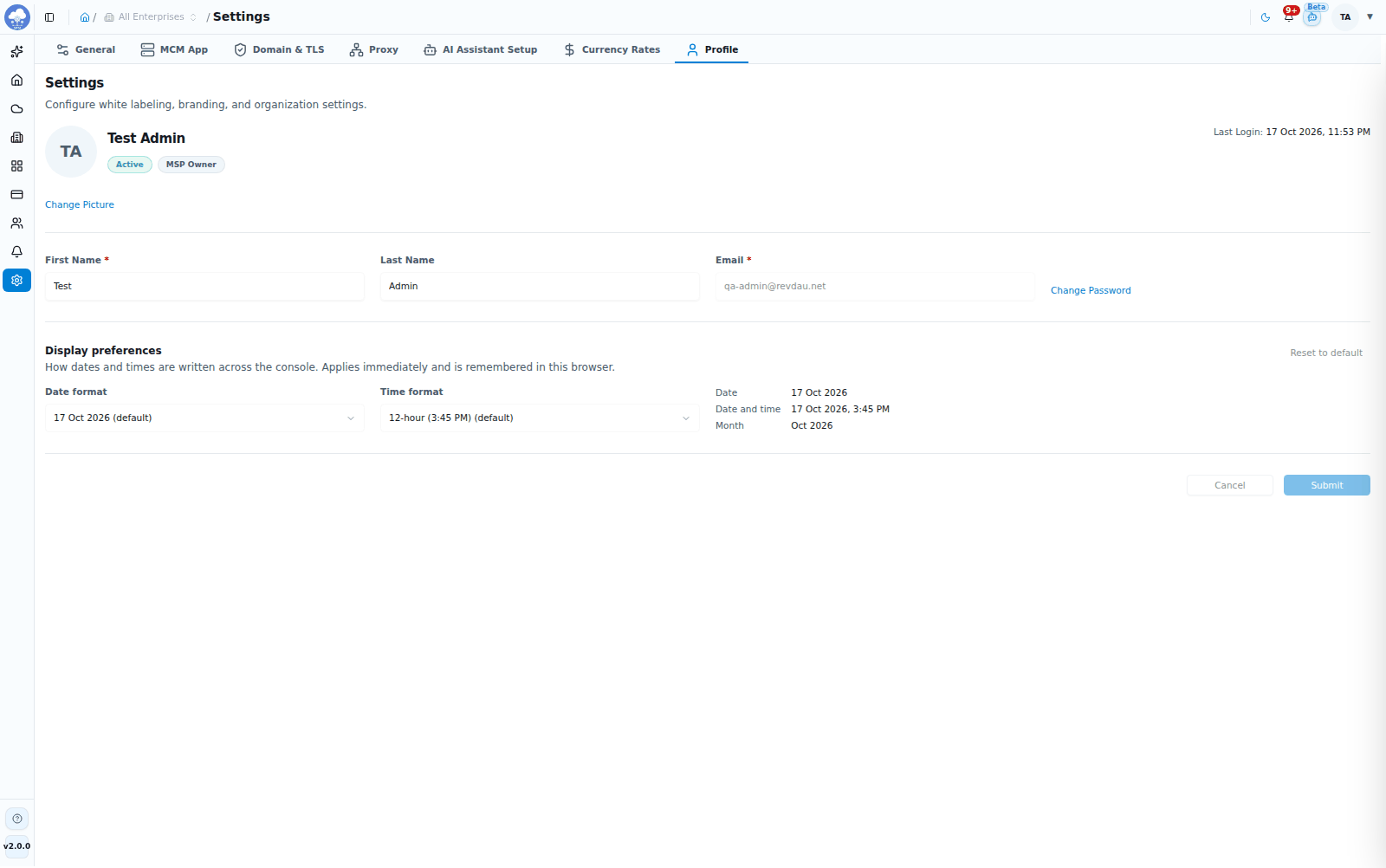
The Profile page.
Your role, together with its scope, decides what you can see and do. To change it, ask an administrator; see Roles and access.
Update your details
- Edit your First Name (required) or Last Name.
- Choose Submit to save. MCM confirms "Profile updated successfully".
- Choose Cancel to discard your edits and go back to what was saved.
Your Email is shown for reference and cannot be edited. Submit and Cancel are available once you have changed something.
Add, change or remove your picture
Your picture shows next to your name in the header and in user lists.
- Choose Change Picture and pick a JPG or PNG image. If it is too large, MCM tells you the maximum size (1 MB unless your administrator has changed it).
- To remove it, choose Remove.
- Choose Submit. The picture is saved or removed only when you submit.
Click your picture to see it full size.
Change your password
- Choose Change Password. The Reset Password panel opens.
- Enter your Old Password.
- Enter a New Password. A strength indicator shows how strong it is.
- Enter Confirm New Password so it matches.
- Choose Change Password. MCM confirms "Password changed successfully".
A password needs at least 8 characters, with at least one uppercase letter, one lowercase letter, one number and one special character. Avoid passwords you use elsewhere.
If you have forgotten your password, use Forgot password on the sign-in page instead. See Sign in.